
When an OS Update Breaks Your Laptop
Operating system installation problems are situations where installing or updating a laptop’s operating system leads to crashes, performance slowdowns, overheating, battery drain, or hardware devices like displays and peripherals failing to work correctly. Recent OS updates are not harmless housekeeping; they can and do break working laptops. A Windows 11 preview update released on June 23, 2026 (KB5095093) introduced OS Build 26100.8737 and triggered degraded performance, overheating, unexpected shutdowns, and rapid battery drain on select Dell PCs. macOS 27 Golden Gate Public Beta, while more stable than earlier builds, still brings expected bugs, performance problems, and app compatibility issues because it remains pre-release software. The bottom line: you should assume a major OS upgrade is a high‑risk surgery, not a routine tune‑up, and treat it with the same caution.
When your laptop melts down after an update, most people either panic or blame the hardware. Both reactions are wrong. OS installation problems are often about compatibility, not failure: a clashing driver, a poorly tested beta, or a feature your hardware was never meant to support. Microsoft has already confirmed that one such conflict affects client systems on Windows 11 versions 25H2 and 24H2, while Windows Server installations are unaffected. The good news is that with a clear system troubleshooting guide, you can usually stabilize things, decide whether to roll back, and prevent a repeat. The bad news is that ignoring compatibility warnings or skipping backups turns a fixable headache into data loss—and that part is entirely in your control.
Before You Click Update: The Non‑Optional OS Compatibility Check
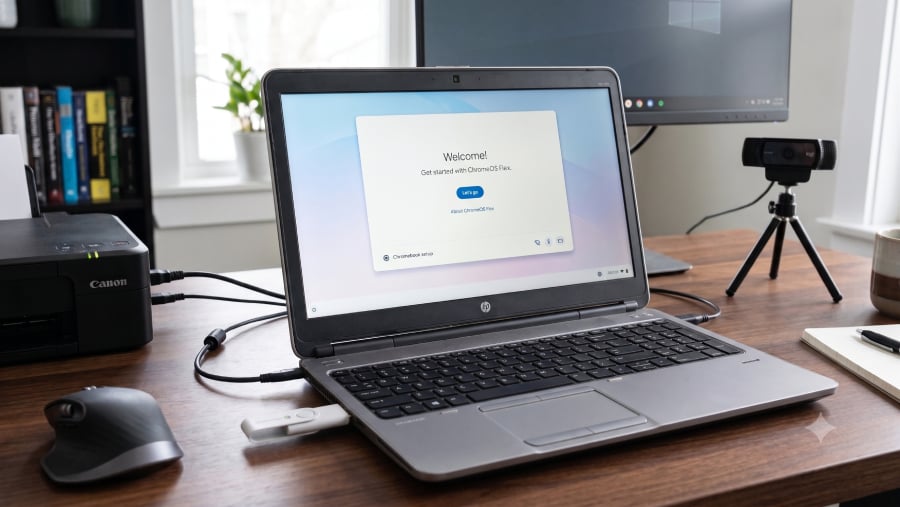
The smartest way to fix OS installation problems is to avoid them in the first place. That means treating every major update or migration as a project, not an impulse. At a minimum, you need a thorough OS compatibility check: does your hardware meet official requirements, do your apps support the new OS, and do you have a reliable escape route if things go wrong? ChromeOS Flex is a perfect cautionary tale. Google’s own guidance says you must confirm that your computer is certified, meets minimum requirements, and can boot from USB before replacing Windows. Even then, ChromeOS Flex has minimum system requirements that do not guarantee full hardware support, and a certified-device list detailing support status and known issues for each model.
- Confirm device compatibility: Check the official list for your exact model instead of assuming similar devices in the same family behave alike.
- Verify hardware requirements: Make sure CPU, RAM, storage, and firmware meet the OS’s minimum spec; remember that passing the checklist does not ensure every component will work long-term.
- Review app support: People who rely on accounting platforms, Adobe applications, engineering programs, VPN clients, device utilities, or other specialist software must confirm suitable alternatives or updates before migrating.
- Test peripherals in a non-destructive way: ChromeOS Flex, for example, can run directly from a USB drive so you can test Wi-Fi, audio, webcam, printers, docks, external displays, and Bluetooth without erasing Windows.
- Back up and prepare recovery: Back up documents, downloads, browser data, passwords, software licenses, and BitLocker recovery keys, and create installation or recovery media so you can revert if the new OS lacks essential features.
Diagnosing Laptop Update Issues: From Battery Drain to Crashes
Once the update is installed, the key is to separate "expected rough edges" from genuine laptop update issues. On macOS 27 Golden Gate Public Beta, it is normal for a Mac to run hotter, feel slower, and show temporary performance drops immediately after installation while Spotlight indexing, iCloud syncing, Photos analysis, and other background tasks complete. Your Mac may feel slower than usual, with apps taking longer to open, animations stuttering, and general responsiveness decreasing. Those symptoms do not necessarily mean the OS is broken; they indicate the system is busy. A public beta also comes with built-in risk: bugs, performance issues, and app compatibility problems are to be expected because it is still pre-release software.
But when problems do not settle down after a day or two, you need a disciplined system troubleshooting guide instead of guesswork. For battery drain and heat, the recommended steps are clear: restart the laptop, open Activity Monitor or Task Manager to find apps consuming high CPU or energy, install app updates, disconnect accessories that draw power, and reduce screen brightness when on battery. If one application repeatedly sits at the top of the energy list, it may not yet be optimized for the new OS. On Windows, the same principle applies: monitor for driver conflicts and watch official health dashboards. Users worried about performance or thermal issues on affected Dell devices are explicitly warned to monitor Windows Release Health for updates instead of manually installing KB5101650 from the Microsoft Update Catalog, because that could bypass the safeguard hold and reintroduce the problem.
Step-by-Step Recovery: Crashes, Display Glitches, and Instability
When your laptop starts crashing or showing display issues after an OS change, you need to treat it like a structured incident, not a mystery. On the macOS 27 Golden Gate Public Beta, the advice is to begin with basic steps before diving deeper: restart the Mac, install the latest beta via System Settings > General > Software Update, update apps, and free at least 20GB of storage. If problems persist, targeted fixes help: for apps crashing, check for updates from the app store or developer, quit and reopen the app, restart the Mac, and reinstall the app if needed. This is not optional busywork; it is how you isolate whether the OS or a single misbehaving app is at fault.
For more serious instability—startup problems, black screens, or boot loops—it is time for recovery tools. According to Apple’s guidance, if a Mac will not start normally, appears stuck on the logo, or displays a black screen after installing the macOS 27 Golden Gate Public Beta, you should boot into macOS Recovery, use Disk Utility to check the startup disk, or reinstall macOS without erasing files. Similar logic applies on other platforms: use built-in recovery environments, system restore, or repair installs before wiping drives. Meanwhile, remember that not every update is safe to chase. The June 23, 2026 Windows preview update KB5095093, which introduced OS Build 26100.8737, caused a driver-level conflict that produced unexpected shutdowns, poor performance, high heat, and rapid battery drain on specific Dell models. In that case, Microsoft is deliberately withholding the July 14, 2026 Patch Tuesday update KB5101650 from those devices while a fix is developed.
Should You Roll Back or Ride Out the Bugs?
The hardest decision after a broken update is whether to roll back to the previous OS or endure the problems and hope they improve. This is where beta enthusiasm collides with practical reality. The macOS 27 Golden Gate Public Beta is explicitly meant for users willing to tolerate bugs in exchange for early features, and its fixes apply to all compatible Macs. But even Apple admits there is a line you should not cross. You should consider downgrading from the beta if your Mac crashes repeatedly, battery life stays poor after several days, mission-critical apps for work or school are incompatible, external displays or accessories stop working reliably, or performance issues make the machine hard to use. In other words, when the OS threatens your productivity, roll back; when it only mildly annoys you, troubleshoot and wait.
On the Windows side, the calculus is similar but with extra landmines. When Microsoft sets a compatibility hold and warns that a preview update causes degraded performance, overheating, unexpected shutdowns, and rapid battery drain on select Dell laptops, you should treat that as a clear stop sign, not a suggestion. Users are explicitly advised to avoid manually installing KB5101650 from the Microsoft Update Catalog because that can bypass the safeguard and reintroduce the issue. The broader lesson is simple: preventive discipline beats emergency heroics. Before installing something like ChromeOS Flex, even with a convenient USD 3 (approx. ₱170) USB kit, you are urged to confirm hardware support, test essential peripherals from a USB session, review Windows apps, and prepare a recovery path. ChromeOS Flex can extend the life of a Windows 10 PC when most daily tasks happen in a browser, but it is a weaker fit for people who depend on Windows-only software, specialist peripherals, or strict workplace security needs. The same logic applies to every major OS update: respect compatibility checks, design a backup and recovery strategy, and treat your laptop like the irreplaceable tool it is, not a test bench.