
Ultrawide vs Dual Monitors: The Core Workspace Question
An ultrawide monitor setup is a single, extra‑wide display that replaces traditional side‑by‑side screens, while a dual‑monitor workspace uses two separate displays to expand your desktop; choosing between them means balancing seamless screen continuity against flexible window arrangement, cable demands, and the way you prefer to organize creative tools and timelines across your desk. For most creative professionals, ultrawides suit timeline‑heavy editing and design where one large canvas matters, while dual setups favor multitasking across many independent apps. If your day is dominated by a single main window plus reference panels, the single curved ultrawide feels cleaner and more immersive; if you need strict separation between tasks, two monitors make that division physical and straightforward. In short, prioritize continuity and low clutter for an ultrawide, or prioritise modular multitasking for dual monitors.
Hard Specs: Ultrawide Power vs Typical Dual-Monitor Limits
Modern ultrawides bring high‑end specifications that a typical dual‑monitor configuration rarely matches as a cohesive whole. For example, one leading ultrawide offers a QD‑OLED panel, 3440 x 1440 resolution, a 360Hz refresh rate, and a 34‑inch curved screen with extensive connectivity including HDMI 2.1, DisplayPort 2.1a, USB‑C and multiple USB‑A ports. Another super‑ultrawide option stretches to 5120 x 1440 at 49 inches with a 240Hz QD‑OLED panel and 0.03ms response time, while a 57‑inch 4K‑class ultrawide uses a VA panel with MiniLED backlighting at 7,680 x 2,160 and 120Hz. Dual setups can match or exceed total resolution by combining two monitors, but each screen usually has lower individual refresh rates and mixed panel types, which can feel inconsistent when dragging content across displays. If your creative work benefits from one fast, color‑accurate canvas, the spec advantage leans toward ultrawides.
| Spec | Single Ultrawide Monitor | Dual-Monitor Setup |
|---|---|---|
| Total screen width | Up to 49–57″ on one panel | Depends on two smaller displays combined |
| Resolution handling | Single high resolution (e.g., 3440x1440, 5120x1440, 7680x2160) | Sum of two independent resolutions |
| Refresh rate consistency | One refresh rate across entire screen (up to 360Hz) | Each monitor can have different, often lower rates |
| Panel type consistency | Unified QD‑OLED or VA MiniLED panel | Panel type may differ per monitor |
| Ports and inputs | Rich I/O on one chassis, including HDMI, DisplayPort, USB‑C, USB‑A | Ports spread across two housings, more cables |
| Physical footprint | Huge central footprint on desk | Wider span but with gaps and adjustable spacing |
Workflow Efficiency: Continuous Canvas vs Compartmentalized Tasks
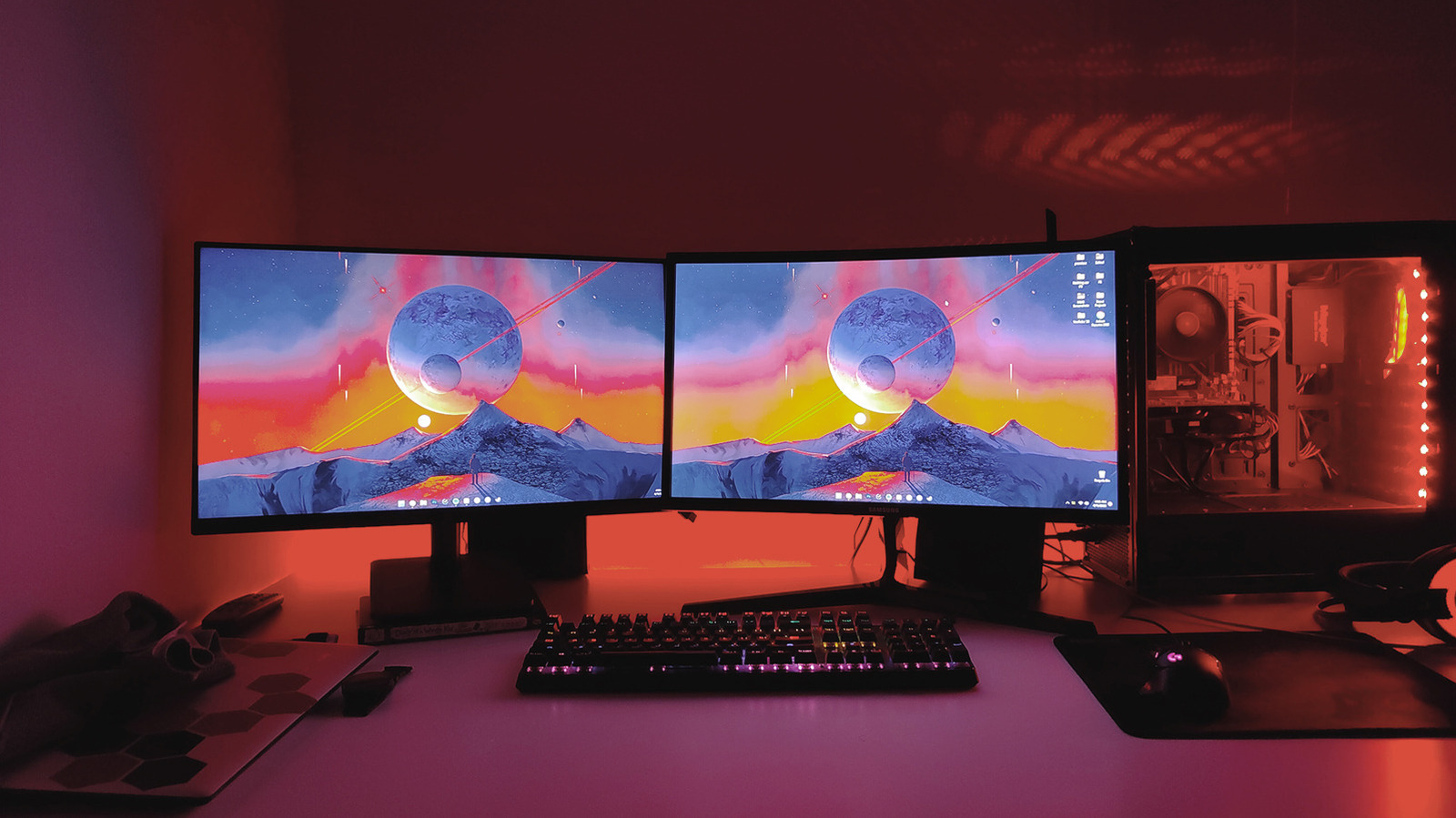
From a workflow point of view, ultrawides shine when your creative process revolves around a single complex interface: video timelines, audio sessions, or layered design documents. Continuous horizontal space without bezels makes it easier to stretch timelines and side panels across one uninterrupted view, and high refresh rates plus strong color accuracy help with both motion work and visual design. You do not need third‑party window managers to keep apps in place, because everything lives on one large desktop where windows remember positions reliably. Dual monitors, by contrast, impose a natural separation: you might keep a full‑screen editor on one display and email, asset libraries, or reference documents on the other. According to one first‑hand account, “a dual‑screen setup works beautifully if you regularly multitask” but is not necessary for every workflow. Choose ultrawide for deep focus on one main project, and dual for juggling several concurrent tasks.
Desk Space, Cable Management, and Ergonomics
On a creative desk layout, the physical experience of each monitor configuration comparison is noticeable every day. A single ultrawide becomes the central object on your desk, often described as a huge footprint and an enormous centerpiece. You only power and connect one chassis, which reduces cable clutter compared with two separate screens; single‑monitor setups “still shine” when it comes to avoiding extra cables and power outlets. However, some ultrawides lack built‑in cable management and can suffer from brightness inconsistencies at the corners, and their size can be overwhelming, especially at 57 inches. Dual monitors introduce more cables and take more total space, but they allow ergonomic angling—each screen can tilt or rotate for task‑specific comfort. With a good monitor arm, even a single large curved screen can be positioned flexibly for height and tilt, yet dual arms give granular control if you want different positions for different applications.
Shared Weaknesses, Trade-Offs, and Who Each Layout Suits
Ultrawides are not perfect: premium models can be expensive, offer little to no cable management, and show corner brightness variations. Super‑wide MiniLED options may be limited to 120Hz, have dimming zone quirks in HDR, and ship with only short warranties while occupying a huge desktop footprint. Dual setups suffer from bezels cutting through your workspace and more complex cabling; two monitors need extra outlets and occupy considerably more desk space. The best fit depends on your creative priorities. If you edit long timelines, grade video, or design across large artboards, one seamless ultrawide canvas is more efficient and visually coherent. If your day is dominated by simultaneous multi‑application work—coding on one side, communication tools on the other, or live references beside your main app—a dual‑monitor workspace keeps tasks physically separated so context‑switching feels easier. Think of ultrawide as the single project stage, and dual as the multi‑scene studio.
- Buy the single ultrawide monitor setup if your creative work centers on one main timeline, canvas, or editor window for most of the day.
- Skip the single ultrawide monitor setup if you rely on strict separation between tasks and prefer different screens for different applications.
- Buy the dual‑monitor workspace if you regularly multitask across many apps and want independent screens for communication, reference, and creation.
- Skip the dual‑monitor workspace if cable clutter, extra outlets, and bezels breaking up your visual field are deal‑breakers in your studio.
- Buy the single ultrawide monitor setup if you value immersion, high refresh rates, and a clean creative desk layout with fewer cables.
- Skip the single ultrawide monitor setup if your desk is small and a huge central screen footprint would crowd out other tools.
- Buy the dual‑monitor workspace if ergonomic angling and the ability to position each screen differently are more important than a continuous canvas.
- Skip the dual‑monitor workspace if managing two sets of cables, stands, and display settings feels like needless overhead for your workflow.