
What NotebookLM Is And Why Your Backlog Needs It
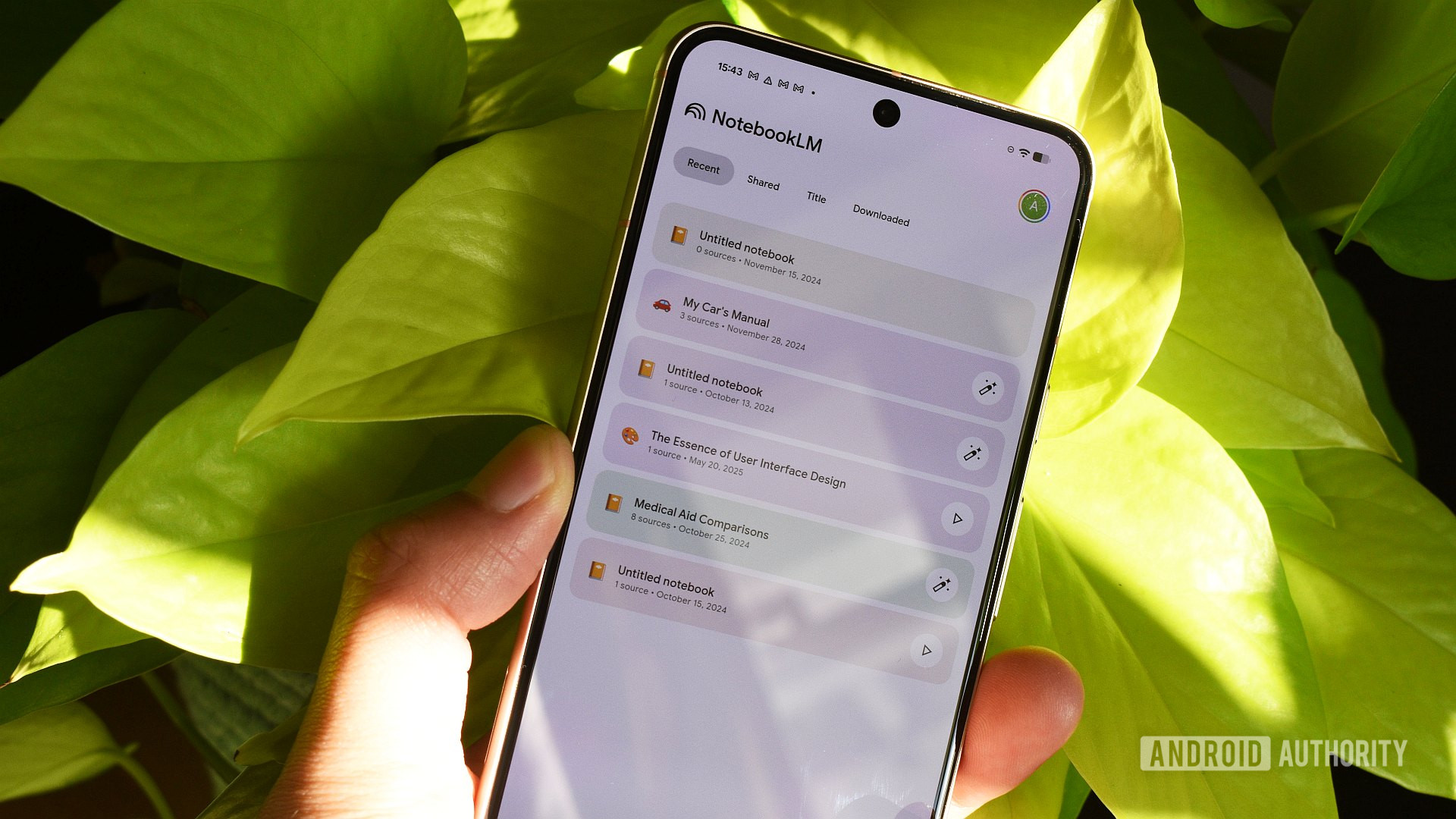
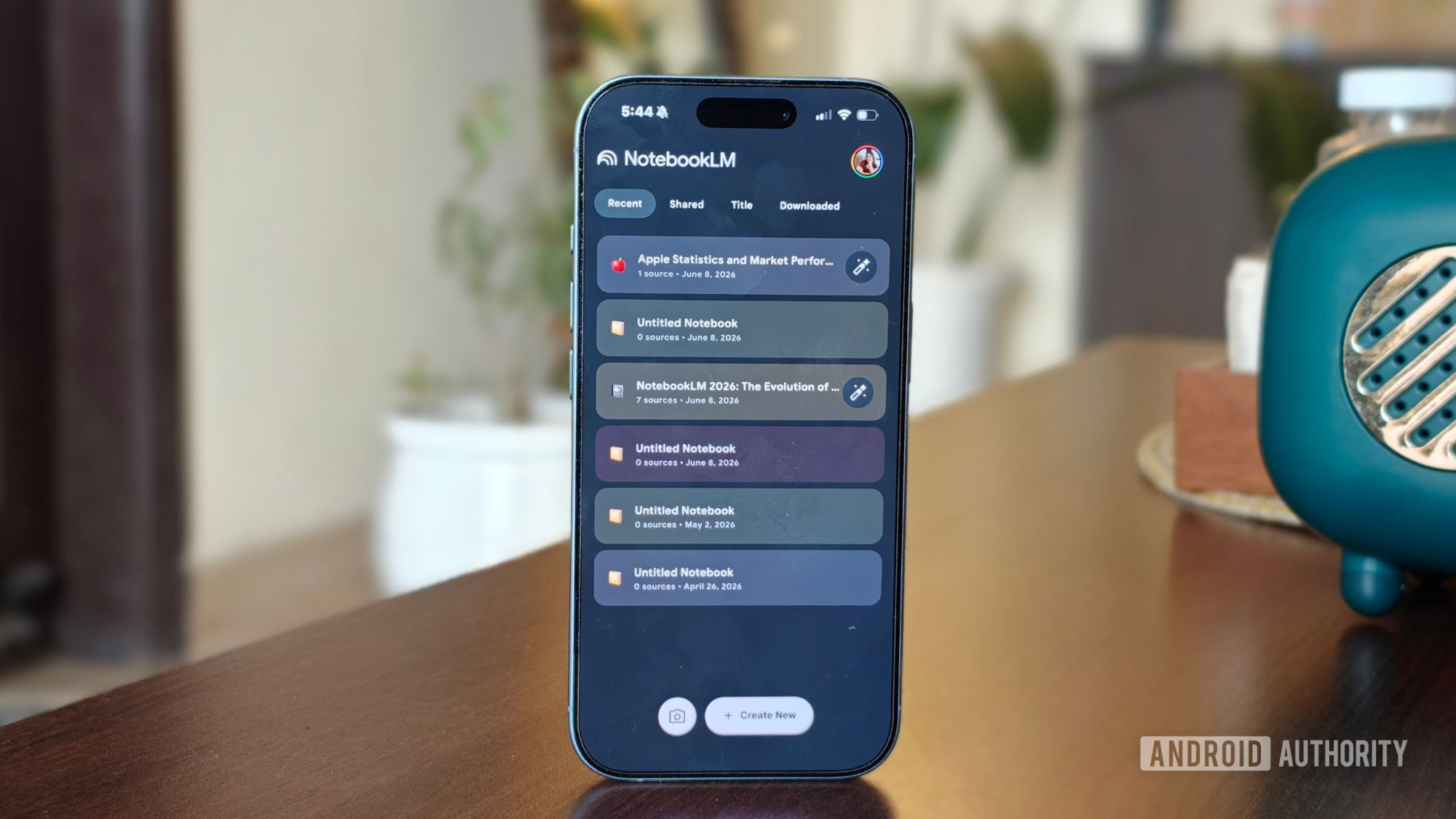
NotebookLM is an AI note organization and content organization tool that turns scattered documents, newsletters, and research into a structured, searchable knowledge management system with summaries, tables, audio, and video overviews built from your own sources.
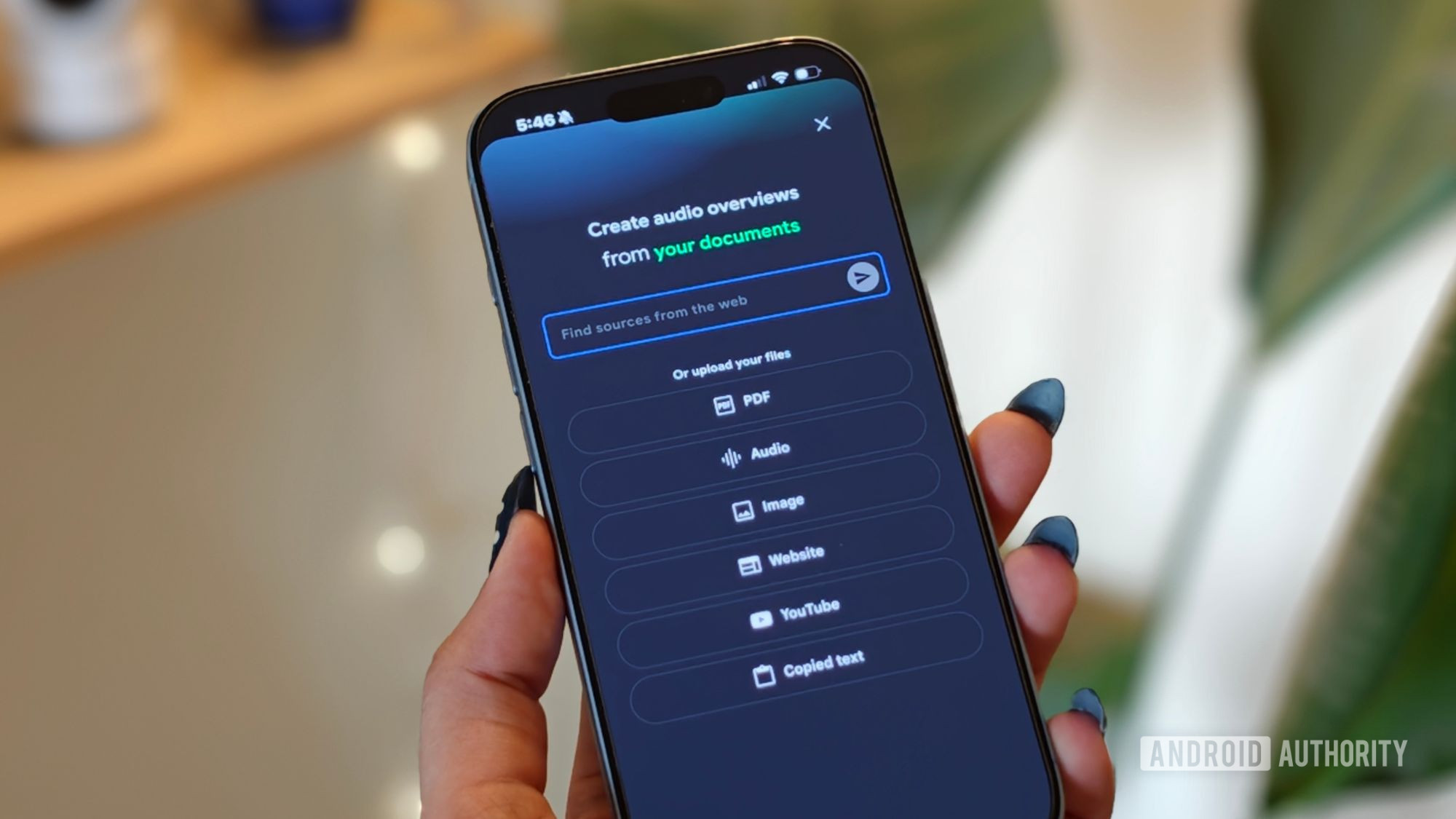
If your reading list is a graveyard of saved links, PDFs, and newsletter issues, NotebookLM can turn that mess into something you can search, query, and reuse. It can help you understand documents, organize information into tables, generate audio overviews, and even create short video summaries, all grounded in the files you feed it. Once your sources are in, the Studio panel can also turn a growing newsletter archive into an Audio Overview, a mind map, or a written report without you writing a single prompt. The real prerequisite: your content has to reach NotebookLM reliably. There is no built‑in email connector for newsletters, so you must bridge your inbox and NotebookLM with manual methods or automation. If you are willing to set up that bridge once, the payoff is a living knowledge base instead of a pile of forgotten reading.
Step-By-Step: Automate Your Newsletter Pipeline Into NotebookLM
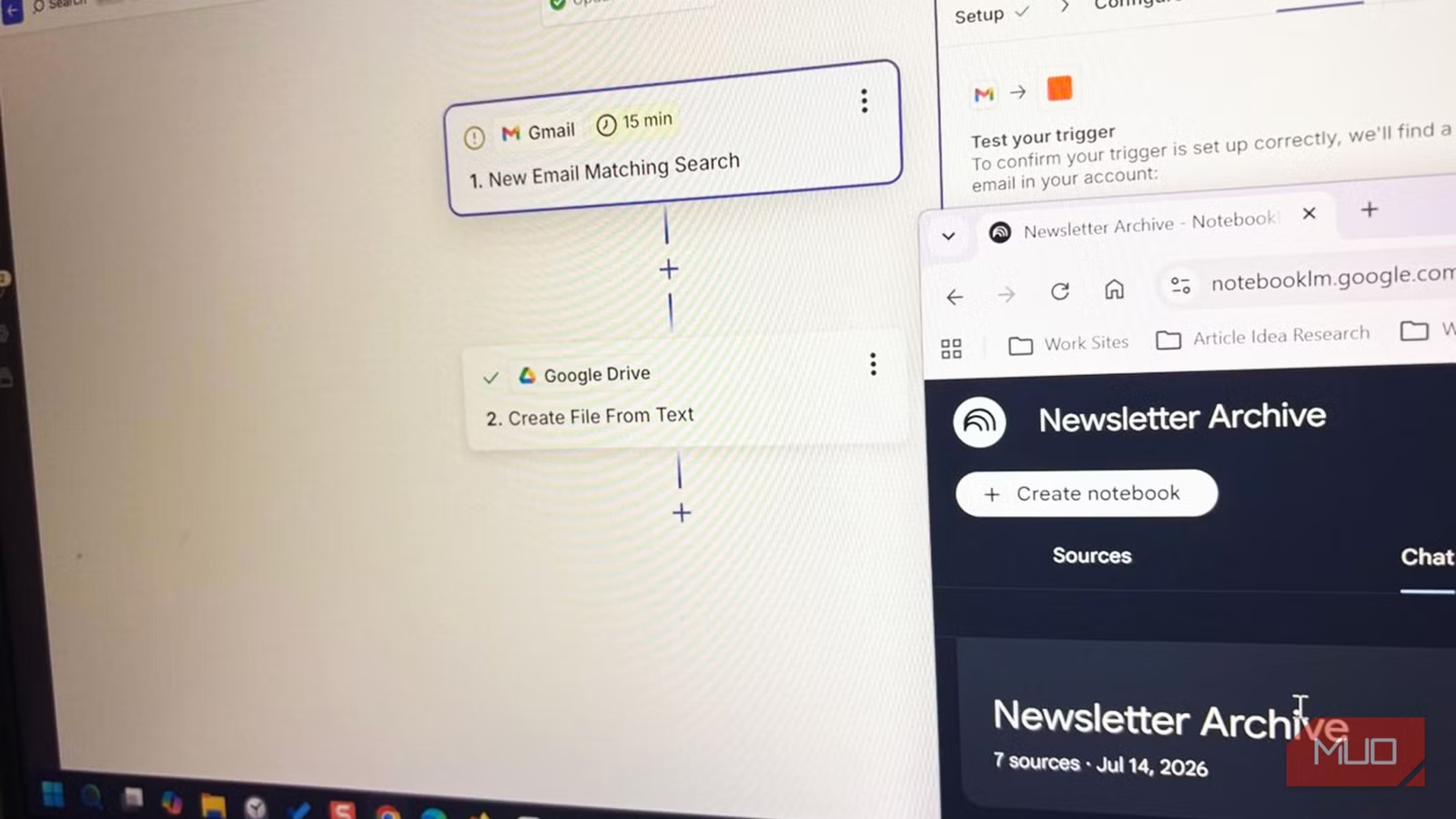
Before we talk advanced workflows, you need a reliable way to get content into NotebookLM without depending on your memory. Manual options exist: copy‑paste text into NotebookLM, batch‑export a Gmail label to PDF once a month, or use a Google Apps Script that auto‑saves matching emails to Drive. These work for the occasional newsletter, but for weekly or daily subscriptions, the “I’ll do it later” promise fails fast. One user tried copy‑pasting because it needed zero setup, enjoyed it for a week, missed two issues, and abandoned the system. Automation fixes that. You can build a two‑step Zap so new issues flow from Gmail to Google Drive, where NotebookLM can read them. Zapier’s free plan allows one trigger and one action per Zap with 100 tasks per month, which is enough for a weekly newsletter. Here is the exact sequence to copy, with the main gotchas called out as we go.
- In Gmail, label your target newsletter emails so they are easy to filter later.
- In Zapier, create a new Zap and set Gmail as the trigger app with the “New Email Matching Search” trigger.
- In the trigger’s search query, use something like "from:newsletter@example.com" so only that sender fires the Zap and nothing else in your inbox gets touched.
- Set Google Drive as the action app and choose “Create File From Text.” Map the email body into the content field and save it to a specific Drive folder.
- Turn the Zap on so every new issue lands in that Drive folder on its own. In NotebookLM, add each new issue file from that folder as a source in the notebook’s Sources panel.
Once this NotebookLM workflow automation runs for a few months, you get a searchable archive instead of scattered memories of “that one issue where they mentioned X.” From there, NotebookLM can find patterns across issues, not merely summarize each one. A common mistake is stopping after setting up the Zap and forgetting to add new Drive files to the notebook sources; without that last step, NotebookLM never sees your latest reading. Another gotcha is image‑heavy newsletters: in that case, manual PDF export for those specific issues can beat the automated HTML dump. The key is to treat automation as the default and fall back to manual exports only when the visuals matter more than the text.
Turn Old Articles Into Videos, Audio, And Structured Notes
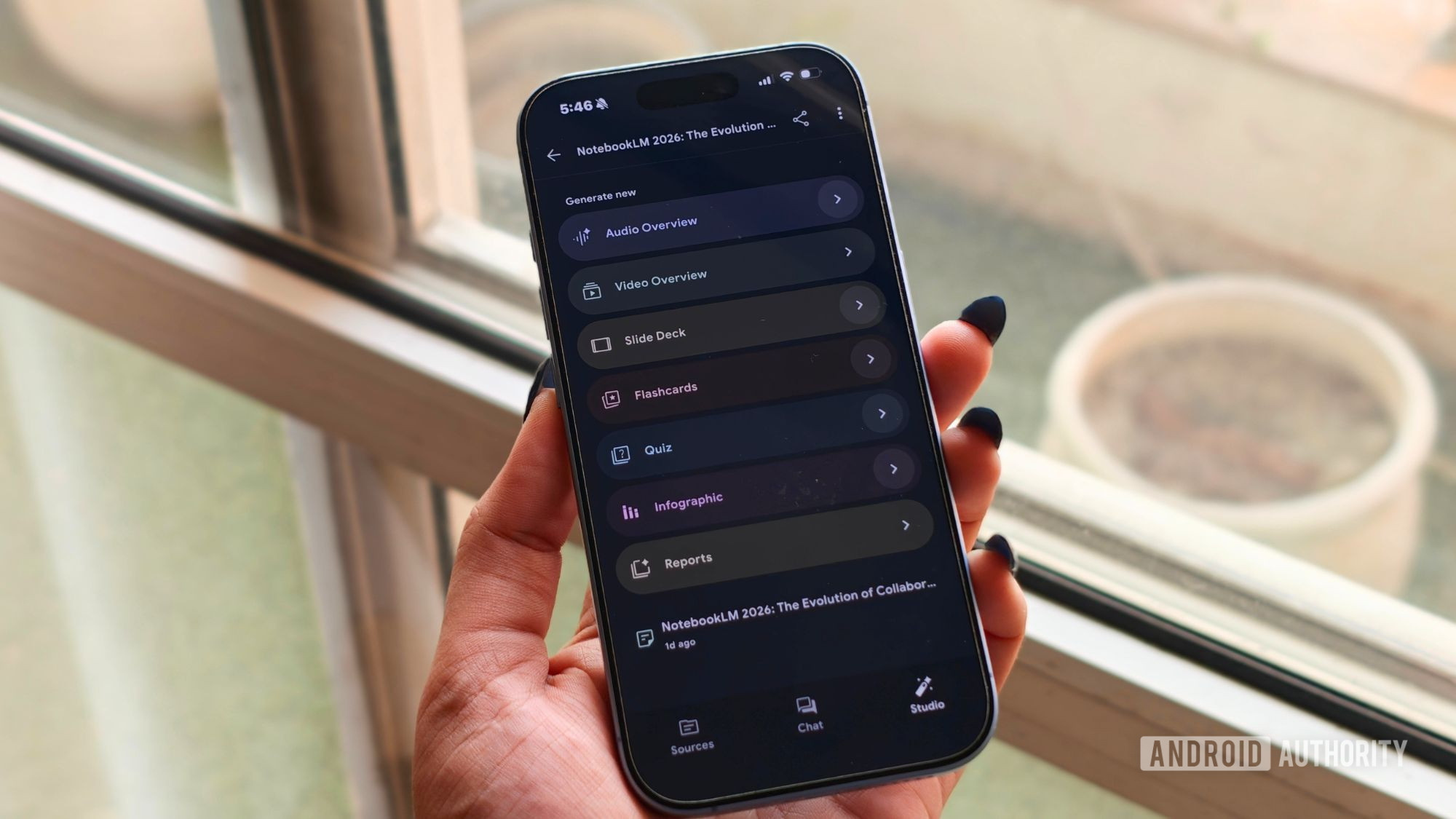
Once your content flows into notebooks, the magic is what NotebookLM does with it. Today, it can help you understand documents, organize information into tables, generate audio overviews, and create short video summaries. That means months‑old PDFs, research articles, or saved web pages can be reborn as more consumable formats without any manual rewriting. In one account, adding sources to a notebook and picking “Video overview” in the Studio panel produced a short video in about a minute that broke dense material into an easy‑to‑follow explanation. Those video overviews do more than summarize; they make information easier to process by presenting it visually, which is especially helpful when you catch yourself rereading the same paragraph. According to one regular user, these features have become part of how they work, study, and learn things outside of both, because they remove the friction of re‑digesting the same sources.
The same Studio panel that powers video overviews can turn your growing newsletter archive into an Audio Overview, mind map, or written report. That means you can cue up a weekly audio recap of all the tactics mentioned across several issues or build an outline for a blog post based on recurring ideas. The main gotcha here is source quality: if your automation pulls in messy HTML, you may find the raw files unpleasant to read yourself, but NotebookLM can still parse them. If you care about human‑readable source files, experiment with exporting cleaner PDFs for key series while letting automation handle everything else. Over time, your backlog evolves from a stack of unread content into a set of living reference materials you can skim in whatever format suits your attention on a given day.
Five Time-Saving Features For Knowledge Retrieval
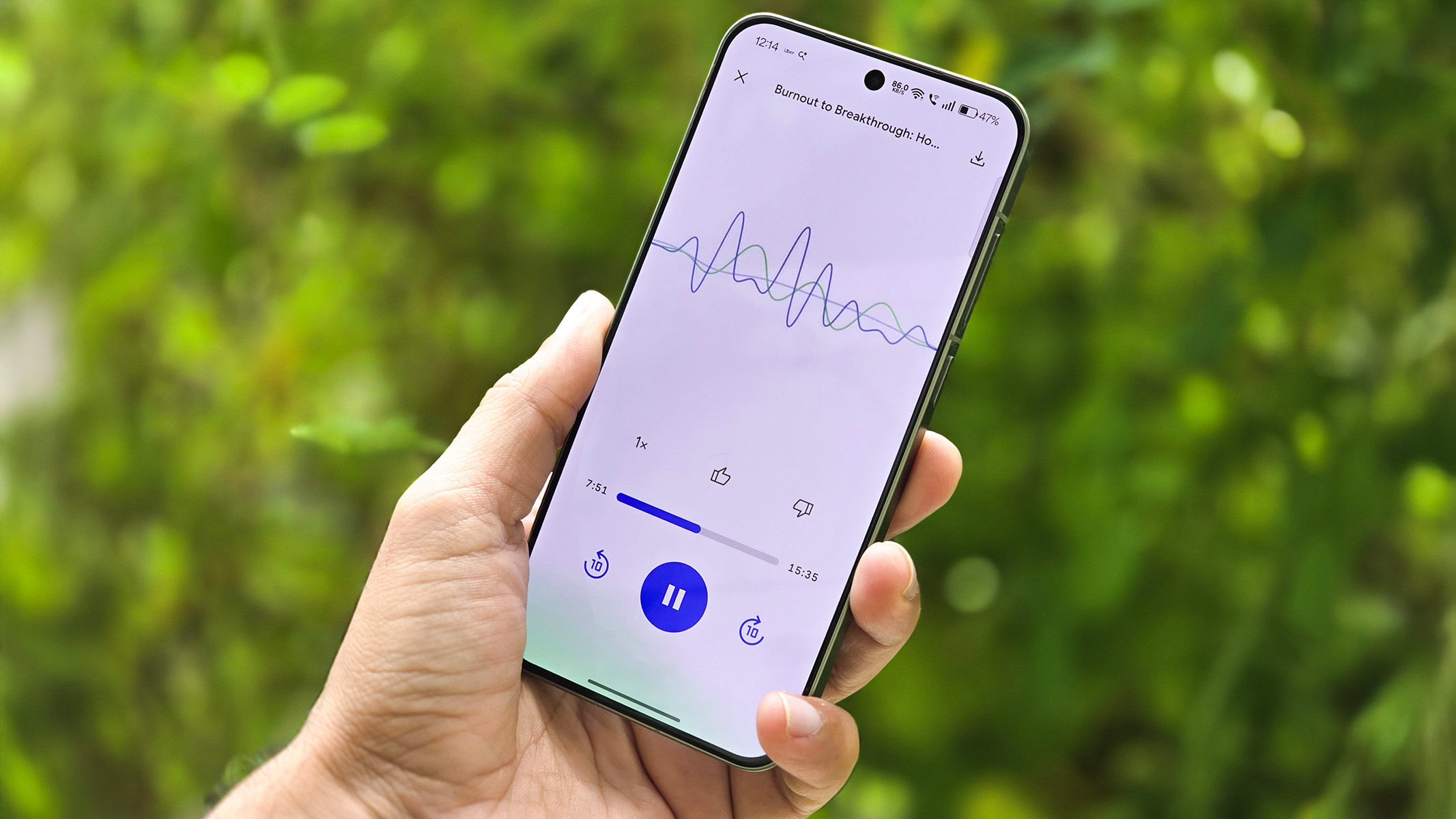
Once the pipeline is in place, focus on features that cut down the time you spend hunting for things. First, use summaries and tables: NotebookLM can organize information from your sources into tables, which is ideal for comparing tools, dates, or frameworks across multiple articles. Second, use audio overviews to give your eyes a break; NotebookLM can generate spoken summaries from your notebook sources so you can review while walking. Third, short video overviews turn dense documents into visual explainers that are easier to revisit than full papers. Fourth, slide decks can take PDFs, documents, or even YouTube videos and turn them into a rough presentation, letting you focus on editing instead of starting from nothing. If presentations are a regular part of your job or studies, this feature can handle the time‑consuming first draft while you keep control of structure, tone, and format.
The fifth tip is to customize each notebook before you start working. One heavy user keeps separate notebooks for different parts of life and tells NotebookLM exactly how they want it to respond before asking the first question. That could mean instructing it to answer in bullet points, flag contradictions between sources, or always cite where ideas came from. This transforms NotebookLM from a generic chatbot into a targeted research assistant and improves knowledge retrieval. For newsletters, a powerful query is: “Across all the newsletter issues in this notebook, identify any recommendation, tool, or idea the writer has mentioned more than once.” Once a few issues sink into your notebook, NotebookLM can find patterns across them, not just give you a summary for each one. Organizing notebooks this way makes them easier to maintain as a long‑term knowledge management system.
Make NotebookLM Fit Your Workflow, Not The Other Way Around
The last piece is integrating this system with how you already work so it reduces manual documentation overhead instead of adding a new chore. Zapier’s free plan, with one trigger and one action per Zap and 100 tasks a month, is enough for one weekly newsletter pipeline without extra cost. From there, NotebookLM can auto‑sync with individual documents in Drive, which means new content slides quietly into your notebooks while you focus on using it. For presentations, using slide decks as a first draft lets you keep your existing slide tools and workflows while offloading the grunt work of structuring content. The most common mistakes are relying on copy‑paste forever, which tends to collapse after a week, and ignoring formatting problems from HTML clutter. If your newsletter is unusually image‑heavy, that is one case where a manual PDF export still beats automation for readability.
Done well, this setup turns your content backlog into an organized, searchable knowledge management system that keeps paying off. After a few months, you will have a searchable archive instead of scattered memories of “that one issue where they mentioned X.” NotebookLM features that started as nice‑to‑have helpers can become part of how you work, study, and learn across topics. The payoff is not that you “read more,” but that you reuse what you read—turning old articles and newsletters into slides, scripts, reports, and decisions. Start with one newsletter, one notebook, and a single automation. Once you see that archive grow and watch NotebookLM surface links between issues, you will know which part of your backlog to wire up next.