
LibreOffice vs Microsoft Office: A quick verdict for everyday users
Switching from Microsoft Office to LibreOffice means trading Microsoft’s polished, cloud-connected subscription suite for a free, open‑source alternative that covers most everyday work with some interface quirks and weaker dark mode. For individuals and small teams focused on word processing, spreadsheets, and simple presentations, LibreOffice is a viable Office subscription replacement that avoids ongoing fees. If you live in shared documents, advanced collaboration, or rely on a flawless dark theme, Microsoft Office still feels smoother. The bottom line: budget-conscious users who can tolerate a learning curve will gain flexibility and savings with LibreOffice, while users who prioritize visual polish, seamless dark mode, and deep ecosystem integration are better off staying with Microsoft’s tools.
LibreOffice as a free Office alternative: Where it keeps up
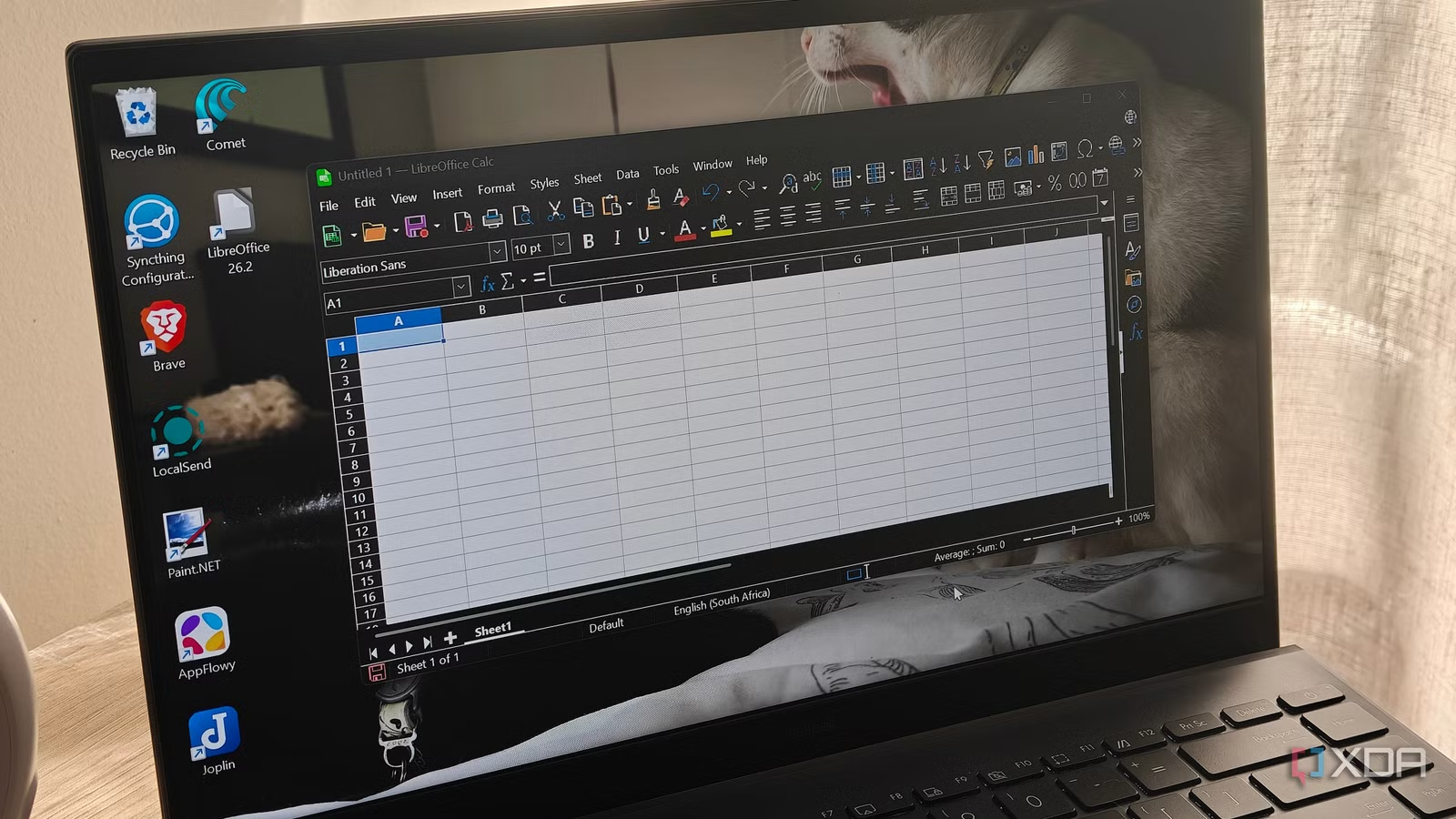
LibreOffice is a free and open‑source office suite that aims to be one of the most complete Microsoft Office alternatives. As a free Office alternative, it gives you Writer for documents, Calc for spreadsheets, and Impress for presentations without a subscription. For many users who mainly rely on Word and Excel, LibreOffice Writer and LibreOffice Calc cover all the use cases needed when replacing Microsoft 365, with the core features you expect from a modern word processor and spreadsheet editor. Writer supports page and text formatting, image and signature insertion, word count, spell check, templates, document comparison, and even an accessibility checker. Calc handles filters and common functions well, which is enough for tasks like sorting bank statements for taxes and summing income. According to the source author, “LibreOffice is one of the most complete Microsoft Office alternatives, and it’s entirely free and open‑source.”
Where Microsoft Office still wins: Dark mode and polish
The biggest day‑to‑day weakness when comparing LibreOffice vs Microsoft Office is dark mode. LibreOffice lets you change the whole interface and document background to a dark theme via Tools → Options → LibreOffice → Appearance. But with pre‑existing documents, the theme does not always apply consistently: text can fail to render correctly or only parts of the document switch to dark, and changing font colors often does not fix the issue. This is a real problem if, like many users, dark mode is an accessibility need rather than a style preference. Microsoft’s dark mode handling in Word and Excel tends to be more predictable and integrated, so users coming from that polished experience will notice LibreOffice’s hit‑and‑miss behavior immediately. Online suites are not perfect either—many do not have native dark mode on the web and depend on unreliable browser hacks—but Microsoft still feels more consistent out of the box.
| Spec / Aspect | LibreOffice | Microsoft Office |
|---|---|---|
| Pricing model | Free, open‑source suite with no subscription fees | Subscription-based Microsoft 365, not free (price not specified in sources) |
| Core apps for documents & spreadsheets | Writer and Calc cover word processing and spreadsheets, with expected modern features | Word and Excel as part of Microsoft 365, used as the original baseline in the comparison |
| Dark mode behavior | Configurable dark theme; inconsistent on many pre‑existing documents and can make text hard to read | Dark mode implementation described as the one feature the user clearly misses when moving away |
| Templates & extras | Basic templates, plus tools like document comparison and an accessibility checker in Writer | Richer template library and overall more polished interface (implied by comparison) |
| AI assistant | No built‑in AI assistant by default; user did not miss Microsoft’s Copilot | Includes Copilot, but it was underused and sometimes unhelpful for the user’s spreadsheets |
Migration, learning curve, and the rise of self‑hosted document setups
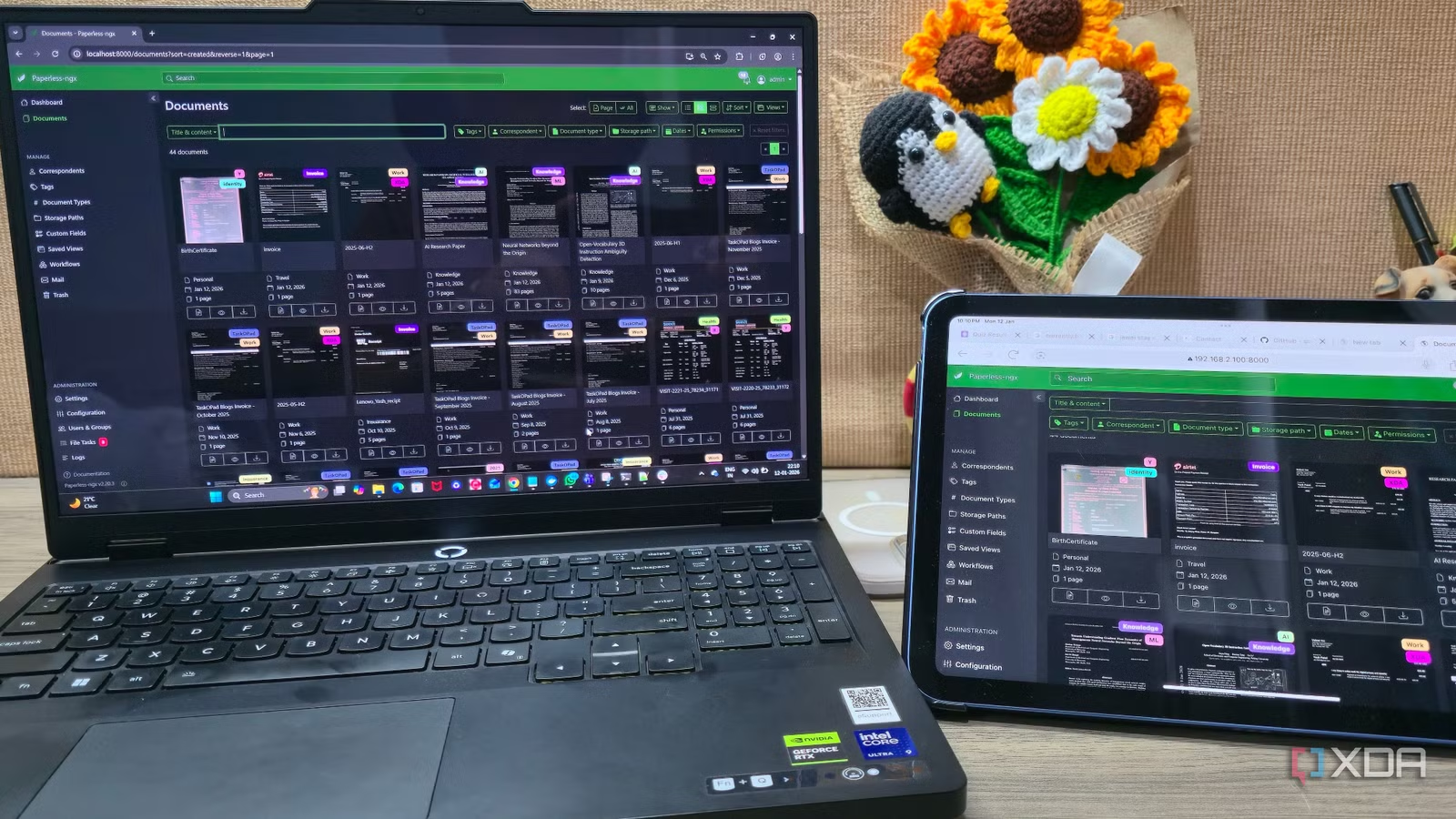
Migration from Microsoft Office to LibreOffice is feasible for document editing, spreadsheets, and presentations if your work is mostly local and individual. The main adjustment is learning LibreOffice’s menus, options, and slightly different behavior in features like dark mode and templates, but the functional coverage for typical documents is strong enough to replace Microsoft 365 in many workflows. For teams, the decision now sits in a wider context: you can mix LibreOffice on the desktop with self‑hosted document management and storage. Self‑hosted platforms like Paperless‑ngx show how open‑source tools can become core infrastructure for storing and searching bills, receipts, and scanned PDFs via automatic processing and OCR. As self‑hosted document management solutions compete with cloud‑based Office alternatives, enterprise teams have more ways to keep control over their data, using LibreOffice as the editing layer while relying on their own servers instead of a vendor’s cloud.
Buy if / Skip if
- Buy the LibreOffice option if you want a free Office alternative that covers everyday document and spreadsheet tasks without subscription fees.
- Skip the LibreOffice option if you depend on flawless dark mode for comfort or accessibility and cannot tolerate inconsistent theming in older documents.
- Buy the LibreOffice option if your use of Office is limited to Word- and Excel-style work and you are willing to learn a slightly different interface.
- Skip the LibreOffice option if you rely on Microsoft’s broader ecosystem, advanced collaboration features, or polished templates and design tools.
- Buy the Microsoft Office option if you value a more refined interface, predictable dark mode behavior, and integrated features like Copilot even if they are not used heavily.
- Skip the Microsoft Office option if paying an ongoing subscription for tools you mainly use for basic documents and spreadsheets feels wasteful.
- Buy the LibreOffice option if you plan to pair a free Office alternative with self‑hosted document management to keep tighter control of your files.