
Why Your BIOS Matters More Than You Think
BIOS performance settings are low-level firmware options that define how your CPU boosts, how much power it can draw, how fast your memory runs, and how aggressively your system cools itself, which means misconfigured defaults can throttle gaming and workload performance long before Windows even loads.
If your PC feels slower than it should, your BIOS/UEFI is one of the first places to look, not the last. Many boards ship with conservative, power-saving defaults that prioritize stability and silence over speed. The BIOS controls CPU boost behavior and power limits, memory speed, system temperatures, and even GPU performance through features like Resizable BAR. Manufacturers continuously refine this firmware to suit newer components, so leaving it in the same state it shipped in often means leaving performance unused. In fact, “a BIOS update is the easiest, zero-cost upgrade that will deliver more performance from your hardware.” A realistic prerequisite: you need stable power, an internet connection, and a bit of patience—not special overclocking skills—to start PC performance tuning in the BIOS.
Before You Touch Anything: Prep and Real Gotchas
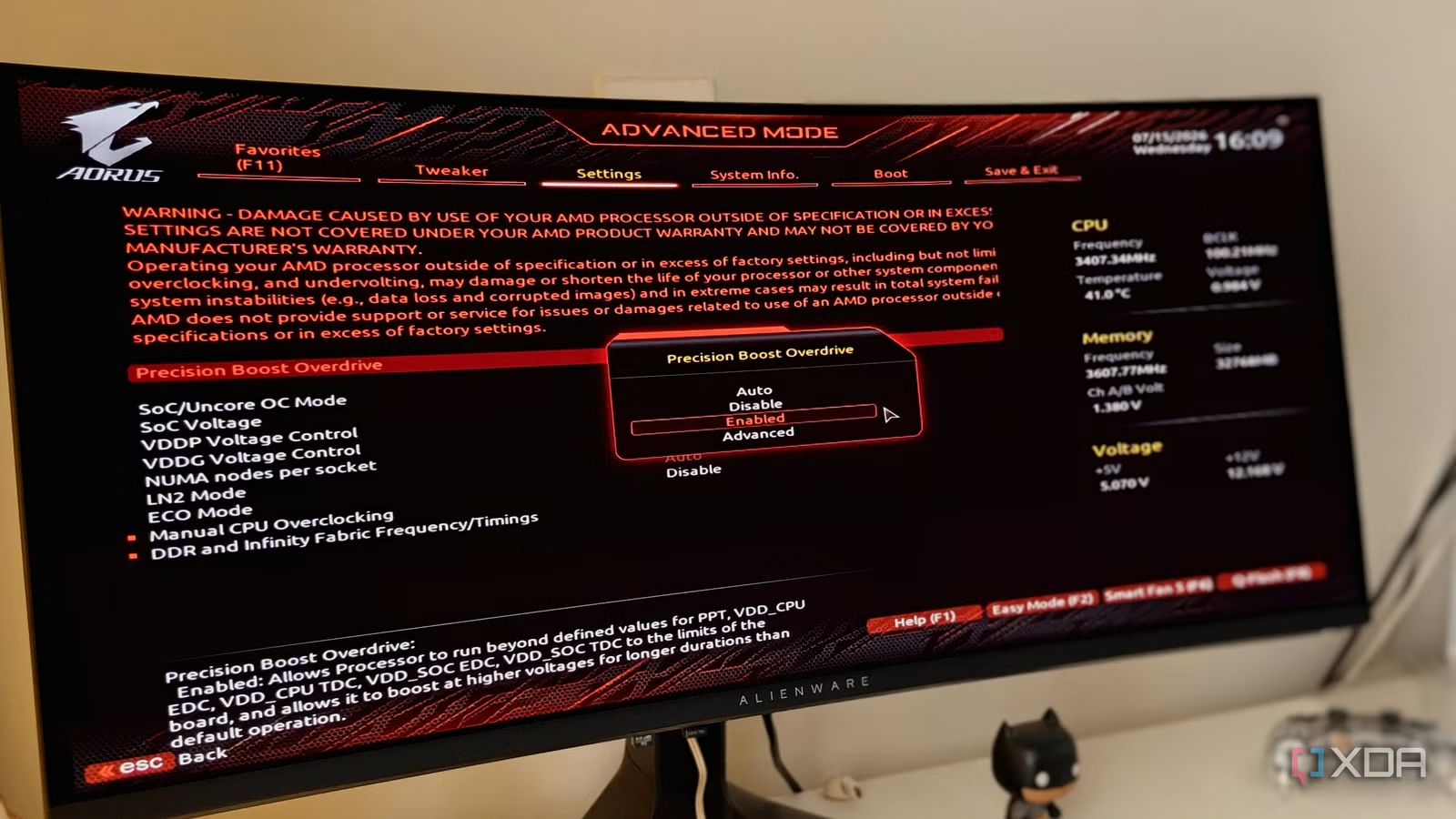
Treat BIOS work like doing wiring in your house: small changes, big consequences, and you avoid trouble by preparing. First, ensure you have stable power and an internet connection so a BIOS update or reset doesn’t get interrupted and brick your motherboard. Back up any existing settings first, because a BIOS flash or full reset wipes custom configurations and fan curves. The other non‑negotiable step is checking your motherboard support page to read what each firmware version changes; some updates focus on security while others fix performance bugs or unlock new CPU modes.
The two most common mistakes I see: people forget that XMP/EXPO profiles are disabled by default, so expensive DDR5 kits run at slow JEDEC speeds until you manually enable them, and they assume Resizable BAR is always on, when swapping CPUs or other hardware can quietly revert UEFI to defaults and disable it. The gotcha is that these “safe” defaults are exactly what cause hidden CPU throttling and memory bottlenecks—you’re not underpowered; your firmware optimization is underdone.
Step-by-Step: Core BIOS Checks for Free Performance
Here’s the practical walkthrough I’d give a friend before they spend money on new hardware. Follow the sequence—BIOS changes stack on each other, and doing them out of order can hide whether a problem is thermals, power limits, or memory speed. Once you know which settings to enable, you can extract more performance without threatening system stability.
- Enter your BIOS/UEFI and load optimized defaults, then save and reboot back into the BIOS so you start from a known, stable baseline instead of unknown tweaks.
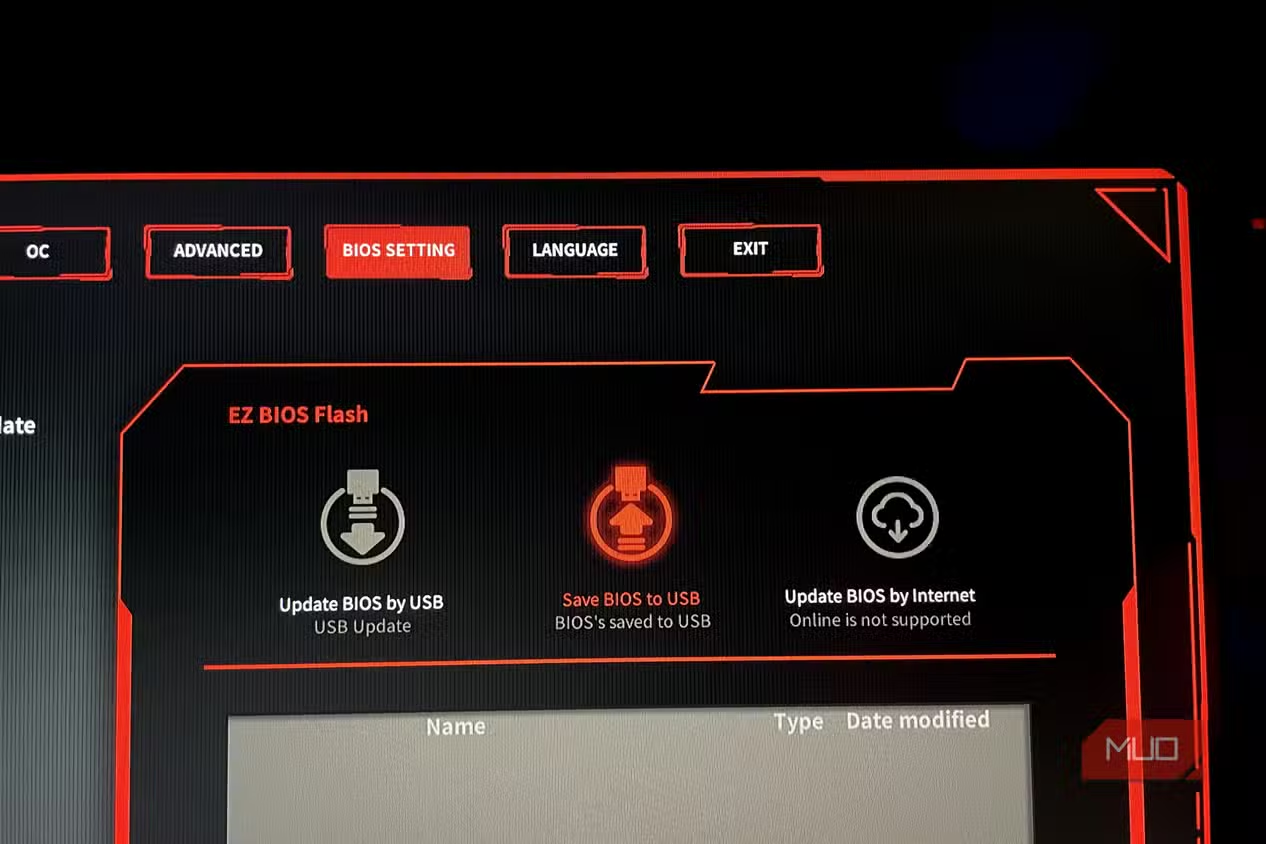
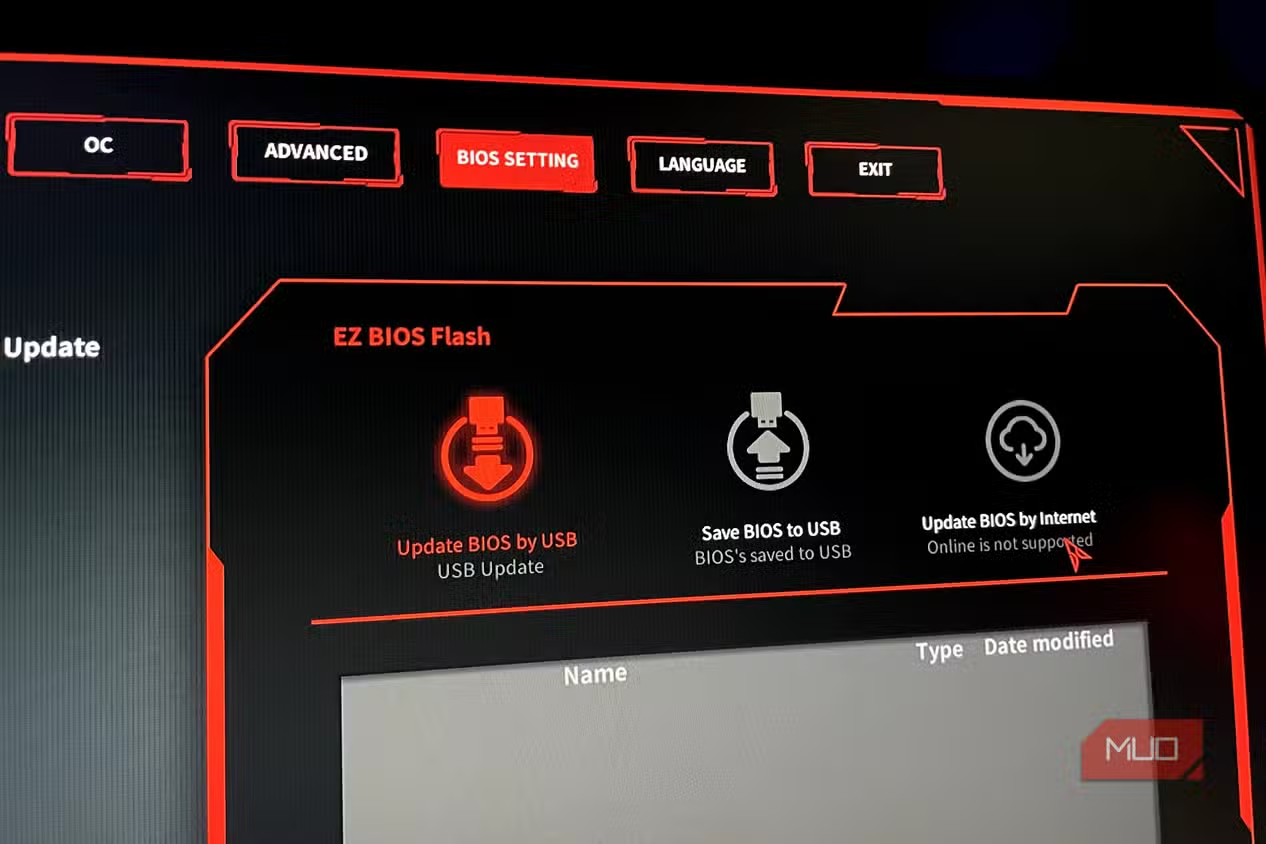
- Update the BIOS to the latest stable firmware from your motherboard’s support page, following the exact flashing instructions and confirming what the update improves beforehand.
- Enable XMP/EXPO for your RAM so it runs at the frequency, voltage, and timings you paid for instead of JEDEC defaults that prioritize maximum stability over speed.
- Check CPU performance settings like PBO or Turbo Boost to ensure boost behavior and power limits are enabled rather than stuck in conservative or eco modes that cap performance.
- Create or select a more aggressive custom fan curve for your CPU and case fans so they ramp earlier under load, preventing thermal throttling that silently reduces performance.
- Verify Resizable BAR (sometimes labeled Smart Access Memory) is enabled so your CPU can access the full VRAM on your GPU and avoid legacy BIOS limitations.
- Save changes, boot into your OS, and stress‑test with a demanding game or workload while watching temperatures and stability, then return to the BIOS to fine‑tune if needed.
The performance upside here is not hypothetical. Firmware refinements and updated power modes have delivered up to 10% gains for some CPUs, and these enhancements can “help you easily pump out a few more FPS, making it the most effective free upgrade available.” You need adequate cooling to make the most of automated boosting algorithms, but when thermals and power limits are set correctly, you get a solid CPU throttling fix without exotic overclocks.
Which Settings Hurt Performance and How to Spot Them
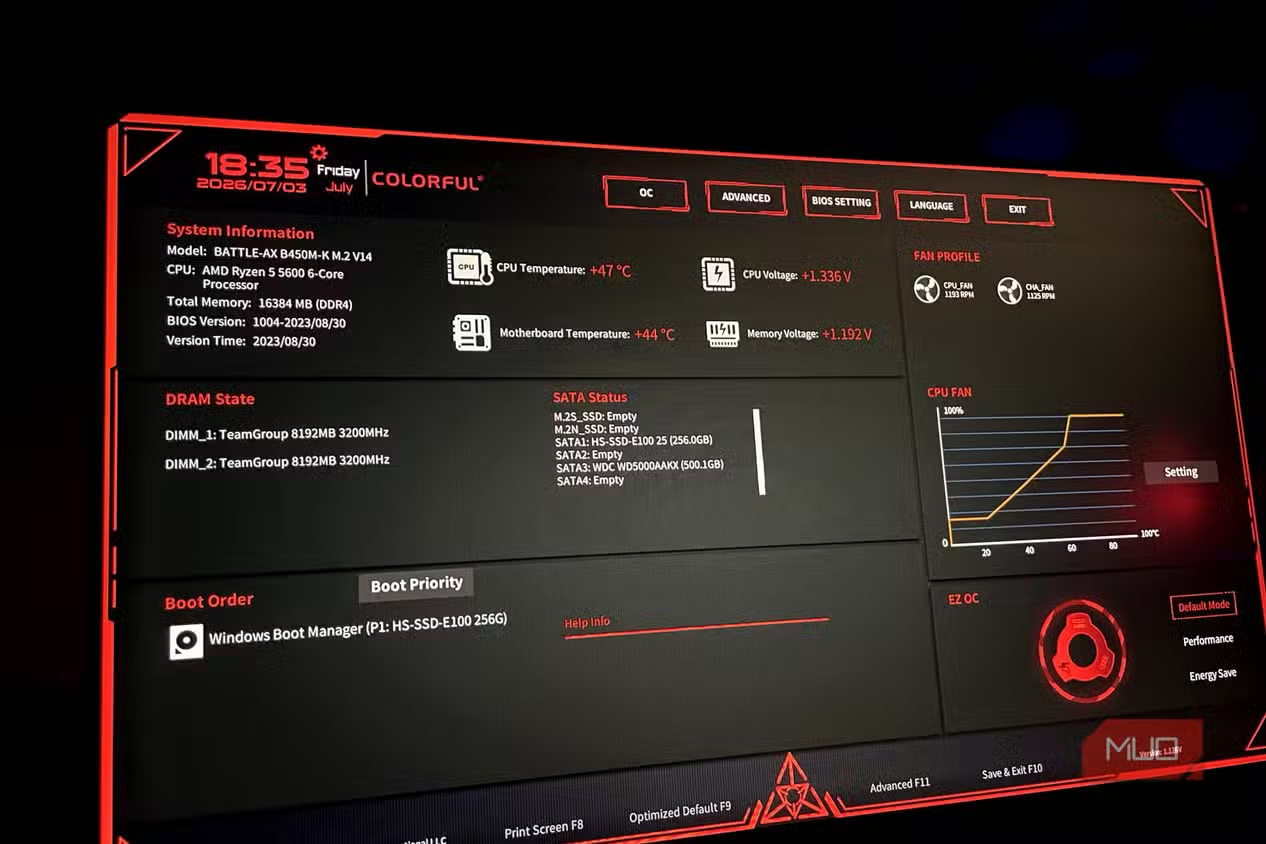
The BIOS defaults ensure stability on a new PC, but they also limit the performance of your system. Think of them as training wheels: fine for a first boot, bad for a gaming rig or workstation you want at full speed. BIOS performance settings govern CPU boost behavior and power limits, memory speed, and thermal thresholds. If those are tuned for low noise and low power, your CPU can’t hit its designed boost clocks, and your RAM may crawl below advertised speeds. Default fan curves are often the main villain: they ramp fans late, allowing the CPU to get very close to its throttling temperature before extra airflow arrives. Performance can start falling before you reach the formal thermal limit, which you feel as inconsistent framerates and sluggish exports.
Common culprits you should hunt down are overly strict CPU power limits, conservative thermal throttling thresholds, and XMP/EXPO conflicts where the system silently drops back to JEDEC defaults after a crash. On top of that, switching between CPUs or some hardware changes can reset UEFI settings and disable features like Resizable BAR. Once you adjust power limits, enable tested boost features, and tune fan curves for proactive cooling, you move from “safe but slow” to reliable PC performance tuning.
Is BIOS Tuning Worth It Before Upgrading Hardware?
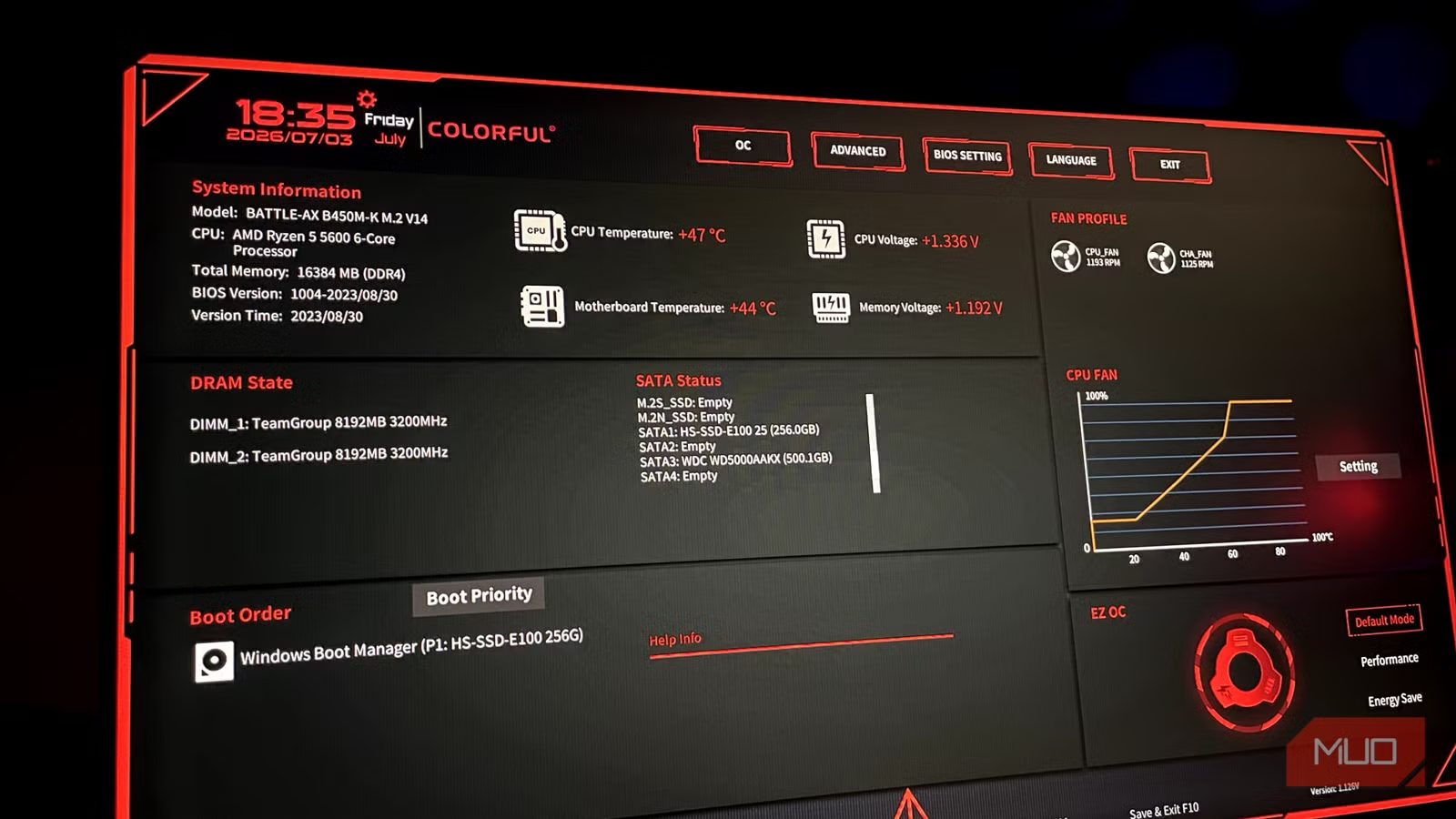
If you are tempted to replace your CPU, RAM, or GPU, treat a systematic BIOS review as the gate you pass through first. When upgrading components, a motherboard BIOS update is compulsory anyway, since many newer CPUs and RAM kits won’t work properly on older firmware without compatibility updates. Doing that work now lets you see your current hardware at its true potential, not hamstrung by outdated microcode or conservative defaults. Manufacturers continue to refine BIOS code to suit newer components and fix bugs, and those same refinements often improve performance, stability, and security all at once.
Once you know which BIOS settings to enable, you can extract more performance without threatening system stability, and in many cases recover around 10% or more in demanding workloads, plus a few extra FPS in games, with no new hardware. The takeaway: it’s worth the hour to learn your firmware optimization tools before spending money. Watch for the gotchas—unstable XMP profiles, fan curves that favor silence over cooling, and UEFI resets after hardware changes—and treat the BIOS as a core part of your CPU throttling fix, not a mysterious screen you fly past.