
Why Your Old Phone Belongs on Your Desk, Not in a Drawer
Repurposing an old phone means turning a device you no longer use as a daily driver into a dedicated desk gadget that acts as a smart display alternative, combining a clock, calendar, and smart home controls in one place and cutting down on e-waste and clutter at the same time.
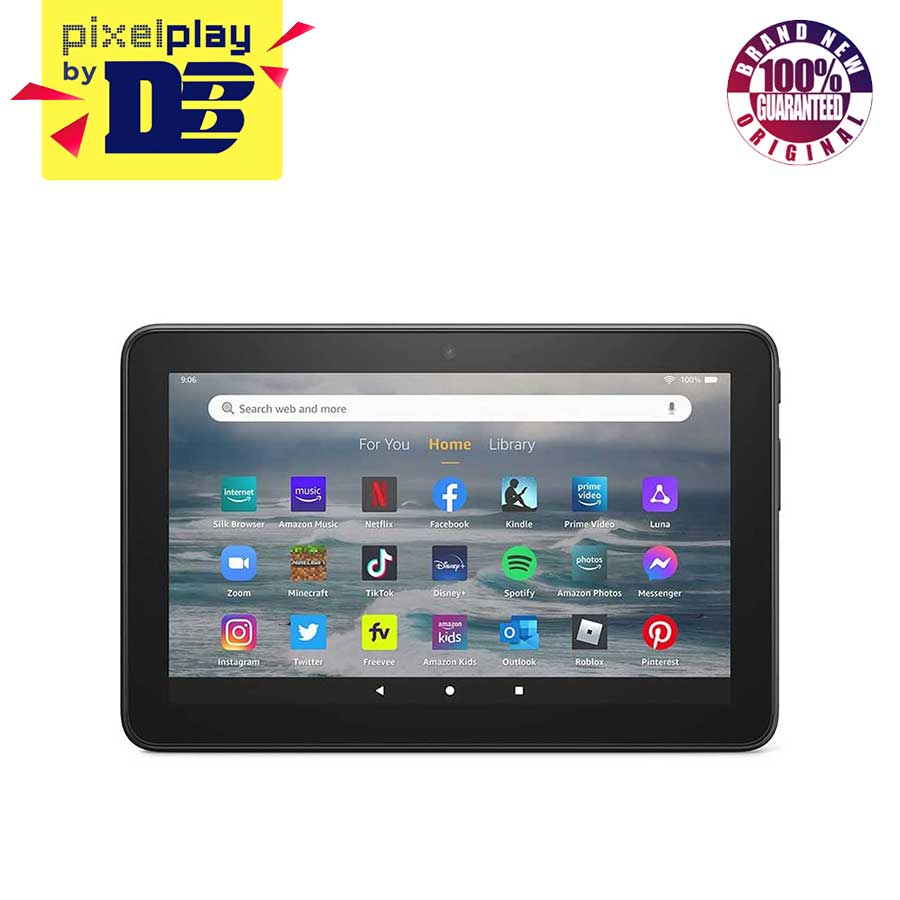
If you have a cracked-screen handset or a sluggish old tablet, you already have most of what you need. One writer pulled a ninth‑generation Fire 7 tablet from a drawer; it had a quad‑core 1.3 GHz processor and only 1 GB of RAM, and yet it was still good enough to show information calmly on a desk. Another turned an aging iPhone 12 into a desk clock, calendar, and smart home remote instead of letting it sit idle. This is the core desk gadget hack: reuse what you own instead of buying more gear.
You will get the most from this if you already run a smart home platform like Home Assistant and are happy for the repurposed device to live permanently plugged in near your monitor. The main caveat is that you’re building a focused tool, not a general‑purpose tablet; it will excel at showing and controlling, not scrolling social feeds.
What You Need Before You Start
Before you start to repurpose an old phone, it helps to be realistic about what that broken device desk setup can do. Even weak hardware can shine when its only job is to sit still and show a few cards on screen. One user proved this with a Fire 7 tablet that was painfully slow for normal use but worked well as a static dashboard. Another kept an iPhone 12 alive as a permanent desk clock and calendar instead of running full mobile workloads on it.
- An old or broken phone or tablet that still powers on and connects to Wi‑Fi.
- A smart home system or dashboard service, such as Home Assistant, already set up.
- Access to open‑source apps via an app catalog like F‑Droid for Android dashboards.
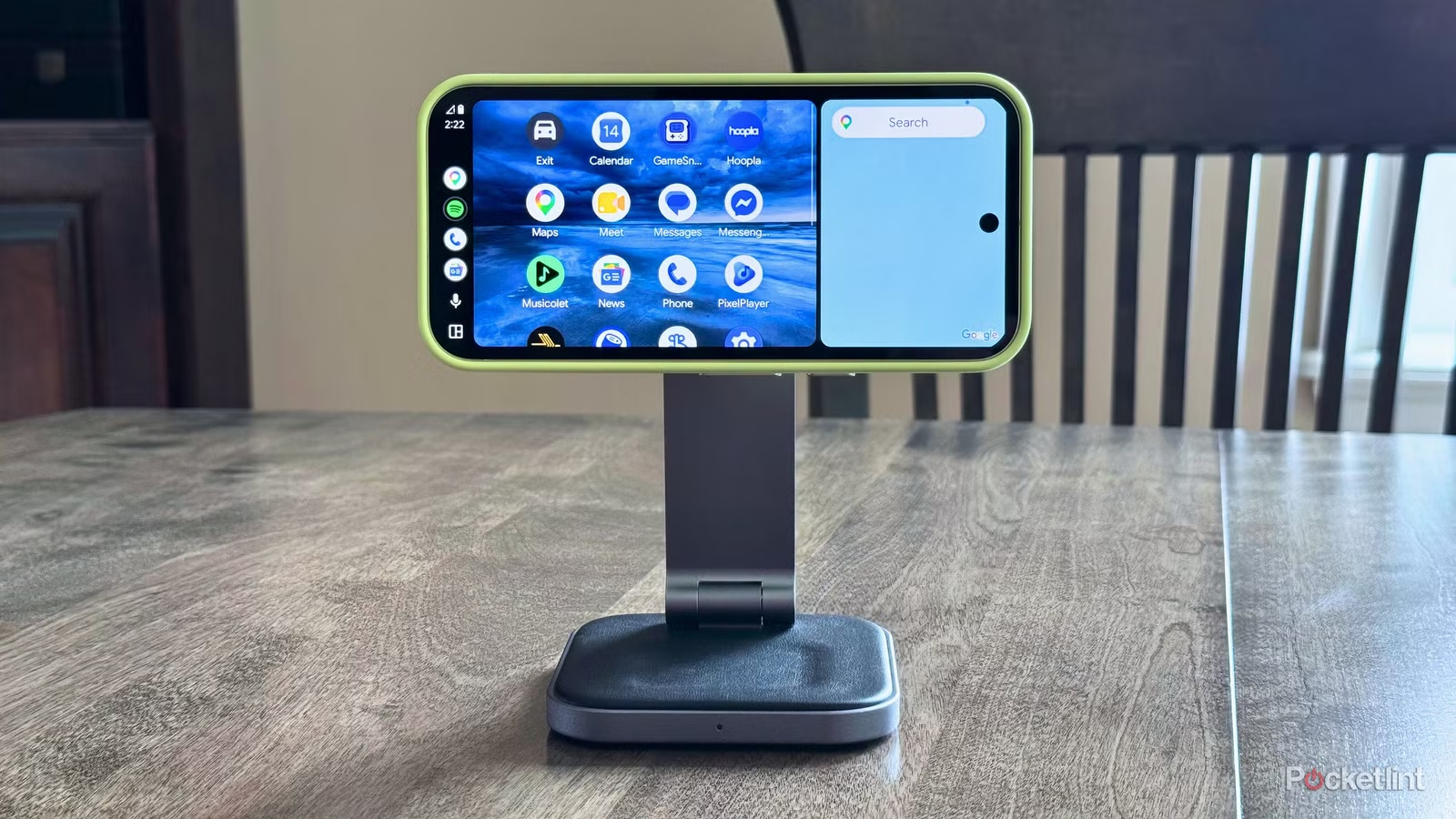
- A stand or dock so the screen is always visible on your desk.
- A charger, ideally connected to a smart plug for smarter power control.
The aim is to create a smart display alternative from devices that would otherwise gather dust. One author summed it up neatly: it feels good to put old tech to use instead of leaving it forgotten in a drawer. Another noted that reusing phones and tablets for dashboards beats buying a dedicated device because it helps your wallet and the environment at the same time.
Step‑by‑Step: Turn One Old Phone Into Three Desk Gadgets
Think of this as giving the device three new jobs: always‑on clock, glanceable calendar, and smart home remote. The trick is to let your main computer do the heavy lifting while your phone or tablet sticks to showing a tidy interface. According to one smart home enthusiast, building the dashboard on a desktop first made a slow tablet far easier to use later.
- Prepare and connect the device: Power on your old phone or tablet, connect it to Wi‑Fi, sign into your smart home platform, and place it on a stand where you can see it from your desk. If you are using Android, install an open‑source app catalog such as F‑Droid so you can access free dashboard apps tailored for this role.
- Install the dashboard app: On Android, download the dashboard or companion app APK from your chosen catalog, enable Apps from Unknown Sources in the settings, install the app, and log in with your Home Assistant credentials. On iOS, install the official Home Assistant app and pair it with your existing setup so the phone can act as a dedicated screen.
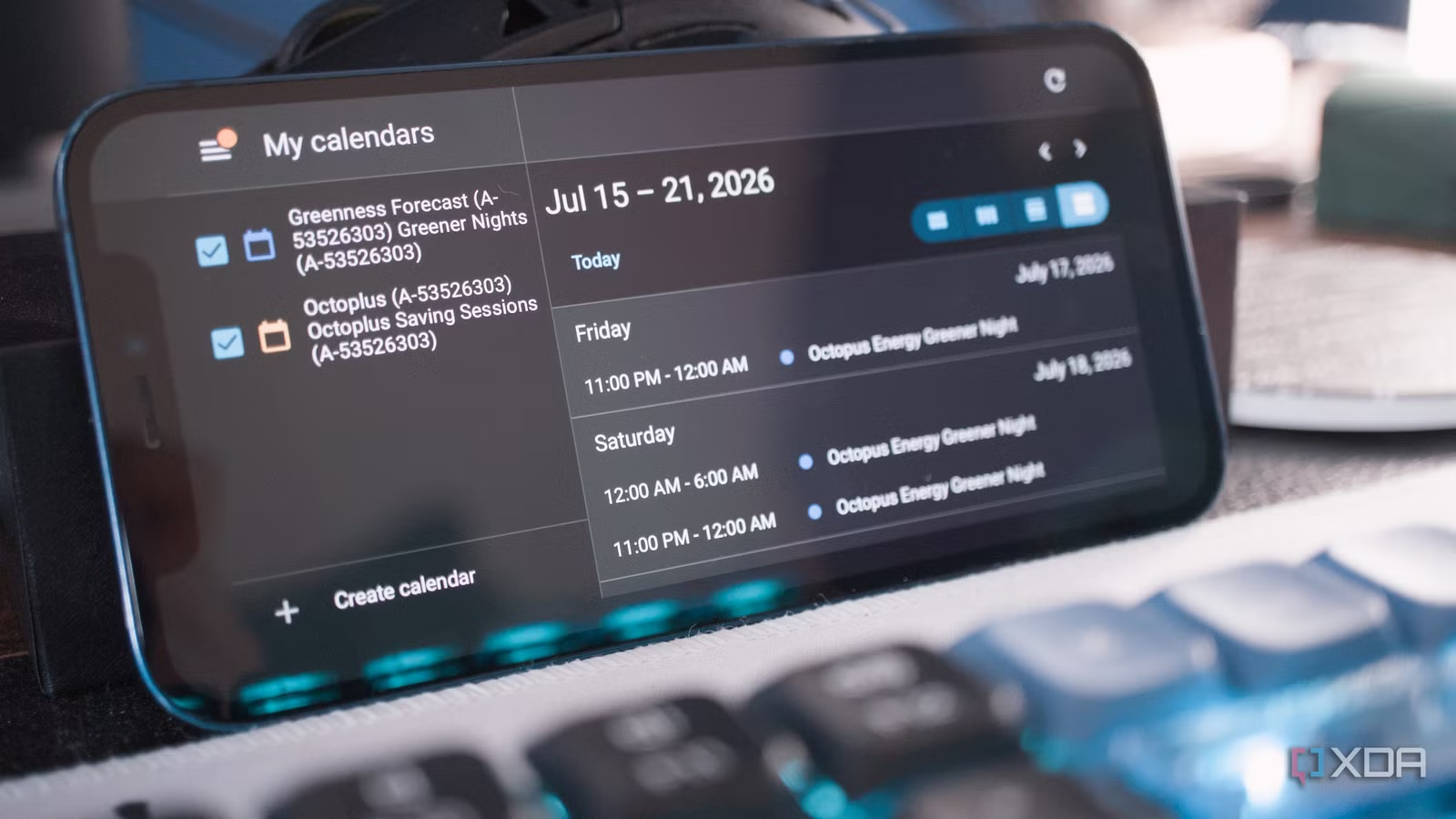
- Build your desk dashboard on a computer: On your main PC, create a new Home Assistant dashboard instead of trying to design it on the old device’s small, slow screen. Arrange a large clock at the top, add a calendar card for today’s events, and include smart home controls for office lights, plugs, or sensors. One writer built exactly this combination so the iPhone on their desk became a time‑providing, calendar‑checking remote with convenient access to office functions.
- Tune the layout for the device screen: Set the dashboard to fit the device’s landscape orientation, and keep the number of cards small. The Fire 7 example shows that even underpowered devices with limited RAM can handle a minimalist interface if you avoid complex animations and deep menus. This keeps everything readable at a glance, which makes the clock and calendar much more useful.
- Manage power with a smart plug: Connect the charger for the old phone or tablet to a smart plug and add an automation that cycles charging on and off based on battery level. In one setup, the plug turns off when the battery reaches 80%, stops charging until the level drops below 20%, and then switches back on so the process repeats. This helps you avoid keeping the battery at 100% all day while still treating the device as a permanent desk fixture.
A key gotcha to watch for is performance. The F‑Droid build of the Home Assistant Companion app removes some Google Play Services features, such as location tracking and certain notifications, which suits a stripped‑back dashboard on slower hardware. You trade away mobile‑style features in exchange for a calmer, more reliable display. Likewise, one user found that leaving their iPhone locked into a clock‑and‑calendar dashboard made it feel less like an aging phone and more like a small control panel for their workday.
Why This Beats Buying a New Smart Display
Once everything is wired up, the expected result is surprisingly polished: an old phone or tablet becomes a stable, always‑on smart display alternative that does not need huge amounts of RAM or a fast processor to stay useful. One case study replaced three separate gadgets—a desk clock, a calendar, and a home office remote—with a single reused iPhone that showed time, schedule, and Home Assistant controls in one view.
This approach can also save you from buying more hardware. One writer pointed out that without repurposing, you might feel compelled to buy a smart display, a remote, a desk clock, and a calendar if you want all that functionality. Instead, they leaned on existing phones and tablets that could be repurposed for the role. Another described the satisfaction of putting an old Fire tablet back into service instead of letting it gather dust. This is the heart of the desk gadget hack: one old device quietly replaces a pile of single‑purpose gear, reduces e‑waste, and clears space around your keyboard.
Takeaway: A Small Project With Everyday Payoff
When you repurpose old phone hardware into a desk dashboard, you get three wins at once: a clear view of time, a live calendar, and fingertip control of your smart home. One enthusiast described how they used old phones and tablets as smart home dashboards, then kept an extra device on their desk as a clock, calendar, and remote. Another noted that their underpowered Fire 7, far from useless, worked well as a minimalist Home Assistant display even with its modest 1 GB of RAM.
The project takes a little setup but very little money, since you are reusing devices you already own. The main things to watch for are power management and keeping the interface lightweight so older hardware stays responsive. If you handle those, that broken device desk setup will stop being clutter and start earning its place as one of the most useful tools on your desk.