
What Claude Can Do for Office Organization
Using Claude for office organization means asking it, in plain language, to inspect your folders, notes, and spreadsheets, then turn that messy material into clear overviews, grouped documents, and automated Excel workflows without requiring you to write any code or understand programming concepts. If your job involves files scattered across shared drives, half-finished documents, and manual spreadsheet updates, this approach is aimed at you. The real caveat: Claude does not replace your judgment. It helps you see and automate your work faster, but you still decide what gets moved, renamed, or sent out as a report. Think of it less as an AI coding assistant and more as an extra pair of eyes and hands for everyday office tasks that have outgrown your old filing and spreadsheet habits.
Taming Messy Folders and Scattered Notes
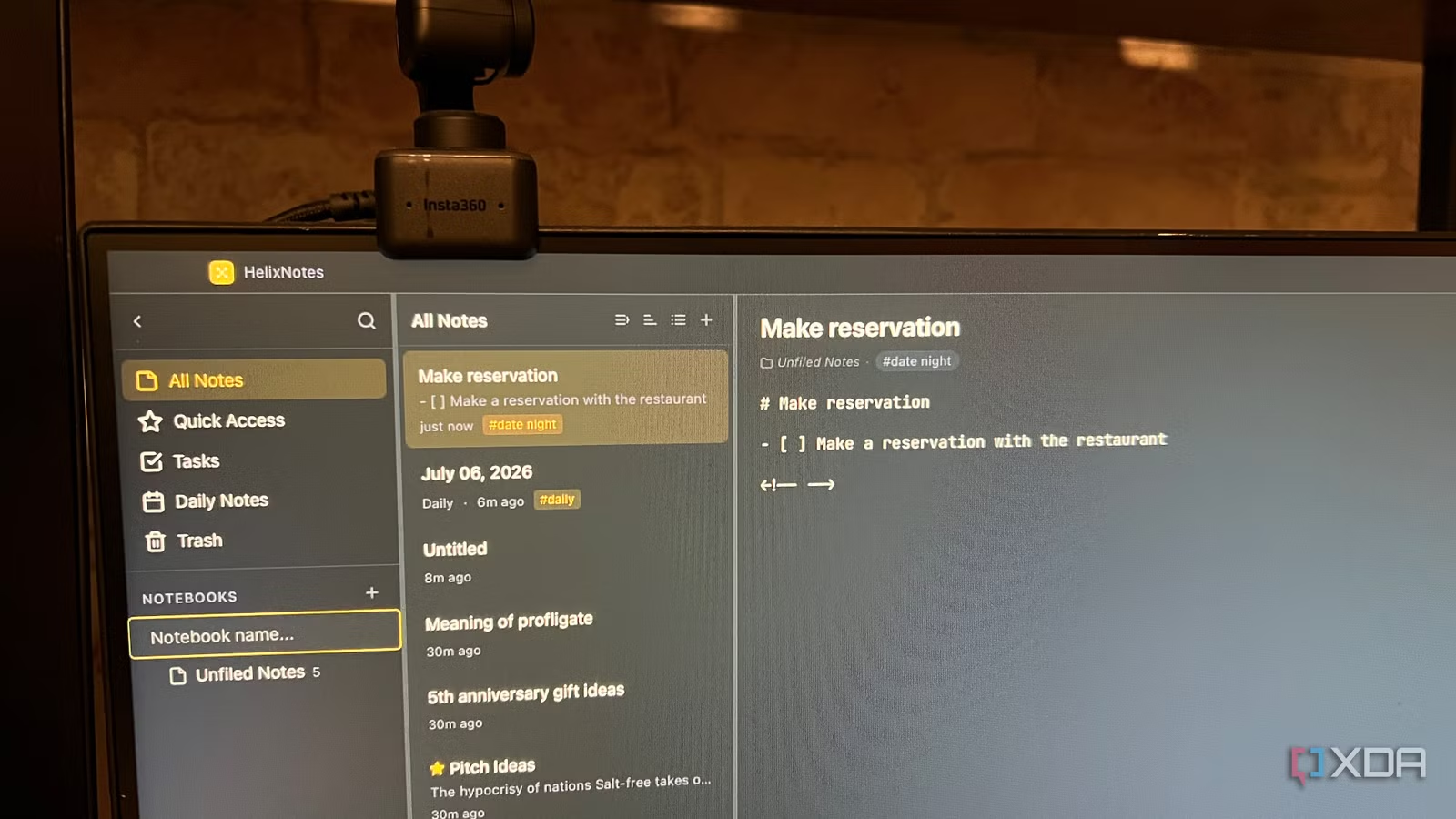
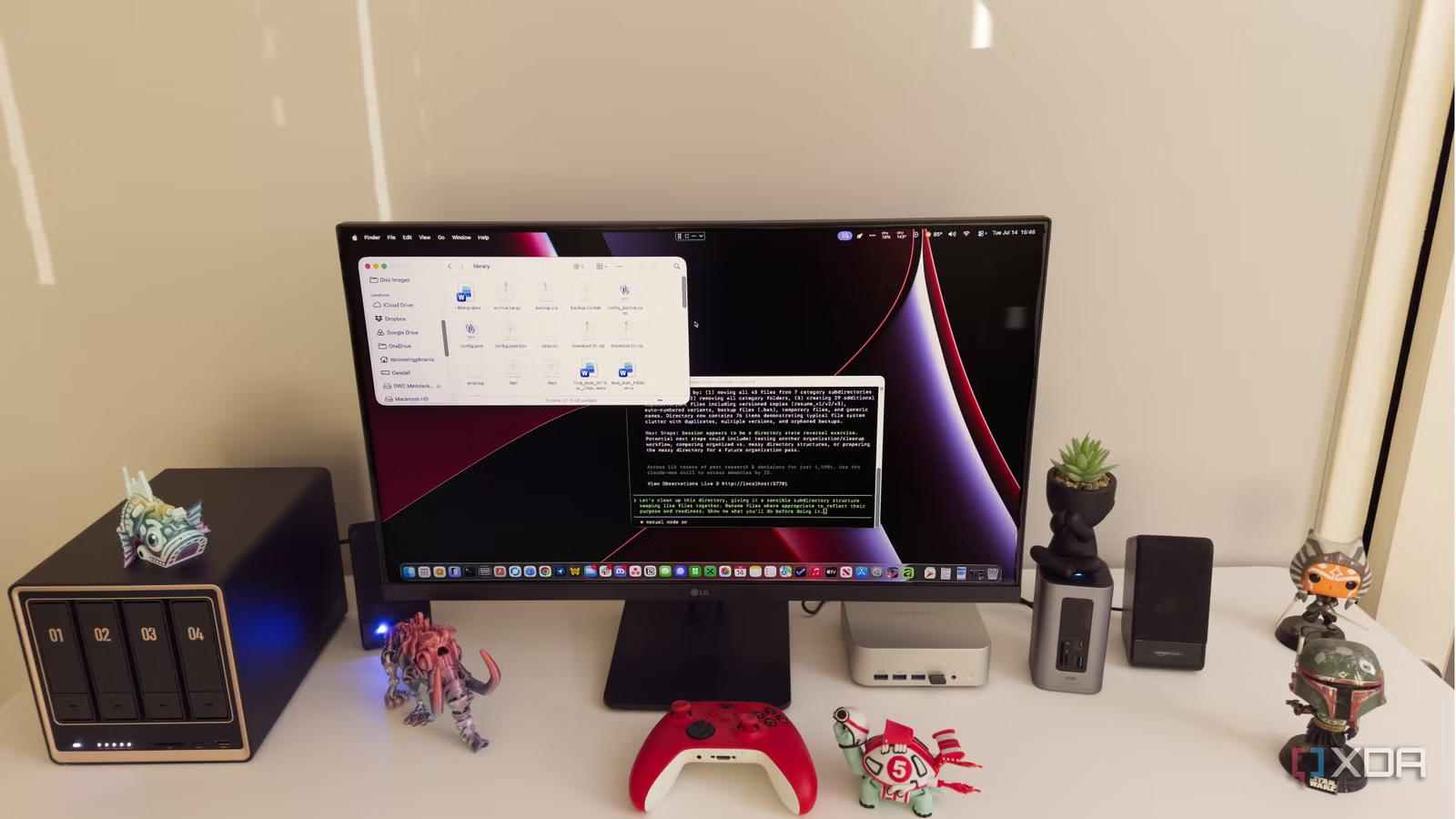
Most office folders start neat and end up packed with old drafts, exports, and files named "final" that are anything but. Claude can make sense of those neglected folders by inspecting file names, contents, timestamps, and the folder structure, then giving you a readable overview of what’s there and where the duplication or confusion lives. It can also compare related files, highlight repeated material, and show where two versions began to diverge so you can resume work without spending the first hour reintroducing yourself to the project. For notes, you can ask Claude to group files by topic, identify repeated ideas, and flag notes that appear to belong to the same project, even if the names and formatting are inconsistent. According to one librarian user, using Claude this way makes it feel less like a specialist tool and more like a normal part of daily workflow.
Let Claude Automate Spreadsheets and Reports
Where Claude shines for office work is in turning conversational prompts into spreadsheet tools that would normally need manual effort or VBA skills. In one real project, a single prompt led Claude to generate VBA that, once imported, created every worksheet in an employee onboarding workbook, converted datasets into Excel tables, added formulas, applied data validation and conditional formatting, built a dashboard, and linked everything together with navigation buttons. That is Claude automate spreadsheets in practice: you describe the goal, and it handles the underlying development tasks that used to demand advanced Excel knowledge. The same approach works for reporting. You can ask for a macro that identifies each salesperson in a table, fills a report template with their metrics, exports the report as a PDF, and saves those files with clear names in a dedicated folder. This kind of Excel automation without coding turns a repetitive reporting chore into a reusable system.
Step-by-Step: Non-Coding Automation for Your Office
Here’s a simple way to use Claude as an AI office organization helper and build non-coding automation around the work you already have, rather than trying to become a programmer. The order matters because Claude works best when you define a clear goal, then test and refine what it creates.
- Choose one messy area: a project folder or a spreadsheet you update by hand. Avoid giving Claude broad permission to reorganize an entire directory in one shot so it does not move or rename a large batch of files on assumptions.
- Upload or connect that folder or workbook to Claude and ask for an overview: which files appear related, where duplication or confusion lives, and what notes or drafts belong together.
- From that overview, decide what you want to change. Ask Claude to propose a clearer folder structure, a list of documents worth archiving, or a summary of notes grouped by topic or project.
- For spreadsheets, describe the outcome you want instead of the code: for example, a workbook that builds tables, applies data validation and conditional formatting, and links sheets to a dashboard; or a macro that generates personalized PDF reports for each salesperson from a data table and saves them into a "Sales Reports" folder.
- Import and run Claude’s recommended Excel automation, then test the result on a copy of your file. Fix errors by feeding them back to Claude, and refine layout or formatting where its assumptions did not match what you pictured.
The most common mistakes are asking Claude to reorganize everything without enough context, which forces it to fill gaps with assumptions, and skipping the testing phase before you adopt an automation. The expected result, when you go step by step, is a clear map of your folder clutter plus spreadsheet tools that create dashboards, PDF reports, or workbook analysis sheets far faster than manual work.
Is Using Claude for Office Organization Worth It?
Using Claude this way bridges the gap between AI coding assistants and everyday productivity. It is most valuable when it helps you deal with the work you have already created, from reopening abandoned projects and consolidating scattered notes to understanding folders that no longer match the neat system you started with. On the spreadsheet side, Claude created a reusable Excel inspection tool and other automations that would have taken significantly longer to build manually, while still leaving room for human judgment on layout, formatting, and final checks. The trade-off is clear: you gain time and clarity, but you must define goals, avoid vague “clean everything” commands, and test outputs before relying on them. If you are willing to stay in the loop, Claude can make AI office organization and non-coding automation part of your normal workflow.