
Stop Treating USB‑C Cables Like Mystery Meat
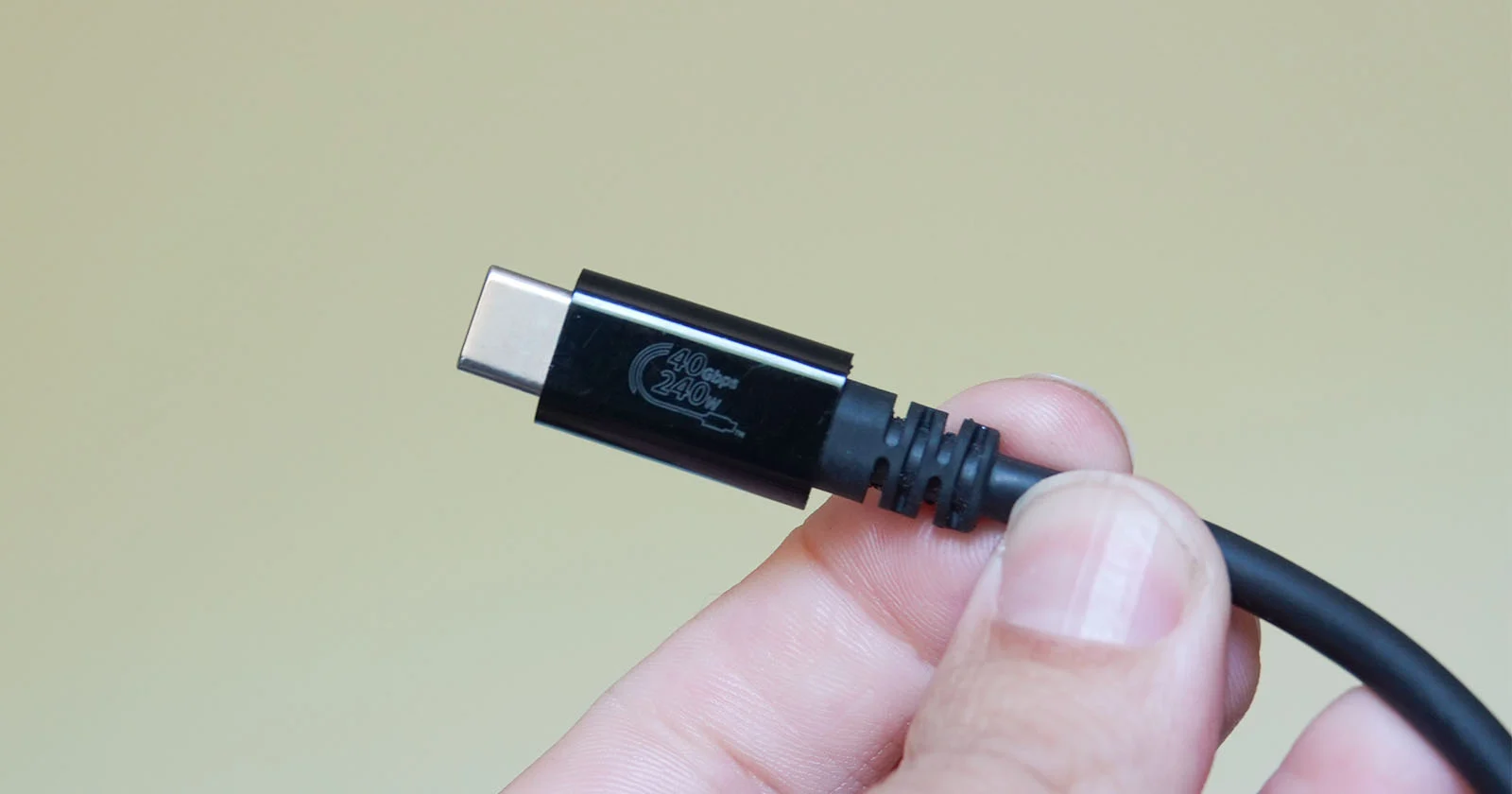
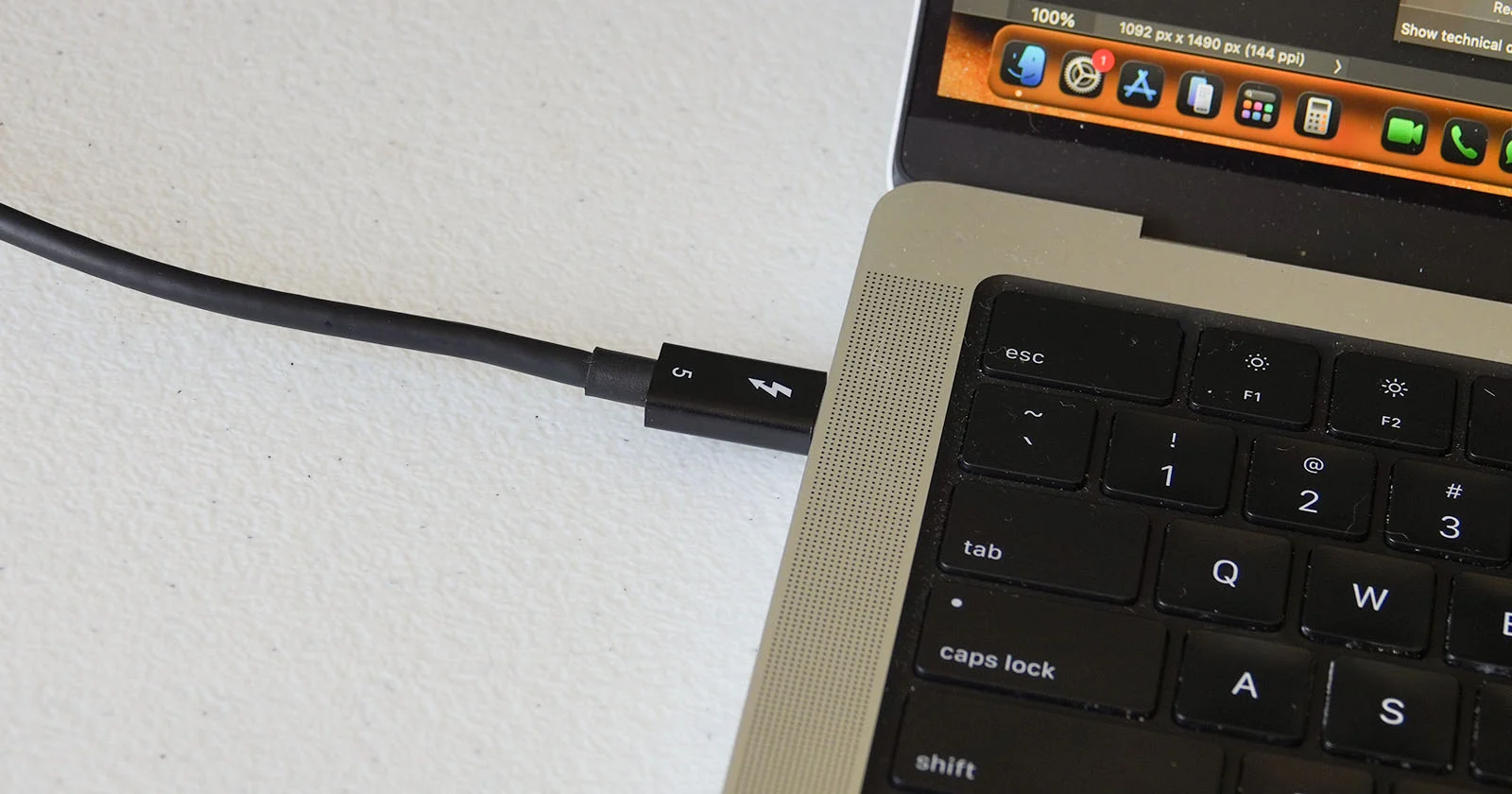
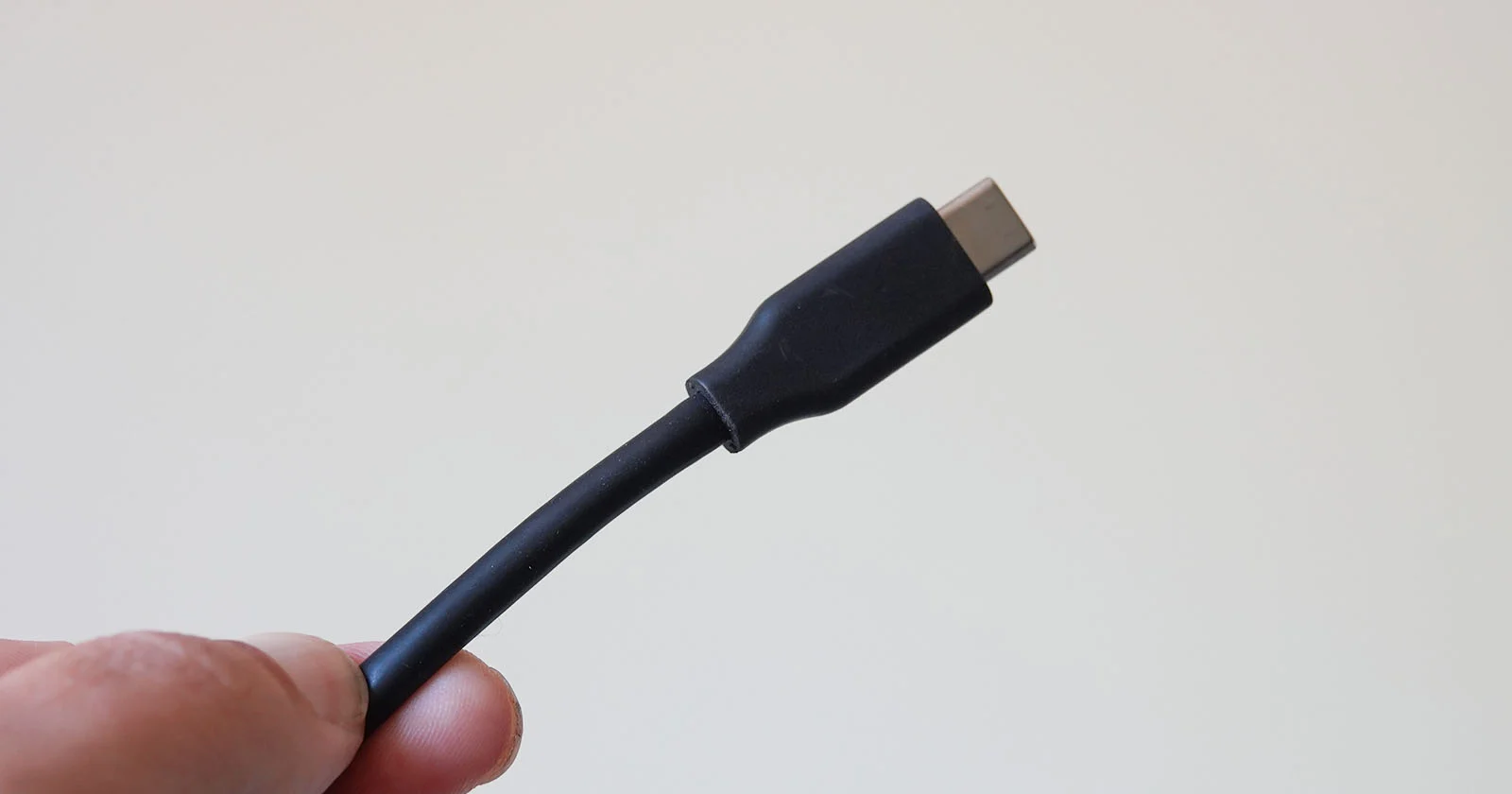
USB‑C cable testing is the process of using diagnostic tools to read a cable’s real specifications—such as data speed, power delivery capacity, and supported protocols—so you can verify whether it matches its label, identify underperforming or defective cables, and avoid slow charging, flaky drives, or potential hardware issues caused by mismatched or worn‑out cords. Every USB‑C cable looks identical in a drawer, but their capabilities vary wildly—from charge‑only leads to full‑bandwidth Thunderbolt and USB4 workhorses. While some cables are clearly labeled, others are blank or fail to deliver their promised performance. In my view, guessing which cable is “good enough” is a productivity tax: it wastes time, encourages buying yet more cables, and quietly undermines laptop performance. It’s time to treat cables as verifiable components, not anonymous wires.
Why You Need a Cable Verification Tool on Your Mac
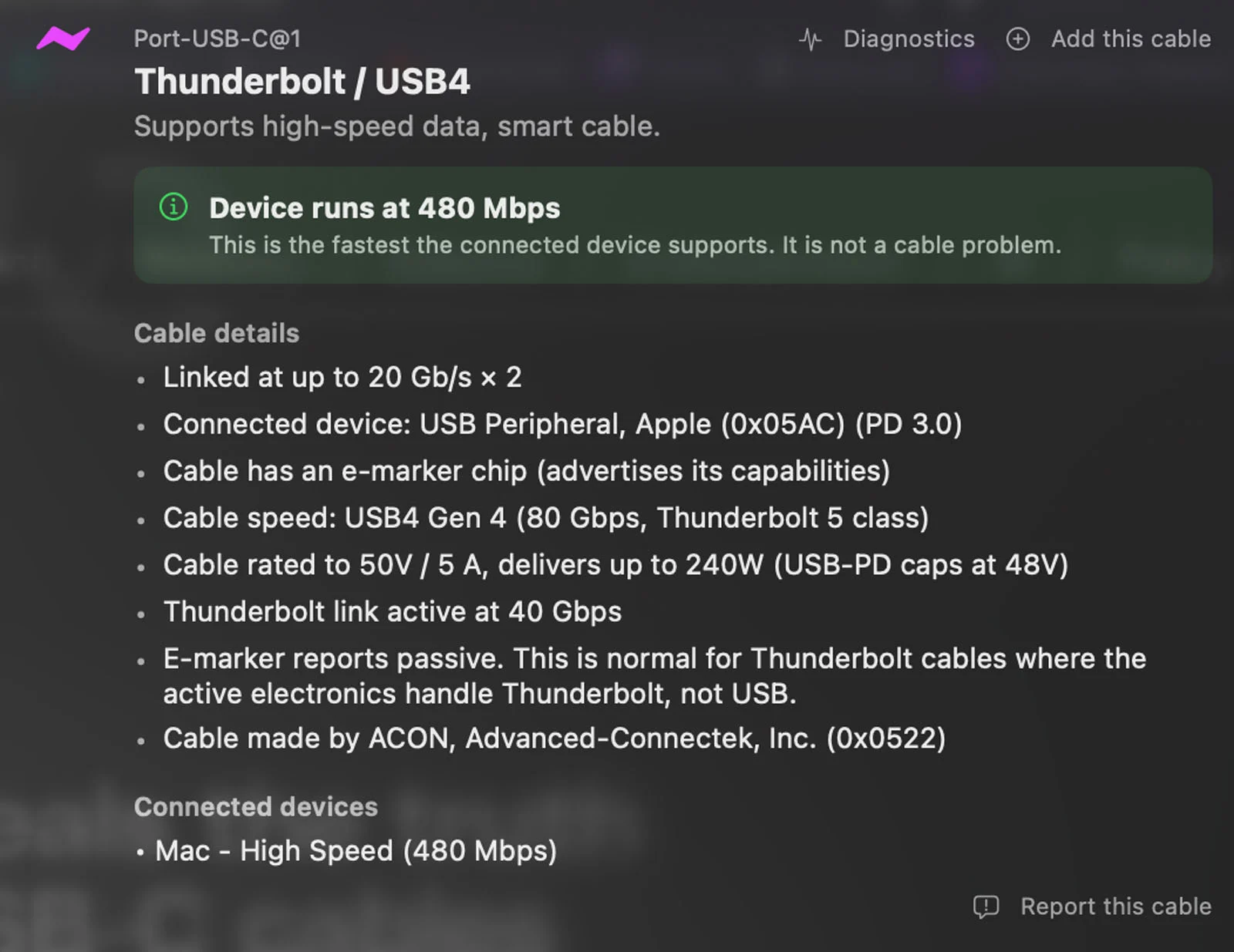
If you own an Apple Silicon laptop, there is no excuse to keep playing USB‑C roulette. macOS already holds detailed information about attached USB‑C cables, but hides it from users; a free app called WhatCable exposes this data and turns your Mac into a cable verification tool. Once installed, WhatCable identifies what a USB‑C cable’s true specs are, including speed and power delivery capabilities. According to the developer, “Every USB‑C cable looks the same. They are not.” The app shows what each cable can do and helps diagnose issues like slow charging, laggy external storage, or docks that keep cutting out. For home users, the free version is enough to sort out cable chaos and “sort the wheat from the chaff” by separating capable cords from weak links. This is USB‑C diagnostics without expensive hardware testers.
How to Use WhatCable to Test and Organize Your USB‑C Cables
The power of USB‑C cable testing is that you can clear the mess fast—if you follow a deliberate process. To use WhatCable, you need a Mac powered by an Apple Silicon chip (from M1 to M5) running macOS 14 or later. Download the app from whatcable.uk, unzip it, and run it, or install it via Homebrew with the command brew install --cask darrylmorley/whatcable/whatcable. Once installed, plug a cable into a USB‑C port; the app will recognize it even if nothing is connected to the other end, though you need an active device like a charger, display, dock, or SSD to see full specs. WhatCable then shows what cable is connected, what it is doing in terms of power and data transfer, and what its capabilities are. Work through your pile: test each cable, label or tag it in the app, and relegate slower USB 2 cords to a charging‑only pile.
- Gather all USB‑C and MagSafe cables near your Mac in a single session.
- Install and open WhatCable via direct download or Homebrew on your Apple Silicon Mac running macOS 14 or later.
- Plug one cable into your Mac and attach a known device (charger, dock, display, or SSD) on the other end to unlock full specs.
- Read the reported data speed, power delivery, and supported features; note any underperforming or misbehaving cables.
- Sort cables into piles: high‑speed data, full‑power charging, charge‑only, and recycle bin for defective or worn‑out cords.
Common Testing Pitfalls and How to Avoid Them
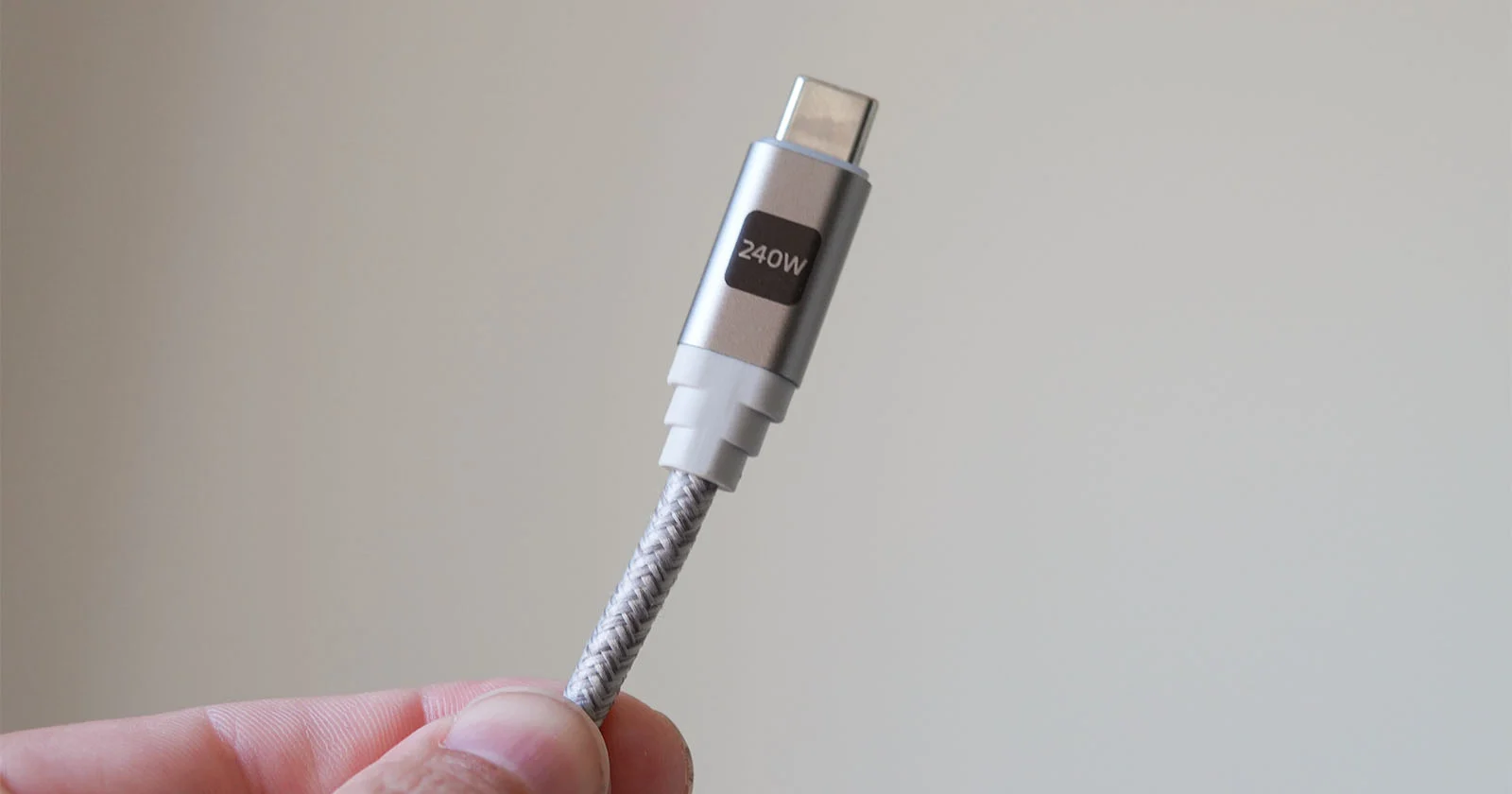
USB‑C diagnostics are powerful, but you can waste their benefits with sloppy testing. A typical mistake is treating a single reading as gospel when the cable or port is mis‑seated: reviewers have had to disconnect and reconnect a cable to get the app to read it reliably. Another frustration is expecting every pro feature to behave perfectly; the live power meter, for example, may refuse to work even after waiting longer than the suggested minute. The lesson is simple: repeat tests if something looks odd, and focus on core specs—rated wattage, data speed, protocol support—before chasing advanced metrics. Work with active devices on the cable’s far end, since full diagnostics require something drawing or sending power and data. And do not hang on to obviously defective cords: one tester found cables that massively underperformed and put them straight into the recycling bin.
From Cable Chaos to Confident, Fast Laptops
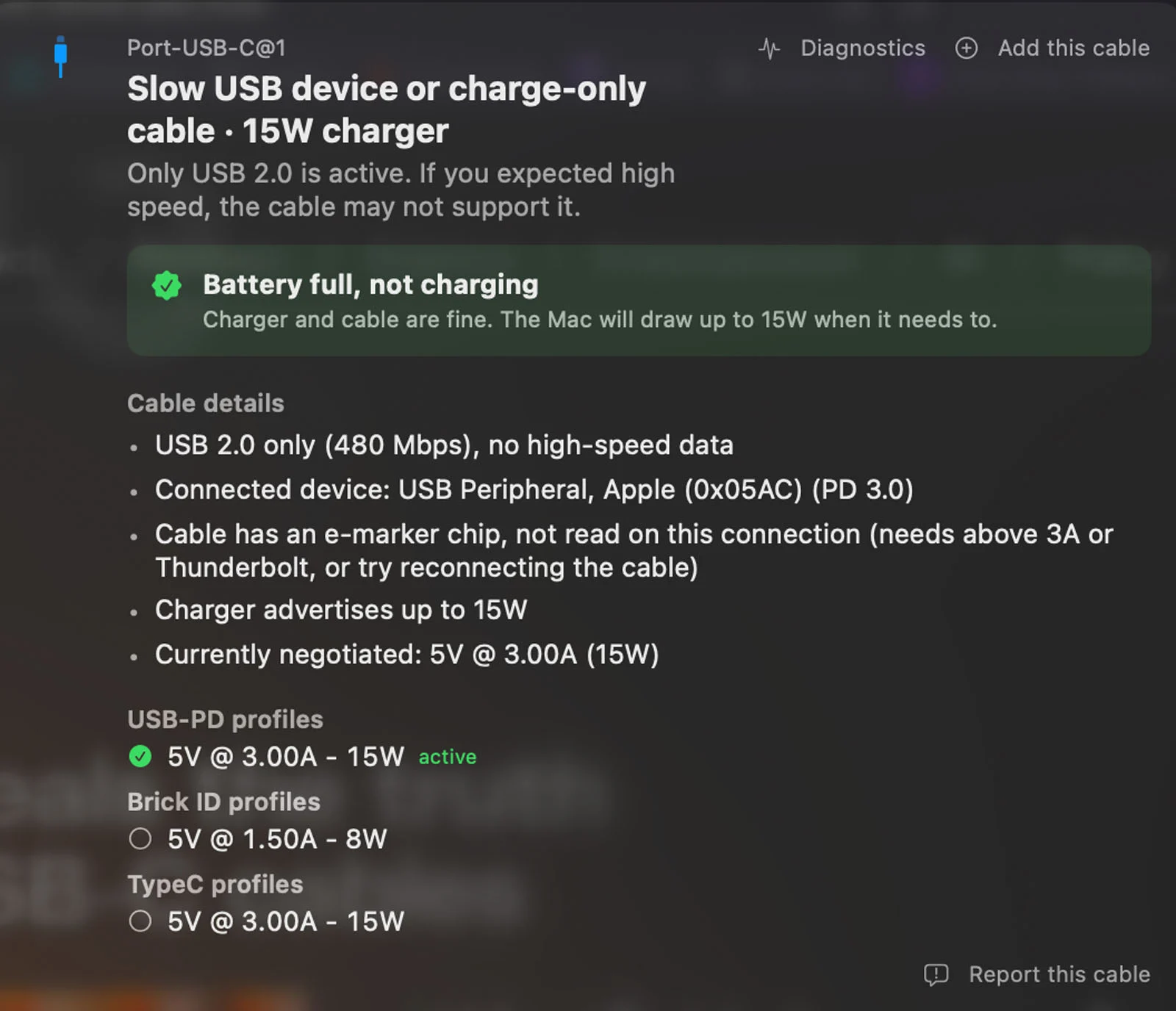
The entire point of USB‑C cable testing is not geeky curiosity; it is protecting your hardware and reclaiming productivity. With WhatCable in place, your Mac shows what each cable can actually do and helps you diagnose why your laptop is charging slowly, why an external drive is sluggish, or why a dock keeps cutting out. The pro tier adds protocol‑level event history, negotiation and display diagnostics, a live power meter, and the ability to interrogate liquid detection sensors on ports, revealing whether a liquid contact indicator has been triggered. This kind of diagnostics lets you compare current cable performance against past metrics to see whether a cord has worn out. The result is a curated set of trusted cables matched to your laptop’s power and bandwidth needs, fewer random disconnects, and less risk of stressing ports or devices. Stop treating cables as disposable trivia; they are the backbone of your setup, and now you have the tools to verify them.