
LibreOffice vs Microsoft Office: The Short Answer
LibreOffice vs Microsoft Office is a comparison between a free, open‑source office suite and a paid, cloud‑connected suite that focuses on AI, collaboration, and polished user experience, especially for teams that rely on shared documents and spreadsheets. LibreOffice is one of the most complete Microsoft Office alternatives, and it's entirely free and open‑source. Microsoft Office, in its Microsoft 365 form, adds AI assistants like Copilot, tight cloud storage integration, and mature dark mode support that many users still miss when they switch away. In practice, LibreOffice suits individuals and cost‑sensitive teams who need classic documents and spreadsheets more than advanced collaboration, while Microsoft Office fits organizations that prioritize real‑time co‑authoring, AI productivity tools, and consistent visual ergonomics for long workdays.
| Aspect | LibreOffice | Microsoft Office (Microsoft 365) |
|---|---|---|
| Licensing & price | Free, open‑source office suite | Paid subscription; user switched away due to underused benefits and cost concerns |
| Core apps used in comparison | Writer (Word alternative), Calc (Excel alternative) covering typical word processing and spreadsheet needs | Word and Excel were the main apps used by the subscriber |
| AI assistant | No built‑in AI assistant by default; relies on external AI tools if needed | Includes Copilot, but its functionality was described as disappointing and replicable with other AI assistants |
| Dark mode handling | Dark mode available but inconsistent for pre‑existing documents; some text fails to render correctly | Dark mode implementation described as the one to beat, and the key feature missed after switching |
| Document features | Formatting, templates, signatures, document comparison, accessibility checker; meets everyday writing needs | Richer, more polished templates and layouts; user found LibreOffice templates simpler by comparison |
| Spreadsheet features | Functions, filters, and sorting used for tasks like tax spreadsheets and income summaries | User mainly used Excel; Copilot sometimes generated over‑complicated formulas instead of highlighting simple filters |
| Collaboration & cloud focus | No built‑in AI or deep cloud narrative highlighted; behaves like classic desktop software | Cloud storage and AI were part of subscription benefits, but were underused by the user |
If you want maximum value per dollar and do not depend on advanced AI or polished collaboration, LibreOffice will feel more than capable. If your team already works inside Microsoft’s cloud ecosystem and values features like dependable dark mode or integrated AI, Microsoft Office still earns its keep despite its subscription model.
AI Productivity Tools: Copilot vs No Native Assistant
AI productivity tools are one of the loudest selling points for Microsoft Office, but in day‑to‑day work their impact can be more mixed than the marketing suggests. One user subscribed to Microsoft 365, tried Copilot, and found that its functionality was mostly disappointing and could be replicated with other AI assistants. When they asked it to help filter income in a spreadsheet, Copilot produced a complicated formula that even broke the date column, instead of simply pointing to the built‑in filter feature. By contrast, LibreOffice does not have an AI assistant built in by default. That sounds like a weakness, but if your workflows already use external AI tools in the browser, or you prefer direct control over your spreadsheets, you may not miss a deeply integrated assistant at all.
If your team expects AI to write formulas, summarize documents, or propose insights, Microsoft’s integrated Copilot still offers the most seamless “Excel Copilot alternatives” experience inside a traditional office suite. However, the real question is whether that integration saves more time than it costs. Many productivity tools can be counterproductive, taking up more of your time than saving it. LibreOffice’s approach leaves AI as an optional add‑on from the web or other apps rather than a constant presence in your documents, which may appeal to power users who like to fine‑tune their own workflows.
Everyday Usability: Writer, Calc, and Dark Mode Pain Points
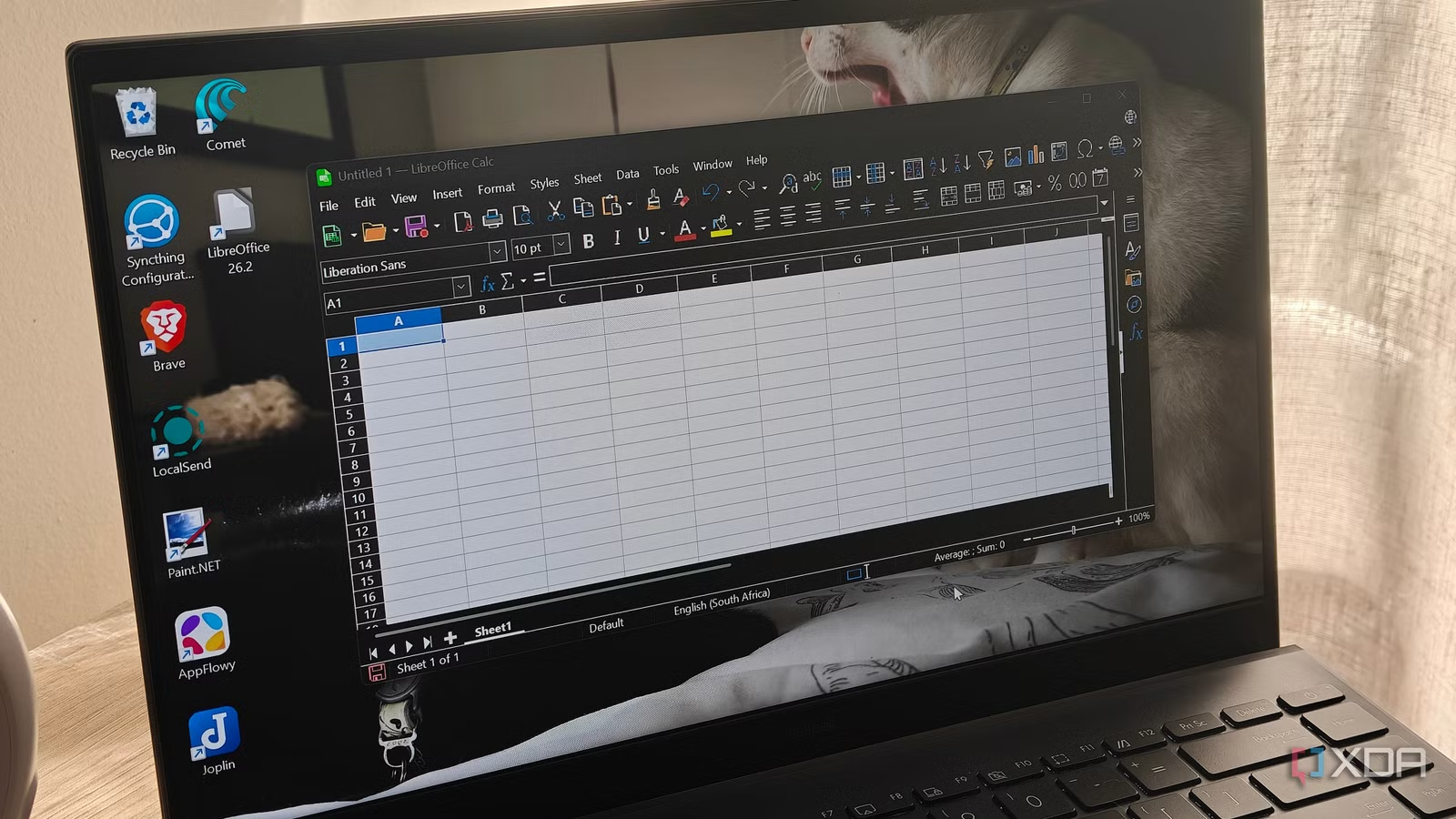
LibreOffice proves that free office software can handle surprisingly demanding workloads. A user who replaced their Microsoft 365 subscription found that LibreOffice Writer and LibreOffice Calc cover all the use cases they needed when replacing Word and Excel, from page and text formatting to signatures, filters, and income calculations. Writer offers templates, document comparison, and an accessibility checker, while Calc supports filtering, sorting, and formulas for tasks like preparing tax spreadsheets and calculating yearly income totals. For many individual professionals and small teams, those capabilities make LibreOffice a credible primary toolkit. According to one review, “LibreOffice is one of the most complete Microsoft Office alternatives, and it's entirely free and open‑source”.
The biggest day‑to‑day complaint falls on dark mode. LibreOffice lets you change the document background through its appearance settings, and new documents created in that theme render correctly. However, for pre‑existing documents, the new theme does not always apply consistently; users have reported text failing to render correctly or only parts of the document turning dark. Changing font colors does not fix the problem, so they resort to highlighting text or copying it into a new file. By comparison, Microsoft 365’s dark mode is described as the one to beat, and the single feature some users miss enough to consider returning. For teams with light sensitivity or long hours in front of bright screens, this visual comfort gap matters as much as any AI feature.
Cost, Value, and When Microsoft Still Wins
From a cost‑benefit angle, LibreOffice is hard to ignore: it is a free and open‑source office suite. You can deploy it without per‑user fees, which makes it attractive for budget‑conscious teams or organizations that want full offline control of their tools. In contrast, one user left their Microsoft 365 subscription because they did not use the extra cloud storage, relied mainly on Excel and Word, and felt their workflow did not justify the subscription cost. When extra services go unused, the value proposition of paying monthly or yearly quickly erodes. The same logic applies across many productivity ecosystems: even feature‑packed tools can be counterproductive if they absorb more time than they save.
However, lower cost does not always win. Feature gaps can send users back to Microsoft despite the savings. In this case, Microsoft 365’s dark mode remains the one to beat, and at least one reviewer believes many companies could learn from its implementation. If your team depends on consistent visual ergonomics, expects frictionless cloud collaboration, or has standardized workflows written around Word and Excel formats, staying with or returning to Microsoft Office may save more frustration than it costs. LibreOffice offers a strong office suite comparison story for classic desktop work, while Microsoft Office keeps the edge for teams that prioritize polish, integrated AI, and a carefully tuned user experience.
Buy if / Skip if
- Buy the LibreOffice suite if your main priority is free office software that still covers word processing and spreadsheets without ongoing subscription fees.
- Skip the LibreOffice suite if you rely on flawless dark mode for accessibility or comfort in pre‑existing documents, since its dark theme can be inconsistent.
- Buy the Microsoft Office suite if your team values integrated AI productivity tools like Copilot and a polished dark mode that “remains the one to beat” in everyday use.
- Skip the Microsoft Office suite if you mostly use Word and Excel and have found that the subscription’s cloud storage and AI benefits go unused in your workflow.
- Buy the LibreOffice suite if you want an open‑source, locally controlled alternative in your office suite comparison and are happy to add separate Excel Copilot alternatives when needed.
- Skip the Microsoft Office suite if you are experimenting with multiple productivity and AI tools and have found that built‑in assistants and extras tend to be counterproductive more than they help.