
What NotebookLM Automation Does for Your Content Backlog
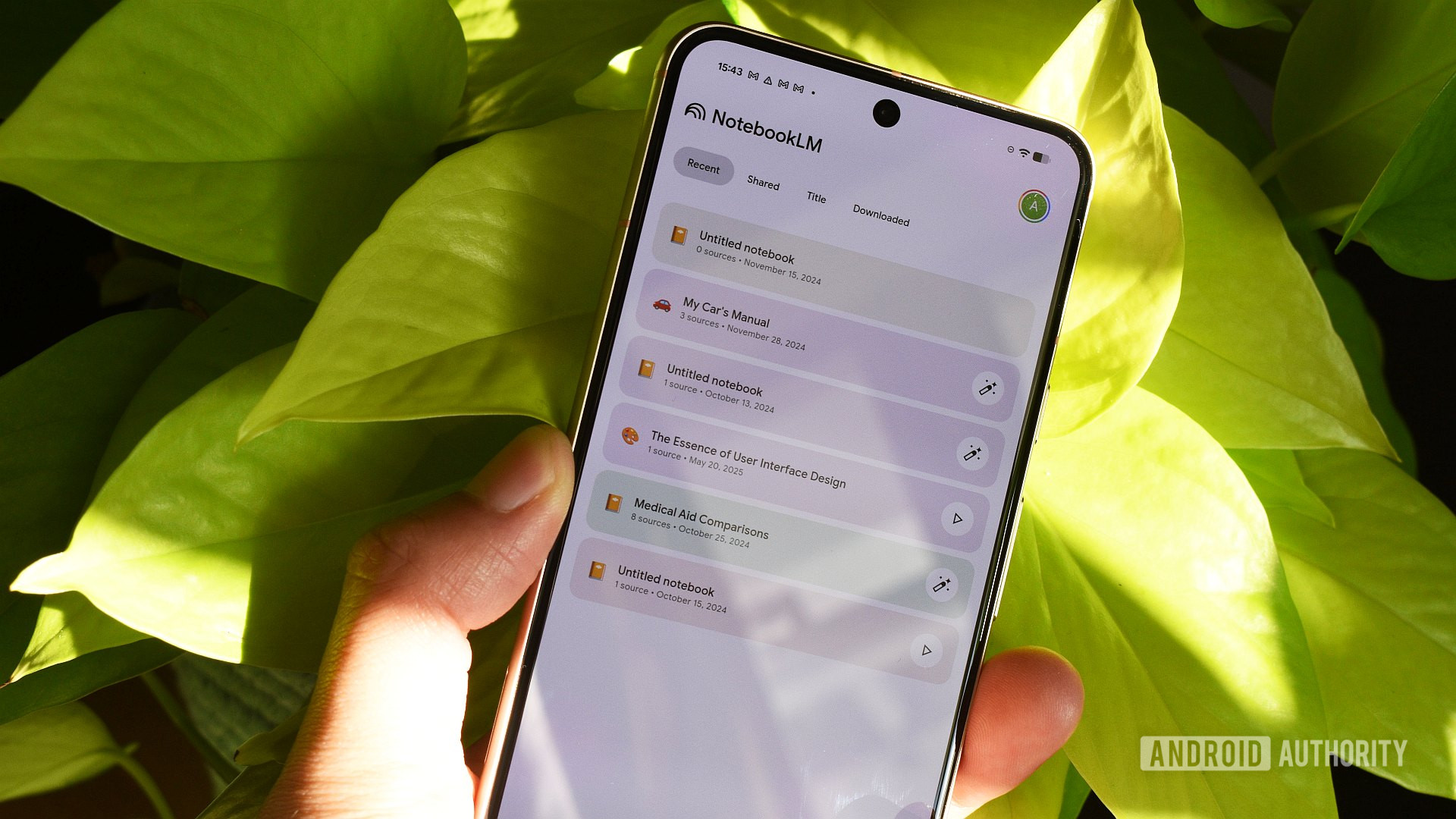
NotebookLM automation is the process of connecting NotebookLM to your existing tools so it can ingest, organize, and convert large volumes of articles, newsletters, and notes into searchable knowledge with minimal manual effort, turning scattered content into summaries, videos, tables, and recallable insights over time.
If your browser is full of unread long-form articles or saved PDFs, you’re the ideal person for this workflow: someone who saves useful things but rarely finds the time or energy to read them later. NotebookLM can help you understand documents, organize information into tables, generate audio overviews, and create short video summaries, so the backlog stops feeling like homework and starts acting like a reference library. The real prerequisite is giving it coherent material; "garbage in, garbage out" still applies, and mixing a financial disclosure with a recipe blog in one notebook will confuse the narrative. Google’s ingestion limits are generous, with each source holding up to 500,000 words or 200MB and handling PDFs (except protected ones), Google Docs, Slides, Sheets, EPUBs, audio, URLs, and pasted text, which then stay synced automatically.
Set Up Your NotebookLM Knowledge Base From Scattered Content
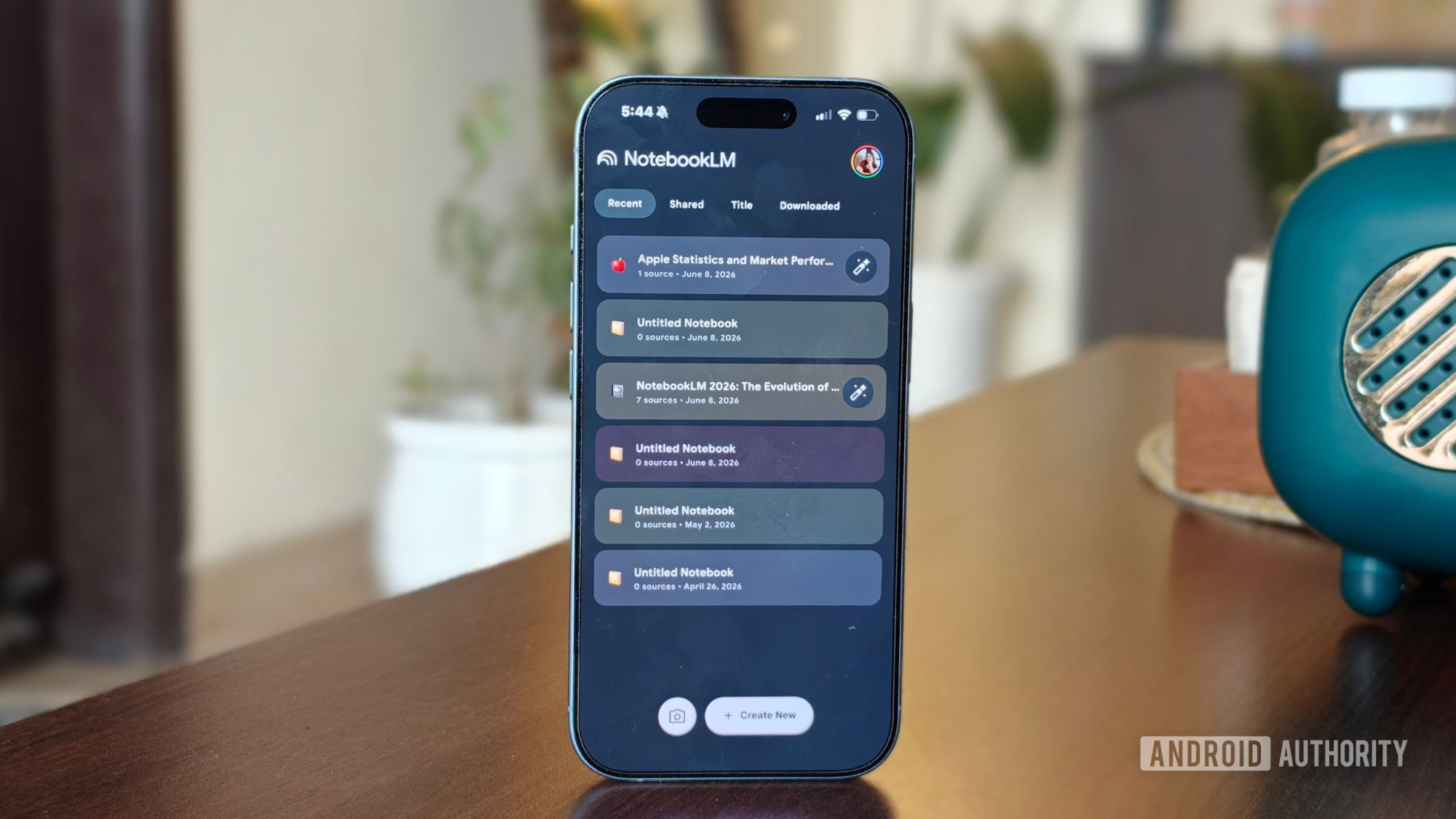
Think of this step as turning a messy pile of files into a structured library that NotebookLM can reason about. The Studio tab can convert your notebooks into video, audio, or written reports once everything is grouped in sensible notebooks. According to one long-term user, these features "have saved me time, helped me understand complicated topics faster, and, every now and then, even convinced me to spend a little less time staring at a screen." The main gotcha: don’t dump unrelated topics into one notebook, or the summaries and videos will feel disconnected.
- Create a new notebook for a single theme, like “Policy PDFs” or “Marketing articles,” then add related sources to it (PDFs, Google Docs, Slides, Sheets, EPUBs, audio, URLs, or pasted text). Keep each notebook focused so the narrative stays clear.
- After adding your sources, open the Chat panel, click the configuration button at the top, select "Customize notebook," and describe exactly what you need from this notebook (for example, concise summaries, tables of key metrics, or definitions).
- Head to the Studio panel and choose "Video overview" to convert the notebook into a short video that pulls charts and numbers out of your documents, turning dense files into a narrated slideshow that’s easier to follow and remember.
Once those three steps are done, you’ve moved from loose files to an AI knowledge organization hub. A standard Video Overview is essentially a narrated slideshow that displays data visualizations when the paper relies on them, which matters because a chart can tell you more in five seconds than a minute of narration. From here you can ask grounded questions, generate tables, and reuse the material as a structured database instead of hunting through folders. The mistake many people make is letting it run on autopilot: skim the outputs and tweak your notebook customization so future summaries match how you think.
Automate Newsletter Archiving Into NotebookLM
Newsletters are a special kind of content backlog: they arrive on a schedule, pile up in your inbox, and contain ideas you want to recall, not just store. Manual methods like copy-pasting into NotebookLM or batch-exporting a Gmail label to PDF work for occasional reading, but they break down with weekly subscriptions; it feels fine for a week, then you miss two issues and give up. NotebookLM has no built-in email connector, so you need to build the bridge with an automation tool that connects your inbox to Google Drive. Zapier connects your apps and automates repetitive tasks, and its free tier is enough for one newsletter, since a weekly newsletter uses four or five tasks a month.
- In your email tool, create a label or filter (for example, "Newsletter") so all issues from a specific sender are tagged consistently; this gives your automation a reliable signal to watch.
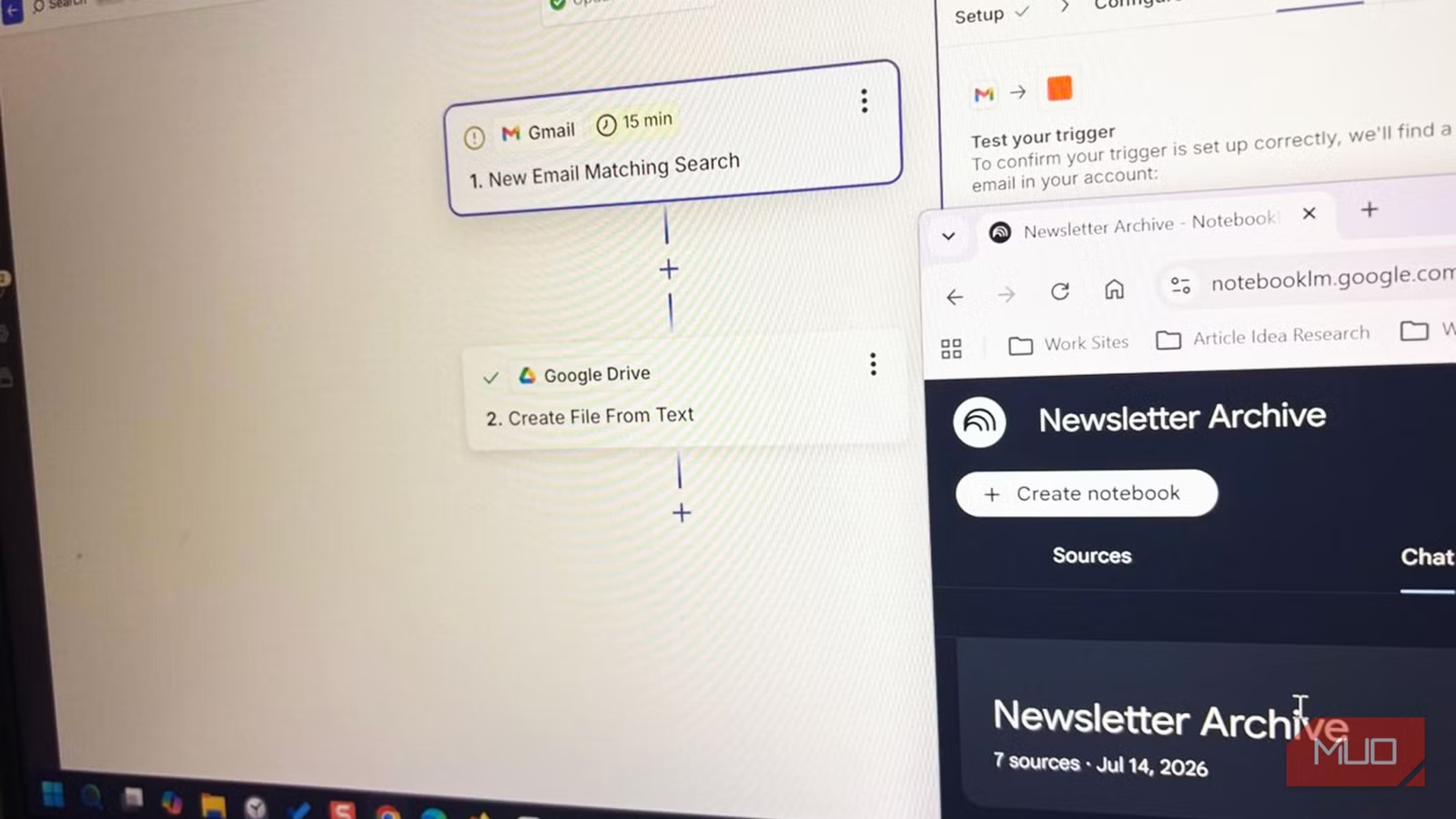
- In Zapier, set Gmail as your trigger app and choose "New Email Matching Search," using a query like "from:newsletter@example.com" so only that sender fires the Zap, or use "New Labeled Email" for the "Newsletter" label.
- Set Google Drive as your action app and choose "Create File From Text," mapping the email body into the content field and saving it to a dedicated Drive folder that you will later add as a source in NotebookLM.
- Turn the Zap on so every new issue lands in Drive on its own, then add each new document from that folder into the Sources panel of your chosen NotebookLM notebook for newsletters.
After a few months of this newsletter archiving workflow, you end up with a searchable archive instead of scattered memories of "that one issue where they mentioned X," which is the whole point of routing it through NotebookLM instead of leaving it in your inbox. Once a few issues sink into your notebook, NotebookLM can find patterns across them, not just give you a summary for each one; it can identify any recommendation, tool, or idea that appears more than once, count mentions, and track whether the writer’s opinion changed between issues. The main mistake here is relying on manual copy-paste; automation removes the dependence on your memory and keeps the archive fresh.
Turn Backlogs Into Summaries, Videos, and Structured Databases
Once your notebooks are populated with months of accumulated articles and newsletters, NotebookLM’s Studio features start paying off for content backlog management. It can help you understand documents, organize information into tables, and generate audio overviews and short video summaries using only the information you provide, so the final outputs stay grounded in your research rather than drifting into unrelated topics. A Studio tab option can convert your notebook into video, which is especially useful when the underlying papers rely on data visualizations that a podcast-style audio overview can’t show. For someone who struggles to read long saved files, these generated videos can be the thing that finally gets them to engage with the material.
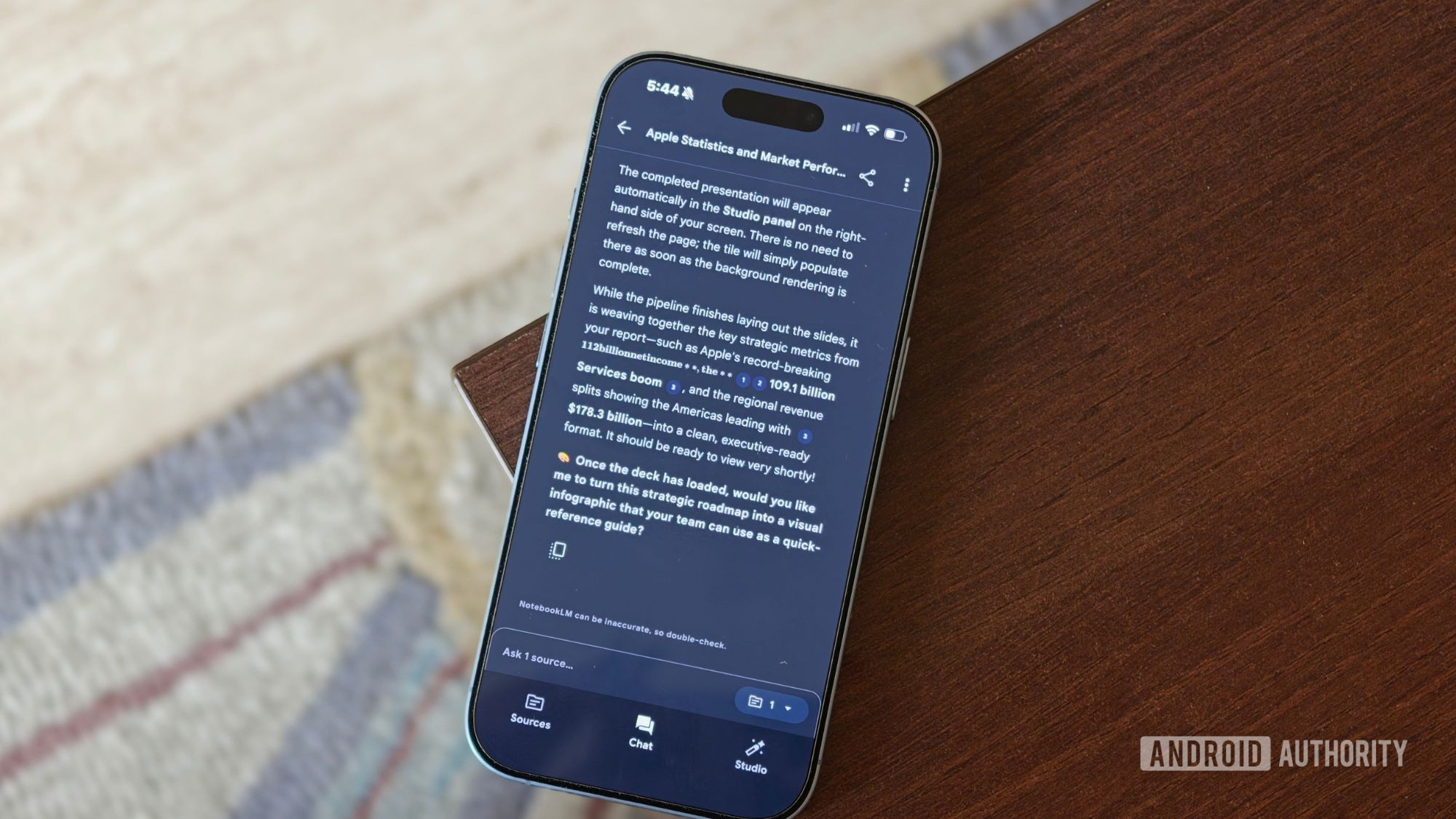
NotebookLM’s Studio panel can also turn your newsletter archive into an Audio Overview, a mind map, or a written report without you writing a single prompt, which is the essence of AI knowledge organization at scale. For slide decks, you upload source material—PDFs, documents, or even YouTube videos—then choose "Slide Deck" and tell NotebookLM how you want the presentation to look; because it only works with the information you provide, the final deck stays grounded in your research. Over time this feels less like content management and more like an extension of your memory: you search the notebook and get structured answers instead of flipping through back issues and bookmarks.
Is This Workflow Worth It and What to Watch For?
If you’re sitting on months of saved articles, PDFs, and newsletters, turning them into a NotebookLM-powered knowledge base is worth the setup. These workflows have saved people time, helped them understand complicated topics faster, and nudged them toward formats—like short videos or audio overviews—that match how they prefer to learn. The expected result is clear: a notebook that can produce grounded slide decks, narrated video overviews that display charts and numbers, and searchable archives that surface patterns across many issues.
The main things to watch for are familiar: garbage in, garbage out if you mix unrelated materials, letting the system run on autopilot without reviewing outputs, and leaning on manual copy-paste, which tends to fail after a few weeks. Integrations with existing tools help prevent those problems: Google Docs, Sheets, and Slides now sync automatically, so any edit you make after adding a source carries through to the notebook, and automation tools like Zapier cut down on manual documentation and organization overhead. With those guardrails in place, NotebookLM becomes less of a reading chore and more of a searchable goldmine you can rely on when you need to recall what you once thought was important.