
Why Swapping Software Can Outperform Hardware Upgrades
Reviving an aging laptop with strategic software swaps means replacing RAM-hungry applications with lightweight alternatives so the same hardware feels faster, more responsive, and productive without adding memory or changing components. This approach focuses on optimizing laptop performance by cutting background overhead, reducing RAM usage, and choosing apps that do the work you need without dragging the entire system down.
If your seven-year-old laptop wheezes every time you open a dozen browser tabs or launch a word processor, you are the audience for this guide. The idea is not to run fewer tools, but to pick ones that fit older hardware. One example machine that responds well to this strategy is a 2018 business laptop with a Core i5-8250U, 8GB of DDR4 RAM, and a 256GB SSD. With that level of hardware, you can still work smoothly—if your apps are lean. The real prerequisite is a bit of patience: you will spend time checking Task Manager, swapping apps, and measuring how your system responds. That effort is far cheaper than a new machine and often more effective than throwing random hardware upgrades at the problem.
Step-by-Step: Find and Replace Your Worst RAM Hogs
Think of this section as sitting beside a friend and walking through a tune‑up. The goal is to speed up an old laptop by identifying RAM-hungry apps and replacing them with lightweight software alternatives that keep the same functionality. You do not need to be a power user, but you should be comfortable installing and uninstalling programs and glancing at resource monitors. The gotcha to watch for: many apps hide their cost in background services and synced features, so judging only by the main window can mislead you.
- Open your system’s resource monitor (such as Task Manager) and sort processes by memory usage, noting which apps consistently sit at the top, especially browsers, office suites, and PDF tools.
- For your main browser, test RAM usage by opening a set of everyday sites in multiple tabs, then watch memory over several minutes rather than a single snapshot; one testing script did this by collecting all browser processes, summing their private working sets, and sampling every two seconds for five minutes.
- Uninstall or disable the heaviest browser and install a lighter alternative such as a privacy-focused Chromium-based browser that blocks ads and trackers by default, which reduces RAM usage by running fewer advertising scripts and extensions.
- Swap bloated office and document apps for lean desktop editors and a lightweight PDF reader; for example, documents that once took 30 seconds to open in a heavy word processor can open in under five seconds in a lighter editor, while a simple PDF reader may cut load times from more than ten seconds to about three seconds.
- Replace secondary heavy apps—email client, music player, calendar, file manager—with alternatives that keep core features but have lower background overhead, such as moving from a feature-packed email client to a lighter one that works fully offline and avoiding file managers tied to continuous cloud sync.
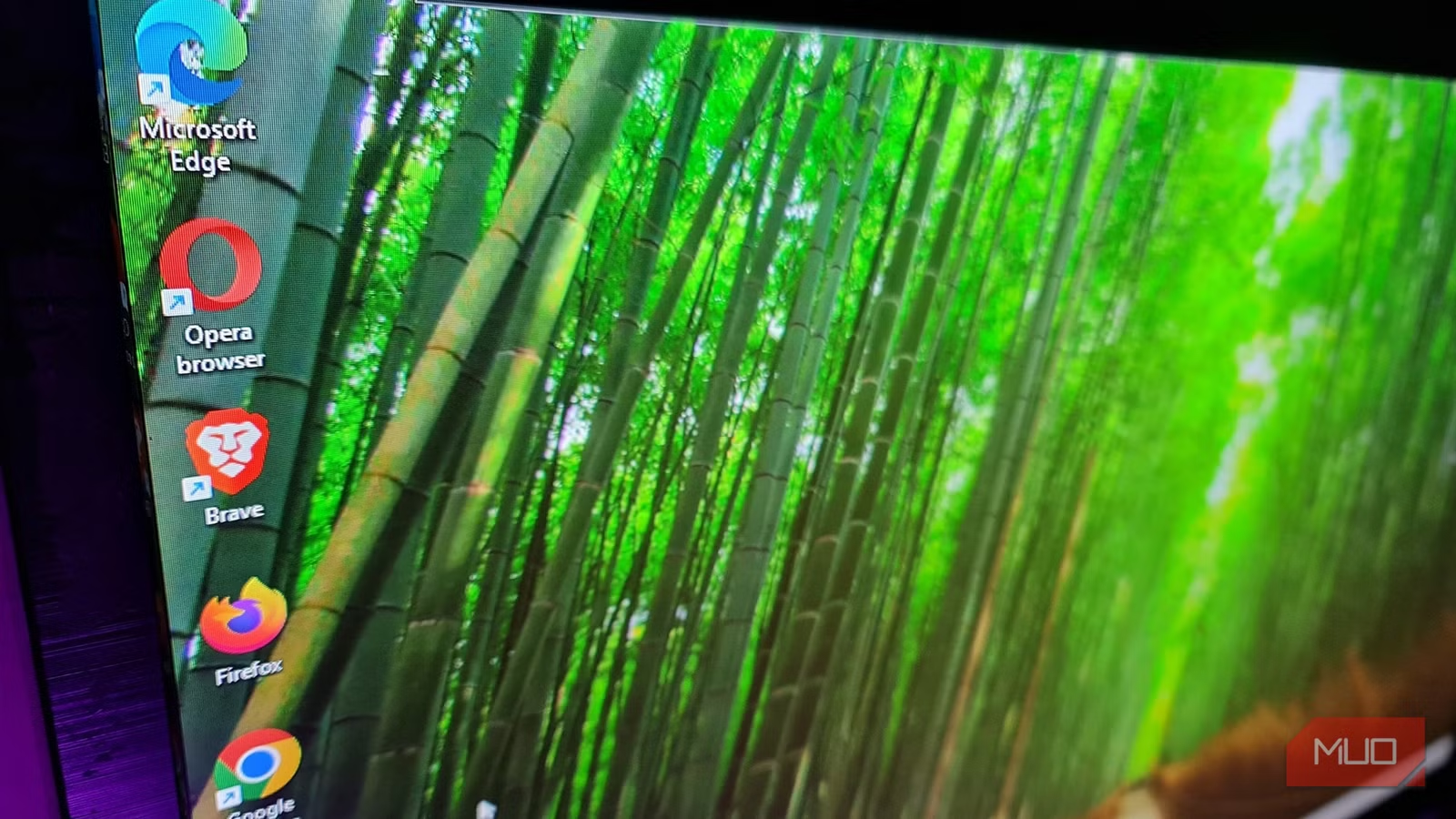
- Repeat your everyday workload (same tabs, same documents, same music or email) and compare responsiveness: watch for typing lag, app launch time, tab switching delays, and new median RAM usage figures, just as one browser test compared medians across Brave, Chrome, Edge, Opera, and Firefox.
- After each new installation, make a habit of checking memory usage and background processes; remove any app that adds large, constant RAM load or multiple background services that do not clearly support your daily work.
The sequence matters. First you discover what hurts most, then you target those apps with direct replacements, and finally you measure the result. In one careful browser comparison, a privacy-focused browser had a median private RAM usage of about 738.8MB, while another common choice sat around 1460.7MB, and the heaviest topped 2018.5MB. According to that testing, the lighter browser used roughly 28% less RAM than the worst performer. That kind of gain is exactly what you want: concrete proof that swapping software, not hardware, can optimize laptop performance.
Real-World Gains: How Much Faster Can It Feel?
This is where the effort pays off. Once you replace a resource-hungry browser with a leaner one, you stop seeing music stutter and half‑second delays between typing and characters appearing; switching between app windows and tabs becomes smoother. Offloading trackers and ads also reduces RAM usage by cutting the number of embedded elements the browser must process. In daily use, that translates into fewer fan spikes and far less impatience waiting for pages or web apps to settle down.
The same pattern shows up in office work. On an older laptop, a traditional word processor tied to a cloud suite could take 15 seconds to open a blank document and up to 30 seconds for a large file with several images. Swapping to a lighter desktop editor that keeps a similar ribbon interface cut those opening times dramatically; the same heavy documents began opening in under five seconds. For PDFs, a feature-packed reader might spend more than ten seconds loading subscription prompts and advanced tools you never touch, while a simple reader can open those files in about three seconds. These are the kind of measurable performance improvements you aim for: faster launches, lower RAM usage, and a laptop that feels prepared for today’s tasks even though the hardware belongs to another era.
Choosing Lightweight Alternatives That Still Get Work Done
The trick is not to strip your laptop down to the point of discomfort, but to extend its lifespan and productivity through strategic app selection. When swapping a browser, staying with a Chromium-based engine lets you keep familiar behavior and many extensions, while a built‑in privacy engine means you can remove extra add‑ons for ad blocking, tracker blocking, and consent dialogs. That reduces RAM usage and background processes without losing functionality. Similarly, picking an office suite that mimics the interface you know avoids relearning everything while cutting load times per document.
| Category | Heavy App | Lightweight Alternative |
|---|---|---|
| Browser | Feature-rich sync-heavy browser | Privacy-focused Chromium-based browser with native shields |
| Office suite | Cloud-linked word processor | OnlyOffice Desktop Editors for faster document editing |
| PDF reader | Subscription-oriented PDF suite | Sumatra PDF for quick opening without extra tools |
| Outlook desktop client | Thunderbird with lower background overhead | |
| Music | Heavy streaming desktop app | foobar2000 geared to local libraries |
| Calendar | Cloud-heavy calendar client | Rainlendar with tiny footprint |
| File manager | Explorer plus active cloud sync | Files with local browsing and no constant sync |
Each swap keeps the core task intact—browsing, writing, reading, emailing, listening—but trims away features that cost RAM and attention. The key to staying productive on a slow system is knowing that responsiveness is defined by what is not running. When you keep the essentials and cut the rest, you speed up your old laptop without feeling that you have stepped back in time.
Takeaway: Worth the Effort, If You Keep Measuring
If your first instinct when a laptop feels slow is to shop for a new one, pause. Swapping software for lightweight alternatives can optimize laptop performance in a way that feels almost like a hardware upgrade, especially when you target the worst RAM hogs and reduce background services. The process is not glamorous: open resource monitors, replace heavy apps, and repeat your workload to see how things change. But you gain a machine that launches documents in seconds instead of half a minute and runs multiple tabs without choking.
The main thing to watch for is creep: every new app you install is a candidate to slow you down. One reliable habit is checking memory usage and background processes after any installation and deciding whether that app earns its place. Combine that with occasional benchmarking—like measuring median RAM usage across browsers over multiple runs—and you keep your old laptop responsive for far longer than you might expect. In short, reviving an aging laptop with software swaps is worth it, as long as you keep measuring and stay willing to uninstall what does not serve you.