
What Custom Galaxy Gestures Are and Why They Matter
Custom Galaxy gestures are personalized edge and navigation controls you configure on Samsung phones using Good Lock modules so your most frequent actions—like switching apps, opening notifications, or taking screenshots—happen closer to your thumb, with fewer steps and less hand movement on large displays. If you find yourself stretching or using two hands for simple tasks, phone gesture customization can turn that friction into quick, repeatable thumb motions. This is ideal for anyone using a big-screen Galaxy who wants faster app switching and smoother one-handed use, as long as their device supports the full One UI version needed for Good Lock. The main caveat: you’ll spend a little time tuning gestures before they feel natural, and you must be willing to turn off Samsung’s default controls to get the full benefit.
Set Up Good Lock and Edge Gesture Controls
Before you start replacing the classic navigation bar, you need Good Lock and its gesture modules in place. Good Lock is Samsung’s own customization suite, and on phones with full One UI you can install it from the Galaxy Store and add plugins that go beyond stock galaxy navigation gestures. According to MakeUseOf, One Hand Operation+ turns the edges of your display into invisible handles that can respond to multiple swipe directions and lengths. This is what unlocks edge gesture controls that feel tailored to your thumb instead of the default bottom bar. The catch is that Good Lock does not run on One UI Core, so many budget A and M series models miss out. If your phone supports it though, you gain a foundation for powerful phone gesture customization that can grow with your habits.
- Install Good Lock from the Galaxy Store on a Galaxy phone running the full One UI version.
- Open Good Lock and add the One Hand Operation+ module to enable edge gesture controls.
- Activate One Hand Operation+ and turn on the side handles so they appear at both screen edges.
- In the handle settings, assign actions to short swipes (straight, diagonal up, diagonal down) on each edge.
- Enable long swipe actions to double your gesture slots, then map advanced shortcuts like split screen or flashlight.
- Test each gesture with one hand, then adjust handle position and size so your thumb reaches them comfortably.
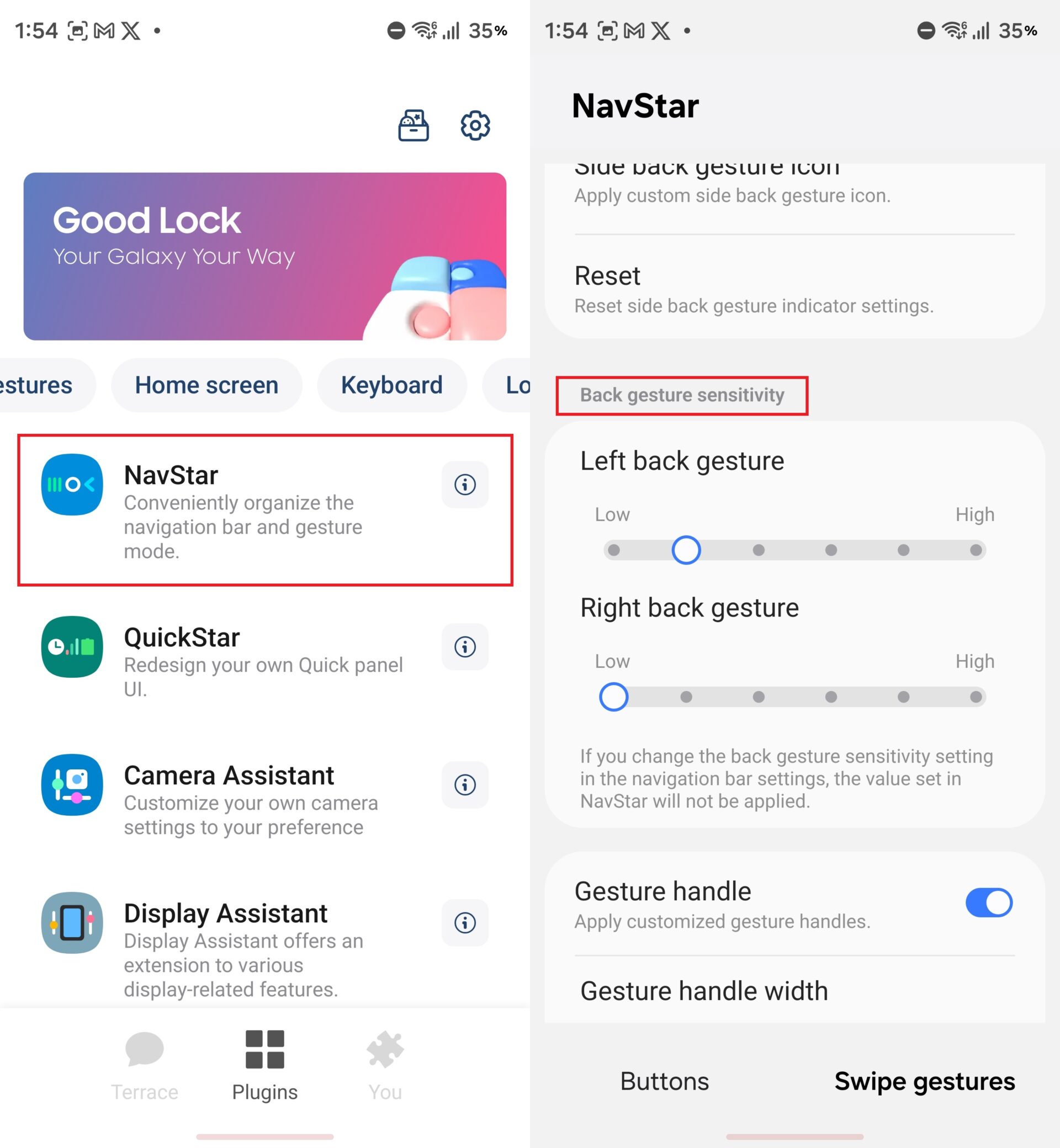
- Optionally install NavStar in Good Lock and tweak the back gesture sensitivity for the left and right edges.
Follow the steps in order so your custom galaxy gestures build on a stable base. Installing Good Lock first guarantees you have access to One Hand Operation+ and NavStar before you start turning features off elsewhere. Enabling both short and long swipes is where the system becomes far more powerful: MakeUseOf highlights that with two handles, three directions, and two swipe lengths, you end up with twelve gesture slots without adding visible buttons. A common gotcha is rushing into complicated mappings; if you assign too many different actions at once, it becomes hard to remember what lives where. Start with a handful of high‑impact shortcuts—like screenshot, notifications, flashlight, and split screen—then add more only when the earlier gestures feel automatic.
Replace Default Controls With Faster Edge Shortcuts
Once One Hand Operation+ is running, you can begin replacing Samsung’s default gestures with edge‑based motions that match how you hold the phone. The idea is to keep your thumb in its natural resting zone and bring common actions to that area, instead of stretching to the top bar or fishing around in the Recents screen. MakeUseOf describes a layout where a short diagonal swipe on the right takes a screenshot, a long diagonal swipe on the left opens the notification panel, a short version below jumps into Quick Settings, and a long straight swipe toggles the flashlight. This condenses multi‑step flows into single motions: split screen, for example, drops from four taps and menu choices to one diagonal swipe. The warning here is that overloading a single edge with too many functions can lead to misfires, so spread critical shortcuts between left and right.
Use Good Lock Settings to Tame the Back Gesture
Even when you embrace galaxy navigation gestures, the back gesture can be the troublemaker. By default, back works from both edges, which makes it easy to trigger when you meant to swipe on content near the side of the screen. SamMobile notes this is especially noticeable in Samsung’s Phone app and Gallery, where swiping from the edge is already part of the interaction. If you never adjust sensitivity, you end up slowing down, second‑guessing every swipe in case it kicks you back a screen. NavStar, another Good Lock plugin, addresses this by letting you tune the left and right back gesture sensitivity independently and more deeply than the standard settings. SamMobile’s writer set the right‑side back gesture to the lowest sensitivity while leaving the left alone, which transformed the right edge from an easy accidental trigger into something you only hit when you mean to.
When you reach the step where you install NavStar, treat it as a safety layer for all the customization you’ve done. Lowering sensitivity on the side you often swipe for in‑app actions keeps edge gesture controls practical instead of fragile. The gotcha: if you reduce sensitivity too far on both sides, you may find yourself over‑swiping or pressing against the exact edge to get back at all, which can feel worse than the stock behavior. Adjust one side at a time and test in the apps where you noticed problems—call logs, photo galleries, and any app with horizontal swipes near the edge are good candidates. Once tuned, you can keep using powerful phone gesture customization without the constant worry that a light flick along the side will break your flow.
How Custom Edge Gestures Change Daily Use
After you live with a custom setup for a few days, the payoff shows up in small, repeated moments. You stop shifting your grip to reach the notification shade, screenshots no longer require two hands, and entering split screen feels as light as flicking a card. MakeUseOf’s experience moving from a 6.3‑inch Pixel to a 6.9‑inch Galaxy S25 Ultra shows that the real speed gain does not come from processor power but from the way you move around the interface. SamMobile’s writer echoes this on the navigation side: switching between recent apps with the bottom bar swipe felt faster and smoother than the old three‑button layout once the back gesture was tamed with Good Lock settings. In day‑to‑day terms, custom galaxy gestures cut down on wasted thumb travel, and the more your shortcuts match your habits, the more the phone feels built around you.
If you reach this point and something still feels off, it is usually a mapping problem, not a feature problem. Edge gesture controls work best when they mirror how often you use specific actions: put notifications and recent apps on the motions you can trigger in your sleep, and move niche tools to long diagonals or the opposite edge. It is worth the effort, but watch for two traps: hanging onto old muscle memory from the three‑button bar, and forgetting which gesture does what. Both fade if you commit to one layout for a week and avoid constant tweaks. In the end, gesture‑driven navigation shines when it disappears into the background; you stop thinking about swipes and start focusing on the work or content in front of you.