

Why Google Photos Eats Your Storage So Fast
Google Photos storage control means turning off unnecessary backups, limiting which folders and networks can upload, and using Google’s own cleanup tools so photos, videos, and random downloads stop swallowing your limited cloud and phone space ahead of schedule.
If your 15GB of free Google space vanished quicker than you expected, you are not alone: large photos and especially videos can drain that allowance faster than you notice. One source found that even after paying for more space, capacity still shrank quickly until they changed a handful of Google Photos settings. The aim of this guide is to help you disable cloud sync where it does not make sense, so the photos that matter stay safe while disposable files stop piling up.
You will need an Android phone with Google Photos and the Files by Google app from the Play Store, which is a surprisingly useful storage cleaner that shows where your space is disappearing and how to free it up. We will focus on small, realistic changes you can live with, not a total reset of how you use your phone.
Decide What Deserves a Backup
Before flipping switches, the key question is: what deserves to live in your cloud forever? One experienced user found that by paying attention to what Google Photos was backing up and switching off a few features, they dramatically reduced clutter and made their storage last much longer. In their words, “the best way to get more space isn't to buy it; it's to decide what deserves to be saved in the first place.”
Screenshots are a classic trap. Every quick capture for work, reminders, or sharing was treated like a memory and stored alongside real photos, even though most had no long‑term value. Turning off screenshot backups instantly decluttered their library and made searches more accurate. The same thing was happening with memes, forwarded photos, and random downloads from apps like messaging services and browsers, which quietly filled cloud storage without ever feeling like part of a photo collection.
Think of Google Photos as your memory box, not your Downloads folder. The more selective you are, the longer your existing Google storage will last and the less pressure you will feel to buy extra space.
Step‑by‑Step: Turn Off Storage‑Draining Syncs and Clean Up
Follow this once, and you will put most of your storage‑draining habits on a leash. You can always turn features back on if you miss them, but start strict so you see the full benefit.
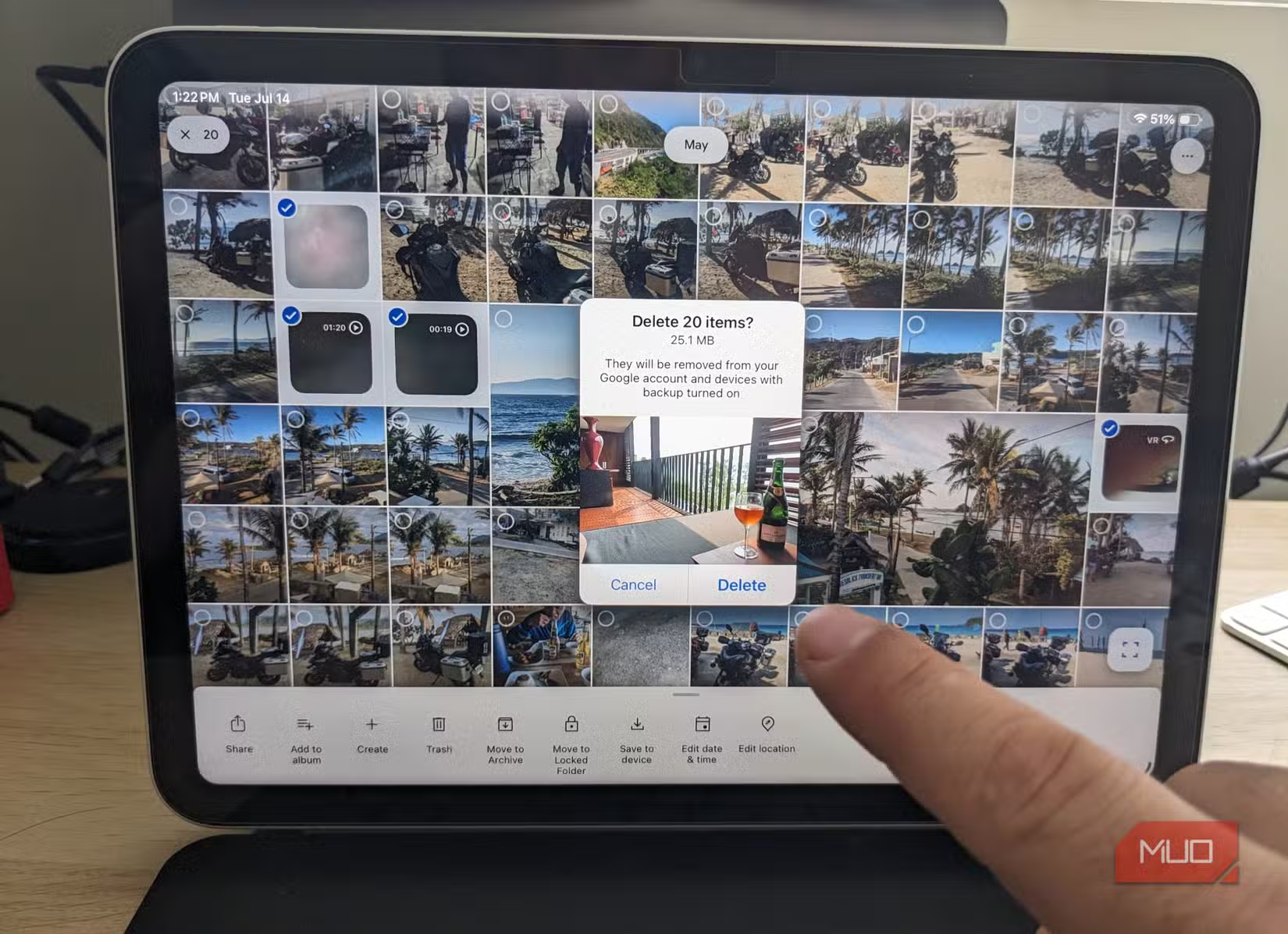
- Open the Google Photos app, tap your profile icon, go to Photos settings, then Backup.
- Tap Back up device folders, find the Screenshots folder, and uncheck it so screenshots stop uploading automatically.
- In the same Back up device folders list, turn off backup for folders you do not care about, such as messaging apps, Downloads, or meme folders.
- Still under Backup, tap Mobile data usage and set it to No data so Photos waits for Wi‑Fi before uploading.
- After trips or video sessions, review your clips on the phone and delete shaky, accidental, or test recordings before you allow them to back up.
- Install and open Files by Google, tap the menu (hamburger icon) in the upper‑left corner, then select Clean to open its storage tools.
- Work through the suggested categories such as duplicates, memes, old screenshots, blurry photos, unused apps, large files, and downloaded files, deleting what you do not need to reclaim phone storage.
The small gotcha: do not rush through Files by Google’s suggestions. While it organizes items that are usually safe to delete, you should still skim the previews, especially for large files and old screenshots, in case something important is hiding there. One user freed around 500MB from duplicate photos, videos, and PDFs, plus 50MB from blurry photos, and discovered unused apps taking up almost 20GB they had forgotten about. Altogether, they estimated nearly 25GB of wasted space recovered through these tools.
Make Google Storage Management Work Long‑Term
Once your immediate cleanup is done, the goal is to keep things under control without turning storage management into a hobby. By default, Google Photos is more generous than you might like and will back up more than you want or need unless you say otherwise. Turning off a few features and changing a couple of habits can make a significant difference and greatly improve the app experience.
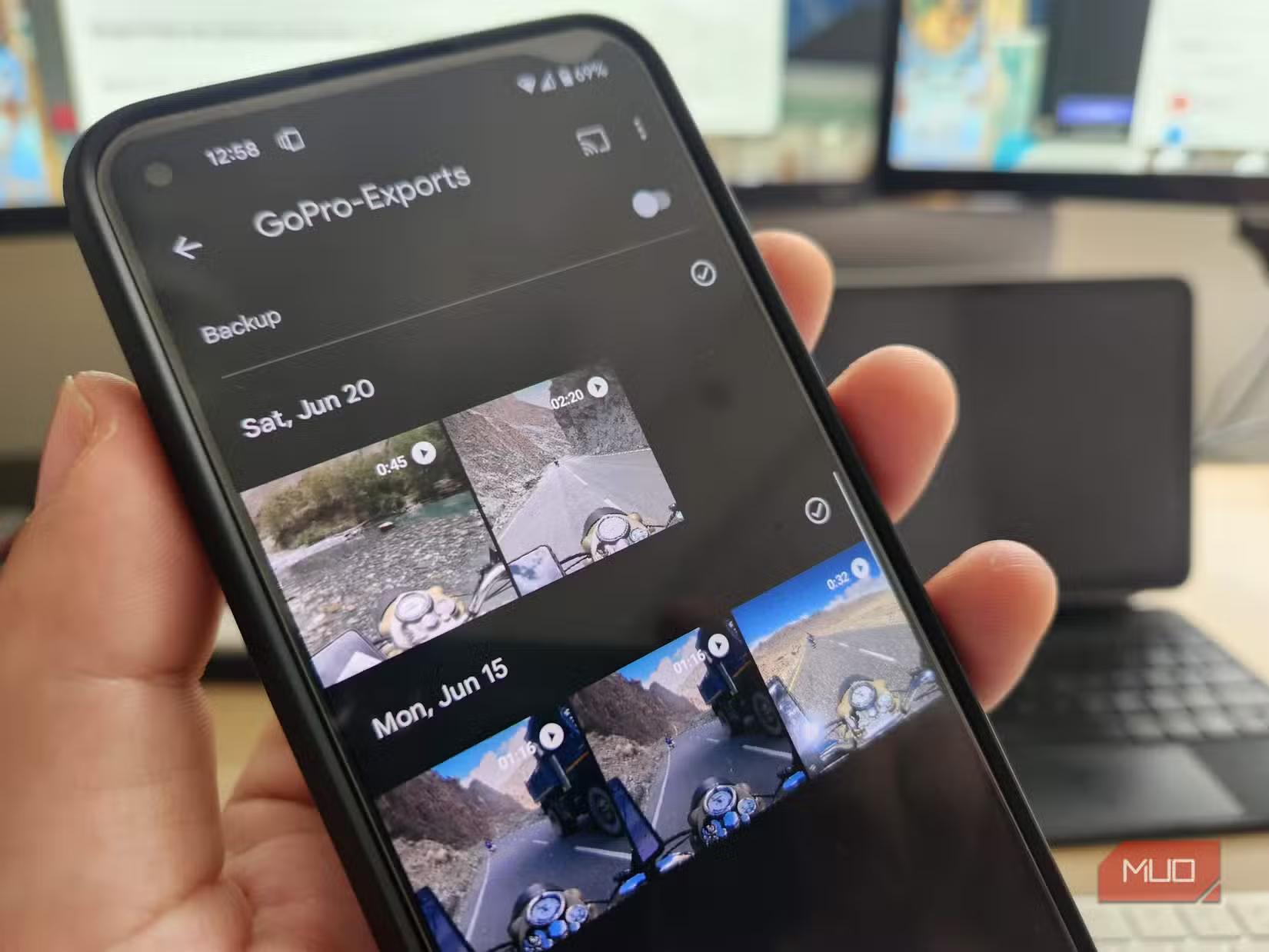
A good rhythm is to review new photos and videos on Wi‑Fi before they upload, especially after trips. One traveler learned that 4K action‑camera clips were devouring storage, so they started keeping only the videos they would watch again or edit, and sometimes lowered backup quality. Let your phone sit on Wi‑Fi only after you clear the obvious junk; this prevents duplicates, blurry shots, and throwaway clips from taking up cloud space in the first place.
On‑device AI models and system files will keep growing in size, which means the pressure on your storage will not ease. Using Files by Google as your regular Google storage management tool makes sense because it gathers files that are safe to remove instead of leaving you to hunt through folders yourself. So, it only makes sense to trust these built‑in tools to quickly free up storage while you stay in charge of what gets to live in your cloud.
Is It Worth Turning Off Auto‑Sync?
If you rely on Google Photos as your main backup, turning off parts of auto‑sync can feel risky at first. But the experience from seasoned users is clear: once they disabled screenshot backups and random device folders, their libraries felt cleaner, search results improved, and the photos that remained were a better reflection of their lifetime memories.
According to one detailed account, a few careful changes to Google Photos and regular use of Files by Google recovered almost 25GB of previously wasted storage and extended the usefulness of existing cloud space. The main things to watch for are that screenshots and casual downloads are no longer automatically safe, and you need to review important items before deleting. As long as you build that habit, disabling auto‑sync for low‑value files is a low‑effort way to reclaim phone storage and postpone any upgrade to a bigger plan.