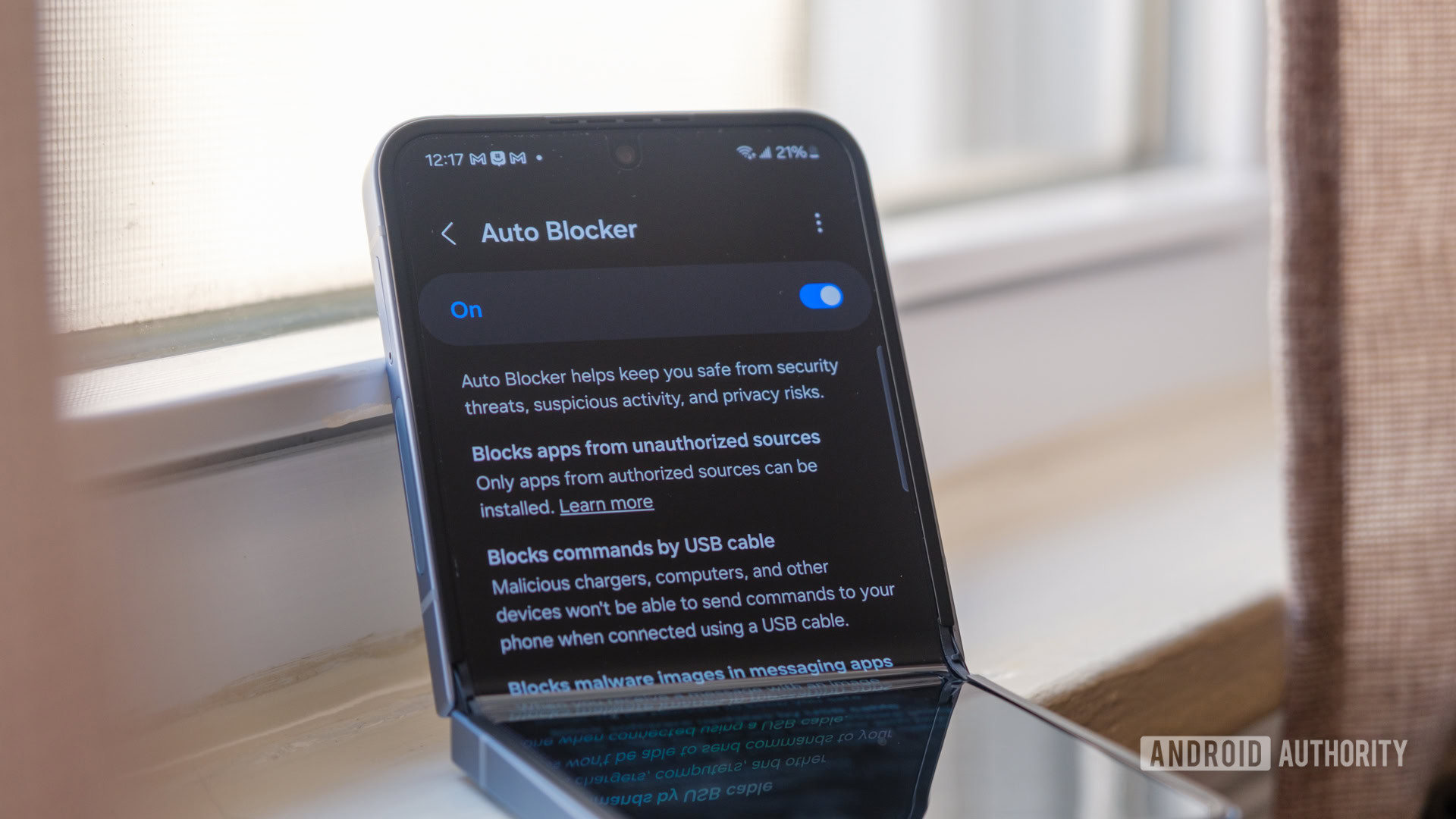


What custom phone gestures are and why they feel faster
Custom phone gestures are user-defined swipes, taps, or edge actions on a smartphone screen that you remap to launch apps or perform system tasks more directly, so you can reach frequent actions with fewer moves and less thumb travel compared with the default navigation layout.
If your phone feels slow, there is a good chance the bottleneck is you hunting for apps, not the processor. Custom phone gestures and Android gesture shortcuts work on that human side: fewer swipes, fewer stretches, and less time spent reaching the top of a huge screen. On some Samsung models, a module called One Hand Operation+ inside the Good Lock suite lets you place invisible edge handles and tie them to specific actions. Each handle can respond to three swipe directions, and each direction has short and long variants, giving you twelve gesture slots without adding any on-screen buttons. It does not make your CPU faster, but it cuts the tiny delays you repeat all day, which adds up to a phone that feels far snappier.
There is one real prerequisite before you dive in: on Samsung, Good Lock only runs on devices with the full version of One UI, and most budget A and M series phones with One UI Core do not support it. If that is you, or you are on another brand, you will lean on third-party gesture customization apps from the Play Store instead.
Plan your shortcuts around how you actually use your phone
Before you flip switches, decide what you want faster. Gesture remapping works best when it matches the apps and actions you repeat all day. For example, one user mapped a short diagonal swipe on the right edge to take a screenshot, a long diagonal swipe on the left to open the notification panel, and a short swipe near it to jump straight into Quick Settings. Another long, straight swipe on the right turns on the flashlight from wherever the thumb naturally rests. These are tiny savings, but they happen dozens of times a day. According to one author, “Certain software tricks can make your phone feel faster… they can remove many of the frustrations that make your phone feel slow.”
Think about your own day: maybe your top priorities are faster app switching between chat and browser, opening the camera, and toggling the flashlight. Someone else might care about split screen and a note app. List five to eight top actions, then rank them. The top three deserve your easiest, shortest swipes in the area your thumb naturally hits. Less-used tricks can live on longer swipes or less comfortable edges. Skipping this planning step is the biggest hidden gotcha: if you throw gestures everywhere without a pattern, you will keep forgetting what lives where and end up slower than the stock layout.
Set up edge gestures and launchers for faster app switching
Here is one practical way to build a faster app-switching setup with custom phone gestures and gesture customization apps, starting from Samsung’s One Hand Operation+ and adding a minimal launcher for predictable, quick access.
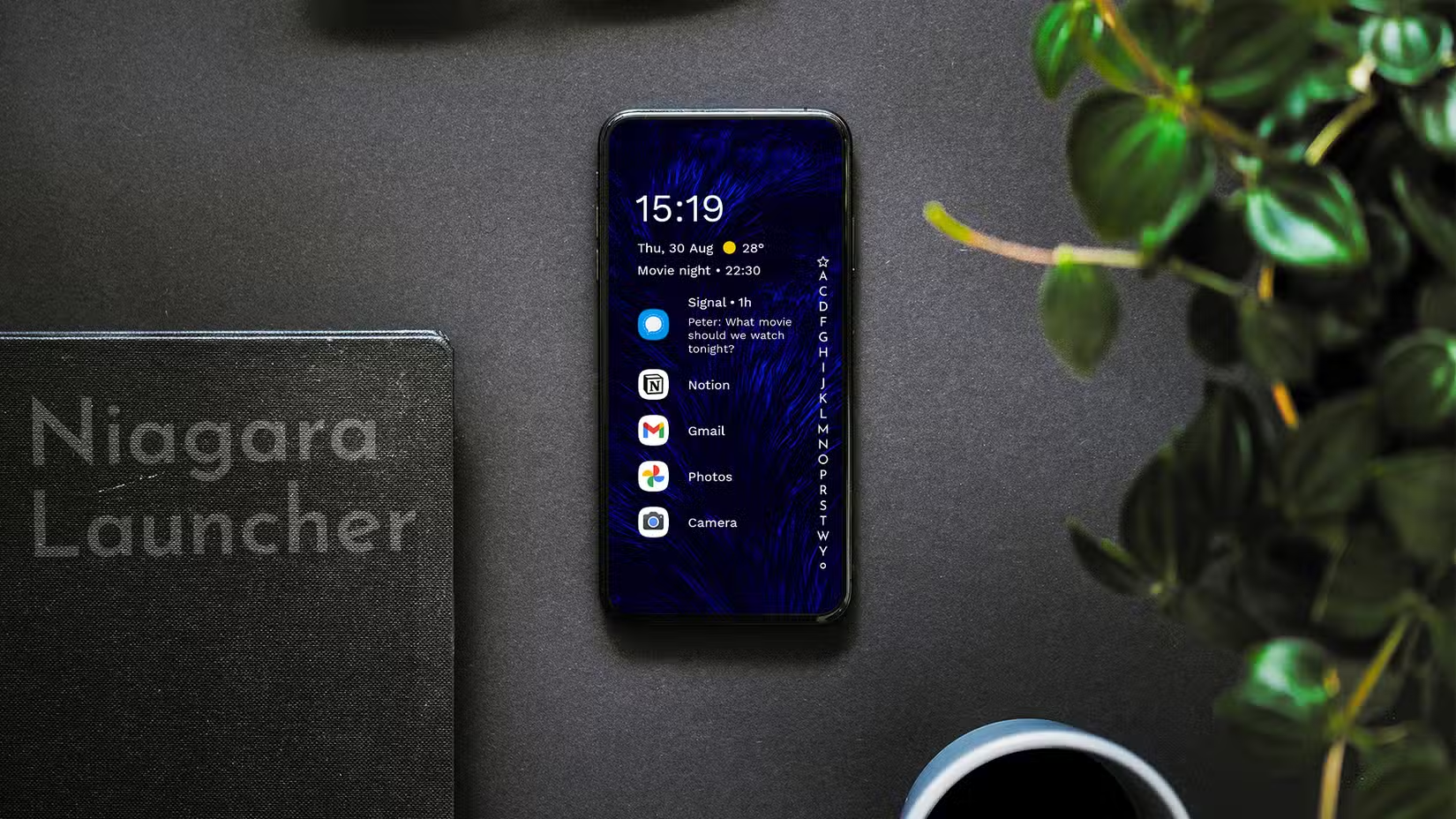
- Install the tools: On supported Samsung phones, download Good Lock from the Galaxy Store, then add the One Hand Operation+ module inside it. On other phones, install a reputable gesture customization app and, if wanted, a minimal launcher with an alphabetical app list.
- Turn off or minimize default navigation: In system settings, disable extra gesture hints or buttons that overlap where you want edge handles, so custom Android gesture shortcuts do not conflict.
- Add edge handles: In One Hand Operation+ or your gesture app, enable left and right edge handles and adjust their position and size so your thumb can reach them in one-handed use without stretching.
- Map top-priority actions to short swipes: Assign your three most common actions to the easiest short swipes, e.g., short diagonal right for screenshots, short diagonal left for Quick Settings, or a straight short swipe to open a favorite app.
- Enable and tune long swipes: Turn on long-swipe recognition to unlock a second layer of actions on the same handles, then enable any “quick action” option so long swipes trigger as soon as you cross a distance threshold instead of waiting for you to lift your thumb.
- Wire in faster app switching: Map one diagonal swipe to open split screen, turning a four-step process into a single gesture from near your thumb. If your gesture app supports it, add a Task Switcher that shows recent apps in a floating panel and a Quick Launcher grid that opens pinned apps without going home.
- Pair gestures with a predictable app list: In a minimal launcher, keep your most important eight or so apps as favorites on the main screen and rely on the alphabetical list for everything else, so you always know where each app is.
- Test, then prune and adjust: Use your phone for a day and notice which gestures feel natural, which you miss, and which you never use; then remove cluttered gestures and move high-value actions to more comfortable swipes.
The gotcha here is overlap: edge-swiping gestures live very close to the system back gesture, side menus, and keyboard edges. If you cram every direction with an action, you may trigger the wrong thing. Start with a few high-impact gestures, confirm they do not interfere with your normal swipes, then expand. One Hand Operation+ also offers extras like Quick Tools, which opens a floating panel with brightness and volume sliders, media controls, and quick toggles such as Wi‑Fi, Bluetooth, flashlight, and screen recording, all from a single swipe instead of pulling down from the top of the screen. That kind of compact control center can replace several old habits at once.
Dial it in so your gestures match your habits
Once the basics work, the real speed comes from shaping the layout around your habits. Launchers with alphabetical lists reduce the time and effort to locate an app, which speeds up the entire app launching process, especially when you pair that with a small favorites rail where all icons stay within thumb reach. Edge-swiping gestures let you launch your most-used tools or activate multitasking features instantly from anywhere on the screen edges. On one setup, split screen changed from opening Recents, tapping the app icon, and picking from a menu to a single diagonal swipe near the thumb. Task Switcher and Quick Launcher features reinforce this idea by giving you floating access to recent and pinned apps without returning to the home screen.
The trap is over-optimizing for novelty instead of routine. A fancy gesture to launch a rarely-touched app will not save you time; a boring swipe that opens your main messaging app will. Keep tweaking: if you always reach for a certain corner, reward that reflex with something important. When the pattern fits your daily rhythm, you will notice fewer pauses and fewer hand shifts, and your “slow” phone will start to feel surprisingly quick.
Is building custom gestures worth it?
If you use your phone a lot, custom phone gestures are worth the hour they take to set up. They cannot reverse hardware aging, but they can “remove many of the frustrations that make your phone feel slow.” Edge handles and Android gesture shortcuts let you fold multi-step actions like opening split screen into a single motion from where your thumb already is, which turns four taps into one. Gesture customization apps go beyond stock settings by giving you more flexible edge zones, floating panels, and one-swipe control centers. The key is to stay honest about what you do the most and to keep the map small and memorable. Start with a few high-value moves, live with them for a week, and trim any that do not earn their keep. The end result is a phone that feels tailored to your hands instead of the other way around.