
What Android Location Privacy Means in Everyday Life
Android location privacy is the set of controls and habits that limit how much your phone and its apps record, share, and expose where you go, which places you save, and how your movements can be linked to your identity over time. If you use Google Maps or in‑car navigation every day, your phone has likely become a quiet travel diary. These tools are convenient, but they pull far more data than is required to show directions, especially when combined with systems like Android Auto that turn your dashboard into a data collection device. The goal of this guide is to walk you through realistic changes—inside Google Maps, in Android settings, and through private navigation apps—without making you give up reliable turn‑by‑turn navigation.
Think about what your phone knows: home and work, your favorite cafés, regular school runs, weekend spots, and every time you plug into your car. Navigation apps can draw a detailed picture of your behavior that is worth a lot to companies built around monetizing it. This is not about paranoia; it is about reducing unnecessary data collection and making sure that when someone borrows your phone or glances at your screen, they cannot instantly see your entire life mapped out. You do not need advanced technical skills to do this. If you can install apps and change settings, you have everything you need.
Lock Down Your Google Maps Privacy Settings
Google Maps is baked into many daily routines. Over time, it quietly builds a list of your saved places, custom lists, and the addresses you visit most. Those features are helpful, but they also mean anyone who opens the app on your phone can see a lot about you with very little effort. Labels for places like “Home” and “Work” can appear directly on the map by default, so a borrowed phone or a shared screen in the car can reveal more than you planned. The fix is not to stop using Maps entirely, but to move sensitive locations into less visible lists and turn on the privacy tools the app already offers.
Saving locations and lists is the building block for locking things down. Saving a location on Google Maps is a simple process: search for any location on your Google Maps app, then tap the "Save" button (with the bookmark icon), then tap "Done" to save it for later. You can then organize those places into custom lists such as “Travel” or “Cafés” to keep things neat. The privacy problem is that these lists can show up directly on your map, so the trick is to keep important spots in a separate list and hide that list from automatic map labels. At the same time, it is worth reviewing less obvious settings like Timeline, location permissions, and Location Sharing, which many people overlook entirely.
- Open Google Maps on your Android phone and search for a location you visit often (for example, your home or workplace). Tap it to bring up its information card, tap "Save" (bookmark icon), then tap "Done" so it is stored in your account for later use.
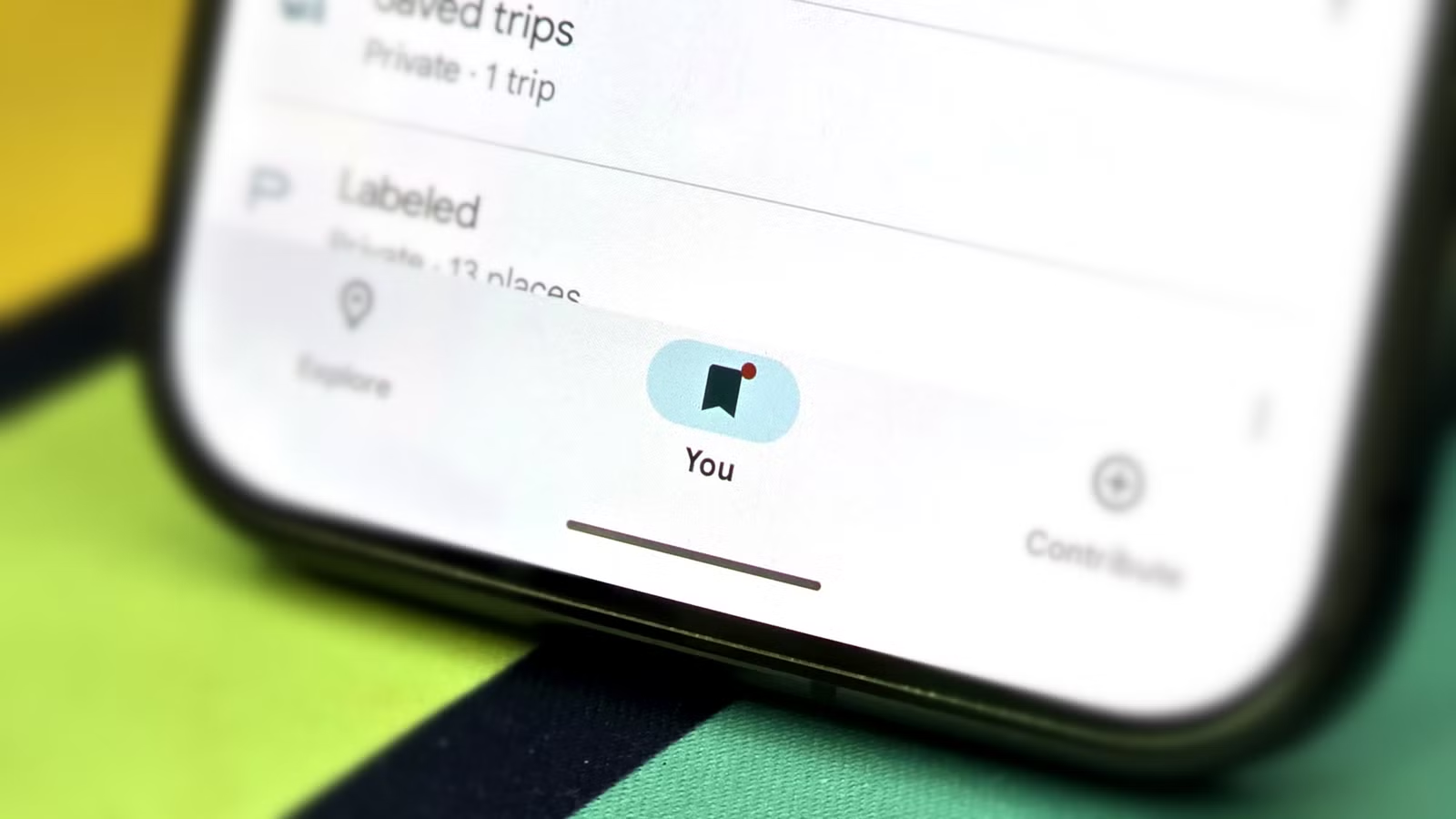
- Tap the "You" button on the main navigation bar to see "Your Lists". Create a new list—for example, "Private"—and move sensitive places like home, work, or personal spots into this list so they are grouped together instead of scattered across default lists.
- Use the Maps settings to hide this new list from the main map view so it does not automatically appear as labels when the app is open, reducing what someone can see at a glance while still keeping the locations easy for you to access.
- Review additional privacy options such as Timeline, location permissions, and Location Sharing inside Maps’ settings, and turn off any sharing features you do not actively use to further reduce visibility of your movement history.
- When you need to navigate to a private place, open the "You" tab, go to "Your Lists," tap the hidden list, and launch navigation from there so you can keep the location convenient without leaving it visible on the main map.
Following these steps will not fully lock your saved places behind a password, but it will make them much less visible to anyone who grabs your phone while keeping them easily accessible when you need them. This matters in group travel situations, when you lend your phone to someone for directions, or anytime your screen is mirrored in a car. One quotable way to think about this is: “Convenience without visibility is the sweet spot—your favorite places stay one tap away, without sitting on the map for every passerby to see.” The key gotcha is to remember that hiding lists controls visibility, not collection. That is why the next step is to reduce how much location data is gathered in the first place.
Tame Android Location Tracking and Its Real Trade‑Offs
Even if you make Maps less revealing on the surface, Android location privacy depends on how the phone itself handles tracking. When you plug into Android Auto, for example, your dashboard behaves more like a data collection device than a neutral screen. Navigation apps collect more information than they need to get you from point A to point B, especially when used together. Turning off obvious checkboxes does not always stop background logging; there is evidence that some apps continue to log your coordinates behind the scenes, and people complain about how hard it is to turn this off. The realistic goal is not perfect invisibility, but cutting down on unnecessary tracking and being conscious of when your phone is feeding data back to large services.
Start in Android’s system settings by checking which apps have location permission and why they need it. If an app does not need your location to function, remove the permission. This will cut down on background tracking and may help with battery, since fewer apps are allowed to wake the GPS and related radios. Keep in mind that navigation apps will still need location to work; disabling it entirely breaks live turn‑by‑turn support. Instead, aim for “only while in use” permissions wherever your Android version allows it. The frustrating gotcha is that on some setups, even limited permissions do not fully stop logging, especially when Android Auto is involved. That is the point where switching apps becomes more attractive than endlessly fighting hidden toggles.
Use Private Navigation Apps Built on OpenStreetMap
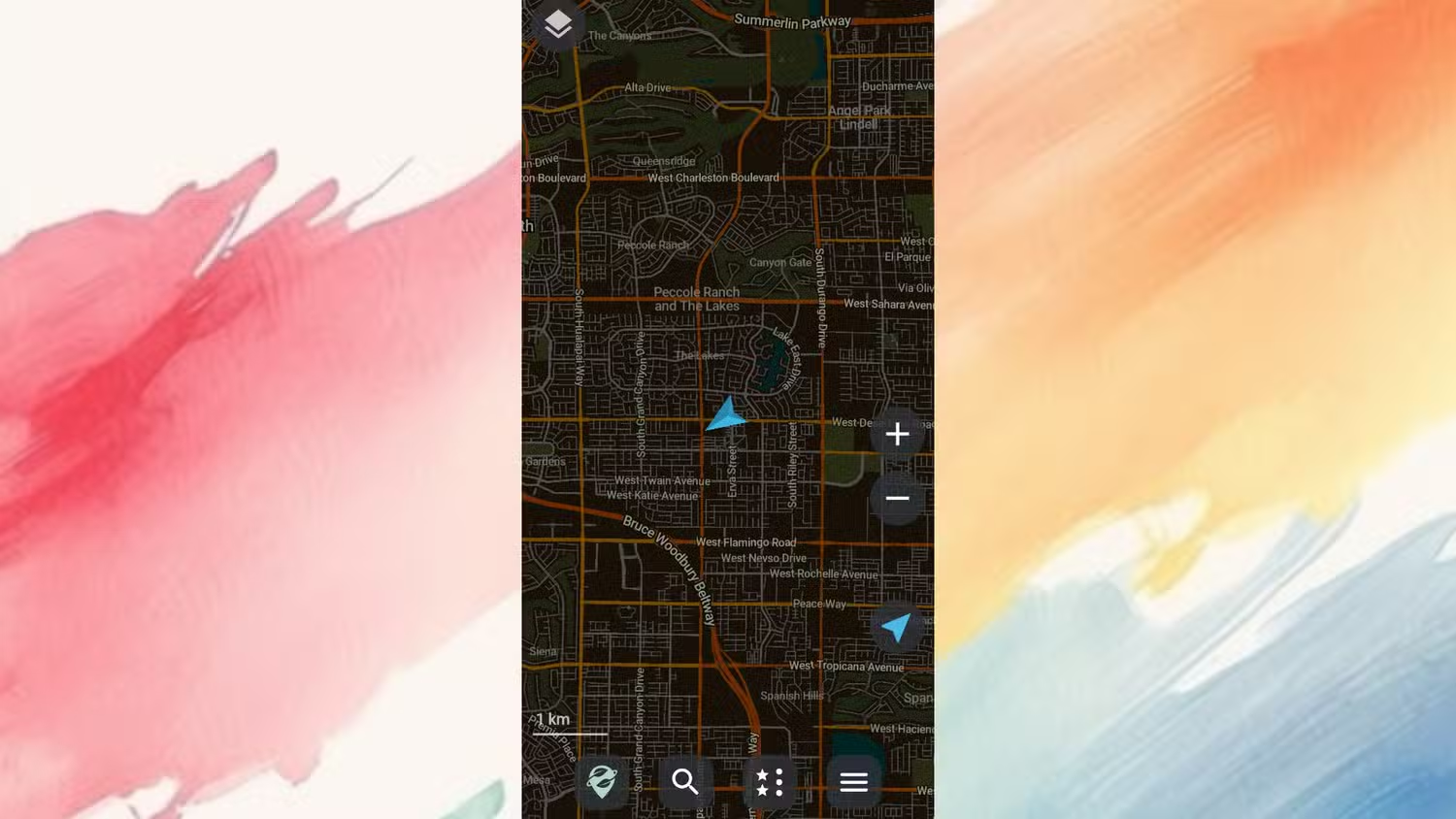
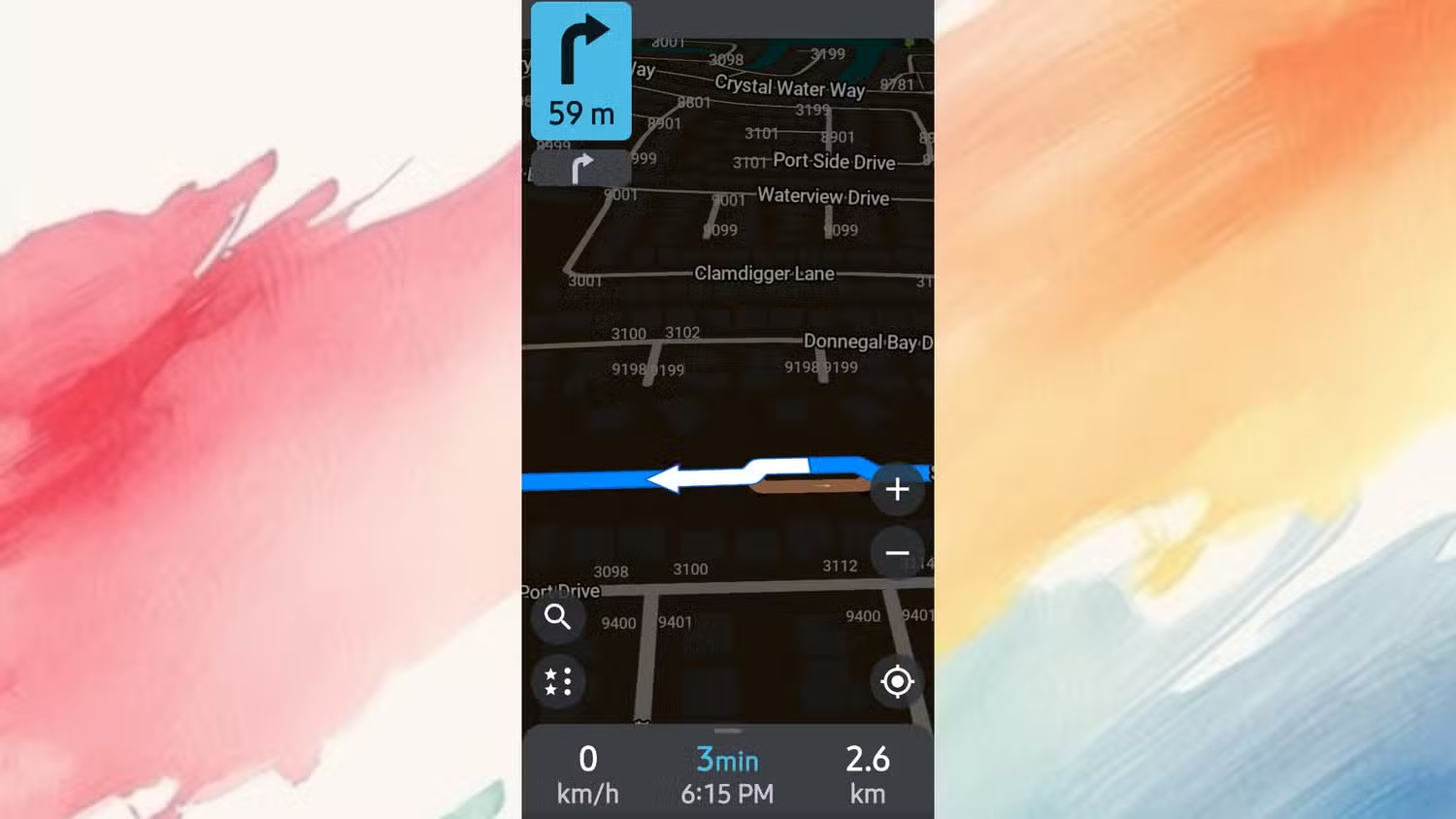
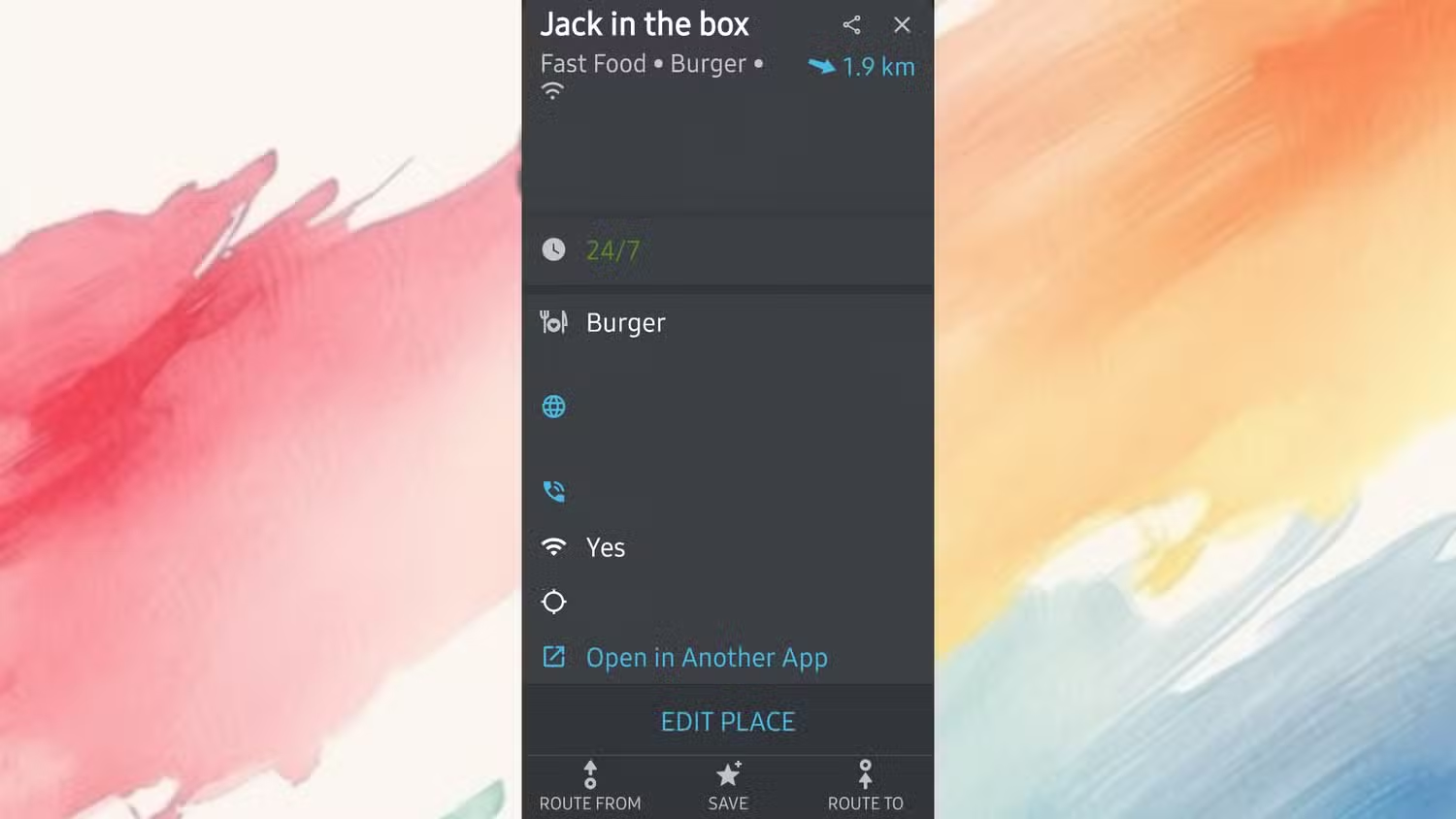
If you are tired of treating big‑name navigation apps as neutral tools when they collect so much data, it is time to look at open‑source alternatives. The answer many privacy‑conscious drivers have found is navigation apps built on OpenStreetMap, which is a community‑maintained map of the world we all contribute to. Two popular examples are Organic Maps and OsmAnd. Both work offline, neither collects any data tied to your identity, and there are no advertising networks baked in. In other words, they provide the core of navigation—maps, routing, turn‑by‑turn guidance—without sending your everyday travel back to large companies.
You need to set up OsmAnd or Organic Maps yourself. Both work by using maps you download ahead of time from OpenStreetMap, instead of streaming tiles on the fly. In Organic Maps, those downloads range from a few dozen megabytes for smaller regions up to many gigabytes for entire countries, and they live entirely on your device. Since the maps and the routing engine both live on your device, the app can calculate routes, give turn‑by‑turn directions, and reroute you on the spot without ever reaching out to a server. You can download both OsmAnd and Organic Maps through the Google Play Store, and from there you can run them in the same way you would run regular navigation apps. The upfront work is downloading what you need over Wi‑Fi, but the payoff is that day‑to‑day driving does not depend on constant data collection.
According to the research cited in the original comparison, out of 35 possible data categories, one mainstream navigation app pulls from 24 of them, while another pulls from 21. That stark contrast is what pushed many users toward open‑source tools. The gotcha to keep in mind is that switching to private navigation is not a perfectly clean trade—you may miss a few extras like certain live traffic features or deep integration in some dashboards. But for most everyday trips, offline maps and routing cover the essentials without tying your movements to an advertising profile. If Android Auto support matters to you, expect a bit of setup work, since the platform can be picky about which apps show up on the car screen.
Is Reclaiming Location Privacy Worth the Effort?
Taking back control of Android location privacy is less about perfection and more about making rational trade‑offs. By hiding sensitive saved places in Google Maps and reviewing Timeline and sharing settings, you cut down on how much of your life is visible at a glance. By trimming app permissions and being wary of what happens when you connect to Android Auto, you reduce how often your movements are silently logged. And by moving to private navigation apps based on OpenStreetMap, you get routes and directions without attaching location data to your identity.
It is worth it if you care about keeping everyday routines from turning into permanent records in someone else’s servers. The main thing to watch for is convenience creep: over time, new features and apps will ask for location again, and it is easy to say yes out of habit. Treat location access as something you grant sparingly, not by default. With a few hours of setup and an occasional check‑up, your phone can go back to being a tool you control, rather than a sensor feeding a profile. Navigation will still get you home; it will just tell fewer stories about you along the way.