
Why Repurposing an Old Tablet Is Worth Your Time
Repurposing an old tablet into a smart home hub means turning a slow or unused device into a dedicated tablet smart display that shows calendars, tasks, and smart home controls without buying new hardware.
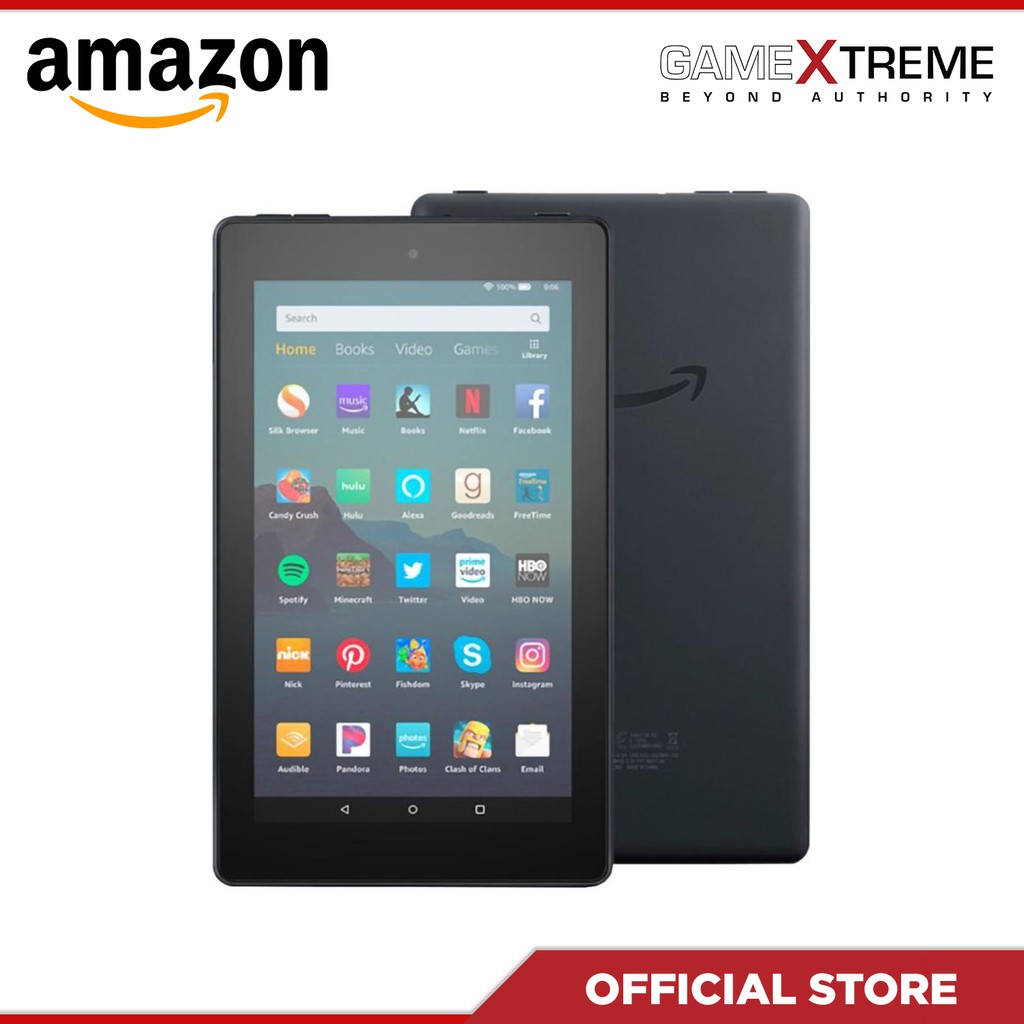
If you repurpose an old tablet, you turn clutter into something useful: a wall-mounted family calendar, a desk dashboard for smart lights, or a shared screen for groceries and chores. Even a ninth‑generation Fire 7 with only 1 GB of RAM can work as a Home Assistant dashboard because it does not need huge amounts of RAM or a super‑fast processor to display information and basic controls. This guide is for anyone who has a dusty Android or Fire tablet and wants a simple, low‑maintenance setup backed by either open‑source tools or polished, paid family dashboard apps.
You do not need to be highly technical. You will use the tablet’s existing touchscreen, Wi‑Fi, and stand or case, plus apps from your usual app store or from a community‑run catalog of free and open‑source software like F‑Droid. The only real prerequisites are a working tablet, a Wi‑Fi connection, and a bit of patience for the first setup.
Set Up a Family Dashboard with Calendar and Lists
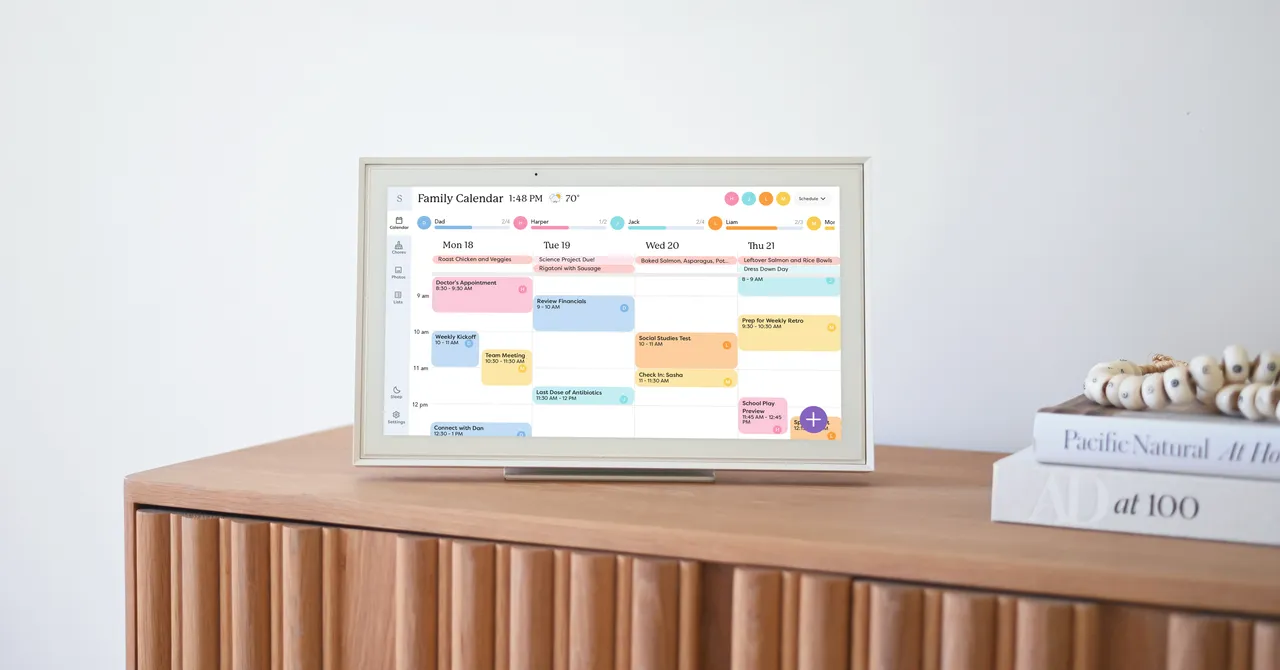
One of the most practical ways to repurpose old tablet hardware is as a shared family dashboard. Think of it as the digital version of the fridge calendar and sticky notes, but with live updates and color‑coding. Family dashboard apps can centralize schedules, grocery lists, and chores in one place that everyone can see. Families in the touchscreen era use tools like the Skylight Calendar to connect multiple kids, parents, and activities on a single display.
- Place the tablet where everyone passes by (kitchen counter, hallway, or near the main door) and set it up on its built‑in stand or a case stand so the screen is always visible.
- Install a family dashboard or calendar app on the tablet and on each family member’s phone, then sync them all to the main device so everyone can see and add events and lists.
- Connect the tablet app to existing calendar services like Google, Apple, Microsoft, or Yahoo so you do not have to recreate events from scratch; import your main calendar as a starting point.
- Create separate calendars or color codes for each person and for shared categories like chores or household tasks, then assign existing events and duties into their colors for quick scanning.
- Show kids and other family members how to check the screen for plans before asking about schedules, and remind them they can add grocery items or events from their phones through the shared app.
The value here is less about the gadget and more about shifting responsibility. One family found their kids were unexpectedly excited to see everyone’s schedule and used the screen to decide when to hang out with friends instead of constantly asking a parent. According to one tester, “Now, we all have the Skylight app on our phones, and everyone can add items to the grocery list from anywhere”. The main caveat: if your existing calendar has personal notes, those will appear on the shared screen, so you may want to separate private reminders into another account before you go all‑in.
Turn a Fire Tablet into a Home Assistant Smart Display
If your goal is to build a tablet smart display for smart home controls, older Fire Tablets and budget Android models shine. They may be painful for web browsing, but they are perfectly fine as static dashboards. One person took a ninth‑generation Amazon Fire 7 from 2019 with a quad‑core 1.3 GHz processor and 1 GB of RAM and turned it into a dedicated Home Assistant dashboard. Even old tablets can do a job when they only need to show key information and a handful of buttons.
- On your main computer, create a new dashboard in your Home Assistant setup tailored for a tablet in landscape orientation, adding only the cards and controls you need so it stays light and responsive.
- On the tablet, download the Home Assistant Companion app from an app store or from F‑Droid, then enable Apps from Unknown Sources if you use an APK, install it, and log in with your Home Assistant credentials.
- In the Companion app settings, turn on the option to lock the app into landscape mode so the dashboard always fills the screen in the correct orientation.
- Switch the app into a kiosk‑style view by hiding sidebars and menus where possible so the display focuses on tiles and controls instead of navigation clutter.
- Leave the tablet plugged into power and keep it on your desk or a shelf, letting it display real‑time information while you use taps to control devices from the Home Assistant dashboard.
The main reason to prepare the dashboard on your computer is that older tablets can feel slow and fiddly for heavy configuration. Doing the layout work elsewhere keeps the tablet’s limited processor and memory focused on showing information rather than editing it. A stripped‑down Companion app from F‑Droid removes features that depend on Google Play Services, which can reduce overhead; you lose location tracking and some notifications, but a wall‑mounted dashboard rarely needs those. The trade‑off is a smoother experience on low‑end hardware that would struggle with a more feature‑packed build.
Protect the Battery and Keep the Display Always Ready
Once your repurposed old tablet is doing its job, the biggest practical concern is leaving it plugged in full‑time. Many people want their family dashboard apps and tablet productivity apps to be always on without sacrificing battery health. A common trick is to let the tablet charge in controlled cycles instead of sitting at 100 percent all day. In one setup, a smart plug turns off when the tablet battery reaches 80 percent and turns back on when the level drops below 20 percent, repeating the process automatically.
You can copy that idea with any automation‑capable plug and a basic battery‑reporting integration. The result is a smart display that stays ready for quick glances while spending much less time at a full charge, which many users prefer for long‑term battery health. This approach also means that even a very old Fire tablet can keep working as a reliable display without constant manual charging. It feels good to be able to put old tech to good use instead of letting it gather dust in a drawer.
Open‑source tools like those on F‑Droid and paid services with Plus subscriptions, such as a platform that offers a meal‑planning tool and an AI assistant named Sidekick for USD 79 (approx. ₱4,500) per year or USD 8 (approx. ₱450) per month, both have a place in these builds. You can start with free apps to prove the concept and only pay for extra features if the family hub or smart display becomes part of your daily routine.
Is Turning an Old Tablet into a Hub Worth It?
Repurposing an old tablet is worth it if you want a permanent place for household information and light smart home control without buying new hardware. As a family calendar, it helps kids and adults share responsibility for schedules, chores, and shopping, while keeping everyone on the same page at a glance. As a smart home tablet smart display, an old Fire or budget Android model can show dashboards and respond to taps without needing modern performance.
The real things to watch for are privacy and habit. Make sure any personal notes or sensitive calendar entries stay in a private account, and agree as a household that the tablet is the source of truth for plans and lists. If you do that, a forgotten gadget becomes a quiet piece of home infrastructure—a permanent, glowing reminder that the tech you already own can still earn its keep.