
Why Turn a Dusty Tablet Into a Smart Display?
Turning an unused tablet into a smart display means repurposing old hardware to show live information, control devices, and support entertainment, so you gain a home dashboard, recipe screen, security monitor, or streaming companion without buying new gear or adding to e-waste.
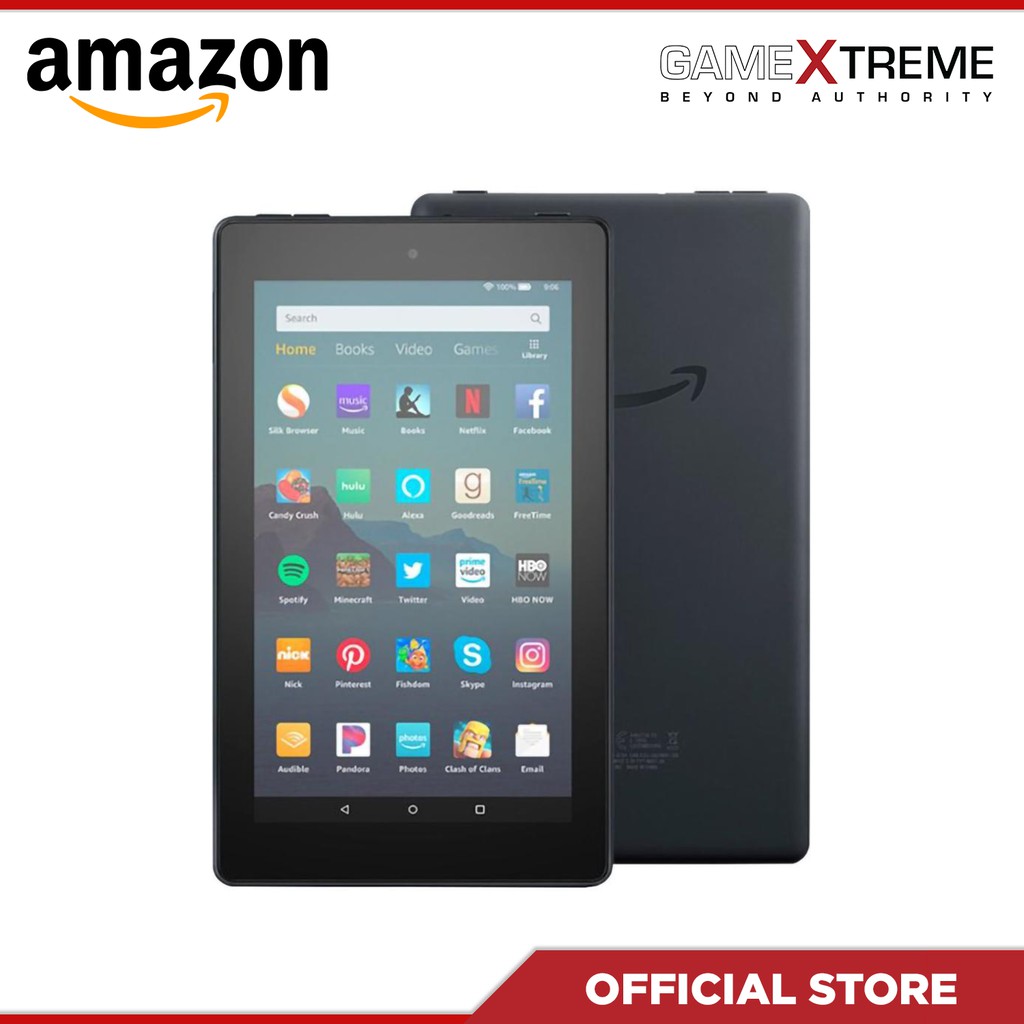
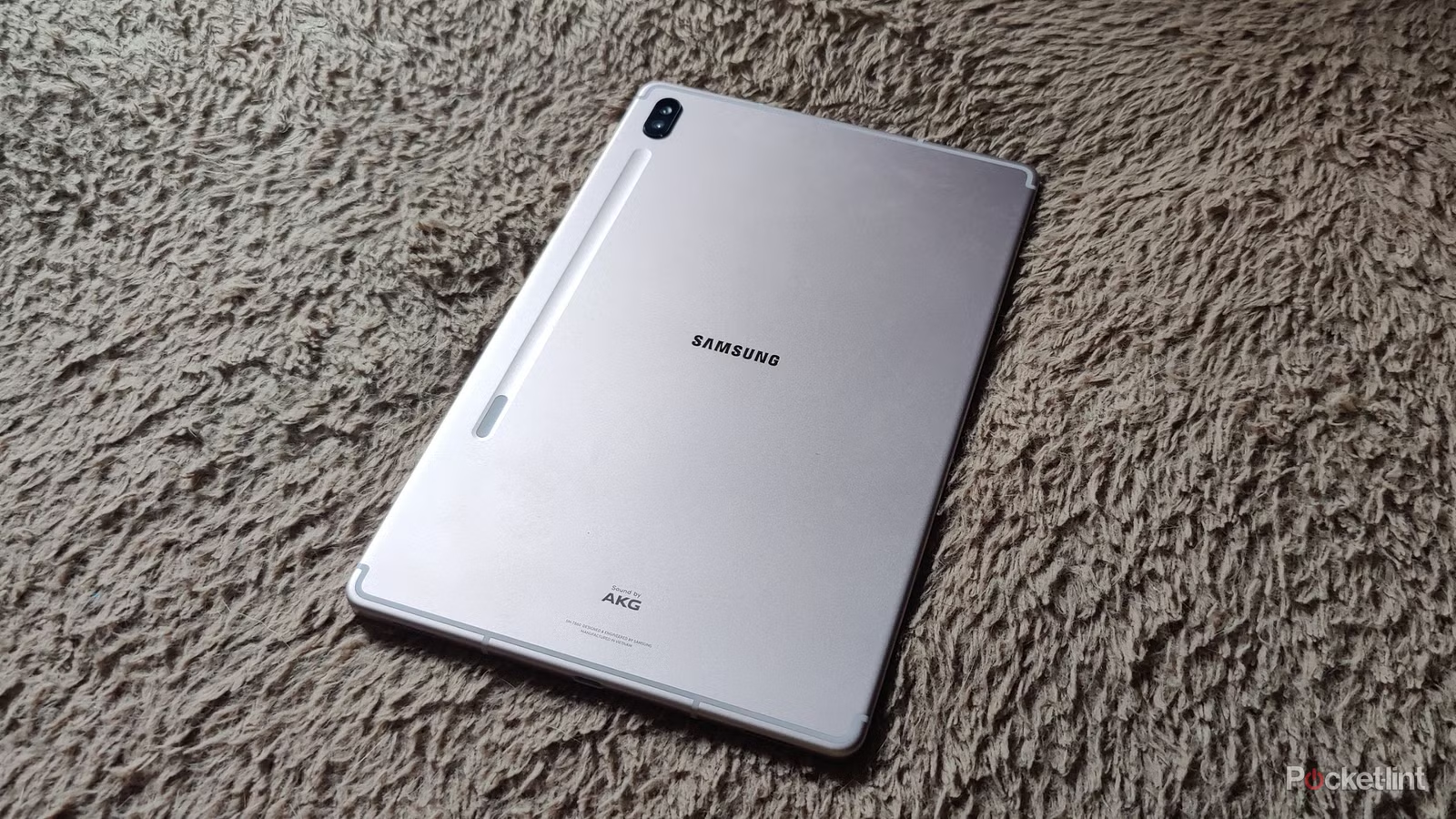
If you have an old Android or Fire tablet rotting in a drawer, this is for you. One example is a ninth‑generation Fire 7 from 2019 with a quad‑core 1.3 GHz processor and only 1 GB of RAM, which feels painfully slow for general use but can still display information reliably. Instead of throwing it out, you can repurpose that old tablet as a dedicated tablet smart display for Home Assistant, music, weather, or camera feeds and keep it on your desk or kitchen counter. It feels good to put old tech to work instead of letting it gather dust, and it stretches the value of devices you already own. On top of that, pairing a tablet with devices like a Roku extends your entertainment setup and makes streaming more convenient.
Choose Your Smart Display Apps and Set Expectations
Before you convert a tablet dashboard, it helps to decide what you want that screen to do most: smart home control, recipes, weather, cameras, or entertainment controls. Older hardware can be limiting, so focus on lightweight smart display apps and a simple layout rather than trying to run everything. An underpowered Fire 7, for example, is slow for browsing but doesn’t need huge amounts of RAM or a fast processor to act as a usable dashboard.
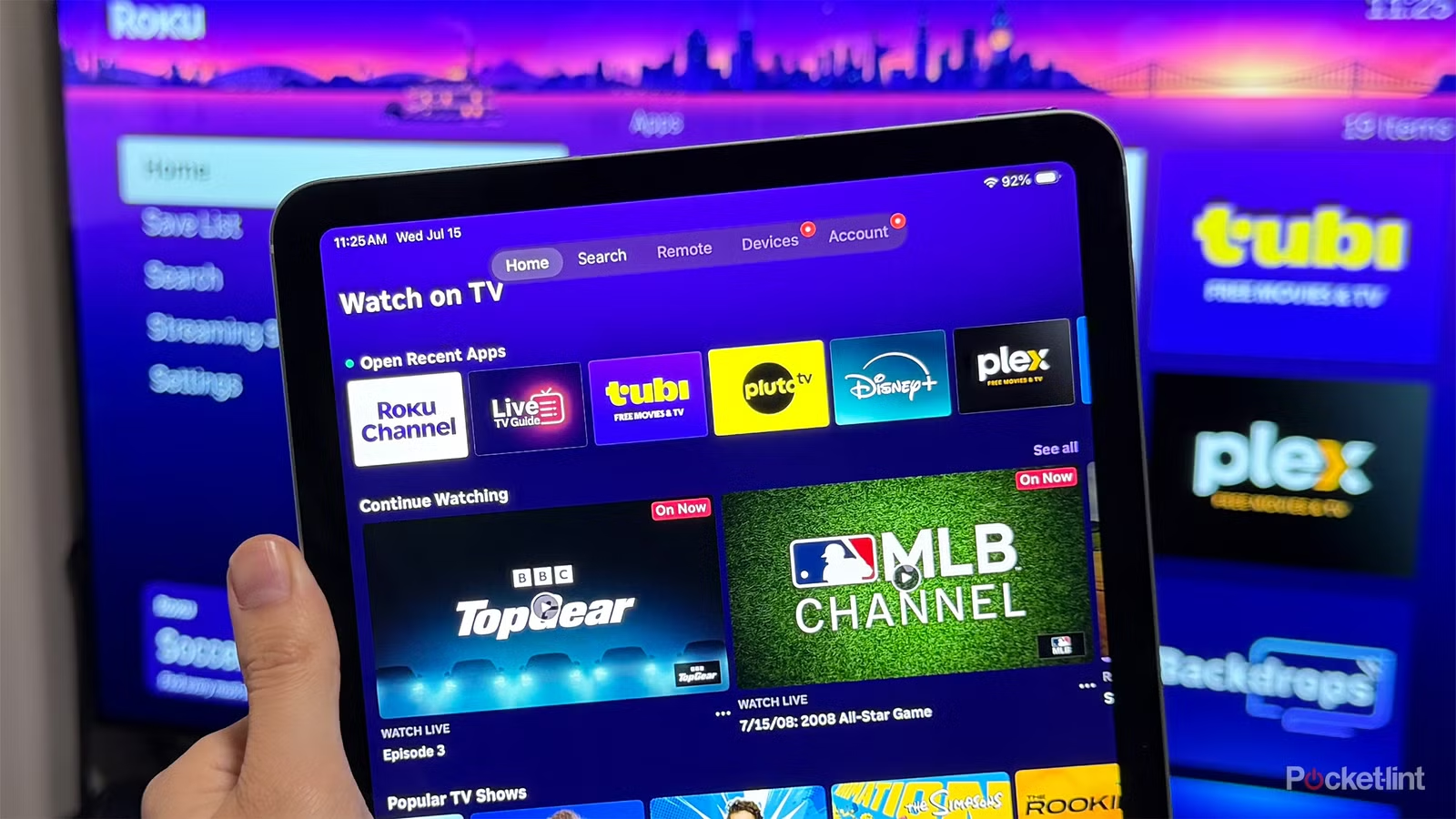
On the open‑source side, you can use Home Assistant Companion, with a stripped‑down build available from the community‑run F‑Droid catalog, which distributes free and open‑source software built from public source code. Alternatives like WallPanel exist, though development has stalled. With Home Assistant, you can show a now‑playing card for Music Assistant, a weather card, lighting controls, and expandable cards for security camera feeds and media players. That turns the device into a flexible home hub. For entertainment, pairing a tablet with streaming gear via official apps, such as the free Roku app, lets the tablet act as a remote, app launcher, and headphone controller, rounding out your smart display setup.
Step-by-Step: Convert Your Old Tablet Into a Home Dashboard
This walkthrough assumes you want to repurpose old tablet hardware into a Home Assistant‑based tablet smart display, then add entertainment control. The big win is that you do the heavy configuration on a desktop and keep the tablet focused on showing information, which avoids most performance headaches.
- Find your unused tablet and confirm it powers on, connects to Wi‑Fi, and can run Android or Fire OS, even if it has modest specs like a quad‑core 1.3 GHz processor and 1 GB of RAM.
- Install a smart display app: download the Home Assistant Companion APK from F‑Droid, enable Apps from Unknown Sources in the tablet settings, install the app, and log in with your Home Assistant credentials.
- On your desktop, create a new dashboard in Home Assistant, since designing it directly on an old tablet can be frustrating. Lay it out to fit a tablet screen in landscape mode.
- Add core cards such as a now‑playing card for Music Assistant, a weather card, key light controls for your office or living room, and expandable bubble cards for security camera feeds and media players.
- Mount or place the tablet where you want quick access — a desk, hallway, or kitchen — and set the Home Assistant dashboard as the main screen so it acts as a dedicated tablet smart display.
- If you use a Roku, download its free mobile app to your tablet from the appropriate app store. When you open it, sign in to your Roku account, ensure the tablet and Roku are on the same Wi‑Fi network, then go to the Devices tab, select your Roku Ultra, Streaming Stick, or Roku TV, and complete pairing.
- Use the Roku app to launch streaming apps, control playback, access the Live TV guide, and enable Headphone Mode for private listening, turning your tablet into an integrated entertainment companion.
The main gotcha is performance: configuring dashboards on the old tablet can feel slow, so do as much as you can on a desktop first. Another is the feature set of open‑source builds; the F‑Droid version of Home Assistant Companion removes location tracking and limits notifications because it strips features that depend on Google Play Services. For a static dashboard, that trade‑off is fine, but if you expect full mobile features, use the official store build instead. Once set up, the tablet will quietly display information and controls without demanding much from its limited hardware, proving that even old tablets can do a useful job as dashboards.
Use Cases: From Home Control to Recipes and Security
Once you convert tablet hardware into a dashboard, you can tailor it to daily life. A desk‑side Home Assistant screen can show music, weather, and lights at a glance, so you tap once to adjust your home office, see what’s playing, or check the forecast. In a hallway, bubble cards that expand to security camera feeds and media players give you a quick view of your front door or living room. In the kitchen, the same layout can become a recipe display or shopping‑list board. Since the device’s main strength is displaying information, keep the interface clean and focus on cards you use every day.
For entertainment, pairing a tablet with your Roku setup adds another layer of functionality. According to one streaming enthusiast, “It’s made controlling my Roku Ultra much more convenient, and thanks to Headphone Mode, it’s even improved how I watch movies and TV shows.” The Roku app recreates the physical remote on your tablet, with directional buttons, playback controls, a Home button, quick access to the Live TV guide, a full keyboard, and voice search. That means your smart display can double as a powerful remote and media browser while your TV shows the content. Combining smart home dashboards with integrated entertainment turns a once‑forgotten device into a central part of your setup.
Is Repurposing an Old Tablet Worth It?
If your tablet is too slow for day‑to‑day use, turning it into a tablet smart display is a practical way to extend its life. Even old tablets can do a job as dashboards; the Fire 7 example shows that limited RAM and processing power are enough for showing information and basic control. Smart display apps from open‑source catalogs like F‑Droid let you build a minimal Home Assistant dashboard without buying new hardware, while official apps from streaming platforms turn the same device into a powerful remote and headphone hub.
The payoff is two‑fold: you reduce e‑waste and maximize your existing tech investment by repurposing old tablet gear that would otherwise gather dust in a drawer. There are trade‑offs — some open‑source builds skip features such as location tracking and rich notifications, and older hardware will never feel fast — but for a stationary info screen that pulls double duty as a smart home hub or entertainment controller, those compromises are minor. Set realistic expectations, keep the layout simple, and your converted tablet dashboard will quietly become one of the most useful devices in your home.