

The real way to make Android feel faster
Speeding up Android apps means changing how quickly you can reach and open them, not magically making your processor faster, by reducing the taps, swipes, and visual clutter that slow you down every time you unlock your phone. Many people replace a slow phone too early because they confuse hardware limits with poor setup, when smart phone performance settings can make an older device feel significantly more responsive day to day. That is the key point: you cannot reverse aging hardware, but you can remove a lot of friction. If your phone is a few years old, its performance will drop as software and apps become more demanding, and you cannot fully fix that. But you can make everyday tasks—especially opening apps and saving battery—much less frustrating with a handful of targeted changes.
One launcher tweak for noticeably faster app launches
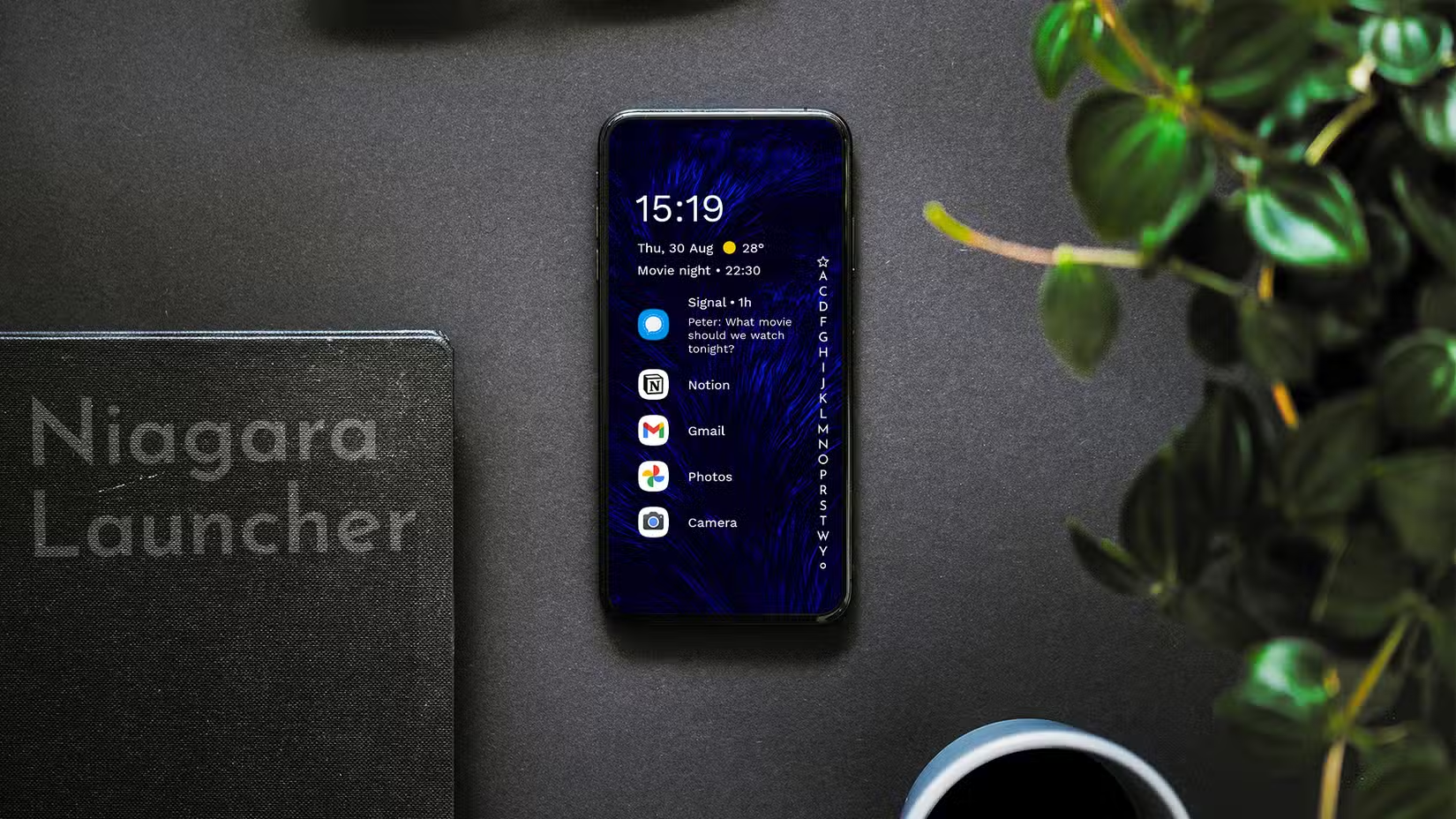
If you want to Android speed up apps in a way you can feel, start with your launcher. Switching your default launcher to a minimalist layout can cut the time you spend hunting for icons, which matters more than shaving milliseconds off animations. One example is changing from a traditional grid like One UI Home to a minimalist launcher that presents apps in a clean alphabetical list. This cannot speed up your CPU, RAM, or storage, but it does shorten the whole process of finding and opening an app, leading to faster app launch in practice. The reason it works is predictability. With an alphabetical list and the alphabet pinned on the side, you always know where to tap—every app lives under its letter, no matter how many you install. Add your eight to ten most-used apps to a small favorites row, and they stay within thumb reach, cutting out extra swipes every single time you unlock your phone.
Dark mode and wallpaper: small changes, real battery gains
Once your home screen is streamlined, the next win is battery life tricks that stop the display from wasting power. If your phone has an OLED or AMOLED display, a dark wallpaper and system-wide dark mode reduce how hard the screen has to work to stay bright. The panel lights each pixel individually instead of using a constant backlight, and research shows LCD can draw around 30% more average current than a Dynamic AMOLED screen. Put a black background on your home screen and most of those pixels switch off, helping the phone last longer on a single charge. Some people treat this as a myth, but measurements show black uses about 250 mW, while white can consume around 1,250 mW on an OLED display. That is a quote worth remembering because it explains why darker themes matter most when brightness is high, such as outdoors in direct sunlight.

When these tweaks help—and when they will not
These phone performance settings are not magic, so it helps to be clear about where they apply. If your device is several years old, you will see some slowdown from heavier apps and system updates, and you cannot undo that technical aging. What you can do is strip away the friction that makes the phone feel slower than it really is. A lean launcher and a tight set of favorites help no matter which Android model you use, because they reduce the taps and mental effort required to reach your apps. Display-related battery life tricks are more selective: they pay off when your phone uses an OLED or AMOLED panel, because those can switch individual pixels off to save energy. On such screens, pairing dark mode with a deep dark or black wallpaper cuts power drain from the display, especially at high brightness. On non‑OLED screens, these particular tweaks will not save as much battery, though they may still look better to your eyes.
Set it up once and feel the difference every day
You do not need to be technical to get real gains from these changes. Start by choosing a minimalist launcher and letting it organize your apps alphabetically, then promote your true everyday tools—messages, camera, maps, music—into a short favorites list that you can hit without thinking. You will feel apps opening “faster” because you are cutting steps, not because the phone suddenly became more powerful. Next, turn on dark mode in your display settings, and pair it with a dark or black wallpaper if your phone uses an OLED screen. That combination lowers the display’s workload and lets your battery stretch further between charges by turning more pixels off. The exact improvement will vary from person to person, but when every unlock involves less swiping and every hour of screen time draws a little less power, your phone starts to feel fresher than its age suggests.




