

What Google Lens Is and Why It Can Replace Other Apps
Google Lens is a visual search tool that turns your camera and photos into searchable, clickable information by recognizing text, products, objects, and codes in real time and linking them to actions like translation, copying, or online search.
If your phone feels crowded with single‑use productivity tools, Google Lens is the quiet icon that can help you clear them out. It handles quick translations, identifies plants or landmarks, scans QR codes and barcodes, copies printed text, and even finds products online without needing separate apps. For everyday tasks, one person described Google Lens as “like a digital Swiss Army knife that does everything you need, all within one compact tool.” The main caveat: specialist apps can still be better for niche or advanced features, but most of the time Lens is fast, good enough, and already sitting in your search bar or photos app.
Google Lens works most smoothly on Android, where it lives inside the Google search bar and Google app, but you can also use its scanning abilities on iPhone through the Google app or Google Photos with almost no setup. That means one tool can follow you across devices and keep your home screen cleaner.
How to Use Google Lens as Your All‑in‑One Utility
Think of Lens as five productivity tools fused into one: translator, identifier, QR reader, text scanner, and shopping assistant. Once you learn the basic flow, you can use the same motion—open Lens, point, tap—to replace several apps and save phone storage and clutter.
- Open Google Lens: On Android, tap the Lens icon in the Google search bar or open it from the Google app; on iPhone, open the Google app or Google Photos and tap the Lens icon.
- Choose your source: Use the live camera view to look at something in front of you, or pick an existing photo or screenshot from your gallery.
- Translate or identify: For foreign text, tap the Translate option to see live overlays in your language; for objects, plants, animals, landmarks, or artwork, tap Search to identify what you’re seeing.
- Scan codes and text: Point at QR codes or barcodes to open links or product pages, or tap Text to select and copy printed or handwritten words into emails, notes, or searches.
- Shop or learn more: When Lens recognizes a product, scroll through the suggested items and links to compare styles, read reviews, and check similar alternatives online.
The flow is intentionally consistent so you build a habit: Lens becomes the first thing you reach for instead of juggling separate translation, QR, and recognition apps. Over time this speeds up small tasks—like grabbing a Wi‑Fi password from a sticker or pulling model numbers off a box—because you no longer switch between five different icons to get basic work done.
Real‑World Ways Lens Replaces 5 Separate Apps
Where Lens shines is in the kinds of tiny tasks that used to need their own apps. While traveling, people have used the live translation feature instead of opening a dedicated translation app each time they see a sign, menu, or notice in another language, reading the translated text overlaid directly on the original. It is not perfect with stylized fonts or worn‑out signs, but it is usually fast and clear enough to make a dedicated translation app feel redundant for quick checks.
For identification, Lens can recognize far more than plants and wildlife: birds, dog breeds, landmarks, artwork, vehicles, household objects, random gadgets, and interesting buildings have all been identified on the fly. This replaces a whole folder of separate identification tools with one camera‑first search. As a shopping assistant, pointing Lens at furniture in a café, shoes on someone’s feet, or a gadget in a shop window usually reveals the exact product or close matches, plus links to retailers, prices, and reviews so you can research without knowing the brand or product name.
For everyday work, Lens also replaces text scanning and QR apps. Instead of a dedicated OCR app, you can point your camera at receipts, manuals, business cards, whiteboards, or handwritten notes and quickly copy the text into an email, document, or search. And instead of a separate QR code scanner, Lens reads QR codes and traditional barcodes for menus, travel tickets, Wi‑Fi logins, and products, helping declutter your phone even if the storage savings are small.
QR Codes, Screenshots, and the Main Pitfalls to Avoid
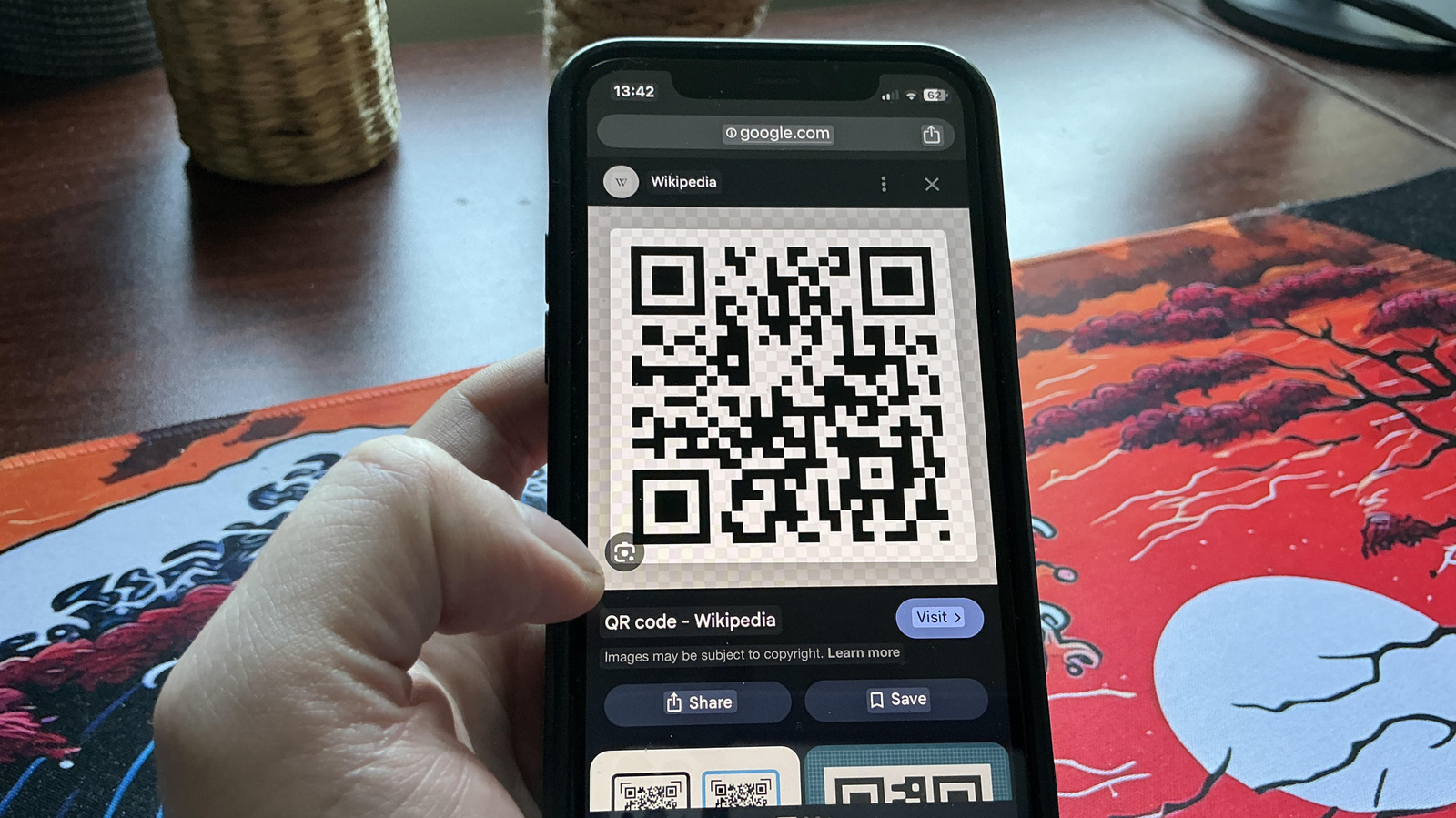
One of the most useful Google Lens features is its ability to scan QR codes that are already saved on your phone, not only those in front of the camera. On Android, you tap the Lens icon in the Google search bar or open Lens through the Google app, choose the image of the QR code from your gallery, and Lens analyzes the code and gives you a link to tap. The expected result is simple: a clean, clickable action instead of manual typing.
The convenience can hide two common mistakes. First, people forget that QR codes can lead to phishing pages or malicious sites; you still need to be wary of red flags and only scan codes from sources you trust, even when Lens makes it easy. Second, it is tempting to delete old specialist apps too quickly. Lens is excellent for quick scans and captures, but if you rely on advanced document scanning features or in‑depth translation tools, keep those dedicated apps installed alongside Lens until you are sure its everyday performance covers what you need.
Used with a bit of care, though, Lens turns screenshots of tickets, saved QR codes, and messy paperwork into neat actions: links open with one tap, passwords are copied correctly, and tracking numbers no longer need to be typed by hand.
Is Letting Google Lens Replace Your Apps Worth It?
Handing everyday tasks to Google Lens pays off in two ways: you remove extra icons from your phone and you stop bouncing between different apps every time you need to translate a sign, scan a QR code, or grab text from a receipt. Even when deleting a single QR scanner does not free much storage, it does remove clutter and makes your main tools easier to reach.
Lens works seamlessly across Android and iPhone through the Google app or Google Photos with very little setup, so it is easy to build into your daily routine. Keep specialized tools where they genuinely add value, but let Lens handle everything else: quick translations, on‑the‑spot identifications, QR scans, text extraction, and product searches. The takeaway is simple: for most everyday tasks, one well‑placed icon can replace five separate apps and make your phone feel lighter and more focused.





