
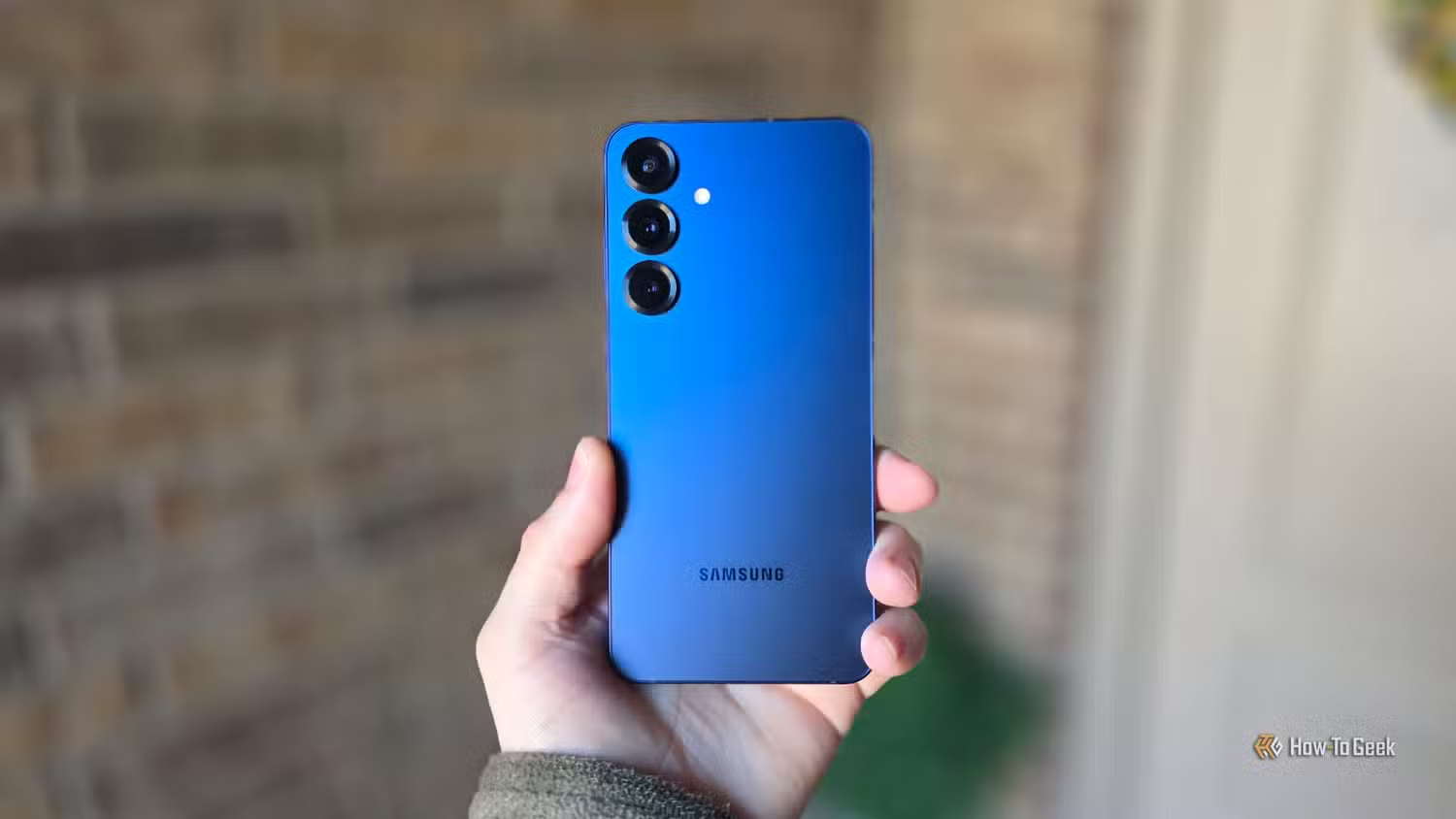

Why Your Samsung Feels Slower Every Month
Samsung performance settings are a collection of built-in options that control memory use, background apps, storage cleanup, and scheduled restarts, and learning how to tune these hidden Android optimization tools can speed up a Galaxy phone that has quietly become laggy over months of daily use.
If your Galaxy was smooth out of the box but now feels heavy, you are not imagining it. Over time, constant browsing, social feeds, and app installs fill storage, RAM, and cache with leftover files and background tasks, which can lock up CPU resources and cause hiccups or freezing. On top of that, many apps you rarely open still sync, send notifications, and run in the background, competing with what you are doing on screen. The good news: most of the slowdown comes from settings you can change in a few minutes, without root or special tools. As long as you have a relatively new device, you can also schedule automatic weekly reboots to keep things fresh without extra work.

Turn Off RAM+ and Put Noisy Apps to Sleep
One of the biggest hidden drags on performance is RAM+. This feature uses your phone’s slower internal storage as extra memory so more apps can stay open. In practice, the system keeps shuffling data between fast RAM and slower storage, forcing the processor to wait and causing stutters during app switches. Disabling or shrinking RAM+ can free both speed and storage. The other silent drain is background activity from apps you hardly use. Samsung’s Deep Sleeping Apps feature can stop those from running until you actually open them, which helps reduce background churn and competition for resources. The trade-off is fewer notifications from those apps, but for old games, shopping apps, and many social apps, that is often an upgrade, not a downgrade.
- Open Settings > Device care > Memory, scroll down, and turn RAM Plus off or lower its allocation; restart when prompted so the change takes effect.
- Go to Settings > Battery and device care > Battery > Background usage limits and enable Put unused apps to sleep so your phone automatically flags low-use apps.
- Still under Background usage limits, open Deep sleeping apps, tap the plus icon, and add any app you do not need running or sending real-time notifications in the background.
- Use your phone for a day or two; if you miss important alerts from a specific app, remove it from the Deep sleeping list in the same menu so it can run normally again.
After you reboot with RAM+ disabled, you should feel smoother app switches and quicker movement through settings on many midrange devices. One source notes that between disabling RAM+, deep sleeping rarely used apps, and keeping storage lean, a previously sluggish phone “feels like it did when I first pulled it out of the box”. The only real gotcha is overdoing Deep sleeping and accidentally silencing apps you rely on for urgent notifications—so add apps there thoughtfully, and test for a couple of days.
Use Auto Optimization and Weekly Restarts as Set‑and‑Forget Maintenance
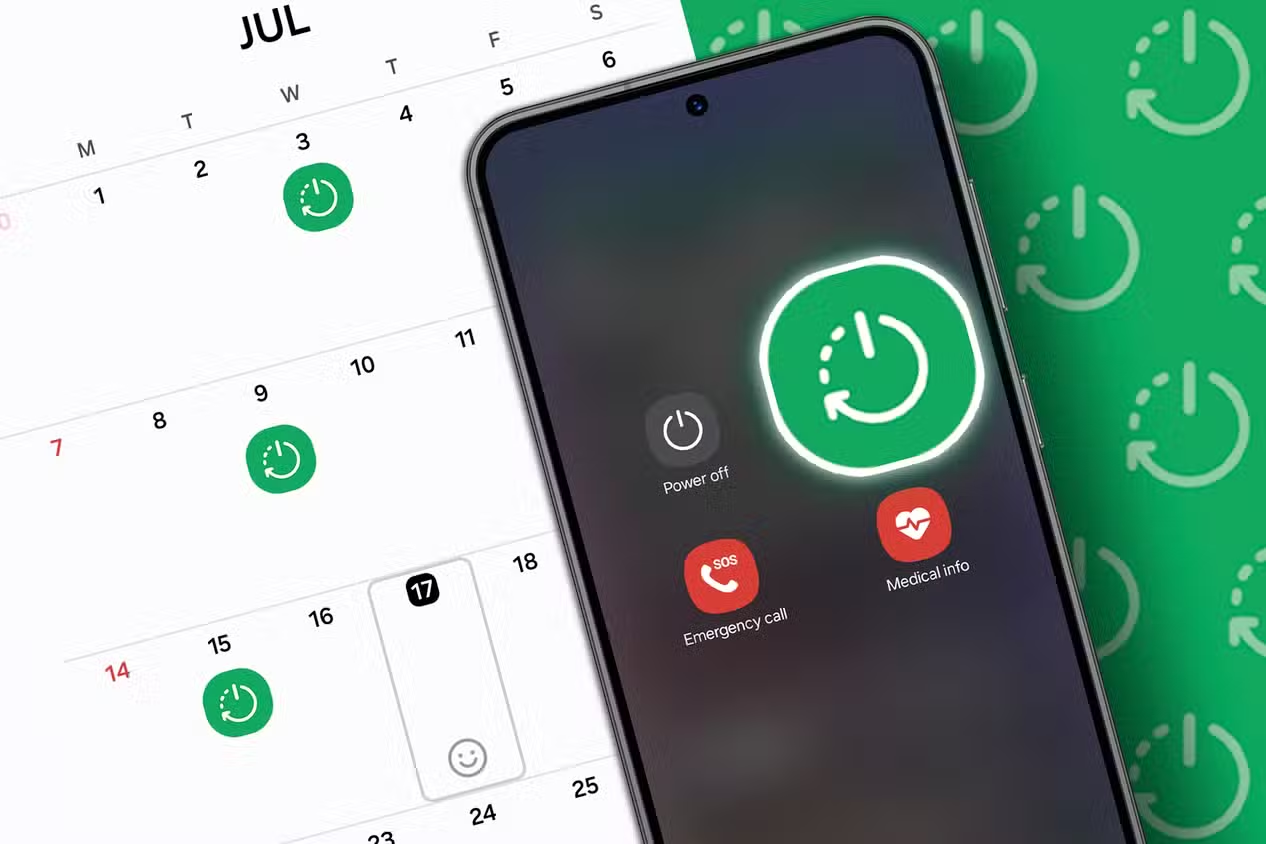
Even if you never touch another toggle, scheduling weekly maintenance goes a long way to speed up a Galaxy phone. Our phones process endless information and run many apps in the background, which fills storage, RAM, and cache with residual files and junk over time. A reboot clears most of that and can improve performance, reduce lag, and help battery life. According to one guide, “a weekly restart can make all the difference between a phone that’s running a bit slow, with a battery that’s draining too fast, and a phone that’s running like it did when it was new”. Newer Samsung models also include Auto Optimization under Device care, which bundles cleanup tasks and optional scheduled restarts into one place.
- Open the Settings app and scroll down to Device care, then tap it to view your phone’s optimization dashboard.
- Scroll past the battery and storage graphs and choose Auto Optimization in the performance section to see maintenance options.
- Enable Auto Restart (name may appear as Restart When Needed or Restart on Schedule) and pick a day and time when you are usually not using your phone, such as overnight.
- Confirm the schedule and exit; from now on, your phone will reboot on its own each week, clear temporary clutter, and check for updates after restarting.
Set this up once and you do not have to think about it again; one source describes it as an easy “set-it-and-forget-it” way to keep a Galaxy phone feeling fresh and fast each week. The only thing to watch for is the reboot time: avoid choosing a time when you might rely on alarms or active navigation, because the phone will be briefly unavailable while it restarts.
Keep Storage Lean so Performance Does Not Fall Off a Cliff
Storage fullness is another silent killer of speed. When your phone’s storage fills up, the controller has less room to manage data in the background, which can quietly slow write performance, lengthen app installs, and make the whole system feel heavier. Many power users aim to keep at least 10 percent of storage free for smoother behavior. Manually keeping things tidy—deleting duplicate photos, clearing old downloads, emptying the recycle bin—can be tedious, so using Samsung’s built-in tools inside Device care to monitor storage and run periodic cleanup is worth the few taps it takes. Combined with RAM+ tweaks, deep sleeping, and weekly reboots, that storage breathing room prevents random slowdowns when you take photos, update apps, or install new games.
You do not need to obsess over every megabyte, but pay attention to warnings in Device care when storage approaches full, and treat that as a sign to archive large videos elsewhere or remove unused apps. Think of it as leaving workspace on a real desk: a bit of free space makes everything smoother and less error‑prone.
Is Tweaking These Settings Worth It?
If your Samsung has gone from snappy to sluggish, these are the low-hanging fixes worth doing. Turning off RAM+ or shrinking it reduces pointless swapping between RAM and slow storage. Deep sleeping apps cuts background noise and saves processing power and battery by only letting those apps run when you open them. Weekly auto restarts clear out leftover files, free RAM and CPU resources, and keep performance and security in better shape with almost no effort.
None of these changes are permanent; you can undo any of them in the same menus if you do not like the trade-offs. The main thing to watch for is over-aggressive sleeping of apps that you need to notify you in real time. Start with the obvious bloat and non-essential apps, schedule a quiet-time restart, and give your phone a couple of days. Chances are it will feel closer to new again without any drastic measures.





