
Why Google Wallet Settings Matter More Than You Think
Google Wallet settings are the configuration options that control how your phone and connected devices handle contactless payments, loyalty cards, and passes, and tuning them for speed and priority can noticeably reduce friction and delays every time you pay in a store or tap through a transit gate. If you pay with your phone often, you already know mobile payments are fast but not instant; there is a small dance of unlocking, finding the right card, and lining up with the terminal. Payment optimization here is not about exotic features but about removing the micro‑delays you repeat dozens of times a week. If you care about making mobile payments faster and avoid fumbling at the checkout, your Google Wallet settings are the lowest‑effort, highest‑impact place to start.
1. Make Google Wallet Your Default and Stop Fighting Your Phone
If Google Wallet is not the default payment app, every tap‑to‑pay turns into a negotiation with whatever wallet your phone vendor prefers. After installing the Google Wallet app from the Play Store, you need to set it as your default wallet app. On many phones this is buried under something like Settings → Connections → NFC and Contactless Payments → Default Wallet App. If you cannot see it at first, search for “Default Apps” in Settings to find the relevant menu. Once Wallet is default, your phone stops asking which app should pay and moves straight to your stored cards. The expected result is simple: fewer prompts, fewer misfires, and a faster, more predictable tap each time you speed up checkout with your phone.
2. Prioritize Cards, Passes, and Loyalty Programs You Use Daily
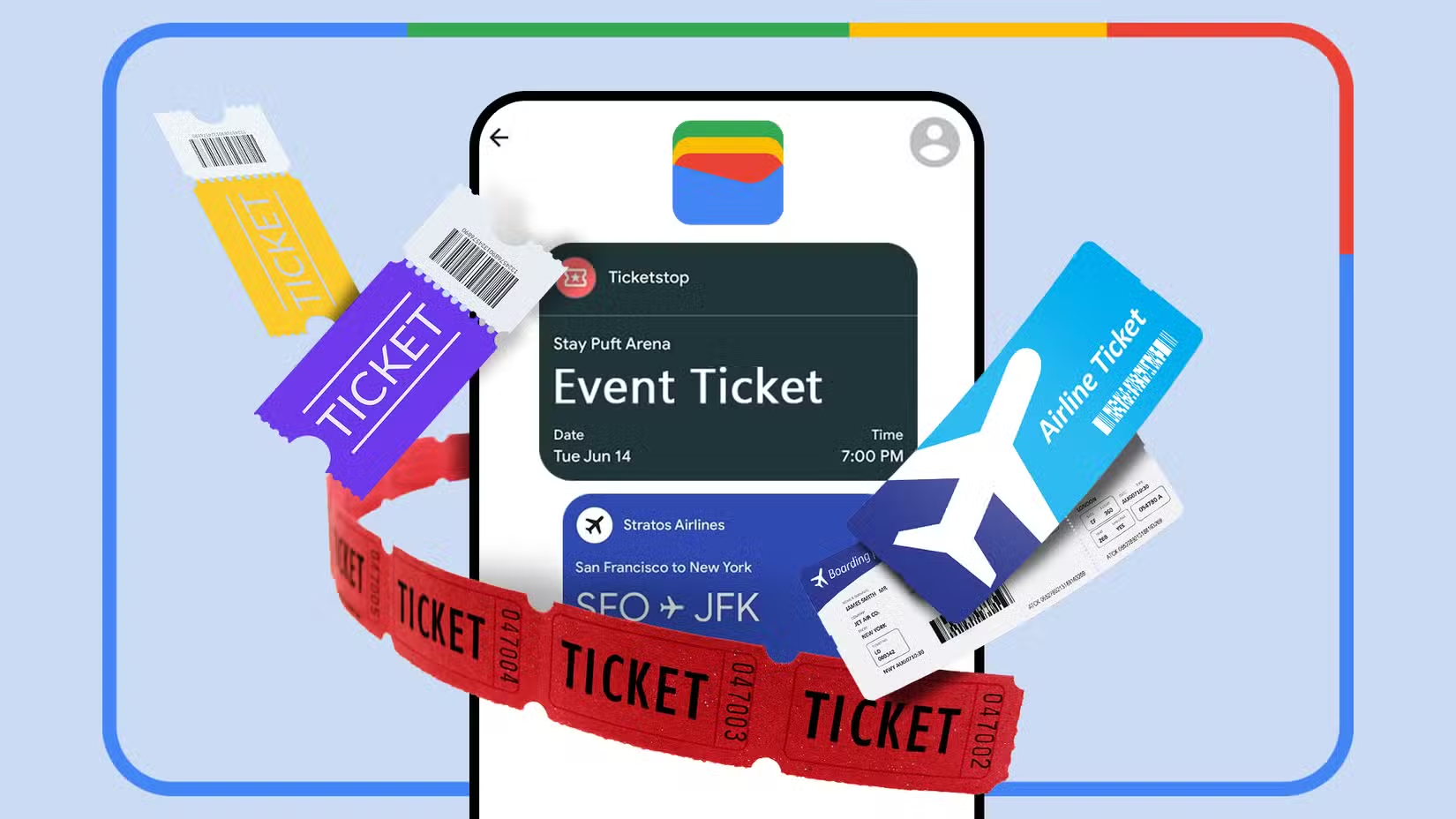
Your delay at checkout often comes from scrolling through a messy stack of cards inside Google Wallet. Google Wallet stores way more than just credit cards; it also holds loyalty cards, event tickets, boarding passes, transit passes, and more. If you regularly use the same loyalty cards, you can save a few seconds every time by changing their order so the ones you use most often are near the top. It is easy to do: tap and hold a card, then drag it to the new position. When you open a card, you can also tap the star icon to pin it to the main screen. That way your most used payment methods and passes are properly prioritized and more or less auto‑filled into your day, instead of buried behind occasional tickets you used once months ago.
3. Leave NFC On and Use Shortcuts Instead of Toggles
One of the most common mistakes is treating NFC like an emergency power drain and toggling it off until you reach the terminal. In the early days of smartphones, that habit made some sense, but newer hardware and power management mean NFC is not nearly as battery‑hungry anymore. So if you are still turning NFC off and on only when you want to make payments, you can safely stop doing that. You will save time and hassle, and you should notice basically no difference in your phone’s total battery life. Depending on your Android phone, you may not even need to search for the Google Wallet app before paying; several brands offer shortcuts that launch your wallet app immediately. Again, what shortcuts are possible depend on your phone model, brand, and Android version, but any quick access beats digging through your app drawer at the register.
4. Use Express Pay on Your Pixel Watch and Respect Security Trade‑Offs
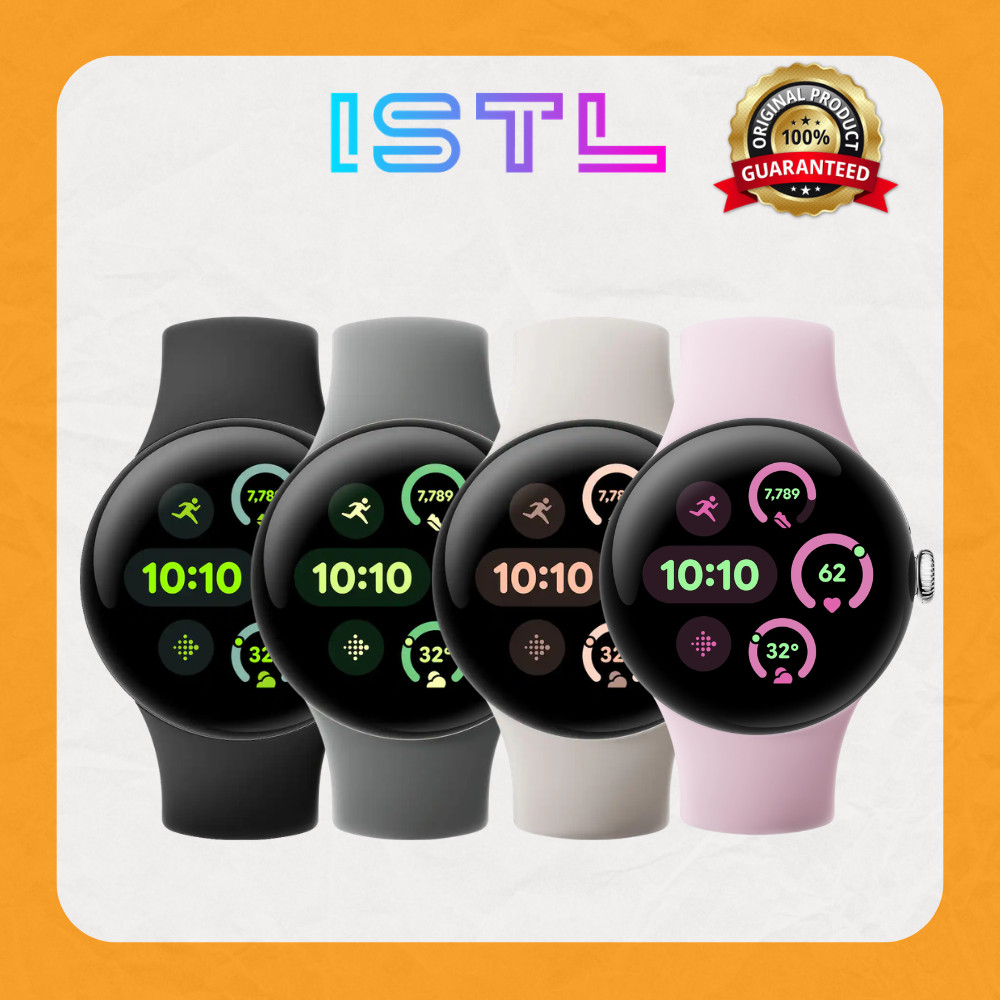
If you wear a Pixel Watch, there is no excuse for slow wrist payments. With Express Pay enabled, you can make payments without opening the Wallet app, as long as your watch has been unlocked. To enable this, go to the Google section inside the Pixel Watch app, then choose Google Wallet. Select the card you want to use by default, then select “Express pay” to enable the feature and be sure to select “Tap to pay and transit” as well. According to the source, this turns your watch into a ready‑to‑pay device that moves straight from unlock to transaction. But removing friction has a cost: while it is wonderful to shave time off contactless payments, every obstacle you remove can also make it easier for someone to pull some sort of scam or hack if they gain access to your device. Use strong locks and treat your watch like a wallet, not a toy.