

What Samsung Custom Gestures Are and Why They Matter
Samsung custom gestures are user-configured swipes and multi-finger actions that replace or extend the default navigation controls so you can trigger apps, tools, and panels faster, with fewer taps, from wherever your thumb naturally rests on the screen. Instead of accepting the stock back, home, and recent buttons, you turn the edges of your display and multi-finger swipes into shortcuts for screenshots, split screen, quick settings, and more, reshaping how you move around your phone each day. If your phone feels slow only when you move between apps, this is for you: you are not speeding up the hardware, you are cutting out the wasted motion.
The key idea is faster phone navigation, not a new device. On a large screen, stretching for the notification shade or juggling split screen can be the real bottleneck. Samsung’s own gesture customization apps—HomeUp and the One Hand Operation+ module inside its customization suite—let you place invisible handles along the edges and configure multi-finger gestures, then tie them to actions like recent apps, quick tools, or split screen. You end up with a personalized control center and shortcut grid layered over your usual home screen, which can noticeably cut repetitive steps in your daily multitasking.
What You Need Before You Start
Before you rebuild navigation around your thumb, check a few prerequisites. First, your phone needs the full version of One UI, because the One Hand Operation+ module only runs on devices with the complete software; many budget A and M series models use One UI Core and do not support it. Second, HomeUp’s latest update officially supports One UI 9, so that version or later is ideal if you want the new multi-finger gestures and edge panel customization. If your device is older but still runs One UI, you can focus on edge handles and floating panels instead of multi-finger shortcuts.
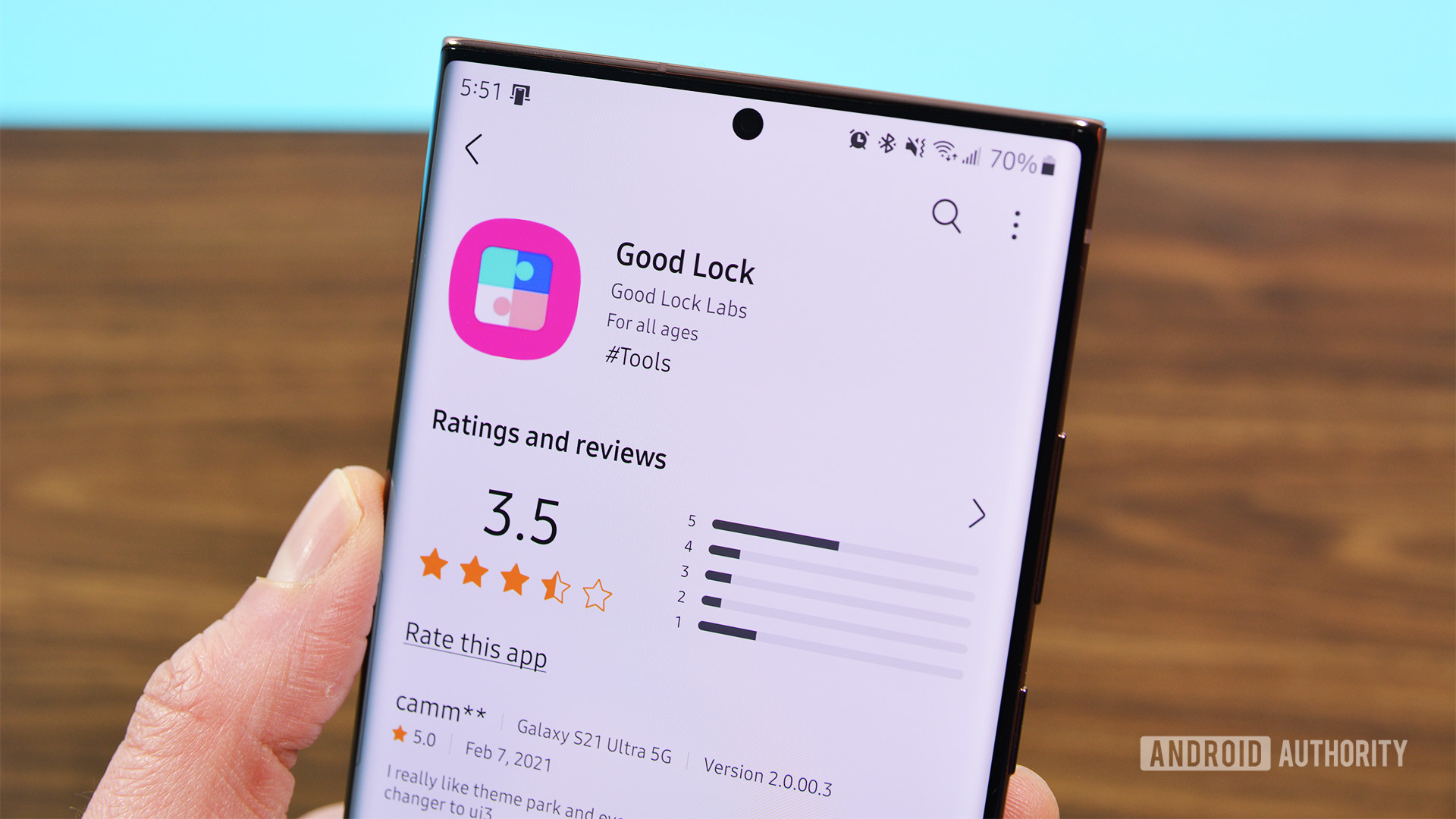
You will also need Samsung’s customization suite from the Galaxy Store, because One Hand Operation+ is a module inside it and does not come preinstalled. After installing the suite, you add One Hand Operation+ and HomeUp from inside its interface. For the newest HomeUp gestures, the current version is rolling out gradually; you can install the APK manually on your Samsung phone if you do not want to wait, but remember that installing apps from outside official stores can be dangerous, so weigh that risk carefully. Once those pieces are in place, you are ready to turn off the defaults and start building something that matches how you use your phone.
Step-by-Step: Building Faster Edge and Multi-Finger Gestures
Think of this section as you and a friend sitting together, reshaping your phone. The goal is faster app switching speed and everyday shortcuts that feel natural, not a flashy setup you will forget in a week. The gotcha: if you pile on too many gestures at once, you will not remember them, and they stop being faster. Start with the actions you repeat dozens of times a day—notifications, screenshots, jumping between recent apps—and wire your edges and multi-finger swipes around those.
- Install the customization suite from the Galaxy Store, open it, and add the One Hand Operation+ module, since it is not preinstalled on your phone.
- Enable One Hand Operation+ and place invisible handles along the left and right edges of your display, adjusting their position to where your thumb naturally rests when you hold the phone.
- Configure short swipes for core navigation—back, home, and recent apps—using straight and diagonal gestures on each handle so you can move around without reaching for on-screen buttons.
- Turn on long swipe recognition in the Gesture settings, which doubles your available gesture slots from six to twelve and adds a second layer of actions to each handle.
- Assign your most frequent tools to these long swipes, such as screenshot capture, opening the notification panel, jumping straight to Quick Settings, enabling the flashlight, or triggering split screen with a single diagonal swipe.
- Enable Quick action for long swipes so those gestures trigger the moment your thumb crosses the distance threshold instead of waiting for you to lift your finger, cutting extra delay.
- Set up Quick Tools on one gesture to open a floating panel with brightness and volume sliders, media controls, and toggles for Wi-Fi, Bluetooth, flashlight, and screen recording, giving you a compact control center.
- Install and open HomeUp, confirm it is updated for One UI 9, then explore the new multi-finger gesture options so two-, three-, four-, and five-finger swipes can each trigger one of 27 available actions.
- Adjust the sensitivity of these multi-finger gestures and decide whether to enable a glow effect or vibration feedback when they are detected, so you get reliable confirmation without constant misfires.
- Customize your Edge panel and dock within HomeUp by changing the background, spacing between items, and corner radius until they feel like a personalized control center instead of a generic strip.
- Map app-specific actions like split screen or a floating recent apps list to edge or multi-finger gestures so switching between work, messaging, and media becomes a single motion from where your thumb starts.
- Once you are happy with your layout, take screenshots of your gesture mappings and handle positions, because this module does not have built-in backup or restore and you will need a visual reference if you reset your phone or change devices.
As you walk through these steps, pause after each new gesture and use it for a day. For example, turning split screen from a multi-step process—open Recents, tap the app icon, pick split screen—into a single diagonal swipe cuts four steps down to one, right from where your thumb sits on the edge of the phone. Over time, those small improvements add up; actions that did not feel slow individually start to feel lighter when they become one thumb motion instead of a sequence of taps. Pay attention to misfires: if a gesture keeps triggering by accident, reduce its sensitivity or move it to a less common direction.
Tuning Your Layout for Real-World Speed
Once the basics are in place, you can tune your Samsung custom gestures so they pay off in the tasks you repeat most. A good rule is that anything you do ten or more times a day deserves a direct gesture. Screenshots are a clear example: assigning a short diagonal swipe on the right edge to capture the screen means you avoid two-handed palm swipes on wide devices and get a faster, one-thumb action instead. Another is notifications and quick settings—opening the panel with a long diagonal swipe on the left and jumping straight to Quick Settings with a shorter swipe below it keeps all of that near your thumb.
According to one detailed user experience, turning split screen into a single diagonal swipe was "probably the most satisfying change" because it meant four steps down to one from the same thumb position. Features like Task Switcher and Quick Launcher follow that same idea by pulling up floating lists or pinned grids of apps without going back to the home screen. Combined with HomeUp’s ability to customize the Edge panel and dock—backgrounds, spacing, and corner radius—you end up with a layered, personalized control center that appears wherever your thumb can reach. The performance gain is not about benchmarks; it is the way your phone feels once common actions shrink to a single motion.
Is Rebuilding Your Gestures Worth It?
Rebuilding navigation sounds like a lot of work, but once you live with the changes for a week, it tends to feel worth it. You are not chasing a faster processor; you are trimming the small delays that repeat all day—stretching for the notification shade, juggling split screen, pulling down quick settings. When those actions move to edge handles and multi-finger shortcuts tuned to your thumb, app switching speed improves because each transition is one gesture instead of a chain of taps. Multi-finger gestures tied to any of 27 actions, plus adjustable sensitivity and feedback, add another layer of control you can trigger without hunting through menus.
The main thing to watch for is complexity. There is no built-in backup or restore for One Hand Operation+, so if you reset or replace your phone, every gesture must be recreated from scratch. Taking screenshots of your final layout and handle positions is a simple way to protect your work. Also treat third-party APK installs for new HomeUp versions cautiously, balancing the desire for new gestures against the risk of sideloading. If you build slowly and keep every gesture tied to a real habit, your Samsung will feel more responsive not because it changed, but because you removed the friction between you and the actions you care about.





