
The real reason your Galaxy feels slower every month
Samsung Galaxy performance tips are practical changes to One UI optimization settings that reduce background load, free storage, and manage memory so your phone feels faster and stays responsive over time without needing a factory reset.
If your Samsung started fast and now lags, the culprit is often Samsung’s own default settings rather than hardware age. One user took a sluggish Galaxy A55, changed a handful of options, and “the A55 went from sluggish to surprisingly usable again,” even saying it now “feels like it did when I first pulled it out of the box”. The point is blunt: you can fix a slow Samsung phone with configuration, not a new device. These tweaks target RAM misuse, noisy background apps, and cluttered storage—exactly the silent bloat that builds up under One UI. Apply them once, let the system maintain itself weekly, and you avoid the cycle of lag, frustration, and desperate factory resets.

Kill the fake RAM and noisy apps that drag One UI down
The most underrated Galaxy storage management fix is turning off RAM+, Samsung’s feature that converts internal storage into pretend memory. It “uses your phone's internal storage as extra memory” but forces the processor to wait on much slower storage, which caused stuttering and slow app switches on a Galaxy A55 until RAM+ was disabled. That single toggle delivered the biggest speed boost; after reboot, the phone felt “noticeably snappier during app switches and when navigating through the settings”. To change it: go to Settings > Device care > Memory, scroll down, and set RAM Plus to Off or at least drop it from the default 4GB, which was “eating into storage” better used for photos and apps.
Next, attack background noise. Most of us hoard apps that continue to sync and send notifications. Samsung’s Deep Sleeping Apps feature “stops these apps from running in the background entirely. They only wake up when you open them, then go right back to sleep when you leave”. Head to Settings > Battery and device care > Battery > Background usage limits. Turn on Put unused apps to sleep so One UI automatically flags low-use apps, then open Deep sleeping apps and add any social, shopping, or old games you do not need in real time. The list separates system-picked and manually added apps, so you always see what is frozen. You cut background processes without breaking core functionality, and regain performance without living in power-user menus.
Let your phone clean itself: storage and weekly auto-restarts
Bloat is not only about apps; it is about how full your storage and memory get. Keeping at least 10 percent storage free is widely recommended because when your phone’s storage fills up, the controller has less room to manage data and “phones can slow down past a storage threshold that most people never think about,” leading to slower writes, longer installs, and a heavier-feeling system. Manual cleanup—deleting duplicates, clearing old downloads, and emptying the recycle bin—is boring, so use Samsung’s Device care tools as part of your Galaxy storage management routine. The goal is simple: keep free space available so the system does not choke whenever it needs to move data around.
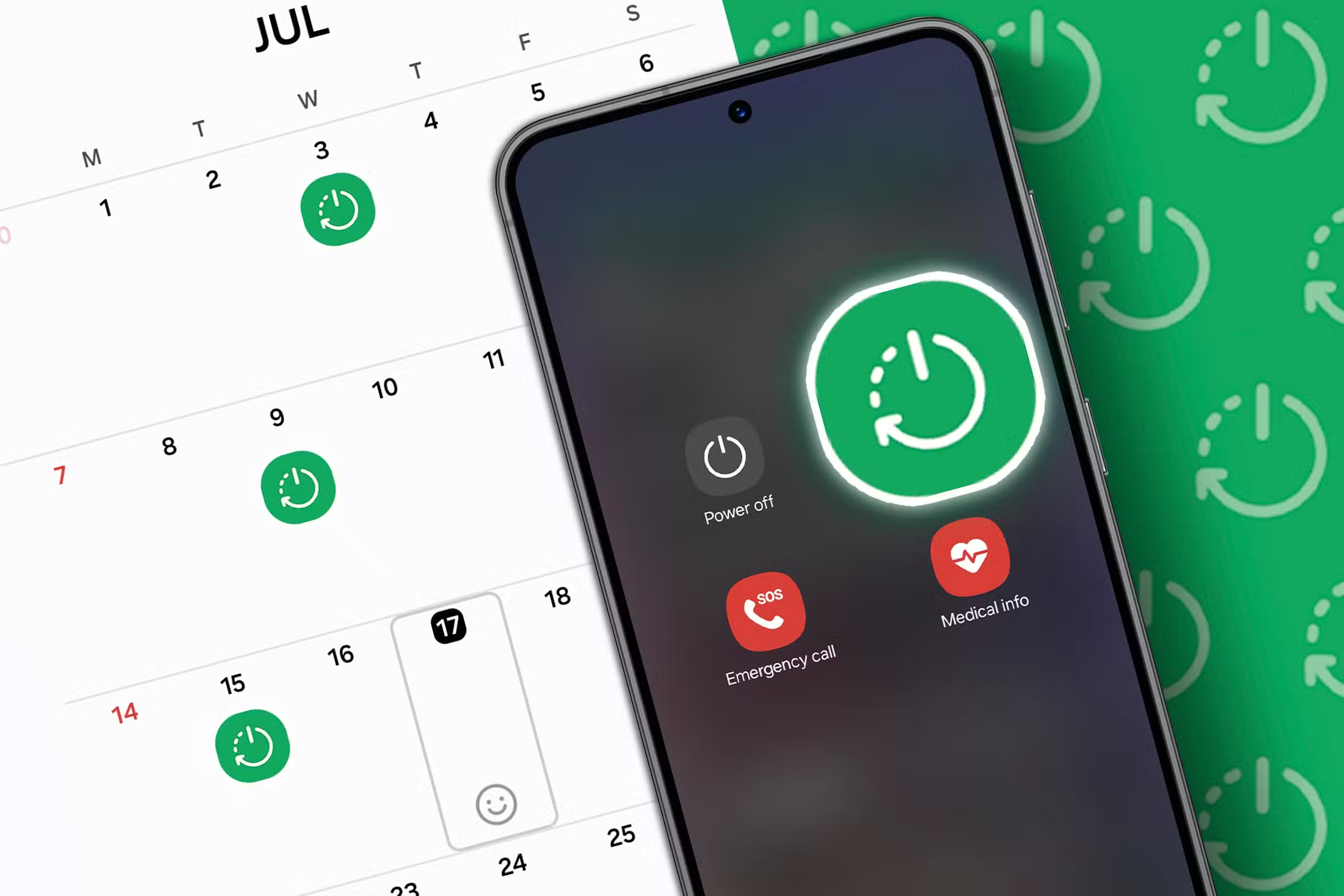
Equally important, treat your Galaxy like a tiny computer that benefits from regular reboots. Rebooting your phone is described as “one of the easiest ways to keep it running fast and smooth,” and you can schedule it to restart automatically once a week. Over days of use, apps fill RAM and cache with junk, processes get stuck, and CPU resources stay locked; a restart clears those temporary files and background tasks, improving battery life and reducing lag. To automate this, open Settings, scroll to Device Care, then under the performance section select Auto Optimization. At the bottom, tap Auto Restart and choose the day and time for a weekly reboot. Depending on your model, you may see Restart When Needed or Restart on Schedule; either way, you are building a self-cleaning routine directly into One UI.
Lock in long-term speed: preventative settings, not constant resets
Once your phone feels fast again, the real win is stopping new bloat before it starts. The easiest preventative setting is leaving Put unused apps to sleep enabled so One UI keeps catching low-use apps automatically. That way, every new download cannot silently live in the background forever. Pair this with deep sleeping for anything that does not need instant alerts, and you turn your Samsung into a phone that prioritizes what you are doing now over what you installed months ago.
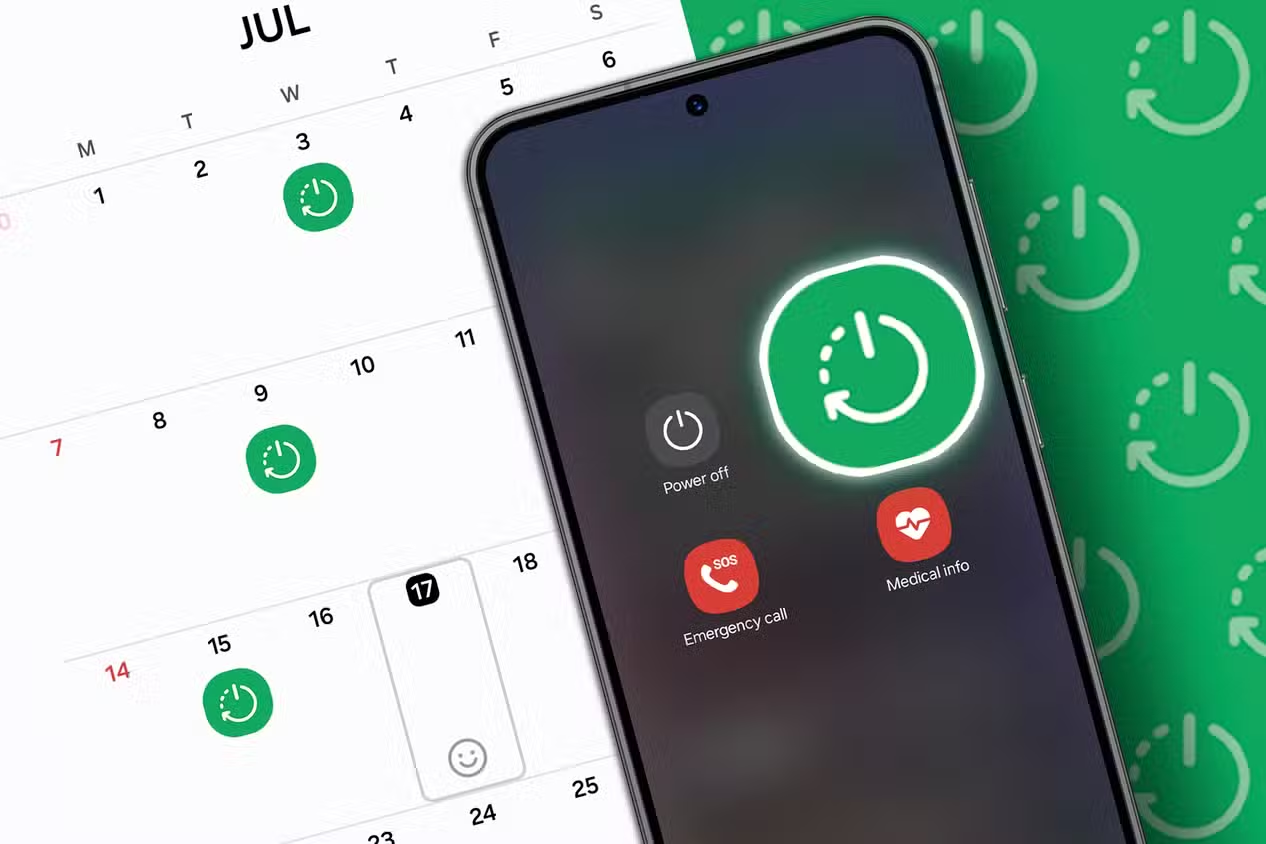
Weekly auto-restarts add another layer of prevention. One expert note is that “weekly reboots can improve performance and battery life, but it can also help keep your phone more secure”. In 2024, the NSA explicitly recommended weekly phone reboots to clear temporary files and cache where malicious code can hide. You can go further by boosting battery life through Wi‑Fi tweaks, turning off Samsung’s data-collection and customization services that run constantly, or enabling battery protection mode. When you combine disabled RAM+, disciplined background apps, healthy free storage, and scheduled restarts, you are not firefighting lag—you are building a system that keeps its own performance in check. The end result is simple: your Galaxy feels like new far longer, and you never have to reach for the nuclear option of a factory reset.