
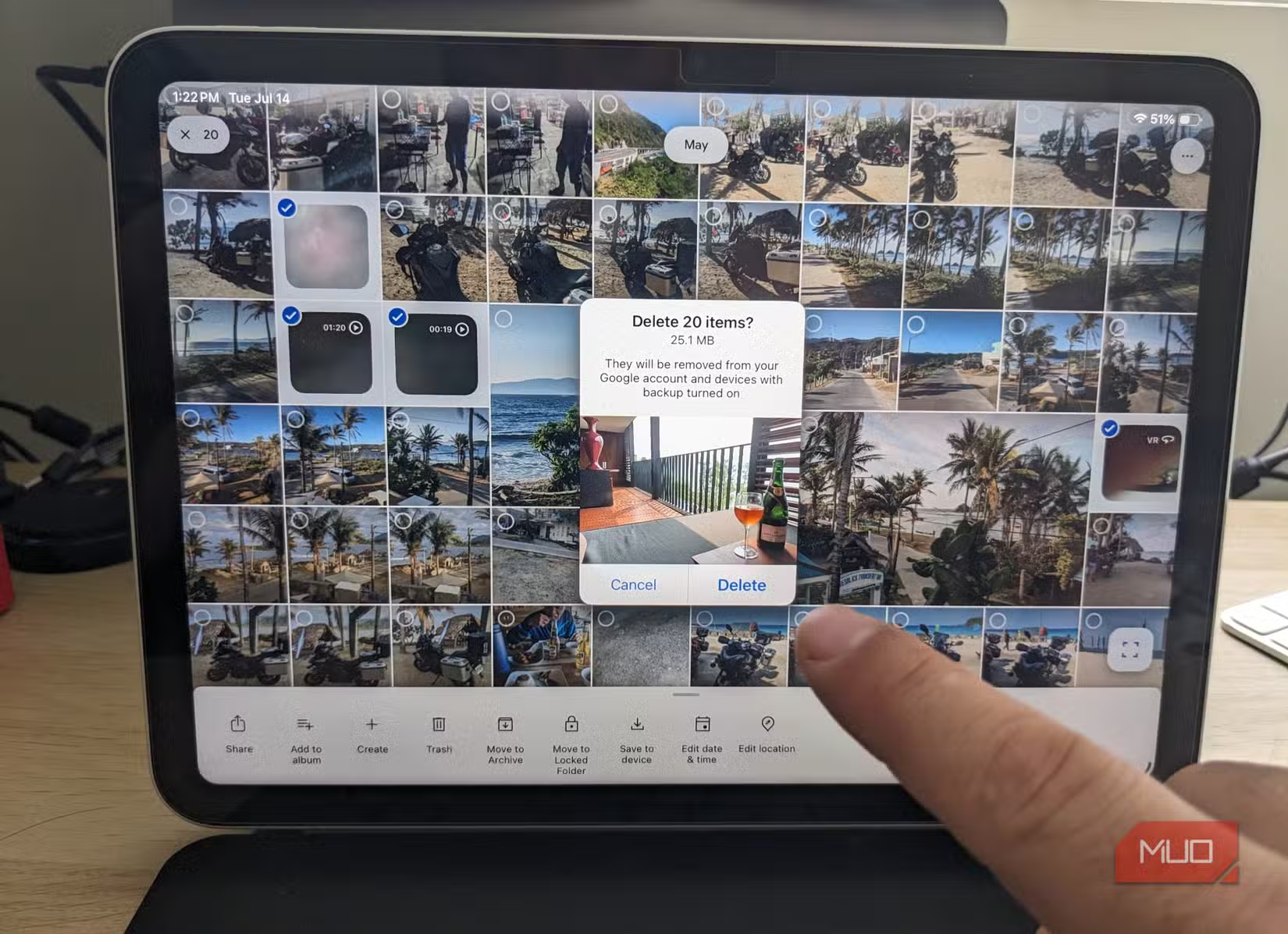

Why Google Photos quietly eats your storage
Google Photos storage is the cloud space used when the app automatically backs up photos, videos, screenshots, and other media from your devices to your Google account, which can quickly fill up if you leave every sync and backup option enabled and never review what is being uploaded.
If your 15GB of free Google storage vanished faster than you expected, you are not imagining it: auto-backup and syncing features consume space in the background. Every blurry snap, temporary screenshot, and throwaway clip can end up as a permanent resident in the cloud. The good news is that you do not need extra apps, subscriptions, or complicated tricks to free up phone storage and keep it that way. A few setting changes in Google Photos and one free Google app are enough to regain control. You will still have your real memories, but without the constant pressure of the storage warning bar creeping toward full.
Step-by-step: 4 Google settings that stop silent storage drain
Think of this as a reset: you are not turning off backup forever, you are deciding what deserves a place in your cloud storage. Follow these steps on your Android phone where Google Photos is installed and signed in with your main Google account.
- Disable screenshot backup folders: Open Google Photos → tap your profile picture → Photos settings → Backup → Back up device folders → find “Screenshots” → uncheck that folder so it no longer auto-syncs.
- Turn off backup for chat, downloads, and meme folders: In the same Back up device folders screen, uncheck WhatsApp, Telegram, Signal, Messenger, Downloads, and any other folders that mainly hold memes, GIFs, receipts, or forwarded photos you do not want to keep long-term.
- Stop mobile data backups so you can review first: Go to Photos settings → Backup → Mobile data usage → set it to No data so uploads only start on Wi‑Fi, after you have deleted obvious rejects.
- Use Files by Google to reveal and clear local clutter: Install and open the Files by Google app from the Play Store → tap the menu (hamburger) icon → choose Clean to see categories like duplicates, old screenshots, blurry photos, large files, and unused apps, then delete what you do not need.
The gotcha here is that you must be honest about which folders and files are disposable. Temporary screenshots can go, but family albums should stay backed up. The moment you uncheck a folder, new files there stop syncing, so if a screenshot or chat photo matters, move or manually back it up elsewhere before you disable auto-sync for that source.
What changes after you turn these settings off
Once screenshot backup is disabled, many people notice that their Google Photos library feels instantly less chaotic, because random screen grabs no longer appear between real photos. Search also improves when the app is not trying to treat every cropped receipt or app screen as a memory. According to one power user, turning off screenshot backups “instantly decluttered my library,” making it a better reflection of the moments worth remembering.
Reviewing backup device folders usually exposes hundreds of old memes, forwarded images, and miscellaneous downloads that were quietly filling cloud storage. After you disable backup for those folders and clean up locally with Files by Google, it is common to reclaim multiple gigabytes in one sitting. One user reports that, after deleting duplicate photos, videos, PDFs, and other clutter through Files by Google, the total recovered space was almost 25GB across categories. The practical impact is simple: fewer “storage almost full” messages and more room for photos you care about.

Keep your cloud lean with better daily habits
Settings are only half the story; your habits decide whether those gigabytes stay free. Turning off backup over mobile data forces a pause: you take photos, then later, on Wi‑Fi, you quickly delete accidental pocket shots, blurry frames, and near-duplicates before anything syncs. This tiny delay turns into one of the most effective storage management tips you can adopt, because bad photos never reach your account in the first place.
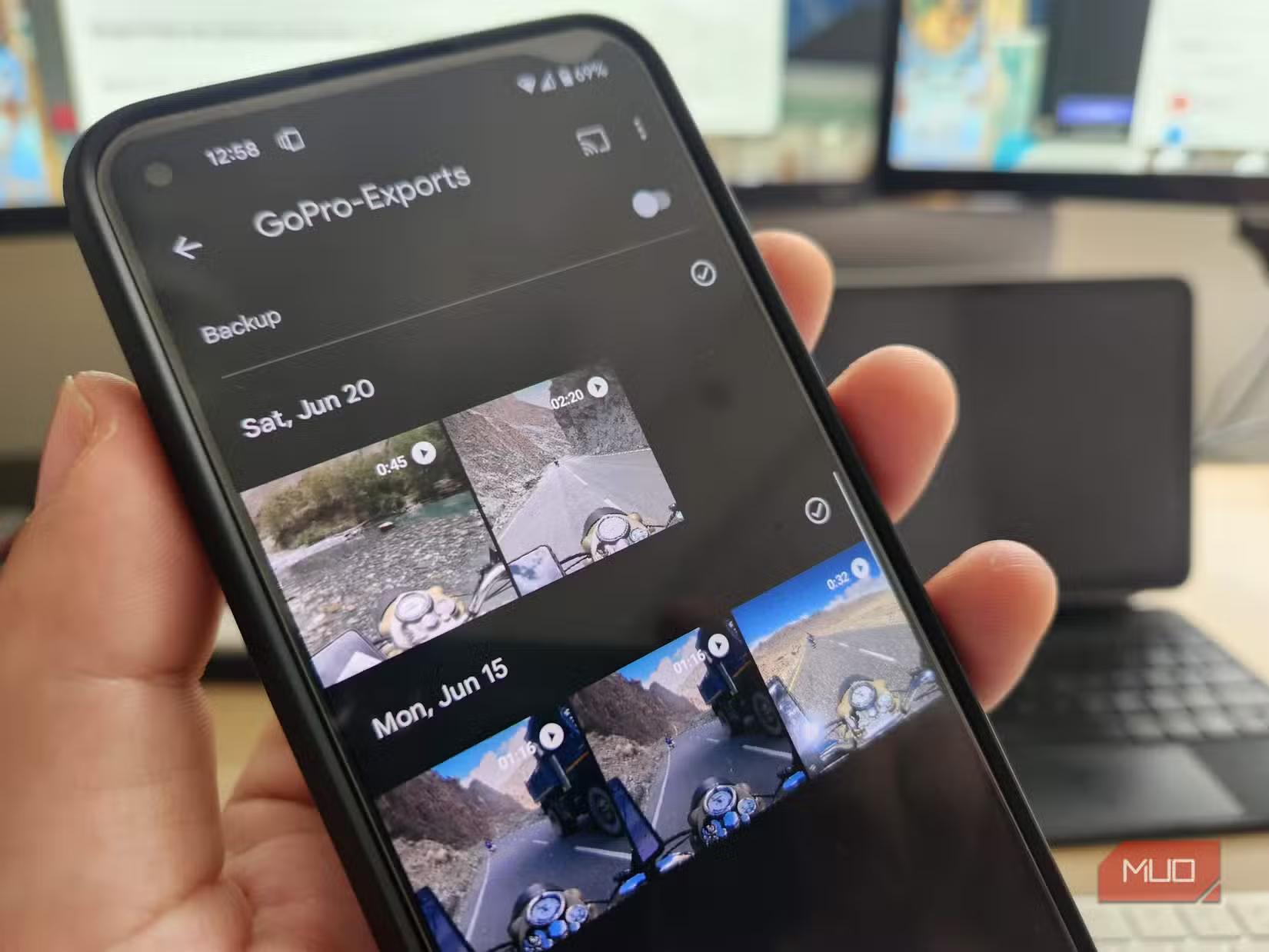
Do the same with video. High-resolution clips, especially from action cameras, can chew through cloud storage fast. Review them on your phone: keep the ones you would actually rewatch, trim if needed, and leave the tests and shaky misses unbacked up. Pair that with a monthly check in Files by Google’s Clean tab, where you can quickly remove new duplicates, old screenshots, and unused apps. Over time, these small habits keep your Google Photos storage and local phone storage optimized without constant manual sorting.
Is all this tinkering worth it?
If you depend on Google Photos for your memories, tightening backup rules is worth the effort. You keep the convenience of automatic uploads without pouring every throwaway image into the same limited quota. Turning off a few features and changing a couple of habits can make a significant difference, greatly improving the app experience. Free Google tools do the heavy lifting, and you keep full control.
The main thing to watch for is that nothing important lives only in folders you have excluded from backup. When in doubt, move special images into your main camera folder or a dedicated album that still syncs. Do that, keep using Files by Google’s Clean suggestions, and your cloud storage optimization becomes routine rather than a recurring emergency. You get a leaner, more meaningful photo library and a phone that feels lighter to use.




