

Why Capture-First Beats Endless Editing
Capture‑first smartphone photography on the Galaxy S26 Ultra means using its flagship camera settings, AI tools, and composition aids to create publication‑ready images at the moment of shooting so you can skip heavy mobile photo editing and still achieve detail‑rich, accurate, shareable photos.
If you own a Galaxy S26 Ultra and are still exporting everything to third‑party apps, you are wasting what this camera can do. Its cutting‑edge hardware and Galaxy AI tools advance phone photography to another level so technical work happens in the background while you concentrate on getting the perfect shot. ProScaler goes further by sharpening details and enhancing image quality up to QHD+ resolution, while Precision mDNIe improves colour and gradation so photos display both vibrant and subtle shades with better contrast. In other words, the phone is designed for smartphone photography mastery at capture time, not damage control afterward. The following six tips focus on concrete actions that exploit this design and make editing apps a backup, not a habit.
Tip 1: Treat the Lens System Like a Real Kit
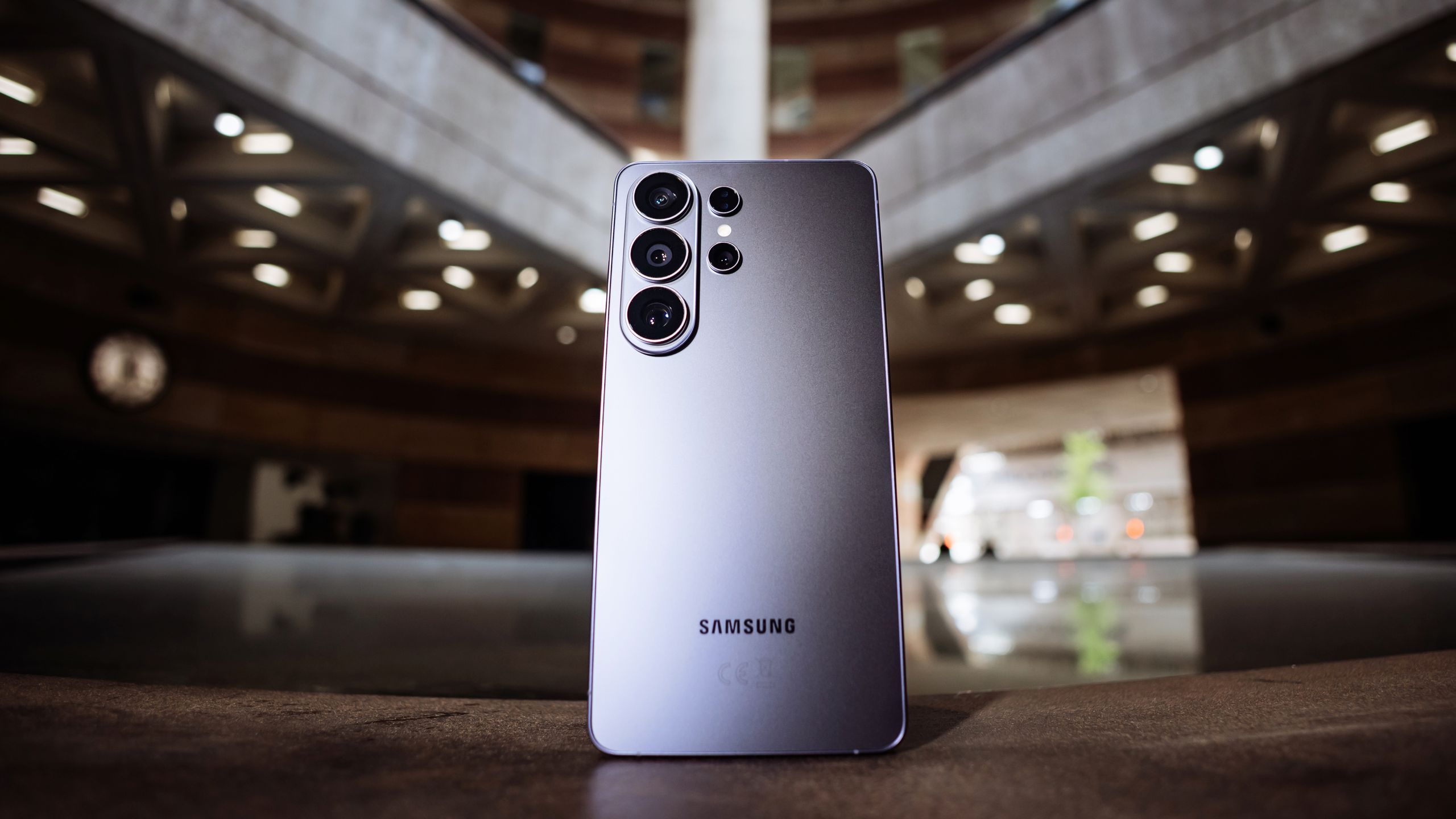
Professional‑looking shots begin with the right glass, and the Galaxy S26 Ultra is basically a multi‑lens camera bag in your pocket. Great photography requires a working knowledge of the tools at your disposal, so take some time to familiarise yourself with the strengths of each one. The 200MP wide F1.4 camera is your default workhorse; its large 1/1.3in sensor captures the most detail and the wide aperture makes it the best option for low light. For expansive scenes, switch to the 50MP ultra wide F1.9; when you need flattering portraits or street shots at medium distances, jump to the 10MP 3x optical zoom for natural depth and subject isolation. Wildlife, sports, or distant landscape details are where the 50MP 5x shines, and AI processing keeps even extended zoom usable.
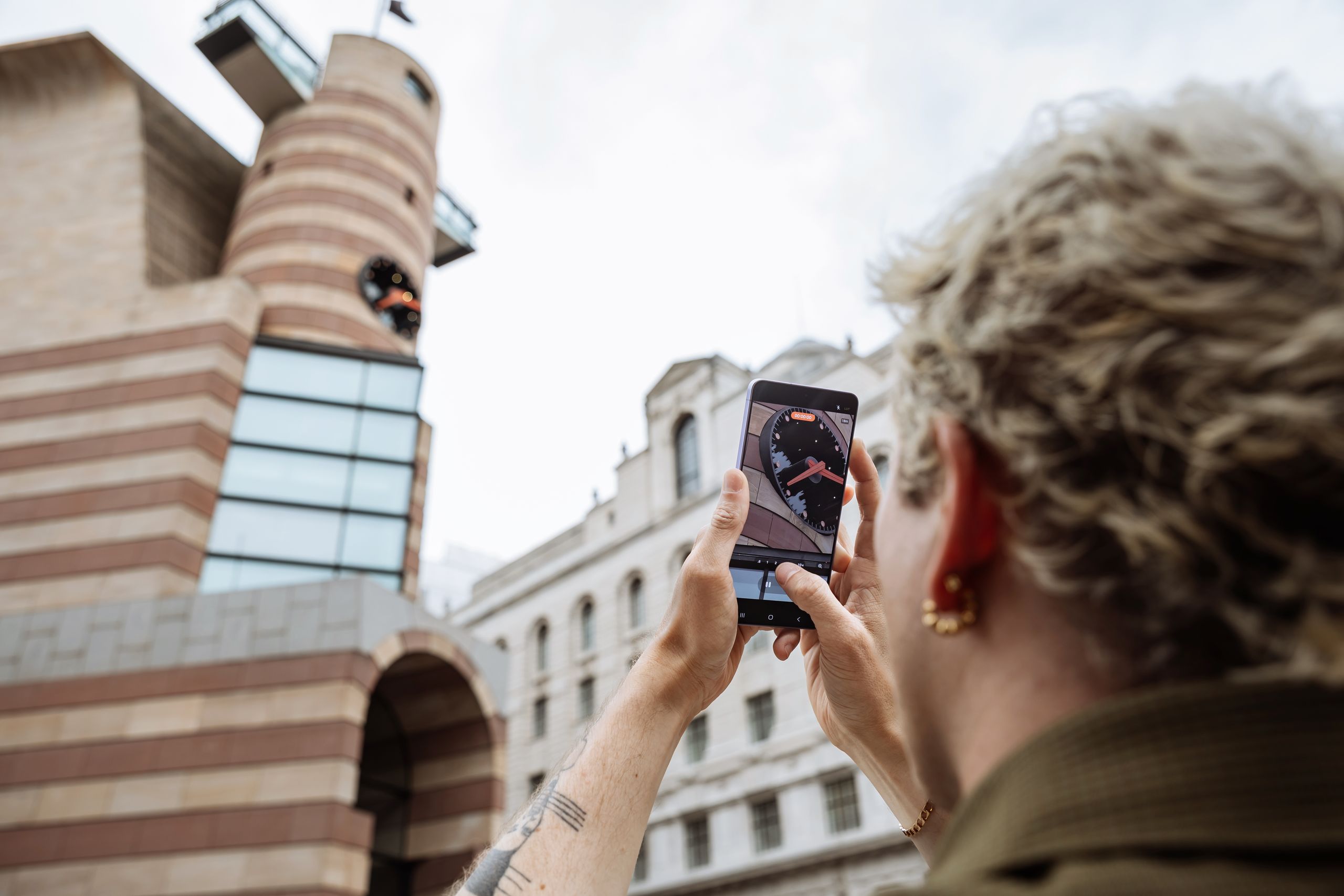
To avoid over‑processed digital zoom, the smart move is to anchor your shooting around those optical steps. The optical zooms produce the most natural‑looking images, so keep the 3x and 5x zoom points in mind and tap ‘3’ or ‘5’ directly instead of pinching to zoom. This matters for capture‑first shooting because it preserves genuine detail and avoids muddy edges that no filter can fix later. When you are still learning, enabling Auto Lens Switching lets the phone pick for you, and you can disable it when you are ready to make deliberate choices. That mix of guidance and control is exactly what a flagship camera system should offer.
Tip 2: Use AI Scene Detection and Composition Aids Instead of Presets
Most people lean on third‑party apps for colour and contrast fixes that the S26 Ultra can handle the moment you hit the shutter. Galaxy AI’s Scene Detection means you don’t need to worry about changing settings; the phone analyses each scene and automatically adjusts exposure and contrast so you can concentrate on getting the shot. This is ideal for beginners, helping you take great pictures faster, whether they’re portraits, food, landscapes or night scenes. In practice, this acts as a built‑in, context‑aware filter that often produces an Instagram‑ready file without further work.
Composition is another place where users throw away good photos and then try to rescue them by cropping later. Turn on ‘Shot suggestions’ and ‘Grid lines and level’ under Composition; this can help you frame your shot if you want to use the rule of thirds, for example. Framing correctly at capture keeps resolution high and uses the full power of the sensor, instead of slicing away pixels in an editing app. According to the phone’s camera guidance, using these built‑in aids is the fastest way for new photographers to achieve more consistent, well‑balanced images straight from the camera. The only time this approach is less helpful is when you intentionally want unconventional framing; then you can ignore the suggestions and trust your eye.
Tip 3: Let Night Mode and 24MP Do the Heavy Lifting After Dark
Low‑light scenes are where most casual shooters assume heavy editing is unavoidable. On the S26 Ultra, that assumption is out of date. The wider apertures capture more light, making it easier to create stunning photos at night, while pro file formats and AI‑powered editing let you refine your creative vision directly on the phone if you want to. Nightography capabilities allow you to capture sharp, vibrant photos without a tripod as the image signal processor reduces noise and camera shake and enhances detail in dimly lit restaurants, street scenes or concerts. The 24MP resolution option also helps with low light as it combines multiple exposures to preserve highlights and shadows in high‑contrast scenes.
Motion blur is the silent killer of night images; no amount of saturation or sharpening in an app can save a smeared subject. If you have problems with unwanted motion blur in your night shots, set a minimum shutter speed of at least 1/120s in the Camera Assistant app. This is a concrete flagship camera setting that leans on the phone’s computational strengths: you let the software juggle ISO and noise reduction while you lock in a shutter speed that keeps moving subjects clean. The result is night photos that look intentional and polished right off the sensor, not patched together later. The only time you might skip this is when you want deliberate motion trails or when the scene is so dark that a slower shutter is worth the risk.
Tip 4: Embrace Pro Mode for True Smartphone Photography Mastery
If you want your Galaxy S26 Ultra to replace a dedicated camera, you need to graduate from Auto. The automatic settings are brilliant for getting started, but when you’re ready to take technical aspects into your own hands, you can switch to Pro mode for full manual control over shutter speed, ISO and white balance. To make Pro mode easily available, tap More in the Camera app and drag Pro Photo and Pro Video to the bottom bar. This turns advanced control into a one‑tap decision, not a buried menu chore. Used well, these flagship camera settings let you match exposure and colour to the scene instead of relying on generic algorithms.
Pro mode is where you decide how much you want to rely on in‑camera processing versus later adjustment. Samsung’s dedicated Expert RAW app unlocks the S26 Ultra’s ability to capture photos in RAW format, which provides more information and more leeway for editing. For a capture‑first workflow, you can still shoot RAW+JPEG: get a polished JPEG for instant sharing and keep RAW as a safety net rather than a requirement. The catch is that RAW files demand storage and post‑work, so this path is best when you are shooting critical assignments or creative projects. For everyday use, well‑exposed Pro‑mode JPEGs combined with AI scene tools are enough to make mobile photo editing alternatives unnecessary.
Tip 5: Let ProScaler and Photo Assist Replace Third‑Party Editors
The Galaxy S26 Ultra’s processing pipeline is powerful enough that external apps often add more clutter than quality. ProScaler makes use of AI processing improvements to enhance image quality to up to QHD+ resolution, and those same boosts can be applied to videos too. It sharpens details and improves resolution so graphics look smooth and images look crisper and better than on other handsets. Photos also benefit from Precision mDNIe, which ensures colour and gradation is displayed as intended, delivering both vibrant and subtle shades with better contrast between colours. That combination is effectively a built‑in upscaling and colour‑grading engine.
For finishing touches, Galaxy AI’s Photo Assist lets you edit photos instantly on your phone, from removing backgrounds and distractions to generating creative composite images. The built‑in editing tool is very easy and intuitive to use because you interact with it using natural language. This is the smart way to think about mobile photo editing alternatives: use the integrated tools that understand your camera’s files and colour science, instead of sending every frame to generic apps. ProScaler even improves the look of locally stored and streamed videos by boosting resolution, while games benefit from sharper details and richer colour depth so even older titles can look new again. The flip side is that if you need a niche artistic effect, you may still dip into a specialist app—but for clean, publication‑ready images, the S26 Ultra’s own tools are more than enough.