
The Galaxy S26 Ultra’s Big Idea Is Now Its Biggest Headache
The Galaxy S26 Ultra screen issue refers to a growing number of users reporting a red or pink tinted display problem that appears across the central area of the phone’s panel, often worsening over months of use and undermining the Privacy Display feature that was marketed as the device’s main selling point. This is not a subtle cosmetic quirk; it is a visible colour shift that changes how white and grey elements look, sometimes even causing eye strain. When your flagship’s signature technology is the suspected cause of a flaw, you no longer have a minor inconvenience—you have a trust issue. Owners bought the S26 Ultra for its privacy-oriented display, yet the very feature that should protect their content may be degrading the way they see it. Samsung now has to prove that innovation does not come at the cost of basic display quality.
How the Privacy Display May Be Causing a Red-Tinted Screen
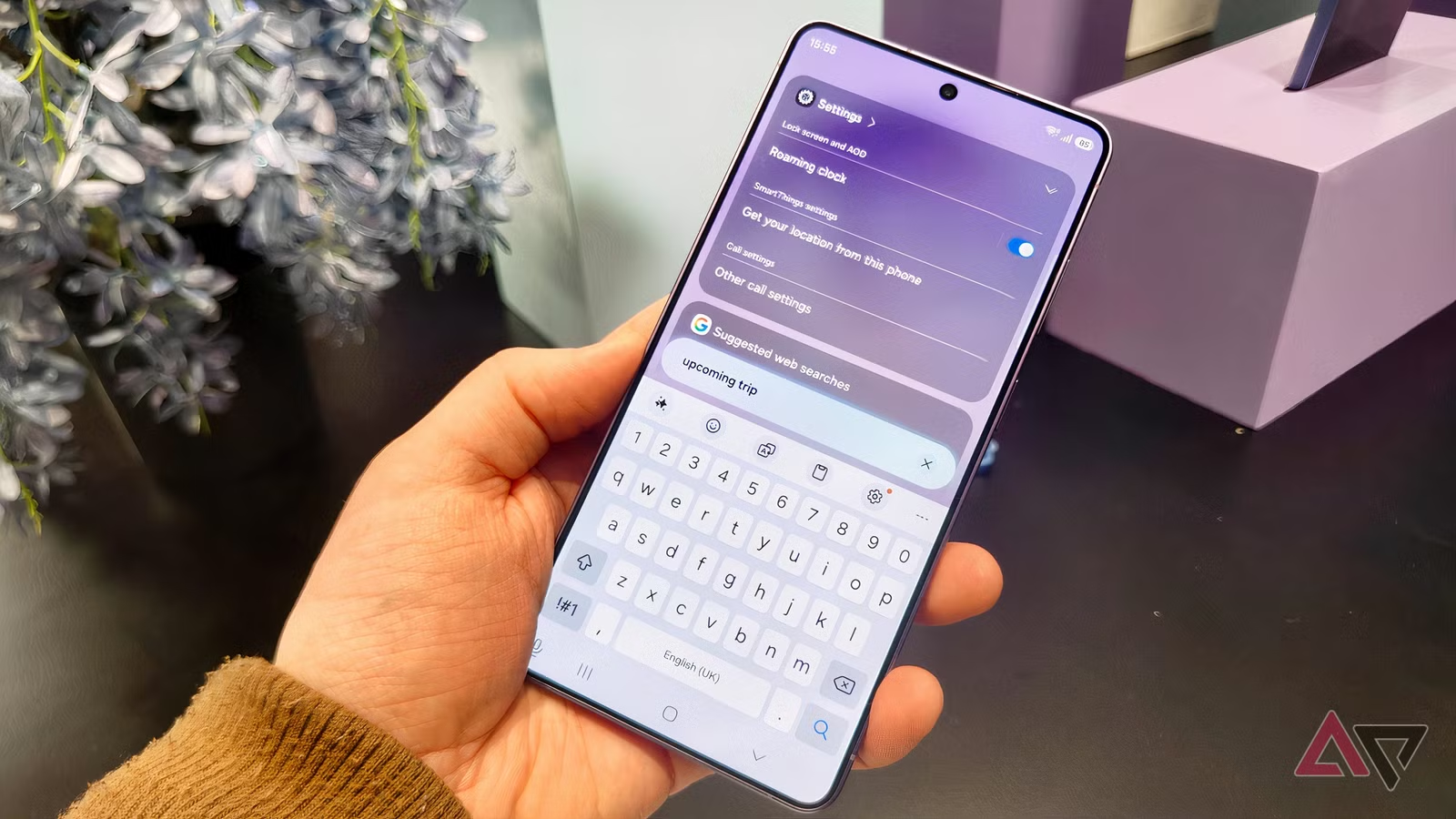
The core of the controversy is the Privacy Display itself. It was designed to stop over-the-shoulder snooping by steering light straight ahead, dimming pixels at the edges so only someone looking directly at the screen can read it. But users are now sharing photos of reddish rectangles in the middle of their screens, fading back to normal whites at the sides—exactly where those boosted central pixels live. Reports say the issue usually appears after two to three months, which has led some owners to describe it as display “fatigue”. Since this behaviour seems unique to the S26 Ultra, the privacy display has emerged as the most likely cause, even if Samsung has not officially confirmed it yet. If the feature is stressing certain pixels more than others, the phone’s headline innovation starts to look like a hardware liability rather than a selling point.
From Flagship Feature to Perceived Hardware Defect
The troubling part is how sharply this clashes with Samsung’s marketing narrative. Reviewers praised the Privacy Display as the standout feature of the Galaxy S26 Ultra, even while noting compromises like 8-bit colour performance and detectable screen flicker. Now, forum users suggest turning off the Privacy Display to avoid odd colour and brightness behaviour, effectively disabling one of the model’s most attractive features. When you have to switch off a marquee capability to make your phone usable, the value proposition collapses. To make things more complex, Samsung’s own support documents say slight red or yellow tones are an inherent characteristic of OLED panels, and recommend adjusting screen mode and white balance instead of treating this as a defect. That stance risks framing a widespread red tinted display problem as user perception rather than a real hardware or calibration issue.
Samsung’s Response: Investigation, But No Clear Screen Fix Yet
Samsung has acknowledged the issue and says it is examining the matter internally to confirm the cause, after user complaints on social media and community forums. This is the right first step, but it is also the bare minimum when a flagship’s display is under this kind of scrutiny. Some reports suggest the company may not classify the colour shift as a defect, leaning on the idea that OLED panels naturally show minor variations. That would be a risky line to take given how many early adopters and beta testers are calling this a major Galaxy S26 Ultra screen issue rather than a minor variation. Until Samsung publishes either a software patch or a clear hardware replacement policy, owners are stuck in limbo: they know the brand is investigating, but they do not yet know whether they will get a lasting Samsung screen fix or an instruction to keep tweaking sliders.
What Affected Users Can Do Right Now
While waiting for an official Samsung screen fix, owners have to treat this as a troubleshooting puzzle. The first step is to rule out warm-tint settings: turn off Eye Comfort Shield and Adaptive Color Tone, which can make the screen look more yellow or red. Then, head to Settings > Display > Screen mode, choose Vivid, and adjust the RGB sliders in Advanced Settings to pull whites back toward neutral. Under Accessibility > Vision enhancements, disable colour inversion, colour correction, and colour filters to avoid extra tinting. Many users also report that turning off Privacy Display reduces the obvious red cast for now, even if it sacrifices the phone’s headline benefit. If, after all of this, the reddish tint persists, the safest move is to visit a Samsung service centre, because that points to a deeper hardware or calibration problem that settings alone cannot fix.