
What Samsung Gallery’s OneDrive change means for your photos
Samsung Gallery OneDrive sync is the built‑in feature that lets Samsung phones mirror their Gallery photos and videos to Microsoft OneDrive so you can view them in the Gallery app and in the cloud with no manual copying or cable transfers required.
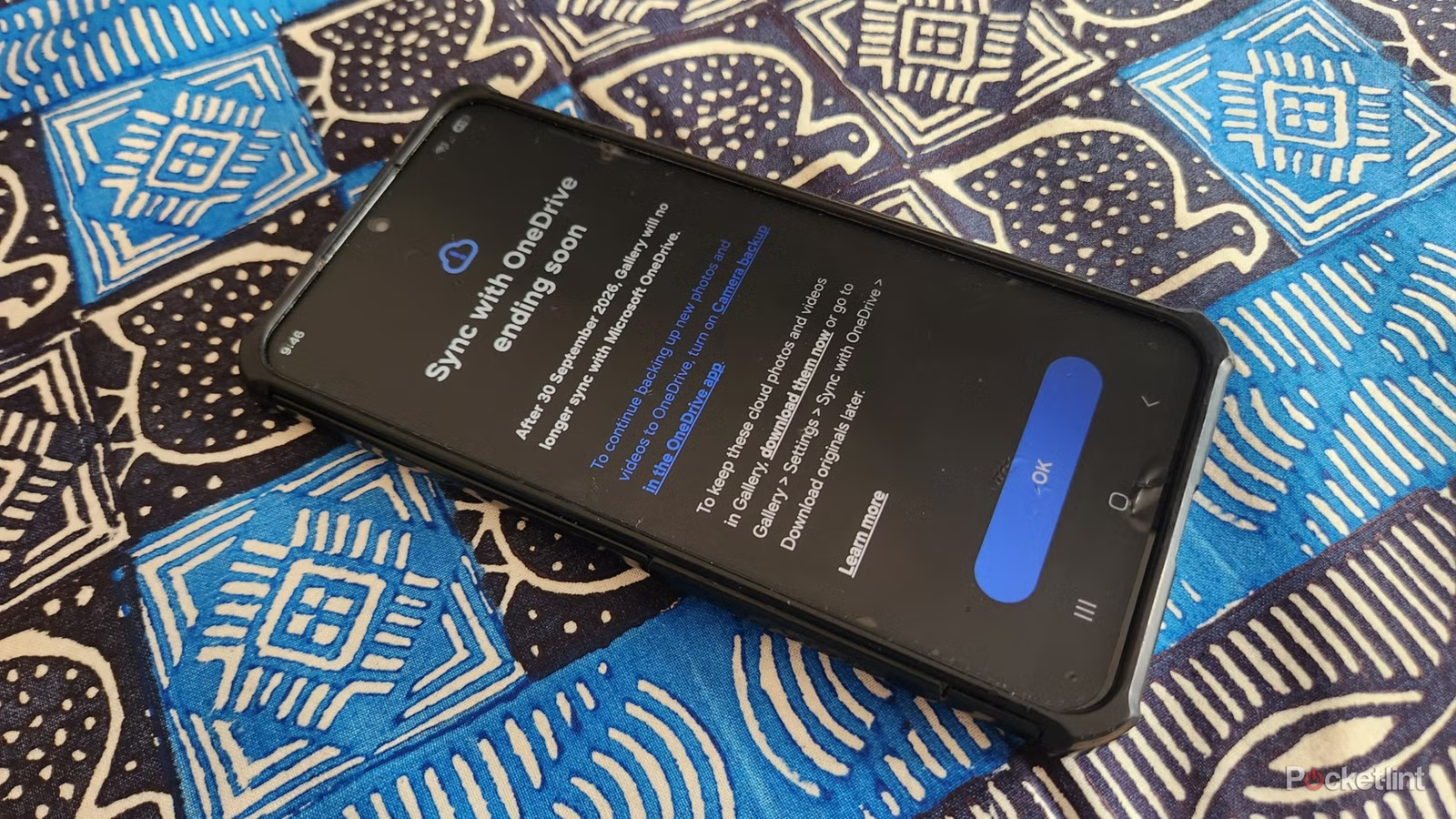
That automatic link is going away. Samsung Gallery will no longer sync with Microsoft OneDrive after 30 September 2026, so you need a backup plan if you rely on it to see or protect your photos. New Samsung users will not be able to set up OneDrive sync before that date, and existing users will lose access to their backed‑up OneDrive photos from inside the Gallery app once the deadline passes. Your pictures will still exist in OneDrive, but the Gallery shortcut to them disappears. The good news: you can keep syncing to OneDrive with the standalone app, or migrate photos backup to other cloud storage alternatives such as photo‑focused or self‑hosted services.
Choose your backup strategy before the deadline
Before you start moving anything, decide what you want your photo life to look like after the OneDrive sync ending. Even after Samsung Gallery officially stops syncing with Microsoft OneDrive at the end of September, you can still use Microsoft’s cloud storage service to back up photos and videos through its own app. That keeps things familiar if you already use OneDrive elsewhere. Alternatively, you might use this change to move into another ecosystem or even host your own backups.
There are several cloud storage alternatives if you feel burned by Samsung Gallery OneDrive sync ending. One popular option offers plenty of AI features but comes with looser privacy policies and the need to watch how your media might be used for AI training. Other services provide photo sync too, while open‑source tools such as Immich or broader self‑hosted clouds like Nextcloud give you more control in exchange for managing your own hardware and network. Whatever you pick, remember that ensuring you have adequate cloud storage available is the first step, and one major provider gives you 15GB of free space before you likely need a paid upgrade for your whole library.
Step‑by‑step: Secure your photos and switch backups
Here is a practical sequence I would walk a friend through to avoid losing access to anything when Samsung Gallery OneDrive sync is removed. Follow the order so you do not break backups before the new ones are ready, and stay on Wi‑Fi if you have a large library because downloads during migration can be sizeable.
- Check your current Samsung Gallery sync status: Open Samsung Gallery, go to Settings, then tap Sync with OneDrive at the top. Read the warning message that says: "After 30 September 2026, Gallery will no longer sync with Microsoft OneDrive. To continue backing up new photos and videos to OneDrive, turn on Camera backup in the OneDrive app."
- Download all cloud originals you still want in Gallery: In the same Sync with OneDrive screen, use the option that says you can keep cloud photos and videos in Gallery if you download them now or via Gallery > Settings > Sync with OneDrive > Download originals later. Tap Download them now, review the Download originals window, check that your phone has enough free space, tick the folders you want (for example Camera and WhatsApp images), and hit Download to copy your OneDrive photos into local Gallery storage.
- Prepare OneDrive as a standalone backup: Install the OneDrive app from the Play Store. Open it, sign in to your Microsoft account, then go to Settings and enable Camera Backup. You may also find this option under your Account Profile section; turn it on, grant any requested permissions, and OneDrive will set up automatic photo and video backups going forward.
- Confirm your OneDrive storage situation: Still inside the OneDrive app, look at the bottom of the screen where your free space is displayed and tap View Plan to see what features you have and whether your space is likely to run out as you keep backing up media from Samsung Gallery.
- Set up an alternative cloud backup (for example Google Photos): Open the app you want to move to. In the case of Google Photos, first tap Get Space to upgrade your storage plan if you need more than the included 15GB, with monthly and annual plans available. Then turn on the Backup photos and videos on this device automatically slider so new shots from your Samsung Galaxy camera are synced to that cloud instead of depending on Samsung Gallery OneDrive sync.
- Keep Samsung Gallery for local editing only: After these changes, remember that Samsung Gallery will still store and edit your photos locally, but it will not offer cloud-based backups. Your safety now depends on the OneDrive Camera Backup you enabled and any extra cloud or self‑hosted backup you configured in the previous steps.
The main gotcha here is storage: when you tap Download originals, each folder you select shows how much space it needs, and that can add up to tens of gigabytes on your device. Use a stable Wi‑Fi connection rather than a mobile network, both to avoid interruptions and to keep data usage under control while you migrate photos backup from the old link inside Gallery to your new setup.
What happens after you switch, and is it worth it?
Once you have finished these steps, your existing OneDrive photos stay safe in the cloud, and you will still be able to see them directly in the OneDrive app even though they vanish from Samsung Gallery’s cloud view. Through the Microsoft app, you can keep automatic photo and video backups running via Camera Backup, so in practice nothing is lost—only the old integration is. Meanwhile, any alternative service you turned on will start building its own copy of your camera roll.
Some people will be fine opening OneDrive to browse their photos instead of doing everything from the Gallery app, while others will prefer another photo app that offers a more seamless feeling within one ecosystem. There is no single right answer. What matters is that you act before 30 September 2026 so the OneDrive sync ending does not catch you with the only copy of some memories stuck behind a feature Samsung is removing. Taking an hour now to lock in a reliable backup system is worth it to avoid future panic over missing pictures.