
Your Phone Is Not Your Carrier’s Billboard
Hidden carrier bloatware is the cluster of pre-installed games, apps, and system services added by carriers and manufacturers that quietly consume gigabytes of your phone’s storage and affect performance even though you never chose to install them. You bought the hardware, but carrier-locked phones from major networks arrive stuffed with their own apps, mobile games, and installers that treat your device like ad space instead of personal tech. One recent clean-up on a Galaxy foldable removed 3.7GB of carrier games and nearly 2GB of extra preloaded apps, reclaiming about 5.8GB in total without touching a single Google or core manufacturer app. That is space that should belong to your photos, videos, and documents—not to “Royal Match” or a social network you never open. If you care about speed, battery life, and privacy, leaving this junk in place is not a neutral choice; it is a slow tax on your phone.
Step 1: Expose the Biggest Storage Hogs
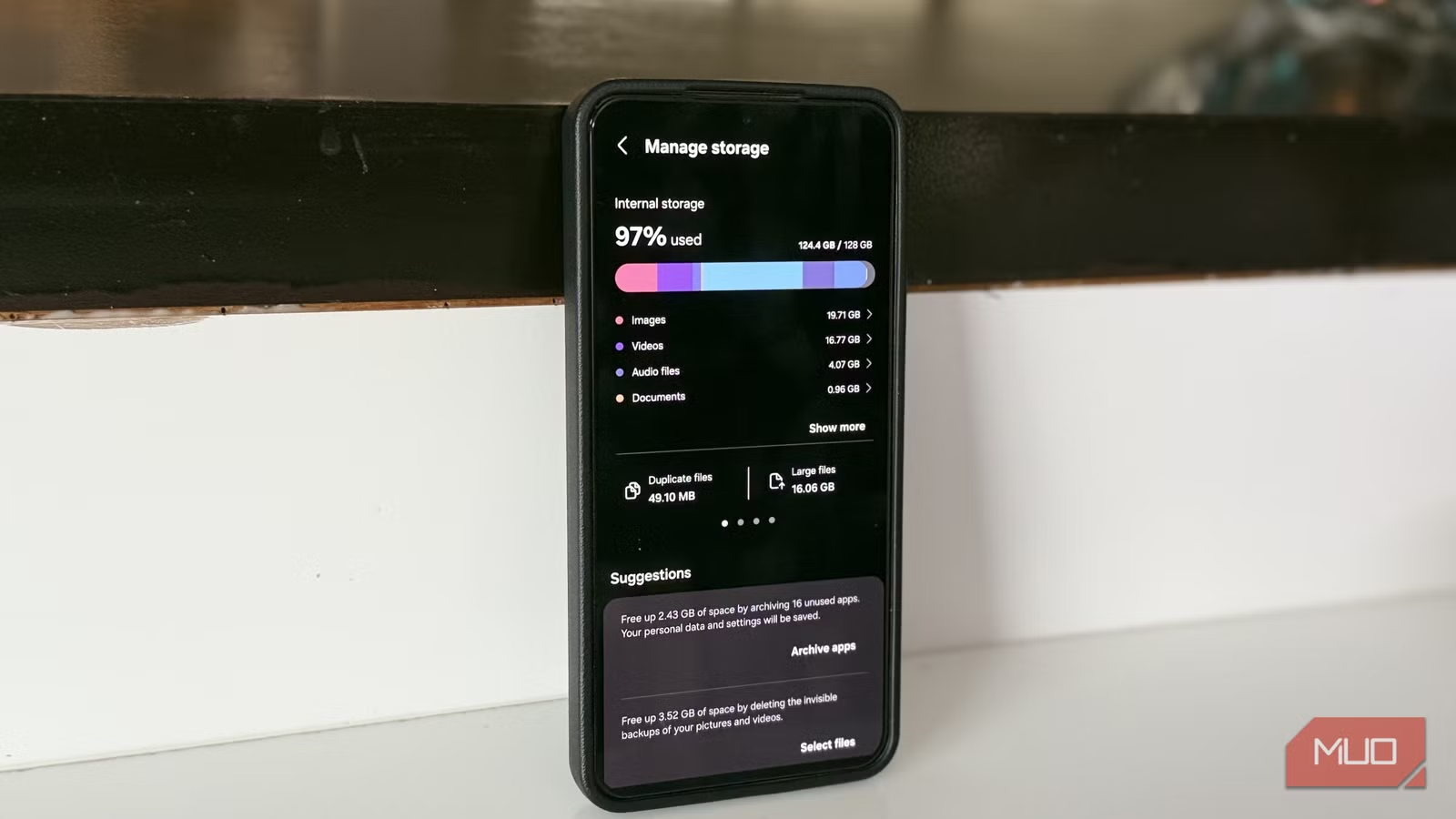
To reclaim phone storage, you first need to see where it is going. The fastest way to expose carrier bloatware is inside the Settings menu. Go to Settings → Apps and sort the list by size. Then scroll and look for large, unfamiliar names—especially games—you do not remember installing. On one carrier-locked Galaxy, this approach surfaced titles like 3 Tile Match at 451MB, Word Trip at 354MB, CrossWord Jam at 348MB, and a long list of similar games that together consumed 3.7GB. When you tap an app, check “App info” for its installation source. Anything that came from an installer such as AppCloud is a red flag, because AppCloud is a system-level app whose “sole purpose is to suggest and install third-party apps (bloatware) on your device.” The opinionated move here is clear: if an app exists only because an installer decided you needed it, it is bloat—not a feature.
Step 2: Remove Carrier Bloatware Without Root
Once you have identified the culprits, it is time to remove carrier bloatware and free up storage space. Start with the obvious games and brand apps: open each in the Apps list and choose Uninstall. On that Galaxy foldable, removing the pre-installed games alone reclaimed 3.7GB, while uninstalling bundled apps like a social network and review services added another 1.7GB back to the storage pool. This is more than a tidy-up; “removing and disabling every bloatware app you can will free up gigabytes of precious storage on your Android phone.” When you hit system-linked installers such as AppCloud, you may not be allowed to uninstall them, but you can disable them via Settings → Apps → AppCloud → Disable to prevent them from shoving new junk onto your phone. Safe, Settings-based removal avoids root, factory resets, and the risk of breaking core system functions, yet it delivers a noticeable performance and storage boost.
- Open Settings → Apps and sort apps by size to find the biggest storage users.
- Tap suspicious large apps and check their installation source for carrier or installer tags like AppCloud.
- Uninstall unwanted games and third-party apps directly from their App info screens to reclaim phone storage.
- Disable system-level installers such as AppCloud via Settings → Apps → AppCloud → Disable to stop future bloat installs.
Step 3: Tame Samsung’s 3GB Language Core
Carrier apps are not the only offenders; some manufacturer system apps quietly waste gigabytes too. On Samsung phones, Samsung Language Core—the on-device AI engine for Writing Assist, smart replies, and language-aware search—can take as much as 3GB of storage and even act as “a serious battery hog in some cases.” You can confirm whether it is hurting battery life by heading to Settings → Battery and checking if Samsung Language Core sits near the top of the usage list. If it does, one partial fix is to go to Settings → Apps → Samsung Language Core → Battery and set it to Restricted, limiting background activity. The more decisive move is to remove its updates: go to Settings → Apps → Samsung Language Core, tap the three-dot icon, and choose Uninstall updates → Uninstall. That single action “will free up 3GB of space almost instantly,” and the app stops showing up in battery stats while your phone gains breathing room.
- Check Settings → Battery to see if Samsung Language Core leads your battery usage.
- If needed, limit background drain via Settings → Apps → Samsung Language Core → Battery → Restricted.
- Free up storage by going to Settings → Apps → Samsung Language Core, tapping the three-dot icon, and choosing Uninstall updates → Uninstall.
Avoid Common Pitfalls and Enjoy the Extra Space
There are two common mistakes when people try to uninstall system apps and carrier junk. First, they assume disabling an installer is permanent. In reality, tools like AppCloud “have a tendency to reappear or enable [themselves] after software updates,” and some can even re-install their favorite apps after major upgrades. You should recheck Settings → Apps after system updates to ensure they remain disabled. Second, many users treat every system app as removable, but some, such as Samsung Language Core, cannot be uninstalled like normal apps and cannot be disabled; removing their updates is the supported path. The payoff for doing this carefully is significant: one user ended up with 3GB more “breathing room” and no more battery drain from Language Core. Combine that with the 5.8GB reclaimed from carrier bloat, and you gain tangible space and smoother performance for your photos, videos, and real work. Your phone feels like yours again—and that is the whole point.