

Why Custom Phone Gestures Make Your Galaxy Feel Faster
Custom phone gestures on Samsung Galaxy devices are personalized swipe actions placed along the screen edges and navigation bar that replace or extend default controls, letting you trigger navigation, quick tools, split screen multitasking, and app switching with fewer, thumb-friendly movements tailored to how you hold and use your phone every day.
If your Galaxy feels big or clumsy, the problem may not be performance but how far your thumb travels for basic actions. Pulling down the notification shade, taking screenshots, or starting split screen often means stretching to the top of the screen or tapping through several menus. Custom phone gestures turn those repeated movements into short swipes from the edges where your thumb already rests. The catch: this only works on devices with the full version of One UI, because the tools you need live inside Samsung’s Good Lock settings, not the standard menus. So this guide is for anyone with a recent Galaxy phone, willing to spend 20 minutes changing muscle memory in exchange for a smoother, faster-feeling day.
Prerequisites: Check Your Galaxy and Install Good Lock
Before you dive into Galaxy gesture navigation tweaks, you need the right software in place. Good Lock is Samsung’s customization suite that adds modules for advanced control of gestures, navigation, and one-handed use. It does not come preinstalled, and it only runs on devices with the full version of One UI—many budget A and M series phones ship with One UI Core, which does not support these modules. If your phone is compatible, you can add Good Lock without rooting or installing third-party apps, since it is an official Samsung tool available in Samsung’s app stores.
Once Good Lock is installed, you will use two modules: One Hand Operation+ for edge-based custom phone gestures and NavStar for fine-tuning navigation bar behavior. According to one user experience, "Good Lock is a powerful customization suite for Samsung Galaxy devices, offering a collection of modules and plugins that let you personalize almost every aspect of your phone." Think of Good Lock as the hidden control room where Samsung stores the settings that are missing from standard One UI menus.
- Open the Galaxy Store on your phone and search for Good Lock, then install it.
- Launch Good Lock, go to the module or plugins section, and install One Hand Operation+ for edge gestures.
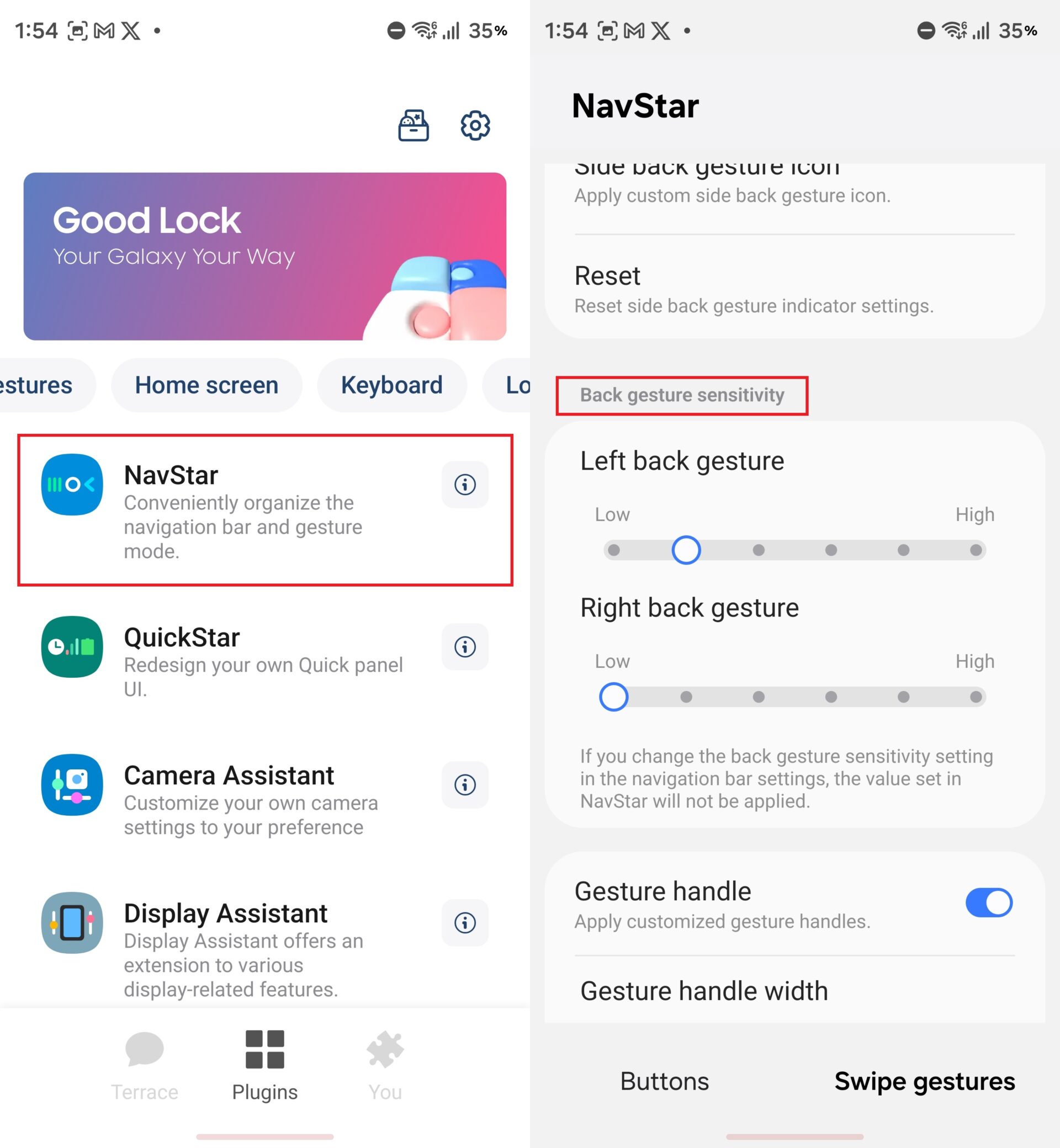
- In the same plugins tab, install NavStar to customize navigation bar and back gesture sensitivity.
Turn Off Default Gestures and Build Edge Controls
Now you can rebuild Galaxy gesture navigation around your thumb instead of around Samsung’s defaults. One Hand Operation+ lets you place invisible handles along both edges of the display; each handle responds to three swipe directions—diagonal up, diagonal down, and straight—and every direction has a short and a long swipe version. That gives you twelve gesture slots without adding extra buttons on the screen. Out of the box, long swipes are disabled, so you only get six slots until you change that in the Good Lock settings for this module. The idea is to attach your most frequent actions to the shortest, easiest swipes, keeping everything clustered where your thumb naturally rests.
This is also where many people run into the first gotcha: overlapping or confusing gestures. If you map too many complicated directions on one side, you will forget what does what and trigger the wrong action. Start with two or three core tasks—like screenshot, notification panel, and split screen multitasking—and expand from there. In practice, moving split screen from a four-step process to a single diagonal swipe greatly cuts app switching speed because you spend less time opening Recents and hunting for menu options. One swipe from the edge and you have a compact control center without pulling down from the top of the screen.
- Open Good Lock, tap One Hand Operation+, and enable the module using the main toggle.
- Turn on handles for the left and/or right edge, then enable long swipe recognition to unlock all twelve gesture slots.
- Assign short diagonal, straight, and diagonal-down swipes on one edge to actions such as screenshot, notification panel, and split screen.
- Use long swipes on the same directions for secondary tools like Quick Settings, flashlight, or other shortcuts you use often.
Use NavStar to Fix Accidental Back Swipes
Once your custom phone gestures are in place, the next real-world problem is the back gesture. On Galaxy gesture navigation, the back action works from both the left and right edges of the display, which makes it easy to trigger by accident when you are swiping on content near the edge. Users often notice this in apps where you flick items sideways, like call logs or photo galleries, because your muscle memory keeps starting swipes near the edge. You can adjust back gesture sensitivity in standard navigation bar settings, but many people find that even the lowest built-in sensitivity still lets unwanted back swipes slip through.
Good Lock’s NavStar plugin gives more granular control over those back gestures than the default One UI menus. Unlike the built-in navigation bar settings, NavStar lets you adjust the sensitivity of the left and right back gestures independently and reduce sensitivity further than standard options. The common mistake is leaving both sides equally sensitive, which forces you to be careful with almost every swipe. A better pattern is to keep your main back side responsive and make the other side very strict, so you only trigger it when you mean to. One user set the right-side back gesture to the lowest sensitivity and no longer triggered it by accident.
- Open Good Lock, select NavStar, and turn it on using the toggle at the top of the screen.
- Scroll down to the Back gesture sensitivity section inside NavStar.
- Lower the sensitivity for the edge where you most often trigger accidental back swipes, keeping the other side at a comfortable level.
What You Gain Once Gesture Customization Clicks
When you finish setting up Good Lock settings for One Hand Operation+ and NavStar, everyday tasks on your Galaxy feel condensed. Split screen multitasking becomes a single diagonal swipe instead of a four-step process through the Recents menu. Switching between recent apps is faster when you use the gesture bar at the bottom of the screen, swiping left or right instead of tapping the traditional Recents button, which only quickly switches between the last two apps. With edge handles triggering screenshots, notifications, and quick tools, your app switching speed improves because your thumb spends less time moving around the screen and more time performing short, consistent motions.
There are two main things to watch for as you live with these settings. First, do not overload a single edge with too many complex gestures; keep the most-used actions simple and close together. Second, revisit NavStar if you begin to notice new accidental back swipes—the balance between left and right sensitivity may need fine-tuning as your habits change. The payoff is worth the small learning curve: a phone that feels built around your hand, using official Samsung tools so you avoid rooting or unreliable third-party hacks.





