

What Android custom gestures are and why they feel faster
Android custom gestures are user-defined swipe actions around your screen edges that trigger shortcuts and navigation functions, replacing slower default systems so you can open apps, panels, and tools with fewer taps and thumb stretches, which makes your phone feel faster even though the hardware itself remains unchanged.
Think of this as reorganizing your phone around your thumb. Instead of stretching to the top of a big display for notifications or using two hands for screenshots, you pull everything into the edges where your thumb naturally rests. These shortcuts do not upgrade your CPU or RAM, but they cut out wasted motion and extra steps, which is the core of phone performance optimization on older devices.
The caveat: you’re not “overclocking” anything. As one source explains, “Certain software tricks can make your phone feel faster. However, they can't reverse hardware aging, but they can remove many of the frustrations that make your phone feel slow”. If you’re comfortable installing an app and changing a few settings, that’s all the technical skill you need to benefit.
Set up Samsung’s edge gesture app and rebuild navigation around your thumb
On Samsung phones running the full version of One UI, you can use Samsung’s own edge gesture module to add invisible handles along both sides of the screen and assign actions to different swipe directions. This is ideal if your phone is large enough that one-handed use feels awkward, because you can concentrate most navigation within easy thumb reach.
- Confirm your phone uses the full version of One UI; most budget A and M series models use One UI Core and do not support the customization suite.
- Install Samsung’s customization suite from the Galaxy Store, then open it and download the module that adds One Hand Operation+ from inside the suite.
- Enable the module and place invisible handles along the left and right edges of your display, choosing their size and position so they sit where your thumb naturally rests.
- Assign actions to each direction: diagonal up, diagonal down, and straight, then enable long-swipe recognition to double your available gesture slots from six to twelve.
- Turn on the Quick action option so long swipes fire as soon as your thumb crosses the distance threshold instead of waiting for you to lift your finger, improving Samsung gesture speed.
- Map high-friction tasks (screenshots, notification shade, Quick Settings, flashlight, split screen) to nearby gestures so you collapse multi-step sequences into a single swipe.
The real win here is collapsing four-step actions into one motion. For example, opening split screen used to require opening Recents, tapping an app card, and picking split screen from a menu; now it can be a single diagonal swipe from the edge, right under your thumb. That kind of edge-based gesture customization reduces app-switching overhead and makes the phone feel more responsive every time you multitask.
Use edge gesture tools to speed up daily controls and app switching
Once the basic Android custom gestures are in place, you can use the extra tools inside the Samsung edge module to trim even more friction from everyday tasks. Beyond remapping navigation, the module offers floating panels for quick controls and custom app switchers that pop up wherever your thumb is on the screen.
For example, a Quick Tools panel can slide out with brightness and volume sliders so you avoid stretching up to the status bar or digging into settings each time. Task Switcher shows a small list of recent apps with a search bar, and Quick Launcher displays a pinned grid of your chosen apps in a floating window, letting you open or swap apps without returning to the home screen. These edge gesture apps keep common controls and multitasking tools close to your thumb, which makes Samsung gesture speed feel snappier during the day, especially when you repeat the same actions dozens of times.
The gotcha: don’t fill all twelve slots with obscure shortcuts. Focus on the handful of actions you use constantly—screenshots, notifications, app switching, and utilities like the flashlight—so you gain daily time savings instead of a confusing maze of gestures.
Pair custom gestures with a minimalist launcher for faster app access
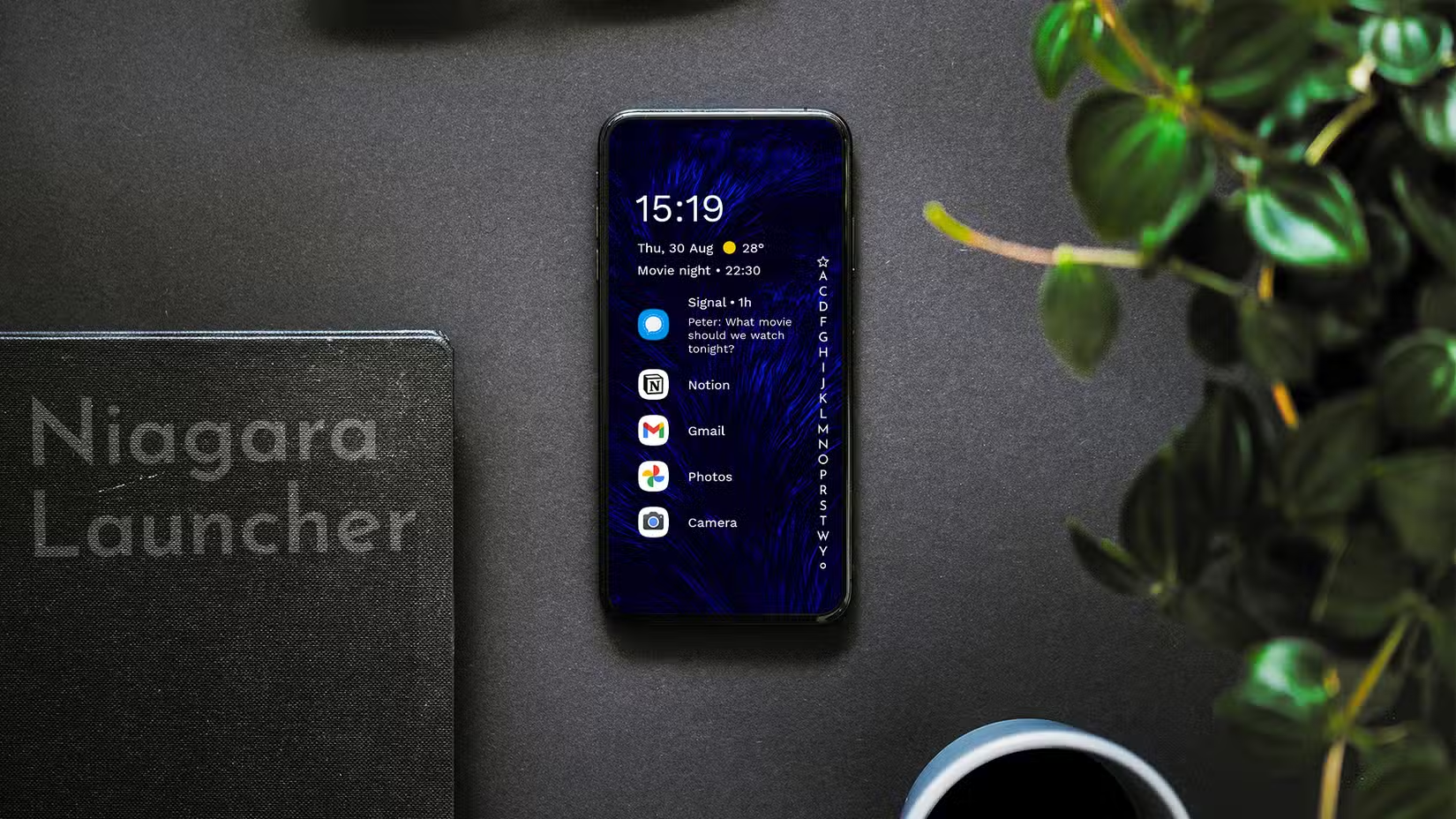
Gestures speed up system actions; a better launcher speeds up finding apps. Swapping the default home app on a Samsung phone for a minimalist launcher with an alphabetical list of apps can reduce how long it takes to open almost anything on your device. The idea is the same: you can’t make your hardware faster, but you can remove the awkward parts of everyday use so the phone feels more responsive.
One example is a launcher that displays all apps in a single vertical list, with the alphabet along the right edge. You tap a letter, and the launcher shows every app starting with that letter, so their positions stay predictable no matter how many apps you install. According to one report, setting a favorites list with around eight frequently-used apps on the main screen keeps them within thumb reach and “those small savings add up to make everyday navigation on Android feel smooth”.
Combined with edge-based gestures for notifications and app switching, this kind of launcher cuts both finger travel and mental overhead: you no longer swipe through multiple home screens to find an icon and you trigger common tasks from the edges. Together, they form a practical phone performance optimization strategy that anyone comfortable changing launcher settings can use.

Is it worth the effort, and what should you watch for?
If you’re often stretching for the notification shade or fumbling with two hands to manage apps, custom edge gestures and a smarter launcher are worth the hour it takes to set up. You end up with one-handed shortcuts for your most common actions and a home screen where every app lives in a predictable place, which together make your phone feel faster without touching the hardware.
Watch for compatibility and over-customization. Samsung’s edge module only works on devices with the full version of One UI, so budget A and M series phones on One UI Core are left out. And while it’s tempting to assign a gesture to everything, crowding all twelve slots can make the system harder to remember. Start with a few essential Android custom gestures, pair them with a lean favorites list in your launcher, and live with the setup for a week. If your thumb stops traveling to the top of the screen and common tasks feel smoother, you’ve hit the sweet spot for everyday phone performance optimization.




