

Before You Switch: What iPhone to Android Data Migration Involves
Moving data from iPhone to Android means transferring contacts, photos, videos, messages, and app information using tools that understand both systems, because iOS and Android store and structure data differently and cannot rely on plain file copying alone. If you want to transfer data iPhone to Android without losing anything, treat this like a one‑time house move: you prepare, you pack, you move, then you check everything arrived. Anyone planning to switch from iOS to Android should do this, especially if years of photos, WhatsApp chats, or work contacts live on your iPhone. The key caveat: you must be willing to use cloud services and follow specific steps for each data type, instead of dragging random folders between phones.
Before you touch anything, make sure both phones are on Wi‑Fi and that you have a Google account, because the main method for iPhone Android data migration uses Google cloud storage. Install Google Drive on your iPhone from the App Store; on Android it’s usually pre‑installed. Then create a full backup of your iPhone and store it somewhere safe, like a computer with iTunes or in iCloud, so you have a fall‑back if something goes wrong. Think of this backup as your safety net: if a transfer step fails, you can restore and try again instead of losing data. One quotable rule of thumb here is: "Before starting the procedure, be sure to create a backup of your iPhone and transfer it to a safe place, such as a computer".
Step‑by‑Step: Core Data Transfer Using Google and Switch to Android
- Connect your iPhone and Android to the same Wi‑Fi, sign in to your Google account on both, and install Google Drive on iPhone from the App Store while confirming it is available on Android.
- On your iPhone, open Google Drive, go to Backup, enable backups for photos, videos, contacts, calendar events, and relevant app data, then choose photo and video quality as High or Original as needed.
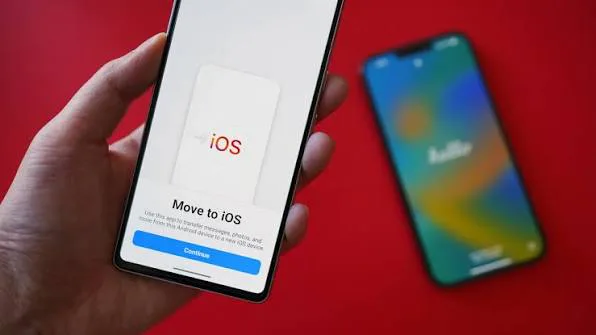
- Install Google’s "Switch to Android" app on your iPhone, follow the on‑screen prompts to link to your new Android phone, and start transferring your selected data categories.
- Wait for the transfer to complete, then sign into the same Google account on Android and confirm that photos, videos, contacts, calendars, and supported messenger chats are present.
- If you use messaging apps like WhatsApp, create messenger backups to Google Drive on iPhone where the app supports it, then restore those backups on the Android phone via the messenger’s setup menu.
Google cloud storage is described as the fastest and easiest way to move photos, videos, contacts, calendar events, and messenger chats from iPhone to Android. The reason this ordered set of steps matters is that iOS and Android data structures differ, so the cloud acts as a translator instead of relying on raw file copies that may break formats or indexes. A common gotcha is photo quality: if you skip the quality setting, your images might be compressed more than you expect. To avoid that, open Google Drive on iPhone, go to Backup, select the photos and videos section, and set quality to High or Original before backing up. Another subtle pitfall comes from messenger transfers: some tools warn that restoring a backup will replace existing chat history on the receiving phone with the new data. Read these warnings and ensure you are comfortable with overwriting before you proceed. When the Switch to Android process finishes, you should see your important data available on the new phone, with your chat history transferred along with attachments where supported.
Handling Contacts, Messages, and Special Cases
While Switch to Android and Google Drive cover most everyday needs, contacts and messages sometimes require extra care when you switch from iOS to Android. Contacts can be synced through iCloud and then exported; to do that, first enable iCloud Contacts on your iPhone by going into Settings, opening the iCloud section, and turning on the Contacts slider. On a computer, you sign into the same iCloud account in a browser, open Contacts, select all entries, and use the gear icon’s Export vCard option to download them as a file. That vCard file can then be copied to your Android phone over USB and imported into the Contacts app, giving you a local backup separate from the Google sync path. This dual approach—cloud sync plus vCard export—protects you if one method fails or if you want a manual archive for safekeeping. It also helps if you prefer not to rely only on automatic sync.
Messenger and app data can be trickier in an iPhone Android data migration because not every app supports cross‑ecosystem transfer. Some dedicated tools provide menus such as WhatsApp Transfer for creating backups, restoring chats, and moving messenger data like WhatsApp and Viber between phones. When you use such a tool, expect to follow on‑screen guidance that includes enabling USB debugging mode on the Android phone, with the program providing a clear step‑by‑step guide for different models. One warning you will often see is that the transfer process is irreversible for the recipient’s chat history: the data on the Android phone will be replaced by the incoming backup. That matters if you have existing messages on the new device you want to keep. The safe pattern is to set up the Android phone, immediately restore your iPhone chats before building new conversations, and confirm that the restoration completes with chat history and attached files visible.
Verifying Your New Android and Ongoing Sync
Once you have completed the main transfer, treat your new Android phone like a house you’ve just moved into. Walk through each room: open the Photos app and confirm that your albums and recent pictures appear, especially those you think of as irreplaceable. Check that calendar events match what you see on your iPhone and that your contacts list is complete, including work numbers and emergency contacts. Open your main messengers and scroll through several conversations to ensure chat history and attachments arrived intact; transfer tools state that, after the process finishes, chat history should be present along with attached files. If anything is missing, go back to your original iPhone backup (on computer or iCloud) and repeat the relevant step rather than improvising random copies, which can lead to partial or corrupted data.
For ongoing life after the switch from iOS to Android, lean on cloud sync instead of one‑off manual transfers. Keep your Google account signed in on the Android phone, enable backup for photos, contacts, and calendars, and review these settings whenever you change phones or reset the device. If you use a Windows PC, consider pairing your Android phone with desktop tools that show photos and files over Wi‑Fi; this saves you from digging out cables each time you want to move photos from phone to PC and back. Over time, the goal is that your data feels less tied to any one phone and more anchored in services you can reach from multiple devices. The takeaway: this careful, step‑based iPhone to Android migration is worth the effort because, done once, it frees you to upgrade phones without worrying about losing your digital life.





