
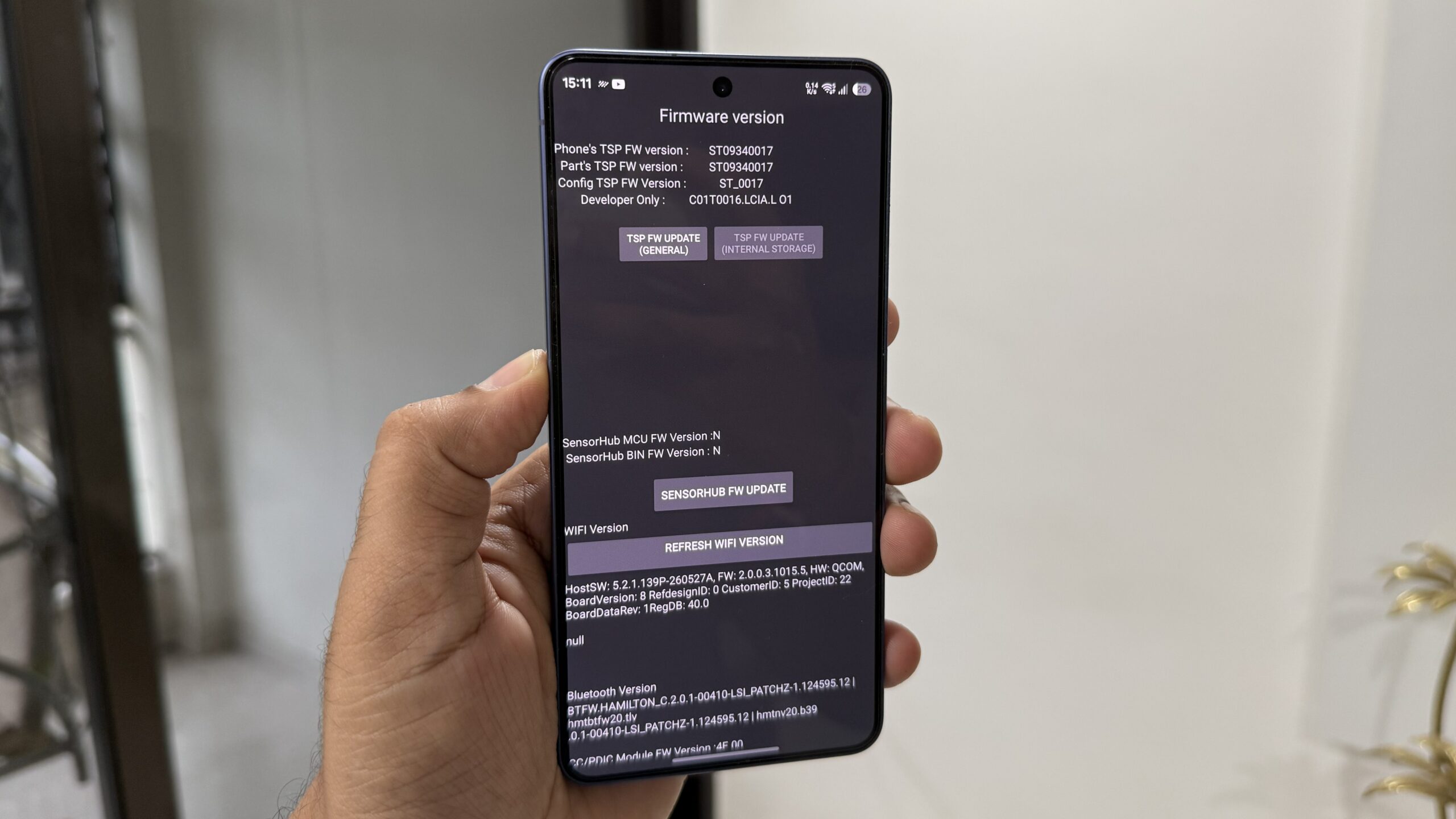

What Samsung Hidden Features and Secret Codes Do For You
Samsung hidden features and Galaxy secret codes are built‑in tools and dial sequences that unlock diagnostic menus, automate everyday routines, and enable powerful interface tricks that are disabled by default, so you can control your phone faster without digging through complex settings or installing extra apps.
If you already know the basics of One UI but feel your Galaxy phone could do more, this is for you. The only real prerequisite is being willing to flip a few key switches in Settings and use the dialer for more than calls. Some of Samsung’s most useful features aren’t enabled by default, so it’s easy to miss out on what your phone can do. We’ll walk through seven practical Galaxy phone tricks that fit into normal daily use: checking hardware, protecting your number, reclaiming storage, shrinking the screen, recovering notifications, and building custom productivity modes.
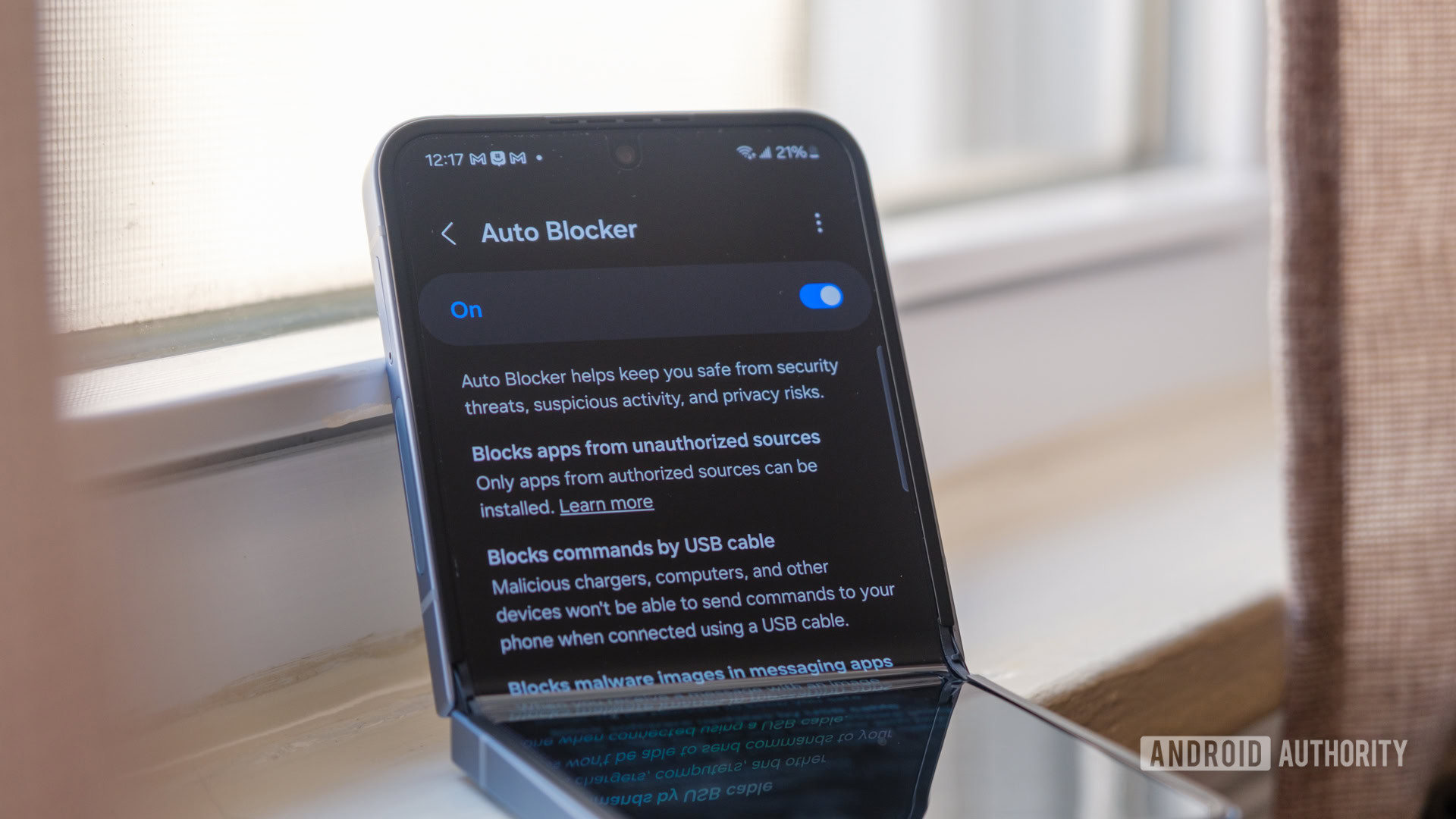
One caveat before we start: on newer One UI versions, a security option called Auto Blocker can stop most Samsung dial codes from working. You’ll temporarily turn that off for diagnostics, then let the phone re‑enable it so you keep the safety net.
Step-by-Step: 7 Hidden Galaxy Phone Tricks in One Flow
Rather than toggling random options, treat this like a single tune‑up session. You’ll move through dial codes, modes, and buried Settings in one ordered sequence so nothing breaks and everything has a clear purpose.
- Turn off Auto Blocker: open Settings, tap Security and privacy, and disable Auto Blocker so Samsung dial codes can run. On One UI 8.5 or later, your phone automatically re‑enables it after about 30 minutes.
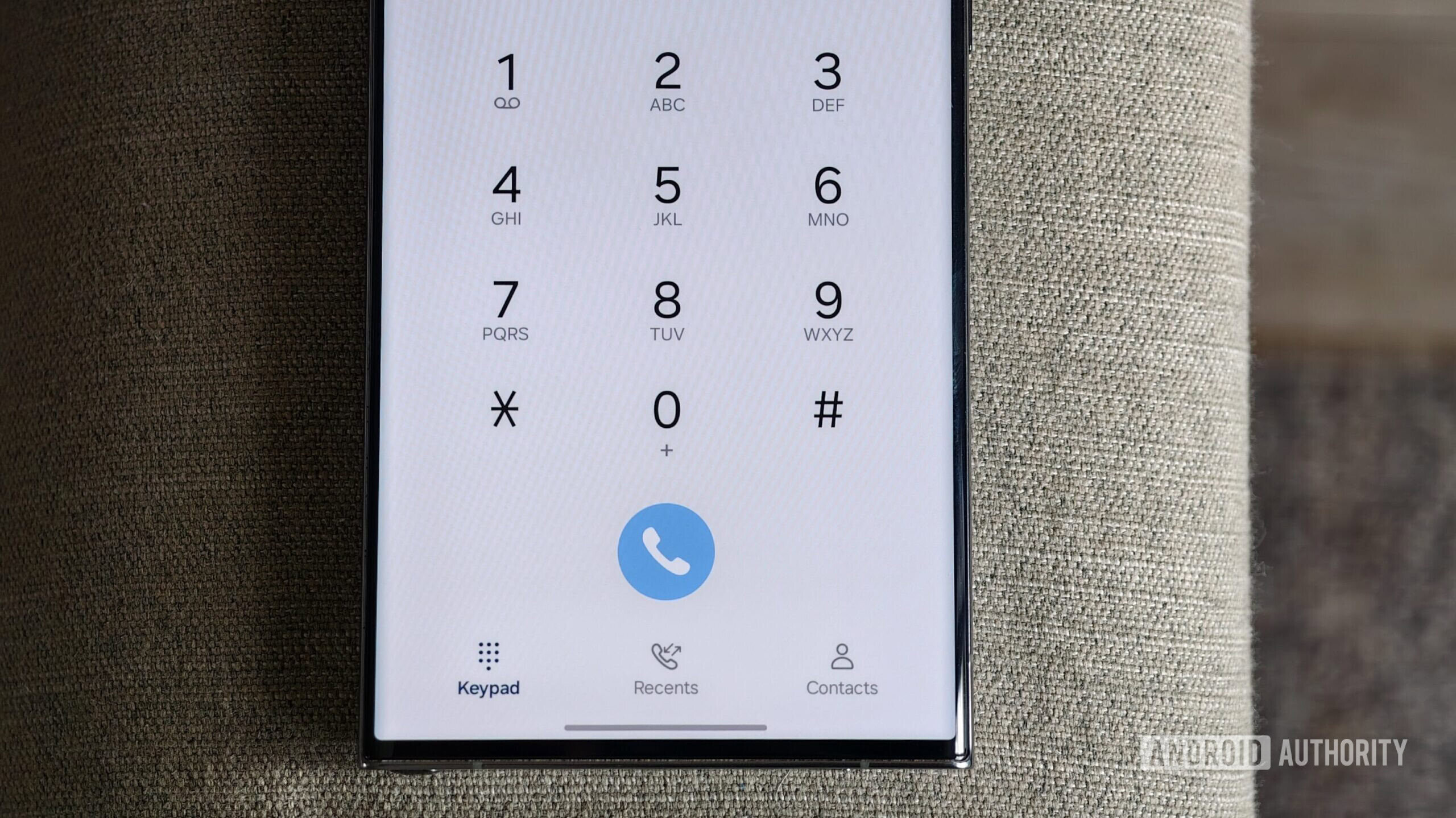
- Check your IMEI: open the Phone app and dial *#06#. Your Galaxy displays one or two unique IMEI numbers, which your carrier may request if the phone is lost or stolen. Screenshot or write them down for safekeeping.
- Run a hardware check: dial *#0*#. A diagnostics menu appears with test tiles so you can check major hardware components like screen, sensors, and speakers in one place. Use this when something feels off before booking a repair.
- Boost privacy on calls: to hide your caller ID on a specific call, dial *67 before the number; for suppressing caller ID for outgoing calls on some networks, dial *31# first so your number shows as Unknown or Private Number.
- Reclaim system storage: dial *#9900# to open the SysDump menu, then tap Delete dumpstat/logcat so the phone removes accumulated log files and frees up space without touching your photos or apps.
- Lock in USB behavior: dial *#0808#. Use the menu to change USB connection modes, which lets you pick how your phone talks to a PC (charging only, file transfer, and more) without hunting through Developer Options every time.
- Enable one-handed mode and notification history: in Settings, go to Advanced features and turn on One-handed mode, then pick Gesture or Button activation. Next, open Settings > Notifications > Advanced settings > Notification history and toggle it on so your phone keeps a 24‑hour record of alerts.
This ordered run keeps risk low: turn off Auto Blocker once, do all dial‑based tasks, then let security switch itself back on. If your phone is carrier‑locked, some Samsung dial codes may show a connection error; that’s a carrier limitation, not something you can fix. According to one source, users voted *#9900# for deleting system logs as the most useful Samsung dial code with 27% of the vote. That alone can keep an older Galaxy feeling less clogged. The one-handed mode step is there because on larger phones the shrinkable screen makes everyday tapping far less awkward while still letting you enjoy the big display.
Modes and Routines: Turn Repeated Taps into One Button
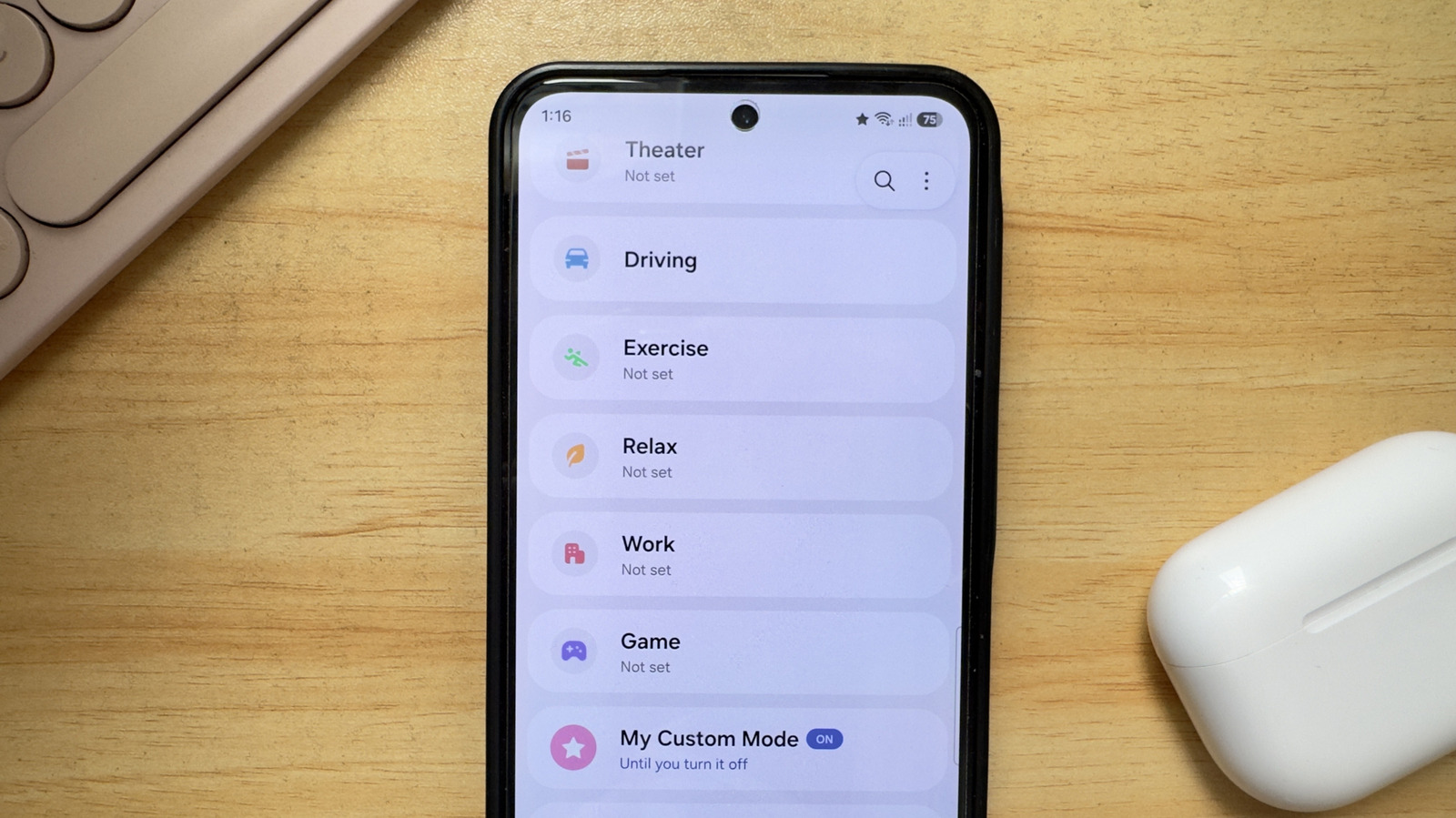
Once the foundation is set, the part that changes your daily rhythm is Samsung’s Modes feature. If iPhone has Shortcuts, Galaxy has Modes and Routines, and Modes are one of your phone’s hidden gems for automating repeat settings changes. Think of each Mode as a profile: one for deep work, one for gaming, one for winding down at night. Instead of manually flipping silent mode, power saving, brightness, and call preferences every time, a Mode handles all those toggles together with a single tap.
Out of the box, you already have seven pre‑made Modes: Sleep, Theater, Driving, Exercise, Relax, Work, and Game. Maybe Work mode silences your phone and turns on Maximum Power Saving while you are focusing, while Relax or Sleep lowers screen brightness, activates extra dim, and automatically declines calls so you are not disturbed. If none of these match your specific routine, the app lets you build your own custom Mode quickly. The practical angle is simple: any set of changes you repeat daily becomes a single button. Over time, that matters more than any one fancy feature because your phone behaves the way your day actually looks.
The only catch is remembering to link Modes to triggers. A Mode that you must hunt for is just a nicer button. Tie it to time, Wi‑Fi, or location so your Galaxy flips modes on its own. Used well, Modes turn your phone from a pile of options into a predictable assistant.
One-Handed Mode and Notification History: Everyday Comfort and Safety Nets
Not all Galaxy phone tricks are dramatic; some quietly remove daily friction. One-handed mode is a good example. When enabled, swiping down from the bottom edge (if you picked gesture activation) shrinks the display to a size that is easier to reach with one thumb. On larger phones, this means no more awkward shuffling just to tap icons at the top of the screen. If your device is smaller, you may decide you do not need it, but it is worth trying for a day to see if the phone feels more manageable.
Another hidden option is Notification History. It is turned off by default, which means you might not even know your phone can store a timeline of alerts. Once you enable it in Settings, the phone keeps a record of notifications from the past 24 hours. The next time you clear the shade too fast or miss an important message, you can open Notification History and view everything in one place. This becomes a safety net when you keep your phone out of sight while working: instead of worrying you missed something vital, you check the log when you are ready.
The main warning here is privacy. One-handed mode shrinks content but does not add extra protection; Notification History keeps a day’s worth of alerts, which can expose message titles to anyone with phone access. Balance convenience against how locked‑down you keep your device.
Putting It All Together: Worth the Effort and What to Watch For
If you walked through the steps, your Galaxy now has: dial codes ready for diagnostics, privacy controls for calls, less storage wasted on system logs, a friendlier interface with one-handed mode, a 24‑hour notification safety net, and custom Modes that align with your real day. These Samsung hidden features turn your phone from “fine” to tailored without extra apps or root access.
The setup work is brief, and most changes are reversible, so the upside is high and the risk low. The main things to watch: carrier‑locked devices may block some Samsung dial codes; Auto Blocker needs to be off for diagnostics but should be allowed to switch back on; and Modes only help if you connect them to the way you live, not the way a template assumes you do. Give yourself a week with these tweaks. If your phone feels less annoying and more predictable, you’ll know the hidden side of One UI was worth exploring.




