
The Hidden Audio Upgrade Your Pixel Is Wasting
Pixel audio optimization refers to Google’s Adaptive Sound feature, an automatic equalizer that uses your phone’s microphone to measure your surroundings and dynamically adjust the speaker’s frequency response, delivering clearer, fuller sound tailored to each environment without any manual tuning. This is not some flashy extra; it is the difference between tolerable phone audio and sound that you actually want to keep listening to. Google built impressive software around modest hardware so your Pixel can adapt to changing rooms, noise levels, and surfaces on the fly. Yet, in a baffling move, this capability ships turned off. If you care even slightly about Pixel sound quality, leaving Adaptive Sound disabled is like buying good headphones and never taking them out of the box.
Why Adaptive Sound Deserves to Be Turned On
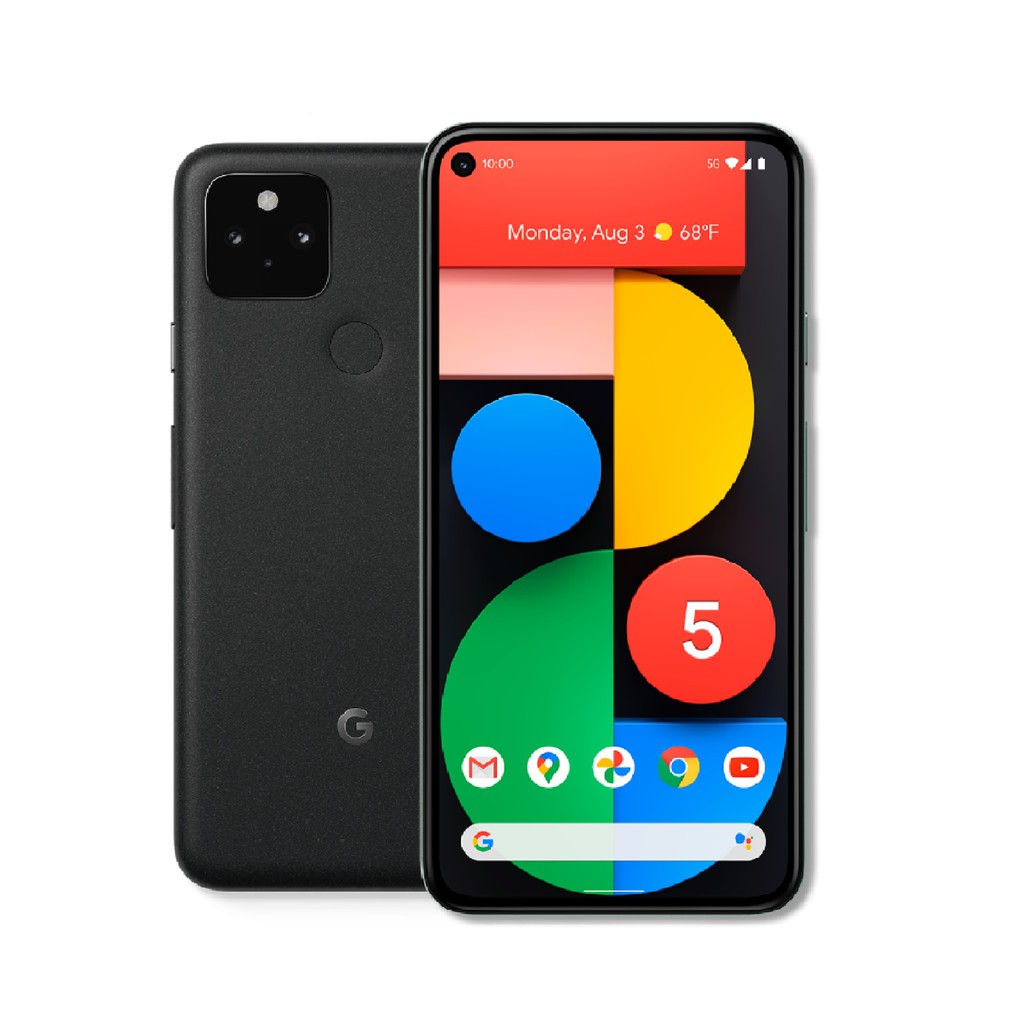
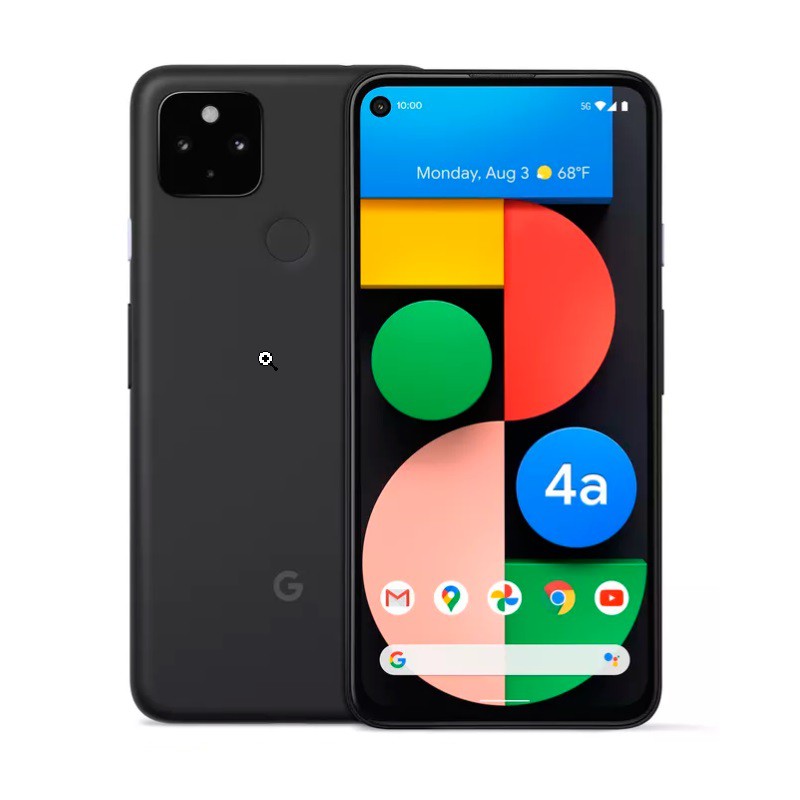
Adaptive Sound is essentially an automatic equalizer (EQ) that adjusts the frequency response curve of your Pixel phone speaker on the fly. It uses your Pixel’s microphone to gauge the acoustics of your environment and tweaks what comes out of the speaker accordingly using on-device processing. This is similar in spirit to the Room EQ that home theater fans use, except your phone keeps re-measuring and updating in real time instead of relying on one fixed preset. Any modern Pixel, from the Pixel 5 and Pixel 4a 5G onward, can handle this six-year-old feature in the background without noticeable performance impact. The payoff is obvious: you get superior sound quality, with real-time acoustic adjustments that make your phone speaker sound better than it has any right to. Ignoring this is like refusing a free upgrade to every song, podcast, and video you play.
How to Enable Pixel Audio Optimization in Seconds
Here is the part that should irritate Pixel owners: Google ships Adaptive Sound disabled by default. The best speaker feature on your phone is sitting cold in a buried menu most people never visit. Turning it on, however, takes less effort than installing an app. First, open the Settings app on your Pixel and tap "Sound and vibration." Scroll down past the sliders for media, call, ring, notification, alarm, and assistant volume until you reach the "Audio" section. There you will see "Adaptive sound." Tap it, then flip the toggle beside "Use Adaptive Sound" to enable the feature. That is all it takes; from that moment, your Pixel will periodically use short on-device audio measurements to adjust playback to the current environment, with recordings deleted shortly after they are made.
Test the Difference and Stop Babying Your Phone Speaker
Phone speakers are tiny and struggle with bass and detail, so expectations are low by design. Adaptive Sound will not turn your Pixel into a hi-fi system, but with it on, the speaker sounds noticeably more balanced and less tinny. To hear the change for yourself, start playing a song on your Pixel and walk around your home: move between rooms, closer to walls, near reflective surfaces, and into noisier spots. You will notice that the sound subtly shifts as the feature adapts to each acoustic situation. Then toggle Adaptive Sound off and replay the same track; if it sounds flatter or harsher, you have proof that the automatic EQ is doing real work in real time. At this point, choosing to leave the feature off is hard to justify unless you are deliberately chasing the weakest possible Pixel sound quality.
One More Hidden Setting Worth Flipping On
Adaptive Sound is not the only hidden Pixel setting that quietly improves daily use. Auto-rotate with Face Detection is another opt-in feature that Google tucks away, even though it solves a common annoyance. If you often use your phone while lying on your side, you already know how often the screen rotates the wrong way. By enabling Face Detection, your Pixel can orient the screen to match your eyes instead of your hand position. To turn it on, go to Settings, then "Display & touch," open "Auto-rotate screen," make sure "Use auto-rotate" is enabled, and then switch on the "Face Detection" toggle. According to BGR, "you can ensure your phone’s screen always matches the orientation of your eyes," which is a small but meaningful quality-of-life upgrade for anyone who lounges with their phone.