
What Galaxy bloatware is and why it keeps eating your storage
Samsung Galaxy bloatware is the stack of pre-installed third-party apps and partner services that ship on your phone alongside core Android and Samsung tools, consuming storage, running background processes, and often demanding attention before you install a single app of your own. It includes social apps, cloud storage clients, music streaming, and trial offers that arrive ready to use out of the box and are rarely optional during setup. Removing or disabling the ones you do not need is the easiest way to free up phone storage and reduce clutter without rooting or modifying the system software. On recent Galaxy flagships, these preloads add up fast: on a factory-fresh 512 GB Galaxy S26 Ultra, system files and pre-installed apps consume over 40 GB of storage before you add any personal data. Over 17 GB of that is apps alone once automatic updates run after you sign in. Those apps come from partners like Meta, Microsoft, and Spotify, and there is no setup-time screen that lets you opt out of them. Samsung’s newer partnership means Amazon Music is joining that pre-installed catalog on select Galaxy phones and tablets globally. If you feel like your phone arrives already half-full and noisy, you are seeing the effect of One UI bloatware.
Know which apps you can remove, disable, or only hide
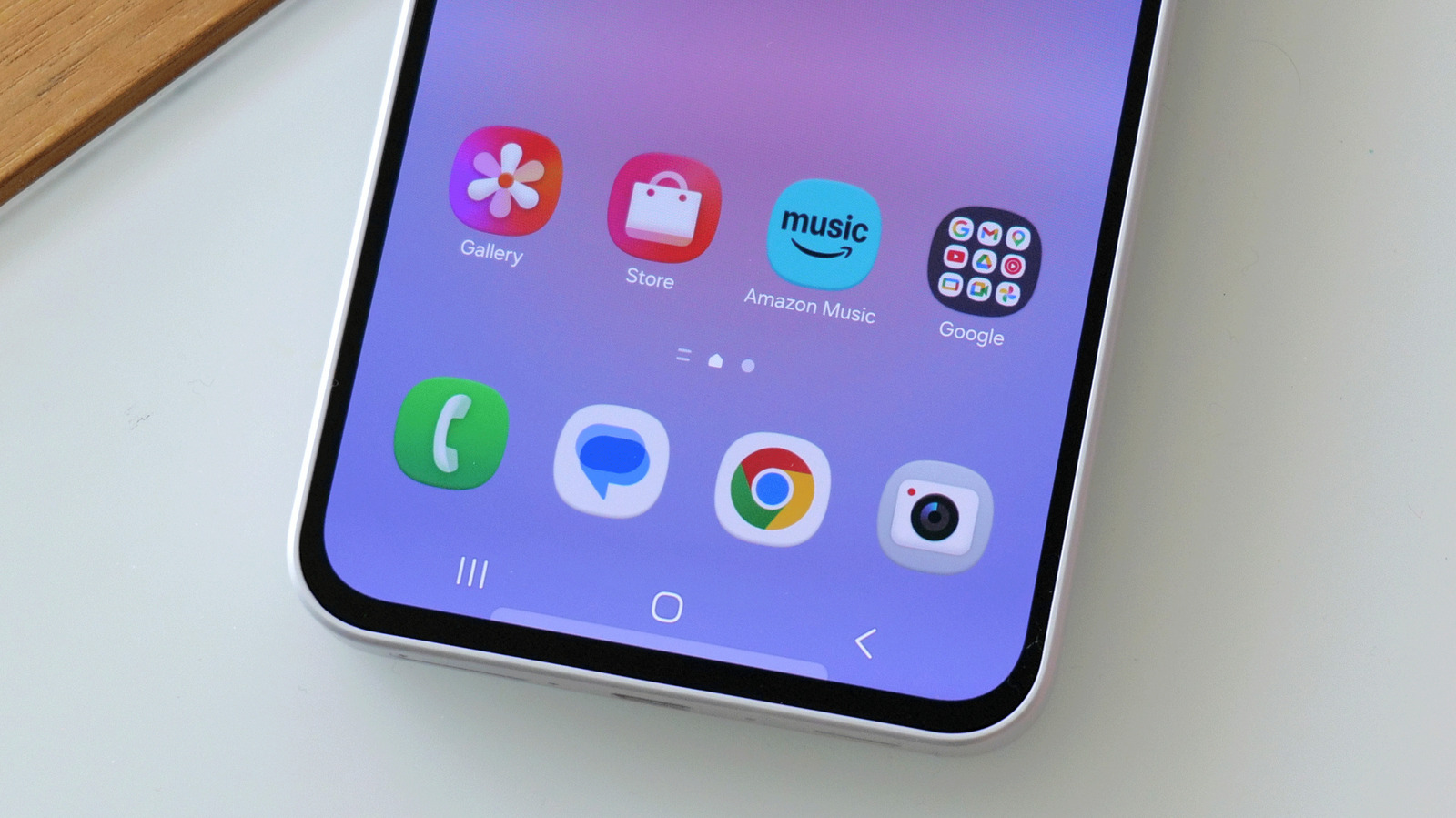
Before you start to remove Samsung bloatware, it helps to know what you are dealing with and what is realistically removable. On newer Galaxy phones, the third-party list often includes Facebook, Instagram, LinkedIn, OneDrive, Outlook, Link to Windows, and Spotify, all landing on the device at manufacture through commercial deals you never see. Amazon Music now joins that roster on millions of select phones and tablets. According to Android-focused testing, “system files and pre-installed apps consumed over 40GB of storage before the owner adds a single photo or file,” showing how much space this stack can occupy. Samsung’s own guidance divides pre-installed apps into core system tools you cannot delete and commercial apps you can usually uninstall, disable, or hide. Phone, Messages, Contacts, Gallery, and My Files are permanently installed, because basic functions depend on them. By contrast, most partner apps can be fully removed after setup, though some, like Facebook, only offer a Disable option that stops the app but leaves components on the phone. This same uninstall-versus-disable question hangs over Amazon Music removal: neither Samsung nor Amazon has confirmed whether the preinstalled variant can be fully deleted, so you must check the app’s entry to see what your options are.
Step-by-step: how to remove Samsung bloatware without rooting
You do not need root access or special tools to disable Galaxy pre-installed apps and clean up One UI bloatware; Samsung supports three official responses through standard settings: uninstall, disable, and hide. They are not equally powerful, and not every app offers all three, so you will walk through them in order. The goal is simple: uninstall when you can, disable when you cannot uninstall, and fall back to hiding only when neither of the first two is available.
- Identify bloatware you do not use by scanning your app drawer for third-party services like Facebook, Instagram, Amazon Music, OneDrive, LinkedIn, Outlook, Link to Windows, and Spotify.
- Press and hold the unwanted app’s icon and look for an Uninstall button in the pop-up menu; if it appears, tap Uninstall to remove the app completely.
- If Uninstall is not available, open Settings → Apps, tap the app in the list, and check whether a Disable button is present; if so, tap Disable to stop the app and remove it from view.
- For apps that offer neither Uninstall nor Disable, go to Settings → Home Screen → Hide apps and select the app to hide it from the home screen and app drawer while it remains installed.
These steps match how Samsung expects you to manage preloads: uninstall, disable, or hide, in that order. Uninstalling is the cleanest and fully frees up phone storage that the app and its data occupied. Disabling is the next best thing when deletion is blocked: the app becomes inactive and disappears from normal view, but its residual components remain on the device. Hiding is the last resort for One UI bloatware you are stuck with, such as certain system apps; it only removes icons and does not prevent background activity. The real gotcha is assuming everything can be deleted: some partner apps are disable-only, and hiding leaves them running behind the scenes if they are designed to do so. Check removability before you assume you have cleaned an app up by looking specifically for “Uninstall” versus “Disable” in each app’s settings; the difference tells you whether the app leaves your phone entirely or simply goes quiet.
Avoid common mistakes with Amazon Music and other trials
The most common mistake with One UI bloatware is ignoring it until your phone feels cluttered and slow. Samsung’s documentation emphasizes that it is worth sorting through the app list early, before notifications pile up and the device starts to feel settled, because once it does, that list tends to get ignored. Another frequent misstep is confusing hiding with disabling; hiding an app removes its icon but does not guarantee that it stops background processes or network access. If you are trying to reduce resource use, prioritize Uninstall and then Disable whenever they are available. Amazon Music adds a different kind of trap: a three-month Amazon Music Unlimited trial is offered when the app is preinstalled or downloaded from the Galaxy Store, and it auto-renews unless you cancel in time. The risk is a monthly charge of USD 13 (approx. ₱730) that begins if you miss the cancellation window for the standard rate, or USD 12.99 (approx. ₱730) versus USD 11.99 (approx. ₱670) for Prime members as cited elsewhere. The trial only matters if you activate it; until then, Amazon Music bloatware behaves like any other pre-installed app you may not want. If you do try the service, set a reminder to cancel before renewal and then decide whether to uninstall or disable the app once you are done.
Is cleaning up One UI bloatware worth it?
Taking half an hour to strip back the pre-installed stack on your Galaxy is one of the highest-impact maintenance tasks you can do without technical skills. On a device where pre-loaded apps and system files occupy over 40 GB before you add your own data, every partner app you uninstall or disable is storage and attention reclaimed for things you care about. Because all preinstalled apps auto-update through the Play Store and Galaxy Store once you sign in, they keep growing unless you manage them; more than 17 GB of storage can be tied up in apps alone at that stage. You cannot remove core system apps, and some commercial software will only let you disable or hide it. Even so, a thoughtful pass following the uninstall → disable → hide sequence will free up phone storage, cut down on auto-starting services, and reduce random notifications. It is worth repeating this cleanup after major updates or when you notice new preloads, especially as Samsung’s roster grows to include offers like Amazon Music on select models. Treat bloatware management as routine housekeeping for your Galaxy: watch for new trials, read the small print on auto-renewals, and keep your app list limited to things you actively use.