
What Samsung’s Hidden Codes and Custom Modes Do for You
Samsung hidden codes and custom modes on Android are built‑in tools that unlock diagnostic menus, automation options, and advanced Samsung phone customization so you can tune performance, privacy, and daily convenience without installing third‑party apps or learning anything technical. If you often tweak the same settings over and over or want to see what is happening under the hood of your phone, these Galaxy secret features are designed for you. The one real prerequisite before you begin is knowing that some dial codes are blocked by Samsung’s security features and by your carrier, so a little prep avoids frustration. Think of this guide as a friend walking you through the useful bits, not an exhaustive list of every obscure option.
According to one overview of MMI codes, “these are MMI (Man‑Machine Interface) codes, and with them, you can pull up your device’s IMEI, hide your caller ID, clear old system logs, test almost every piece of hardware on your phone, and do a lot more.” Another guide calls Modes and Routines “one of your Galaxy phone's hidden gems, and among the best features you should be using to automate your day‑to‑day life.” Taken together, they give you performance tweaks, privacy controls, and productivity boosts that most owners never use, all tucked away in menus you already have.
Prepare Your Phone: Auto Blocker, Lock Status, and Safety
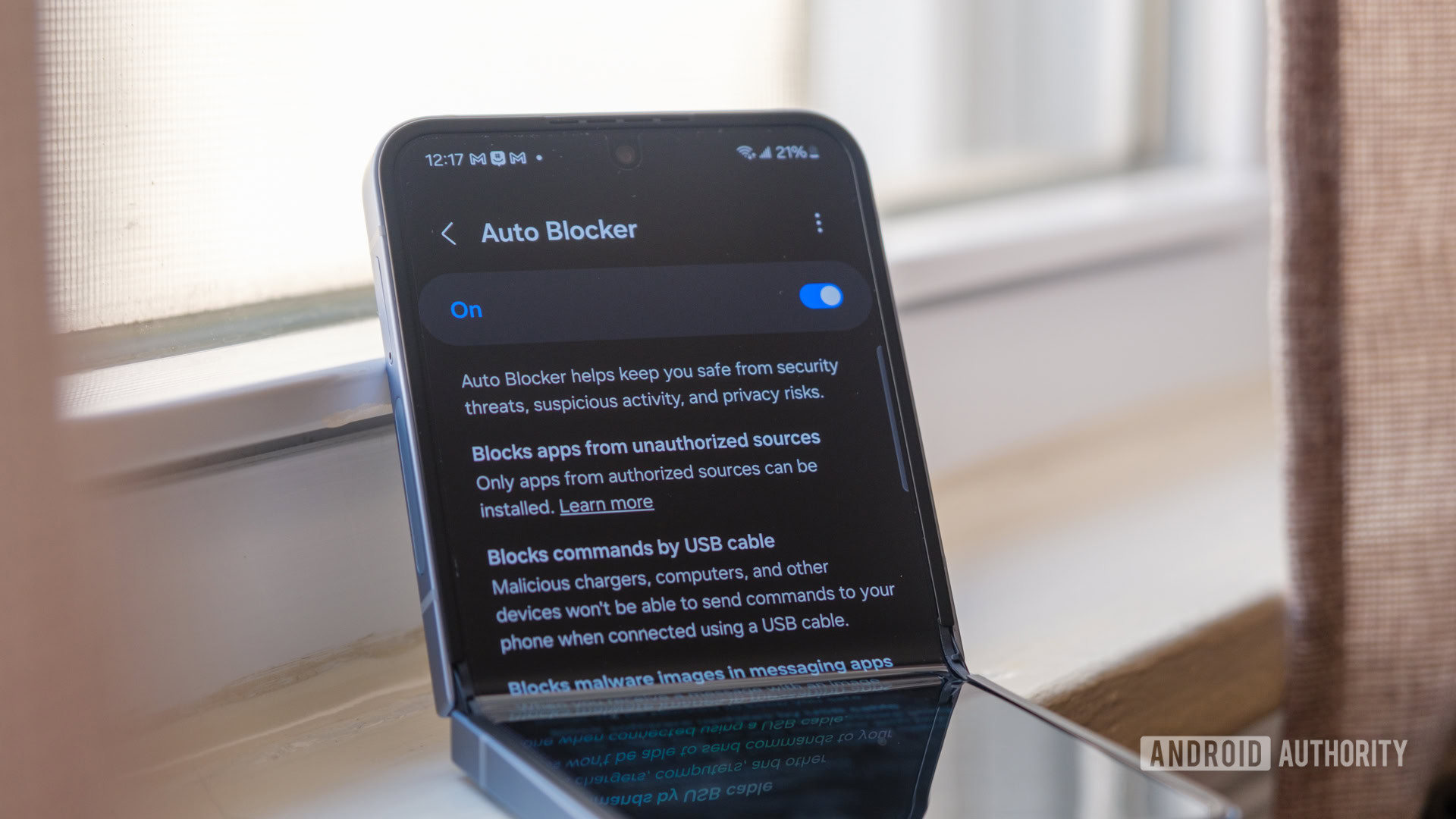
Before any Samsung hidden codes will behave as expected, you need to deal with One UI’s Auto Blocker. This feature protects you by blocking sideloading, USB commands, malicious activity, and non‑official software updates, but as a side effect it also stops most dial codes from working. If you skip this, you will type a code, hit call, and either nothing will happen or you will see a vague error. That is the most common gotcha people run into.
To keep you out of trouble, Samsung automatically turns Auto Blocker back on after 30 minutes on One UI 8.5 or later, so you do not need to remember to re‑enable it yourself. Another point to be aware of: if your Galaxy is carrier‑locked, some codes may throw a “connection problem” error even when Auto Blocker is disabled. That is not you doing anything wrong; it is your carrier restricting access, and you cannot override it. Also, stay within the safe options described here—avoid random online code lists that may reach menus meant for technicians.
- Open Settings on your Galaxy phone and go to Security and privacy.
- Find Auto Blocker and turn it off so that Samsung hidden codes can run.
- Check whether your phone is carrier‑locked; if it is, expect some codes to show “connection problem” errors even with Auto Blocker disabled.
- Plan a short testing window, knowing One UI 8.5 and later will automatically re‑enable Auto Blocker after about 30 minutes.
- Stick to the well‑documented codes and built‑in Modes and Routines menus described in this guide to avoid unsafe changes.
Use Essential Samsung Hidden Dial Codes for Diagnostics and Cleanup
Once Auto Blocker is off, the dialer becomes a toolbox instead of only a way to place calls. These Galaxy secret features live behind simple sequences of numbers, asterisks, and symbols, and you trigger them the same way you would dial a phone number. A straightforward example is *#06#, which shows your phone’s IMEI; on a dual‑SIM Galaxy, dialing *#06# will show you two different IMEI numbers. That one is practical when dealing with a lost or stolen device, carrier support, or insurance paperwork.
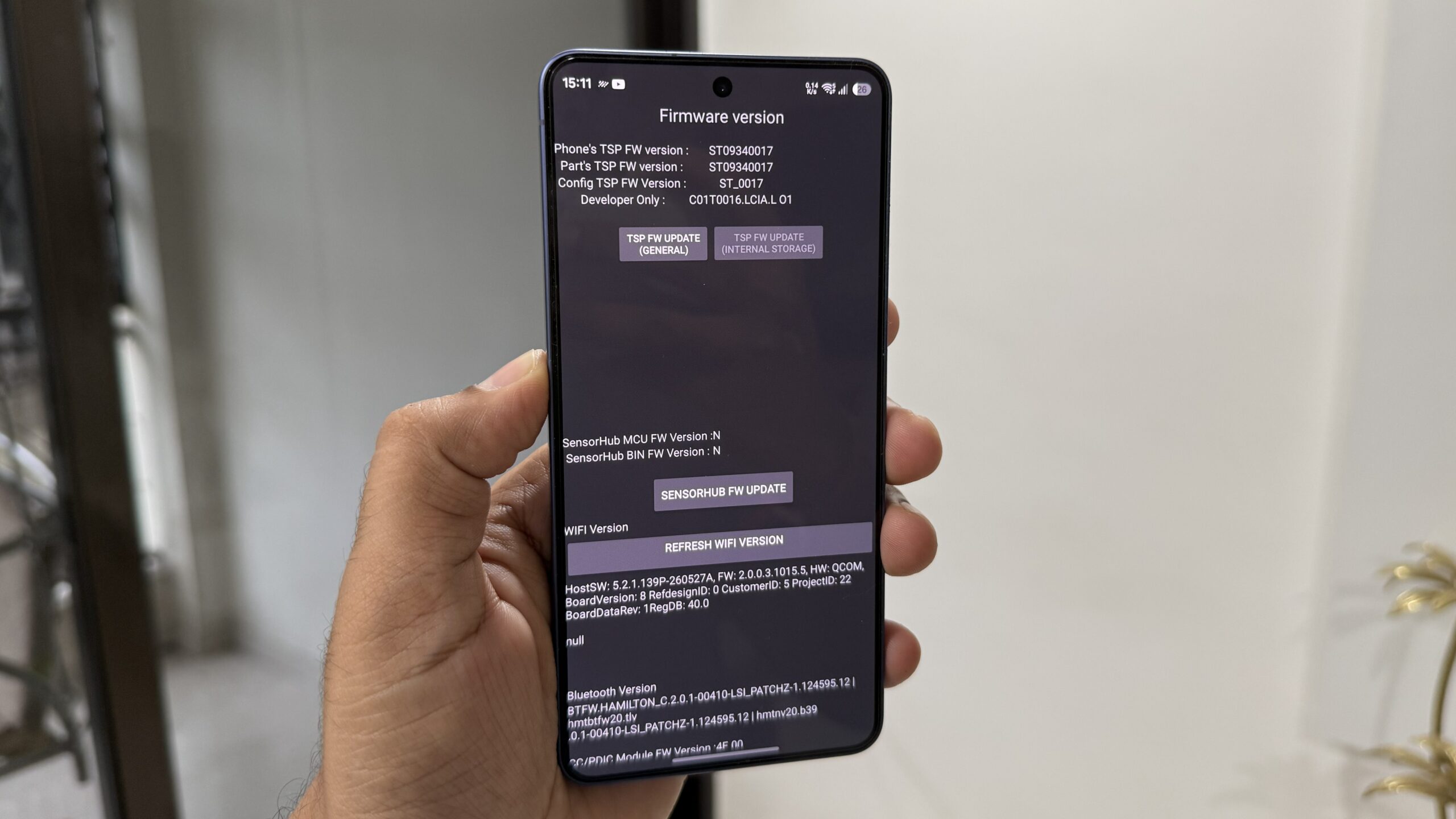
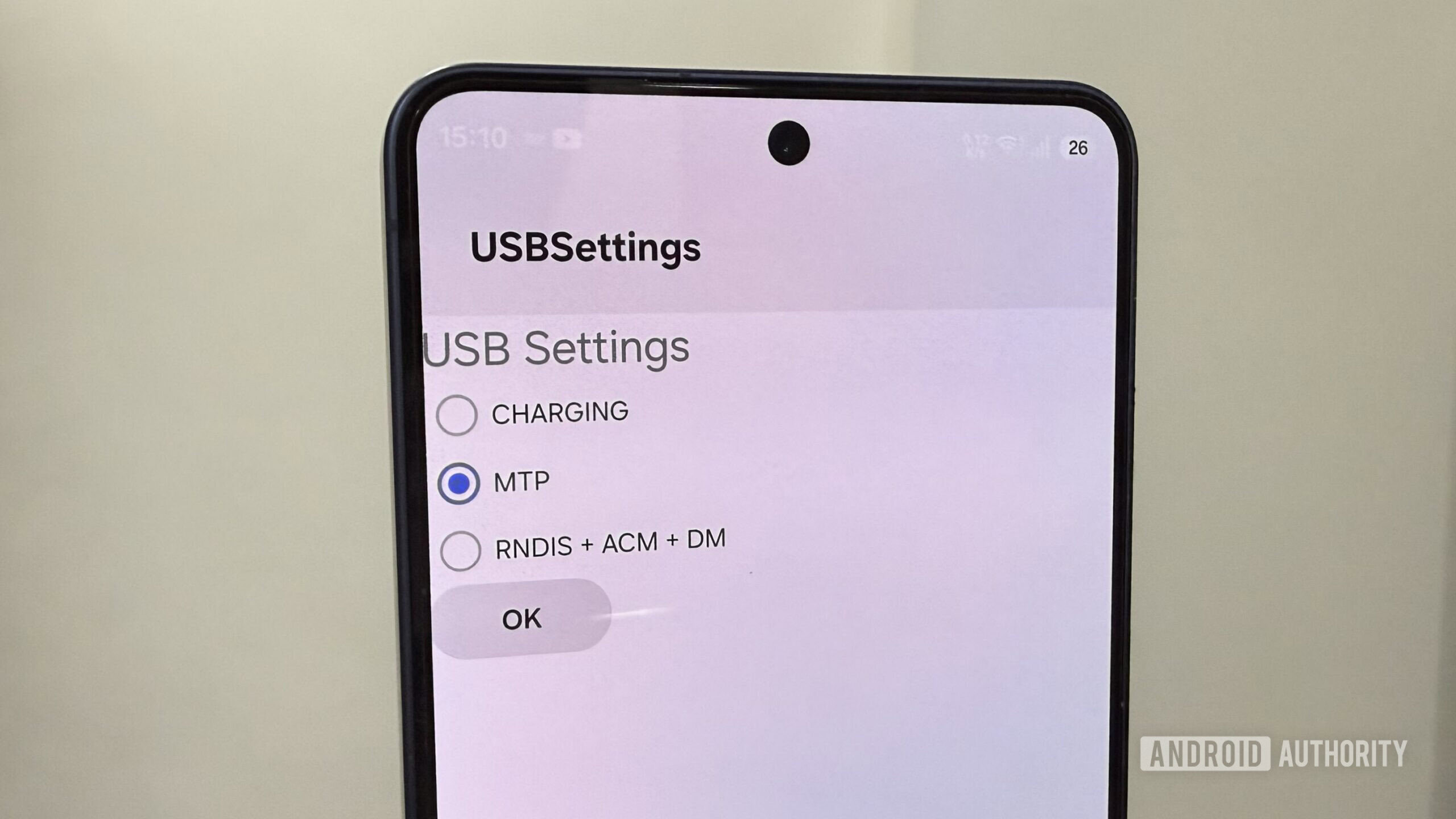
Other codes focus on performance and troubleshooting. Dialing *#0*# opens a hardware diagnostics menu that displays a grid of tests for speakers, vibration, touch, and sensors so you can confirm whether each component is healthy. If your touchscreen feels off or Wi‑Fi is flaky, *#2663# opens a firmware update and Wi‑Fi refresh menu. When storage feels tight, *#9900# brings up SysDump; tapping “Delete dumpstat/logcat” removes accumulated system logs, freeing space—in one example this cleared 1.2GB in the “Other files” category. There are even USB‑focused options: *#0808# opens USB Settings, where you can switch from Charging to MTP for frequent file transfers or to RNDIS + ACM + DM for tethering and diagnostics.
- Open your Phone app and tap the dialpad, as if you were placing a call.
- Type *#06# and press call to display one or two IMEI numbers, depending on whether your phone has dual SIM.
- Type *#0*# and press call to open the hardware diagnostics grid, then run speaker, touch, vibration, or sensor tests as needed.
- Type *#2663# and press call to reach the firmware menu, then use TSP FW UPDATE for touchscreen or Refresh Wi‑Fi Version for connectivity; expect a reboot after the Wi‑Fi option.
- Type *#9900# and press call, then tap Delete dumpstat/logcat in SysDump to clear old logs and reclaim storage space.
- Type *#0808# and press call to open USB Settings, then switch the mode to MTP if you often transfer media to a computer or to RNDIS + ACM + DM for USB tethering and diagnostics.
Automate Your Day with Modes: Built‑In Customization Without Apps
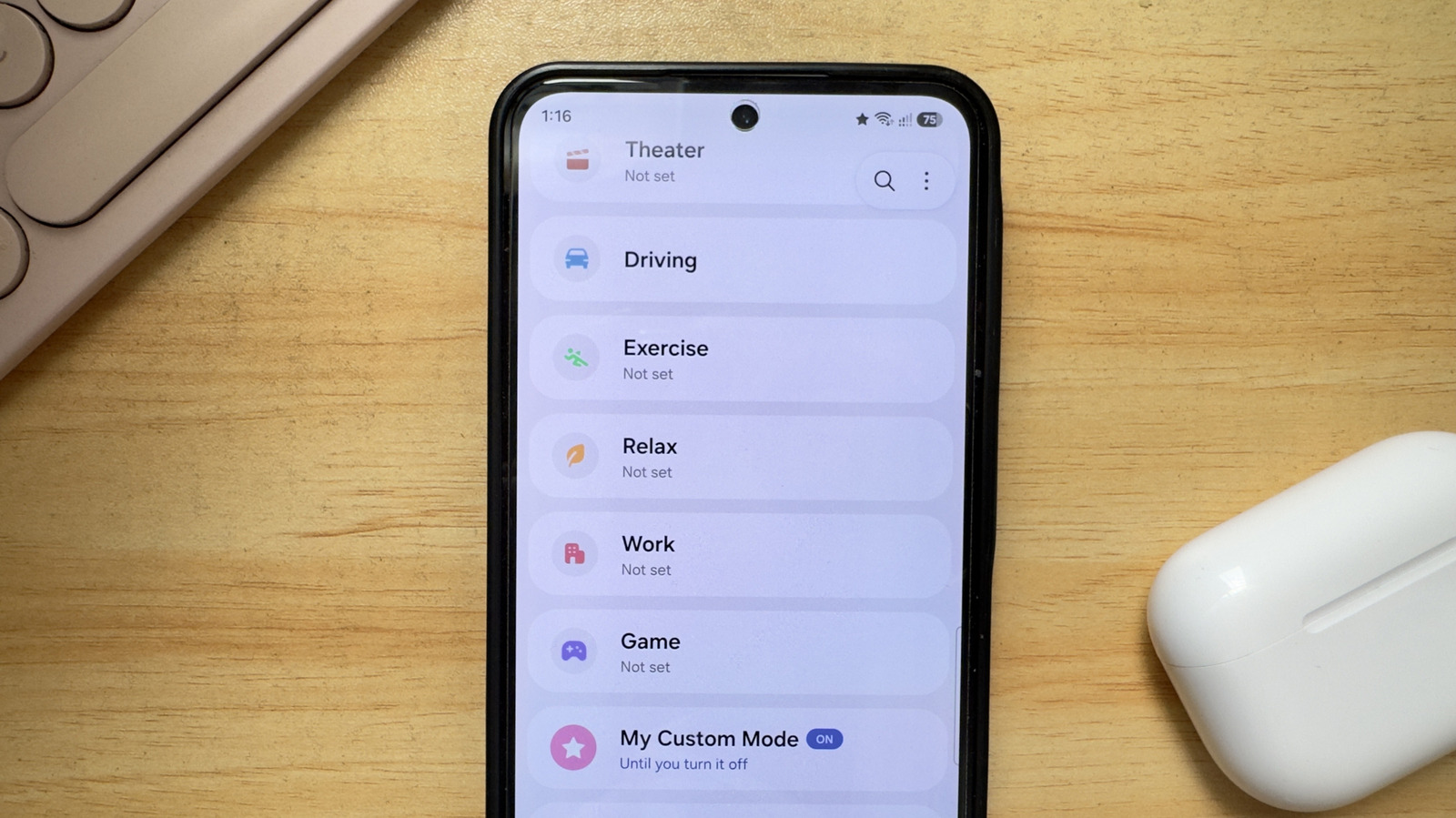
Hidden codes help you tune the hardware; Modes and Routines help you tune your daily routine. If the iPhone has Shortcuts, Galaxy has Modes and Routines, and Modes are among the best features for automating your day‑to‑day life. Instead of switching your phone to silent, turning on Maximum Power Saving at work, or dimming the screen and declining calls before bed by hand, you can have a mode apply that mix of settings with a single tap. Samsung includes seven pre‑made modes—Sleep, Theater, Driving, Exercise, Relax, Work, and Game—so many common activities are covered out of the box.
If you cannot find your exact activity among those presets, making your own is quick. Custom modes on Android let you group the settings you often toggle into one profile so your phone behaves the way you like during that activity without extra apps. This is where productivity savings add up: fewer interruptions when you want focus, less battery waste when you do not need high performance, and less fiddling with brightness and ring volume every time your context changes. The main mistake people make is ignoring Modes because the menu is slightly hidden; once you set up one or two, it becomes natural to build more.
- Open Settings on your Samsung phone and look for the Modes and Routines section.
- Review the seven pre‑made modes—Sleep, Theater, Driving, Exercise, Relax, Work, and Game—to see if any match your common activities.
- If none fit, start creating a custom mode and name it for your activity, such as “Office Focus” or “Night Relax.”
- Choose the mix of behaviors you want the mode to control, such as silencing calls, enabling Maximum Power Saving, lowering screen brightness, turning on extra dim, or declining calls while you relax in bed.
- Save the mode and trigger it from Modes and Routines whenever you start that activity so all your chosen settings switch in one move instead of many taps.
Is Digging Into Secret Features Worth It?
If you are the sort of person who likes your phone to feel dialed‑in rather than generic, these tools are worth exploring. Hidden MMI codes let you check hardware, clean up space, change USB behavior, show your IMEI, and hide caller ID without third‑party utilities. Modes and Routines turn long sequences of taps into one action and help automate your day so the phone gets out of your way. The main things to watch for are Auto Blocker stopping codes from working and carrier‑locked phones showing “connection problem” errors you cannot fix. Beyond that, you are dealing with official Samsung interfaces, so you are not hacking anything—just using more of what your Galaxy already offers. Set aside half an hour, try a few codes, build one custom mode, and see how much smoother your daily phone use feels.