

What Samsung’s Hidden Features Are And Why Your Phone Ships With Them Off
Samsung hidden features are powerful options, secret codes, and automation tools buried inside One UI that ship disabled by default and quietly transform how your Galaxy phone feels to use day to day.
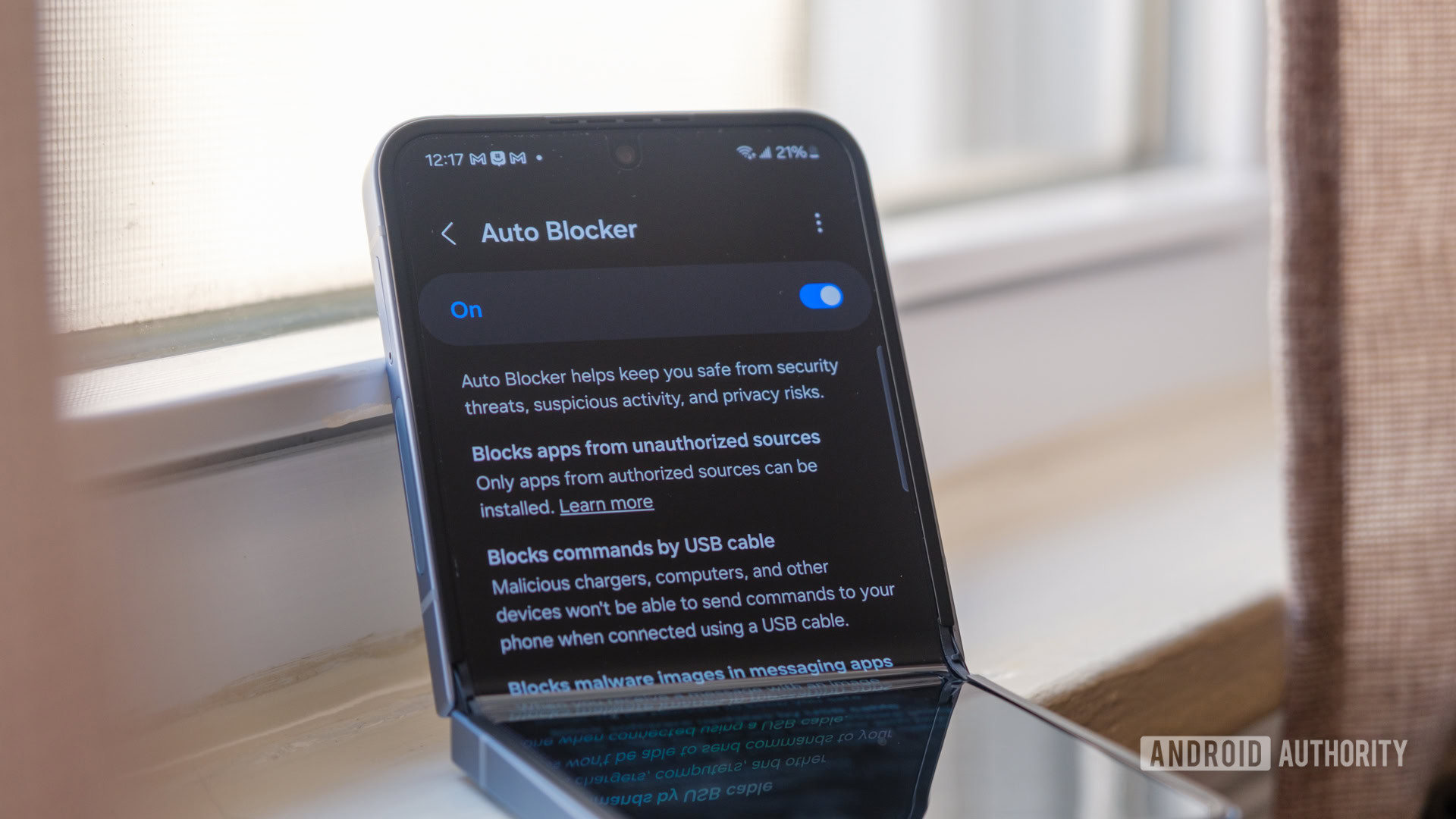
If you’ve ever thought “this phone is fine, but it should be smarter,” this guide is for you. Many of Samsung’s most useful features are not enabled out of the box, so it is surprisingly easy to miss out on what your phone can do until you turn them on yourself. You do not need to be a power user, but you should be comfortable poking around Settings and, for a few tricks, typing codes into the phone dialer. The main caveat: before using Galaxy phone secret codes, you must briefly turn off One UI’s Auto Blocker security feature, which otherwise prevents most of these MMI codes from working. We will walk through that safely in the steps.
The One Ordered Setup: From Secret Codes To Smart Modes
Follow this single sequence once and you unlock the core Samsung Galaxy tips you can then tweak over time. The aim is to start with safety, then diagnostics, then comfort, and finally automation. The biggest gotchas to avoid are forgetting Auto Blocker when using codes and overlooking the Modes and Routines menu because it looks “advanced.”
- Temporarily disable Auto Blocker so secret codes work: Open Settings → Security and privacy → turn off Auto Blocker. On One UI 8.5 or later, it turns itself back on after about 30 minutes, which keeps this reasonably safe.
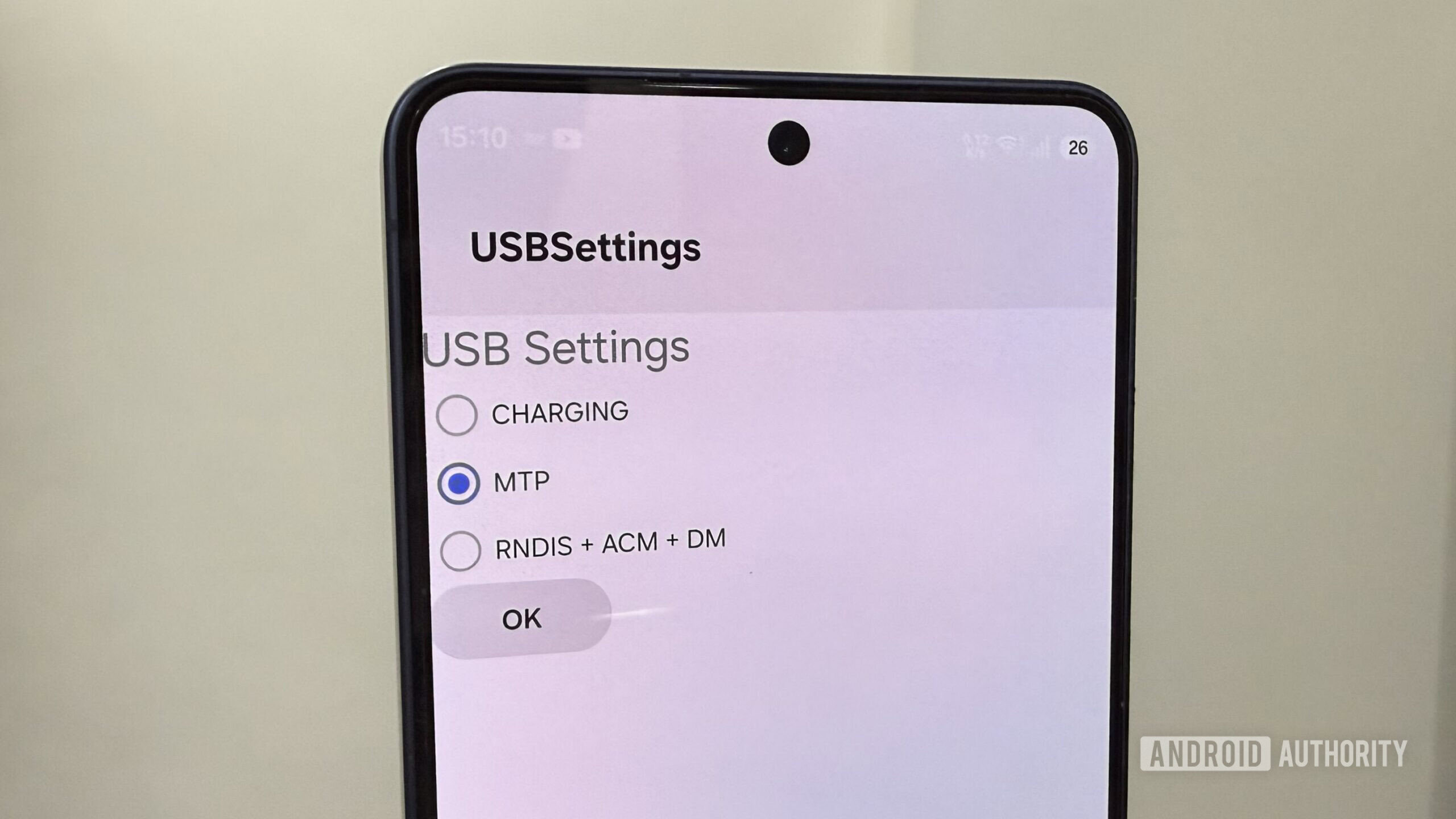
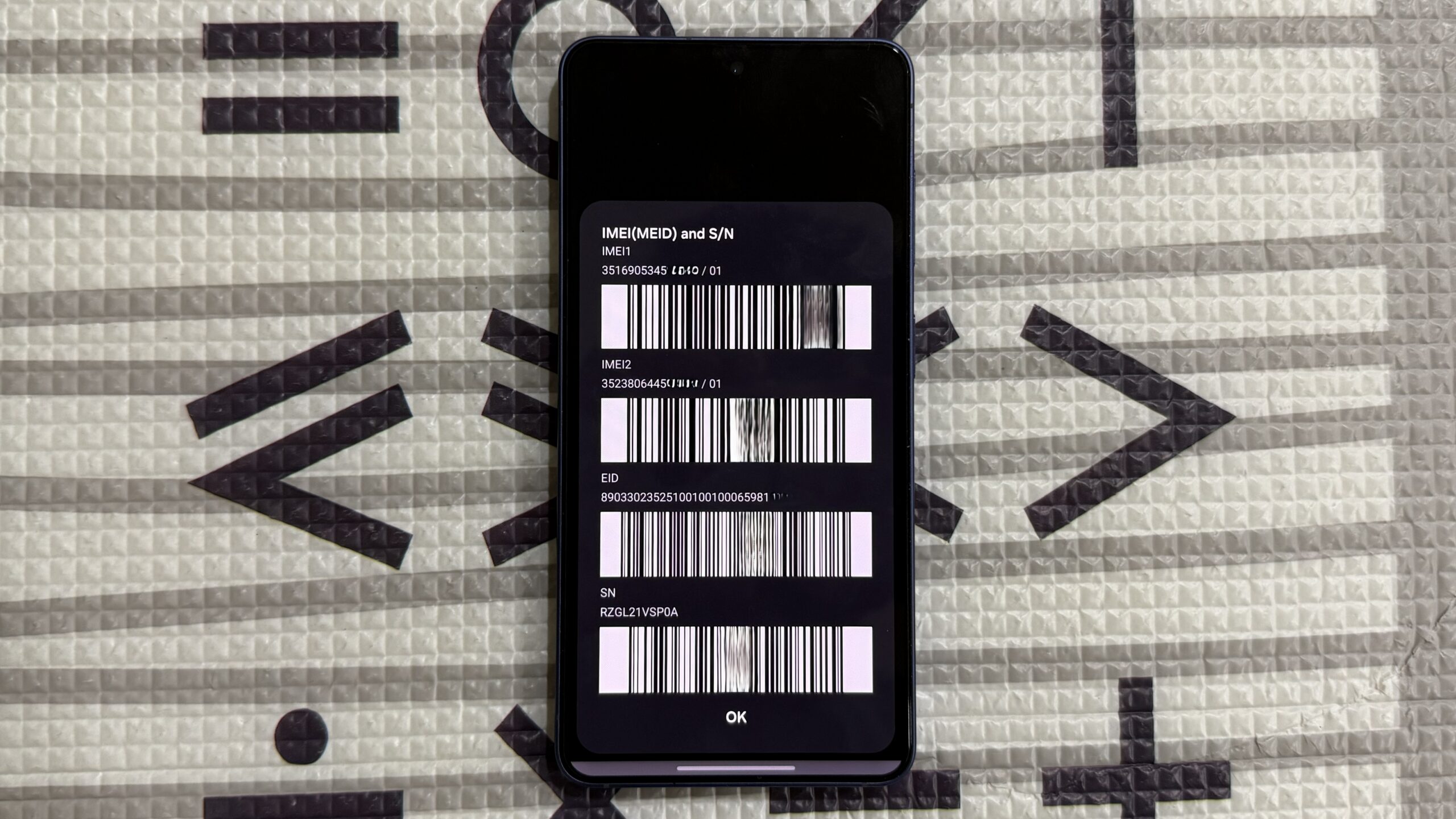
- Use key Galaxy phone secret codes for maintenance: Open the Phone dialer and enter *#06# to instantly display your IMEI numbers (you will see two on a dual‑SIM phone), and use *#0*# to open Samsung’s hardware diagnostics grid to test components. You can also use *#9900# to open a menu that lets you delete old system logs.
- Re‑enable Auto Blocker (or wait for it): After finishing with codes, either toggle Auto Blocker back on right away in Security and privacy, or let One UI do it automatically if your version supports that.
- Turn on One-handed mode for easier reach: Open Settings → Advanced features → turn on One-handed mode, then pick Gesture or Button as the activation method. Once enabled, swipe down from the bottom edge (with gestures) and the display shrinks to a size that is much easier to reach with one thumb.
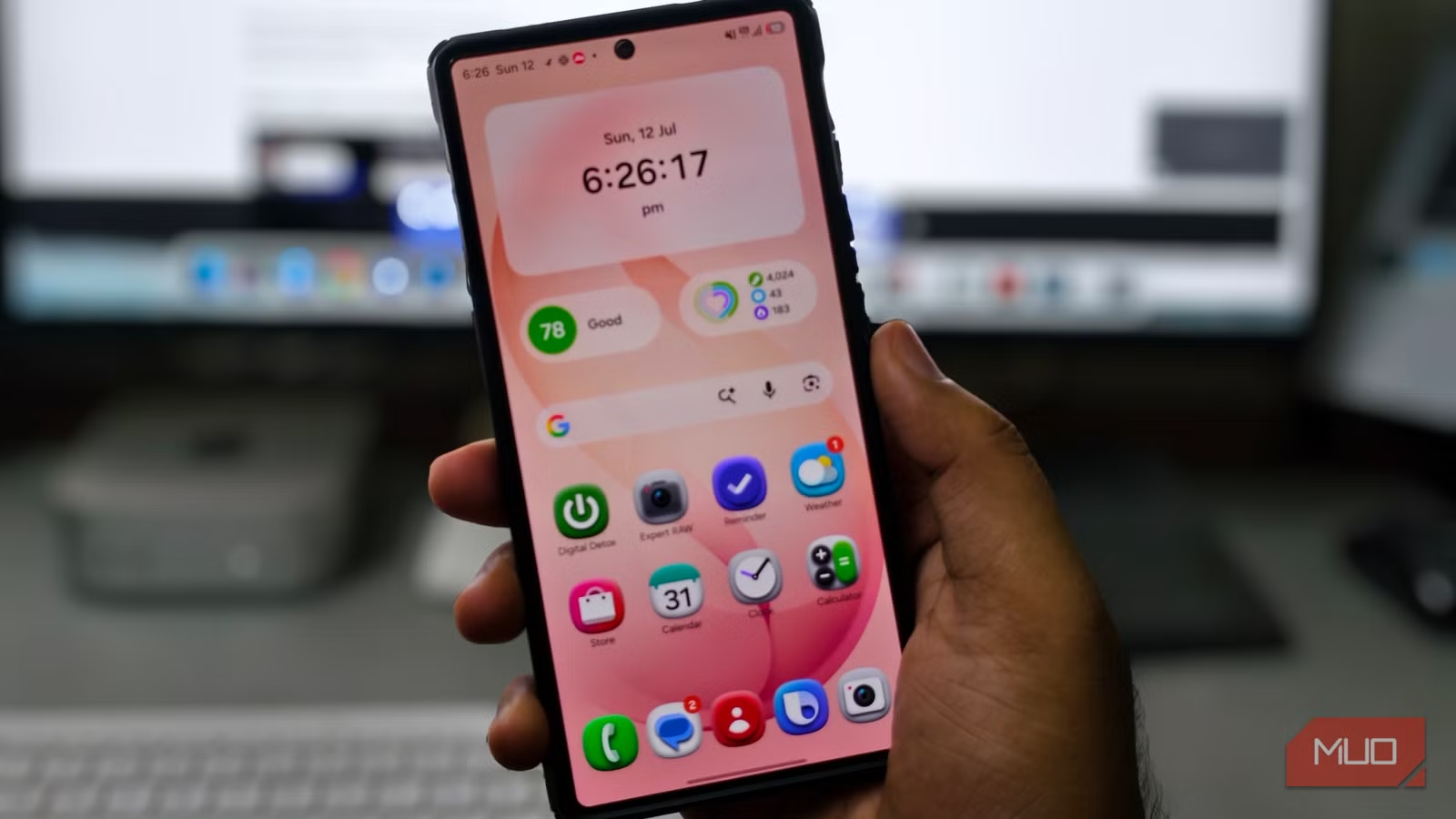
- Enable Modes and Routines so your phone adapts to you: Open Settings and look for the Modes and Routines option near the top, usually around the fourth or fifth entry. Open it, explore the preset Modes like Driving or Work, and then start adding Routines that change settings or perform actions automatically when certain conditions are met.
Two common mistakes to watch for: first, many people try MMI codes and see a “connection problem” error on carrier‑locked phones, which means the carrier is blocking that code and there is nothing you can fix on the device itself. Second, a lot of users have seen the Modes and Routines entry but never tapped it because no one talks about it; once enabled, it can change how often you need to dig into settings at all.
Why Secret Dial Codes Are Worth Knowing
The dialer on your Galaxy is more than a place to call people. When you type the right sequence of asterisks, hashes, and numbers, you open hidden diagnostic and service menus you will not find in normal settings. These are called MMI codes, and they let you pull up your device’s IMEI, hide caller ID, clear system logs, and run detailed hardware tests. According to one detailed test, the code *#0*# opens a hardware diagnostics menu with a grid of tests that can check almost every major component on your phone.
The practical reason to care is simple: when something feels “off,” these tools give you quick answers. Dialing *#06# instantly shows your IMEI numbers, which you need if the phone is ever lost or stolen or for insurance forms. Running the diagnostic grid can tell you whether a display issue is hardware or software. Clearing old system logs via *#9900# can help tidy up storage and reduce clutter without a deep dive through obscure folders. The one real warning, again, is that Auto Blocker needs to be off for many of these codes to work, and some carrier‑locked devices will block them regardless.
Make One UI Feel Smaller And Smarter With Hidden Settings
Once maintenance is handled, it is time to make the phone easier to live with. Some of Samsung’s best quality‑of‑life options hide under One UI hidden settings that start switched off. One-handed mode is a clear example: on big phones, it shrinks the entire interface down so you can reach top buttons without doing thumb gymnastics, yet it stays off on smaller devices to avoid surprising people. When you enable it in Advanced features and pick your trigger, a quick swipe down from the bottom edge pulls the whole screen into comfortable reach so you can tap notifications, menus, or app controls without adjusting your grip.
Notification helpers and similar toggles live nearby and can act as a safety net when you miss alerts during busy days. These kinds of Samsung hidden features are rarely flashy, but when you turn on the ones that fit your habits, your phone stops demanding so much conscious effort. You go from constantly stretching your hand or digging through menus to letting One UI bend around how you actually hold and check your device. Over time, one or two of these settings often become part of your daily routine.
Let Modes And Routines Run Your Galaxy For You
The last piece is where your Galaxy starts to feel genuinely smart. Modes and Routines is one of the most underused Samsung features, even though it can automate a huge amount of what you usually do by hand. Modes act like profiles for different contexts—driving, sleeping, working—so when you enter that situation, the phone can change volume, connectivity, or app behavior automatically. Routines go further: they change settings or perform actions whenever specific conditions are met, like time of day, location, or when a certain person calls.
Think of Routines as a built‑in “If This Then That.” When the trigger happens, the phone does something on its own. For example, you might lower brightness and enable Do Not Disturb when a Work mode starts, or have Wi‑Fi and Bluetooth behave differently in the car. One reviewer described it as making the phone smarter and faster by handling tasks you would normally do manually, and noted that Modes and Routines put the “smart” in smartphone. After a few days, you will notice you are opening Settings far less often, because the system quietly keeps things where you like them in each part of your day.
The main takeaway: these tools are worth the small setup time. Start with one or two reliable routines instead of trying to automate everything at once. Combined with one‑handed tweaks and a few well‑chosen secret codes, you end up with a Galaxy that wastes less of your time and feels tailored instead of generic.