
Why Your Old Tablet Deserves a Second Life
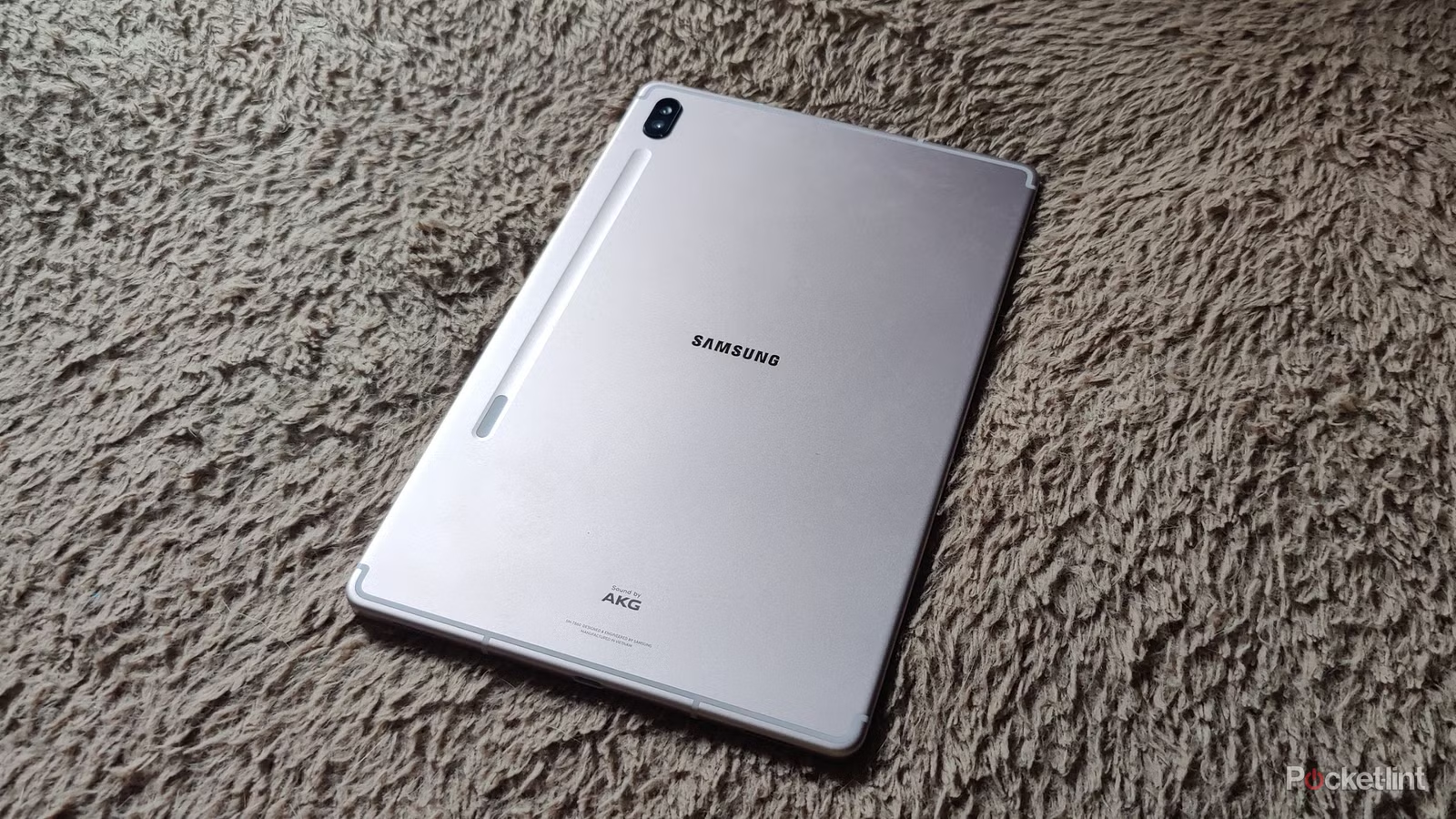
To repurpose an old tablet into a productivity powerhouse means turning a slow or forgotten device into a dedicated tool for smart displays, second screens, and family organization, using focused tablet productivity apps instead of replacing it with a new gadget.
If your tablet lives in a drawer, this guide is for you. Even a sluggish Amazon Fire 7 from 2019 with only 1 GB of RAM can act as a usable dashboard when you dedicate it to showing information instead of running heavy apps. That single move extends the device’s lifespan, keeps one more gadget out of the e‑waste pile, and saves you from buying new hardware for specific display or organization needs.
We’ll walk through three practical roles: smart display setup for home dashboards, turning your slate into a second monitor, and building a family organization tablet. The only real prerequisites are Wi‑Fi, the ability to install a few apps, and a bit of patience for initial setup. The payoff is a calmer desk, a more coordinated household, and a device that finally earns its keep.
Turn an Old Tablet Into a Smart Home Dashboard
One of the most satisfying ways to repurpose old tablet hardware is to make it a permanent smart display. Instead of fighting slow performance in ordinary use, you give the tablet one clear job: show you key information and simple controls all day long.
Open-source apps shine here. The Home Assistant Companion app is available through an open-source catalog that builds apps from public source code and focuses on free, open-source software. In this case, using that build strips out features that depend on Google Play Services, which suits a stripped-back dashboard on a sluggish device. You can also add Kiosk Mode via an open-source add-on catalog, hiding headers and sidebars to keep your dashboard clean and more like a true smart display.
- On your tablet, download the open-source build of the Home Assistant Companion app (for example, via an APK catalog), then enable “Apps from Unknown Sources,” install the app, and log in with your Home Assistant credentials.
- On your main computer, set up a new Home Assistant dashboard sized for your tablet in landscape mode so you are not fighting laggy menus on the small screen.
- In the Companion app settings on the tablet, lock the orientation to landscape and enable any Kiosk Mode option to hide the header and sidebar for a full-screen smart display.
- Add the Kiosk Mode custom component to Home Assistant via HACS so you can fine-tune which interface elements are visible on the tablet’s Lovelace dashboard.
The biggest mistake people make is expecting the old tablet to feel fast for everyday browsing. One reviewer called the interface “horribly slow and fiddly to use,” but it did not matter because the goal was not to navigate menus all day. Another common gotcha is designing the dashboard directly on the tablet; doing it on your desktop instead keeps frustration low. When you are done, you get a tidy, dedicated smart display setup that lives on your desk and “does a job” even with minimal RAM and processing power.
Use Your Tablet as a Second Screen for Work
If you miss having dual monitors, a repurposed tablet can become a lightweight second screen for your laptop. Instead of buying another display, you install one tablet productivity app and turn wasted hardware into extra workspace.
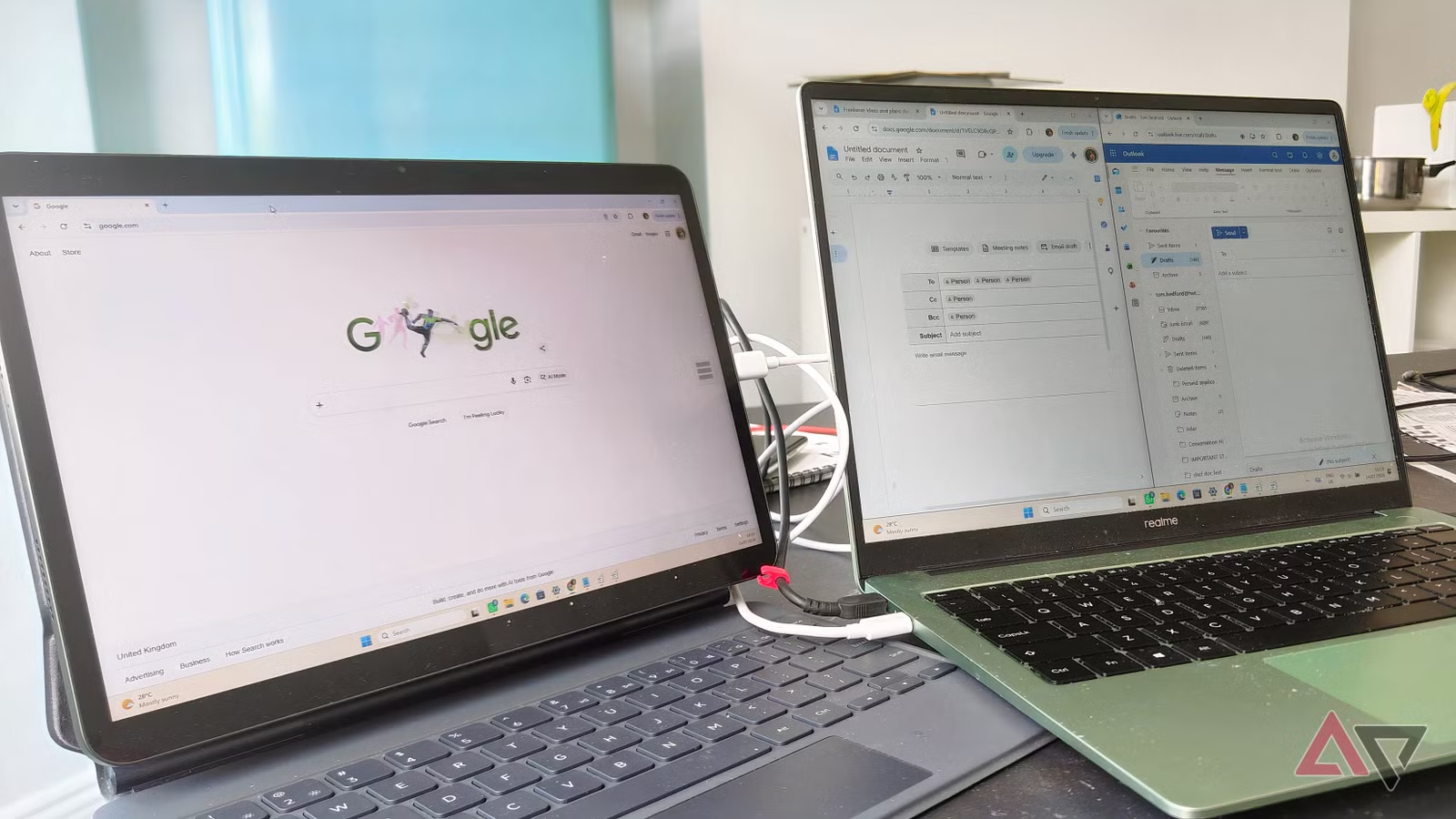
One writer solved their lack of monitors by using a Xiaomi tablet as a daily second screen, powered by an app called Spacedesk. The tool runs on Windows and Android and is designed specifically to turn secondary devices into additional monitors for a Windows PC. They installed the app on both laptop and tablet, and within a minute of installation the tablet showed their desktop wallpaper over home Wi‑Fi, without needing a USB‑C cable.
There are two big gotchas. First, lag: the user saw occasional delay and on-screen pop-ups warning about it, so they avoided dragging fast-moving content like videos to the tablet screen. Second, cursor issues: sometimes the mouse seemed stuck on the tablet display after a swipe, as if a finger stayed down. The simple fix is to limit the tablet to static windows like chat apps, notes, or reference docs. Done right, this repurpose old tablet trick gives you valuable screen real estate with no new hardware and turns a dust-collecting device into a daily tool.
Build a Family Organization Tablet Hub
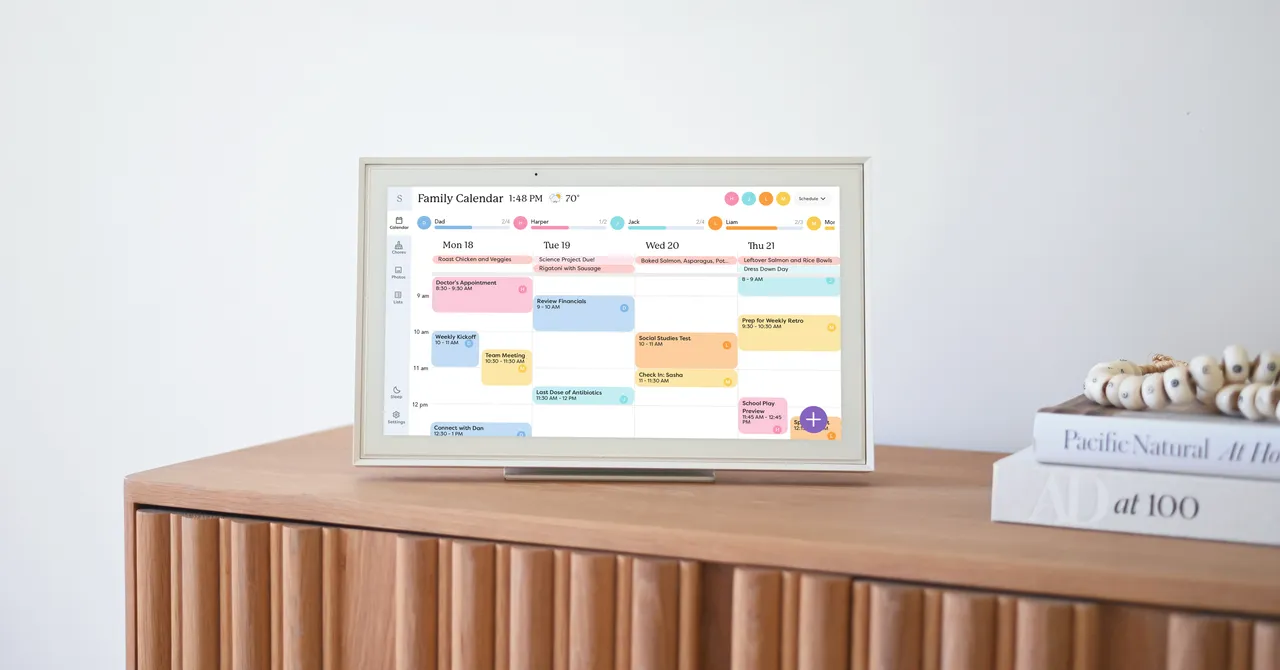
A family organization tablet can replace fridge magnets and scattered paper notes with one shared screen everyone can see. Dedicated calendar apps turn a tablet into a central hub where work shifts, school events, and chores live side by side.
One family tried a touchscreen calendar device and immediately treated it like a digital command center. They set up the main screen on a kitchen counter, downloaded the companion app on each person’s phone, and synced them all to the shared display. The calendar connected to existing services from Google, Apple, Microsoft, and Yahoo, imported an existing Google Calendar, and then used color-coded views for each child and for household chores. According to the reviewer, “one thing that surprised me was how excited my kids were to see everyone’s schedule”.
The subtle win is responsibility transfer. Teens could check if they were free on Thursday by looking at the tablet instead of asking a parent, which unloaded some mental load for the adults and gave kids more control over their time. The main mistake to avoid is expecting very young children to benefit; families with preschoolers saw fewer advantages. But for older kids—especially those who are touchscreen natives—a repurposed family organization tablet becomes a natural part of daily routine.
Is It Worth the Effort?
If you have a spare tablet, turning it into a smart display, second monitor, or family hub is one of the most cost-effective upgrades you can make. The Fire 7 example shows that “old and underpowered” hardware does not need a fast processor or huge RAM to be a usable dashboard. Another user’s Xiaomi tablet went from gathering dust to seeing daily use as a second screen for weeks.
You will need to install a few apps, enable unknown sources for certain APKs, and accept that there might be a bit of lag or fiddly setup at first. But in return, you lower e‑waste, skip buying niche devices for dashboards or calendars, and get tools tailored to how you live and work. As one reviewer put it, “it feels good to be able to put old tech to good use that would otherwise just be gathering dust”. Watch out for performance quirks and underpowered hardware, build around those limits, and your forgotten tablet will become a quiet but reliable part of your daily routine.