

Why Amazon Music Is Suddenly on Your Galaxy (and Why It Matters)
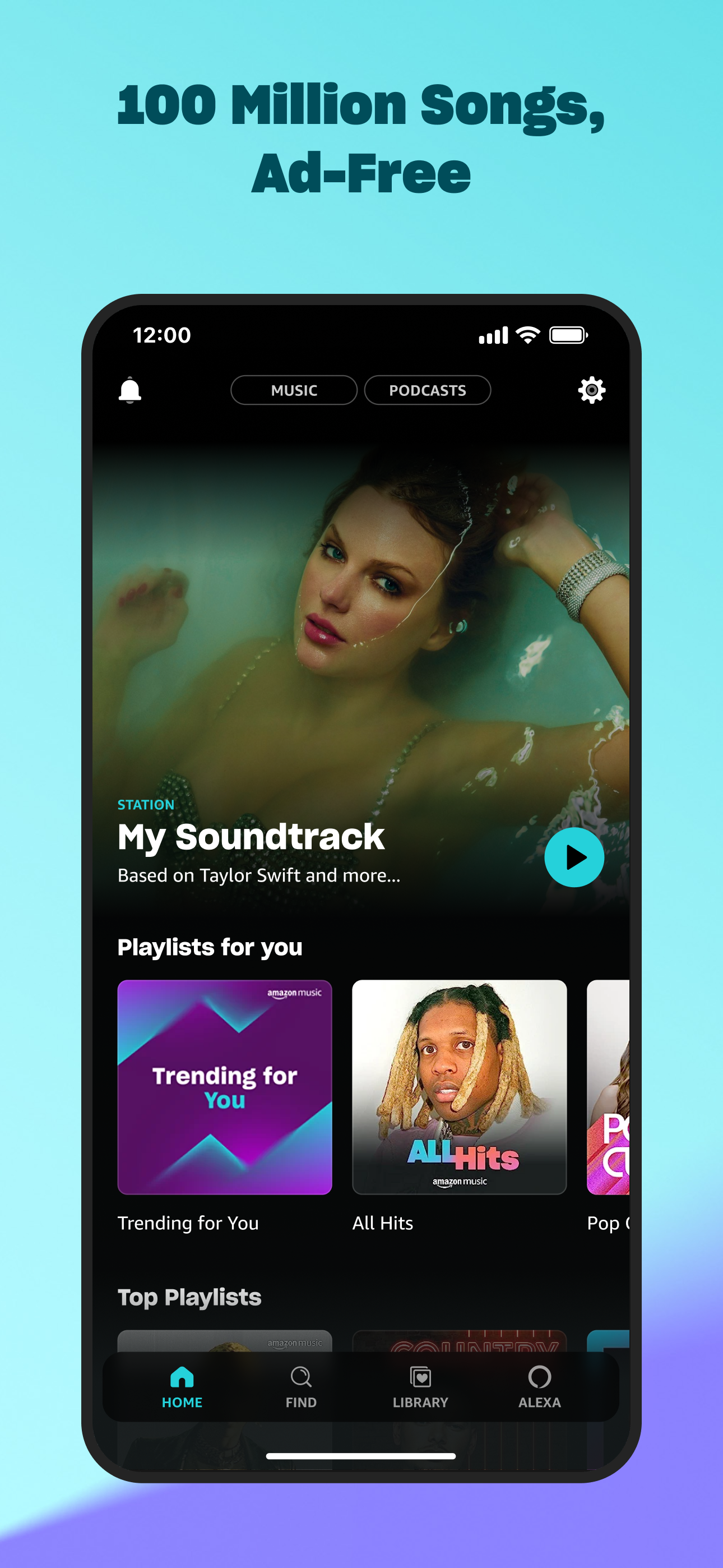
Samsung’s new partnership that preinstalls Amazon Music as bloatware on millions of select Galaxy phones and tablets means more unwanted apps, more storage used, and a busier interface that many users never asked for. If you like streaming music through Amazon, this might feel like a handy shortcut. Customers whose phones come with Amazon Music preinstalled or who download it from the Galaxy Store get Amazon Music Unlimited free for three months, with access to over 100 million ad‑free songs. The catch is that after the trial, the subscription renews automatically at a monthly fee unless you cancel, turning a “bonus” into a potential recurring charge. The bigger issue is clutter. Current devices like the Galaxy S26 Ultra already ship with overlapping browsers, email apps, stores, and third‑party services including Audible, Microsoft OneDrive, Facebook App Manager, Instagram, LinkedIn, and Spotify. Together, these Galaxy phone preinstalled apps can occupy more than 1GB of storage, which is a noticeable tax if you prefer a clean, minimalist setup.
What Bloatware Does to Your Phone’s Storage and Experience
Before you rush to remove Samsung bloatware, it helps to understand what it is doing to your device. Bloatware on a Galaxy phone is any preinstalled app or service you never use, especially when there are built‑in alternatives already on the phone. Samsung’s preload list now includes duplicate browsers, email apps, competing app stores, and several partner apps, all on top of the required Google suite. According to one report, bundled third‑party apps like Facebook, Instagram, OneDrive, LinkedIn, Spotify, and others can add up to more than 1GB of wasted storage space. That might not break a flagship with plenty of storage, but it still reduces room for photos, games, or offline music. Some preloaded apps can be removed, while others, such as certain Facebook components, can only be disabled so they stop running but still occupy some space. For anyone who values a fast, uncluttered device, trimming these Galaxy phone preinstalled apps improves both performance and everyday usability.
Step-by-Step: How to Deal With Amazon Music and Other Preinstalled Apps
The good news is that you do not have to reset your phone to remove Samsung bloatware. Most partner apps, including Amazon Music, can be uninstalled after setup, while a few stubborn ones can at least be disabled so they stop getting in your way. Think of this as a one‑time tidy‑up that will keep your phone feeling more like yours and less like an advertisement.
- Find the preinstalled apps: Open your app drawer and look for Amazon Music and other Galaxy phone preinstalled apps you do not use, such as redundant browsers, email clients, cloud services, or social apps mentioned in preload reports.
- Check whether each app can be removed: Long‑press an icon and tap the app info or details option, then look for an uninstall button. Most partner apps can be removed after setup, but some, like certain Facebook components, may only offer a disable button instead.
- Uninstall Amazon Music if you do not need it: If you do not plan to use the three‑month Amazon Music Unlimited offer, tap uninstall Amazon Music Galaxy from the app info screen so it no longer occupies space or shows up in your drawer.
- Disable Samsung bloatware that cannot be removed: When uninstall is not available, use the disable option so the app becomes inactive and stops running or showing notifications, even though some parts remain on the phone.
- Revisit your choices after claiming any trials: If you decide to use the free Amazon Music Unlimited trial, remember that it renews automatically at the listed monthly fee once the three months end, so cancel in time and then uninstall or disable the app if you no longer want it.
The main gotcha is assuming every app can vanish completely. Some system‑level and partner apps cannot be fully deleted and must be disabled instead, so set realistic expectations. Also, if you are tempted by the music trial or any other bundled offer, treat sign‑ups with care so you do not walk into ongoing subscription charges after clearing out your home screen.
Is Cleaning Up Bloatware Worth the Effort?
Spending a few minutes to remove Samsung bloatware is usually worth it if you care about storage, performance, and a calmer home screen. The partnership that puts Amazon Music on millions of select Galaxy phones and tablets is part of a broader trend: device makers use preloads to push services and subscriptions, while users shoulder the clutter. For many people, the free three‑month Amazon Music Unlimited deal is nice, especially with its large ad‑free catalog, but it is still a funnel into a paid plan once the trial ends. Taking control by uninstalling Amazon Music Galaxy if you do not want it and disabling Samsung bloatware that cannot be removed keeps your phone focused on the tools and media that matter to you. The trade‑off is simple: a short clean‑up now for a smoother, less crowded device in daily use.