
Lockdown Mode, Explained: A Panic Button That Finally Respects Context
One UI 9 Lockdown mode is Samsung’s high-security state that instantly locks your Galaxy phone, disables biometric unlock, and forces PIN, password, or pattern entry when triggered from the power menu or related shortcuts, acting as a panic button against forced or unauthorized access while still fitting around everyday device use. This is not a subtle feature; it is meant for moments when you need your phone to become a digital safe, fast. With One UI 9 beta 2, Samsung integrated Lockdown mode directly into the power menu, allowing users to instantly lock their phone and disable biometric authentication upon triggering it. The idea was solid, but the experience was blunt. One UI 9 beta 4 on the Galaxy S26 now aims to keep the protection while removing the constant friction.
What Changed in One UI 9: From Auto-Lockdown Everywhere to Targeted Control
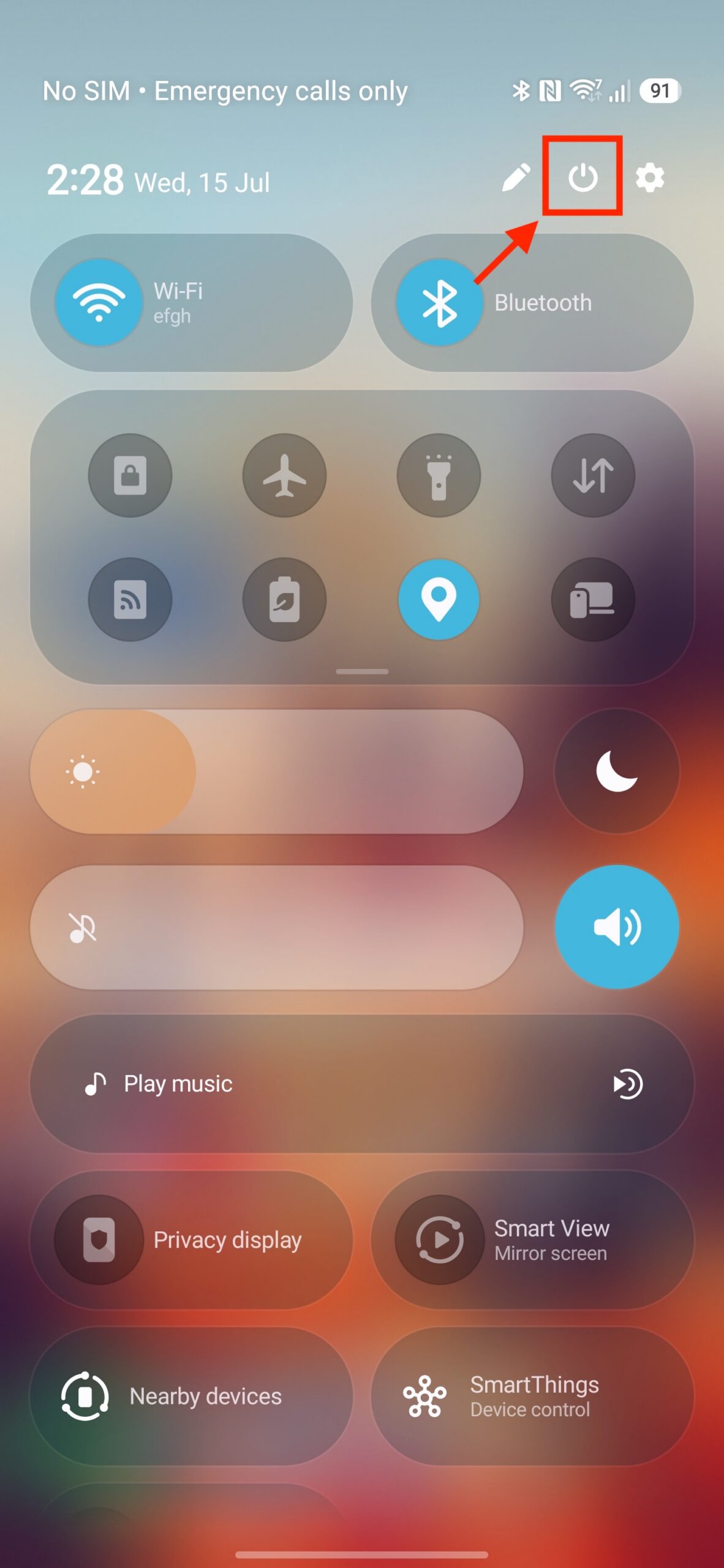
Earlier betas treated every route to the power menu as equally high risk. In One UI 9 beta 2 and beta 3, tapping the power button shortcut in the Quick Settings panel worked the same way as a long-press of the side button when set to trigger the power menu: the shortcut triggered the power menu, automatically invoked Lockdown mode, instantly locked the phone, and disabled biometric unlock. That meant a casual tap on the Quick Settings power button could toss you into Lockdown, even when you only wanted to restart. One UI 9 beta 4 breaks this equivalence. With the new build, the behavior of the Quick Settings panel power button shortcut has changed; by default, it loses Auto-Lockdown, and exiting the power menu returns you to your last-used app and does not lock your phone. The side button, meanwhile, keeps its more aggressive behavior.
New Galaxy Security Settings: A Toggle That Decides When Panic Mode Kicks In
The real upgrade is not a new icon; it is a new decision point inside your Galaxy security settings. One UI 9 beta 4 for the Galaxy S26 includes a setting titled “Secure lock with Power button,” whose summary explains: tapping the Power button in the quick panel locks your phone with added security and blocks biometrics until you unlock with your PIN, password, or pattern. As the code strings show, users can now toggle Lockdown behavior, but only for the power button shortcut in Quick Settings. If you want that shortcut to behave like the old Auto-Lockdown, you go to Settings > Lock screen and AOD > Secure lock settings and turn on “Secure lock with Power button.” Then, exiting the invoked power menu takes you straight to the lock screen instead of your previous app.
Why This Matters: Living With Security Instead of Fighting It
The biggest win here is control over when and how Samsung Lockdown features engage. With One UI 9 beta 4, Samsung has added a new toggle that lets users change Auto-Lockdown behavior when triggering the power menu through the Quick Settings power button shortcut. That means power users can keep a discrete, on-demand panic button in Quick Settings, while those who see Lockdown as a rare edge-case can leave that shortcut non-disruptive. Meanwhile, the physical side/power button still automatically triggers Lockdown mode on a long press, keeping a hardware path for instant, unambiguous security. According to analysis of the beta firmware, “it’s good to see Samsung give users an option in case they want to access the power menu without triggering Lockdown mode.” This is the right philosophy: serious security that does not punish everyday tasks like checking the power options.
The Bottom Line: A Small Beta Tweak With Big Everyday Impact
For Galaxy S26 owners in the beta program, One UI 9’s Lockdown evolution is more than a hidden string in the firmware; it is a shift in how the phone treats trust and urgency. You now decide whether the Quick Settings power button is a calm utility or a full-blown panic trigger, while the long-press side button remains a guaranteed path into Lockdown mode regardless of your toggle. This two-lane design respects different threat models without burying security behind obscure menus. The change should not be judged by how flashy it looks, but by how often it saves you from an unwanted lockscreen or, in harsher scenarios, from forced biometric unlock. If this One UI 9 Lockdown mode behavior ships in the stable release, it will stand as a model for how phone makers can treat security as a user choice, not a one-size-fits-all script.