
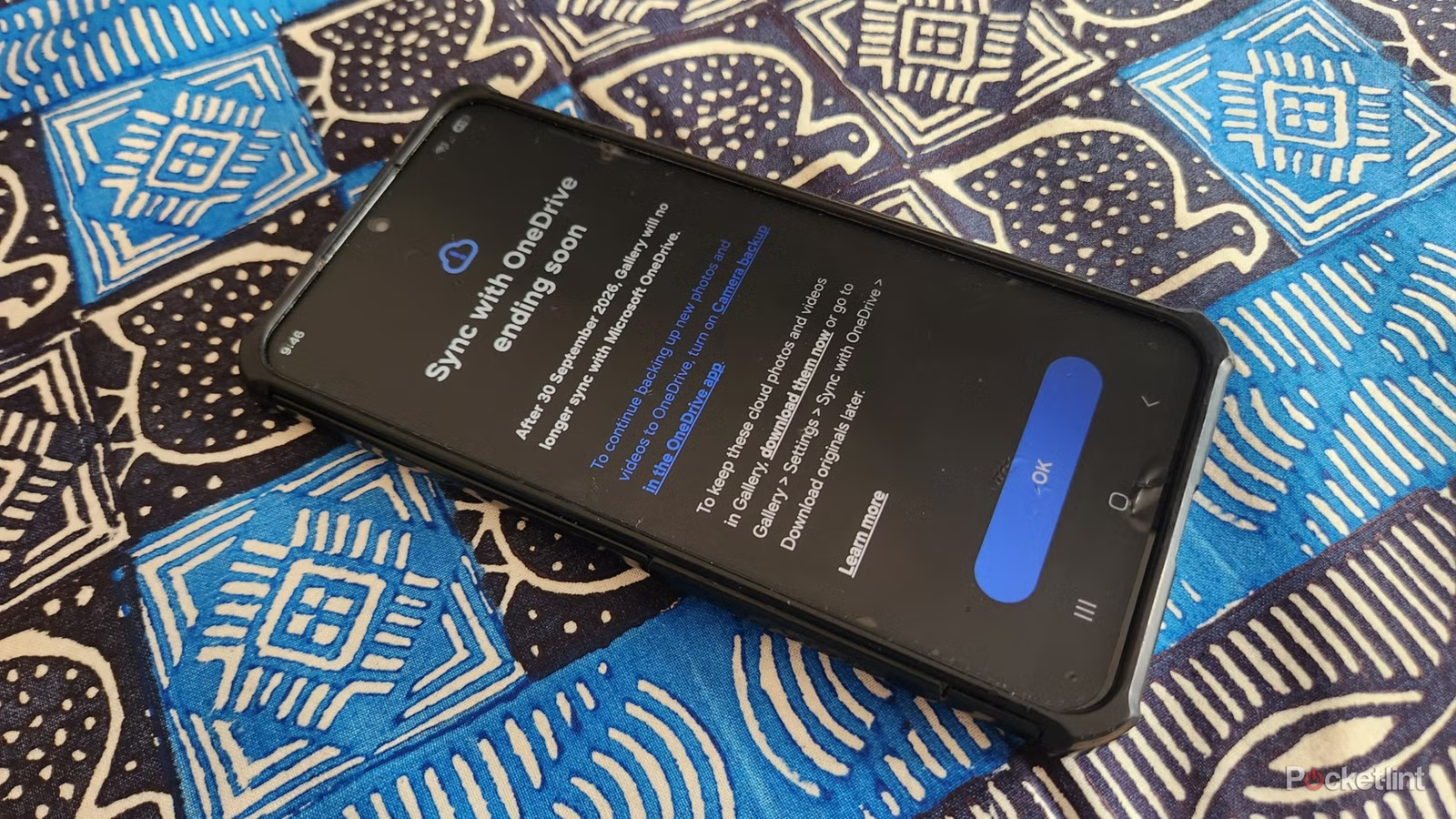

What Samsung Gallery’s OneDrive Change Means for Your Photos
Samsung Gallery OneDrive sync ending means the built‑in option that automatically mirrored your phone’s photos to Microsoft’s cloud will stop working after 30 September 2026, and you must manually set up a new backup method if you want your Samsung photos to stay safe, accessible, and available across devices. This matters for anyone who has relied on opening Gallery and trusting that everything was quietly protected in OneDrive. After the deadline, Samsung Gallery will no longer sync with Microsoft OneDrive, and you will not see newly backed‑up cloud photos inside the Gallery app. You can still use OneDrive to backup Samsung photos, but you’ll do it through the separate OneDrive app and its Camera Backup feature instead of Samsung’s integration. If you prefer, you can migrate photos to other cloud storage and Samsung Gallery alternatives like Google Photos, Dropbox, Amazon, or even self‑hosted options.
The key timeline is clear: “Samsung Gallery will no longer sync with Microsoft OneDrive after 30 September 2026, so you’ll need to make changes if you still want to view your backed‑up photos.” New Samsung users also cannot set up OneDrive sync before that same date. The prerequisite going forward is simple but easy to overlook: you must install and configure another app or service to backup Samsung photos, and you should download your existing cloud originals before the cutoff so your full library stays under your control. Think of this guide as a friend telling you what to tap and what to watch out for, so the change feels like maintenance, not a disaster.
Before You Start: Storage, Apps, and Backup Choices
Before touching any settings, take a minute to decide where you want your photo life to live. If you are happy with Microsoft’s ecosystem, you can keep using OneDrive for backups; you will just manage everything through the OneDrive app instead of Samsung Gallery. If the Samsung Gallery OneDrive sync ending pushes you to look elsewhere, there are plenty of Samsung Gallery alternatives. Google Photos is a popular choice with many AI features, though you should be aware that Google’s privacy policies may allow your media to be used for AI training unless you manage your settings carefully. Other options include Dropbox and Amazon’s photo sync solutions, which can also help you migrate photos to cloud storage without relying on Samsung’s own tools.
You also need to think about capacity. When moving to Google Photos, “ensuring you have adequate cloud storage available is the first step. Google offers 15GB of free space, and you’ll probably need to upgrade to a paid plan to store your entire photo library.” Whatever service you choose, check how much storage your pictures will require. Inside OneDrive’s Camera Backup settings you can see your available space and tap View Plan to understand what is included in your current account. If you care more about control than convenience, self‑hosted tools like Immich for images or Nextcloud for broader file backups let you manage your own hardware and network, at the cost of more setup work.
Step‑by‑Step: Preserve Your Library and Keep Backing Up
Let’s walk through the practical part: keeping the photos you already have and making sure everything new is safely backed up. You’ll follow one ordered set of steps, but you can choose at the end whether your long‑term home is OneDrive or another cloud storage. The main gotcha is storage space, both on your phone and in the cloud, so watch the numbers as you go.
- Download your existing cloud photos to your phone: Open Samsung Gallery, go to Settings, then tap Sync with OneDrive at the top. You’ll see the warning that “After 30 September 2026, Gallery will no longer sync with Microsoft OneDrive.” In that screen, choose the option to “download them now” so you can keep these cloud photos and videos in Gallery.
- Choose which folders to store locally: When the Download originals window appears, it will display how much free space is available on your phone and list folders such as Camera or WhatsApp. Tick each folder you want, check the required space shown beside it, and tap Download to copy those OneDrive photos back into local storage. Use a stable Wi‑Fi connection instead of mobile data because this can easily be tens of gigabytes of transfers.
- Set up OneDrive’s Camera Backup for new photos: Install the OneDrive app from the Play Store if you do not already have it. Open OneDrive, sign in to your Microsoft account, and go to Settings or your Account Profile section. Enable Camera Backup, grant all requested permissions, and confirm that new photos and videos from your device are backing up to OneDrive. Check your free space and tap View Plan to understand your current limits.
- Optionally migrate to Google Photos: If you prefer Google Photos, open its app and tap Get Space to upgrade your storage plan if needed. Then enable the slider labelled Backup photos and videos on this device automatically, which makes Google Photos upload images from your phone into its cloud library. Samsung Gallery will continue to store and edit your photos locally, but it will not offer cloud‑based backups once OneDrive sync ends.
- Add an extra backup outside the cloud: To protect against account problems or service changes, store a secondary copy of your library on an SSD or network storage device. If you are comfortable with more advanced setups, you can host your own photo backup with Immich or use a broader self‑hosted cloud like Nextcloud, provided you have your own hardware and configure your home server and network securely.
When you finish these steps, your current OneDrive cloud photos will be safely stored on your phone, new pictures will keep syncing through the OneDrive app or Google Photos, and you will have at least one extra backup outside of Samsung’s changing ecosystem. Remember that after the deadline you will still be able to see your photos in OneDrive, but Gallery will stop integrating that cloud view.
Choosing the Right Long‑Term Home for Your Photos
Once you are safely backed up, you can think calmly about where you want to live day‑to‑day. Some people will stay with OneDrive because they like having phone and laptop photos in one place and are fine opening OneDrive to browse rather than relying on Gallery. Others are tired of Samsung’s constant app changes and prefer the stability and features of Google Photos or another photo app offering seamless backups inside a single ecosystem. The trade‑off with Google Photos is that it is cloud‑first; your images live primarily in Google’s cloud and count against your shared 15GB free space, so bigger libraries tend to need a paid plan.
If you are worried about how large companies use your data, services like Dropbox or Amazon Photos are alternatives, and self‑hosted tools like Immich or Nextcloud give you more control, at the cost of managing your own hardware and secure network. Whatever you choose, it is worth keeping that external backup on SSD or network storage as a safety net. The Samsung Gallery OneDrive sync ending is annoying, but it is also a good excuse to tidy up your backup strategy so your photo history is not at the mercy of a single app or integration.
Takeaway: Act Before the Deadline and You’ll Be Fine
The looming cutoff date can feel stressful, but if you follow the steps above you will keep your memories safe and stay ahead of Samsung’s changes. After 30 September 2026, Samsung Gallery will no longer sync with Microsoft OneDrive, and you will not be able to access newly backed‑up cloud photos through Gallery. However, you will still be able to see your photos inside OneDrive itself, and you can continue using OneDrive or another service for backups as long as you set them up manually. The move is worth it: your photo library becomes portable, you gain the freedom to migrate photos to cloud storage that fits your habits, and you avoid relying on integrations that can vanish overnight. The main thing to watch for is storage space, both locally when downloading originals and in the cloud when turning on new backup systems.





