
Stop Rushing: Extend How Long Pop‑Ups Stay On Screen
One UI hidden settings are built‑in Samsung Galaxy options that sit several menus deep, quietly solving daily performance and usability annoyances without needing third‑party apps or complex tweaks.
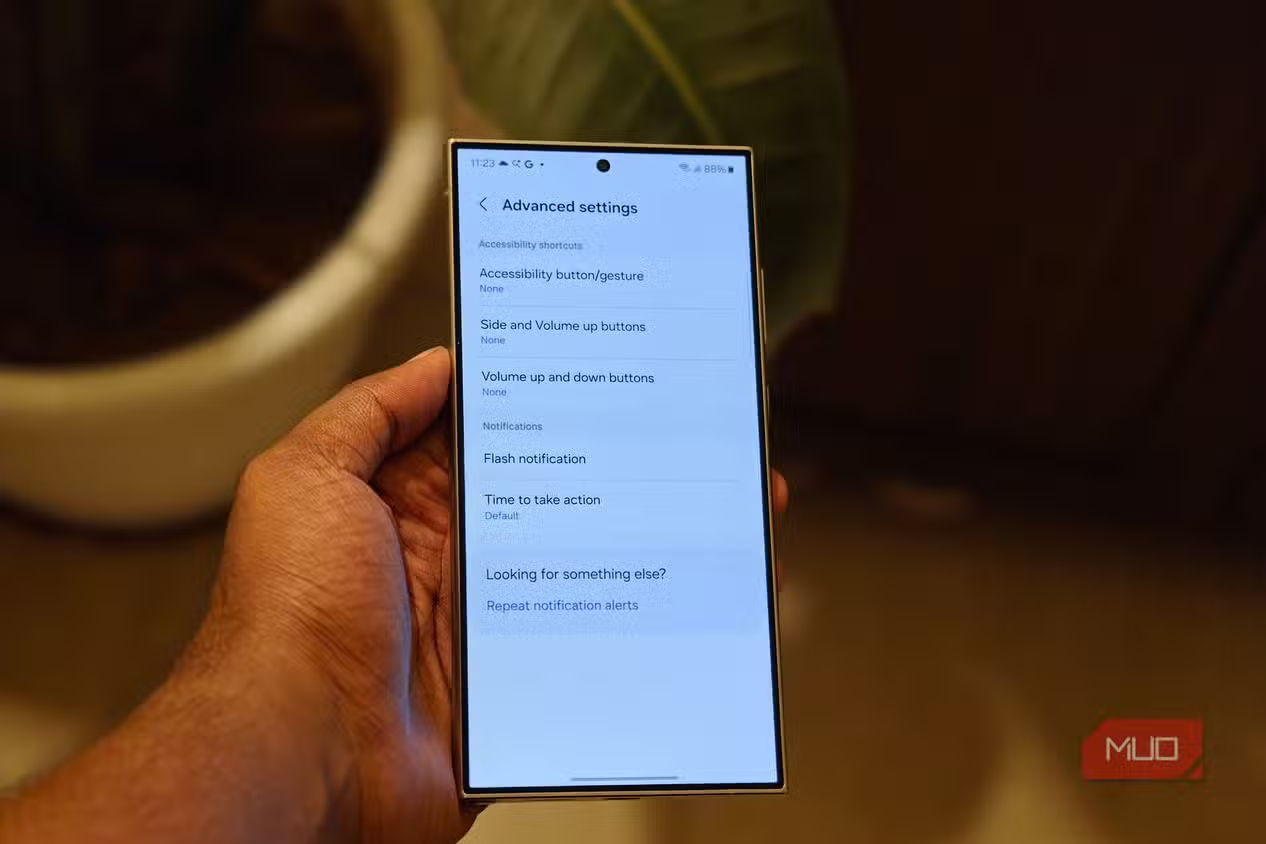
Every Galaxy owner knows the moment: a notification shade drops down, a volume slider appears, you move to tap it—and it disappears mid‑action. Many users assume, as one longtime owner did, that “this was just how fast phones were, and I was the one lagging behind.” That assumption is wrong. One UI has a native phone performance fix called Time to Take Action that controls how long these prompts stick around before fading.
On recent Galaxy phones like the S24 Ultra, you can find it under Settings → Accessibility → Advanced Settings. You can choose between 10 seconds, 30 seconds, 1 minute, and 2 minutes; setting it higher means your prompts linger, so you no longer feel rushed by your own phone. This is Samsung Galaxy optimization in its most humane form: not making the phone faster on paper, but making it feel less impatient and more responsive to your actual pace.
Fix Flaky Gesture Navigation with Back Gesture Sensitivity
Gesture navigation is supposed to feel futuristic; on many Galaxy phones, it instead feels like a guessing game. Half the time a side swipe triggers Back when you meant to open a menu, the other half nothing happens and you repeat the swipe like the phone is ignoring you. For a lot of users, the misconception is that this is “just the price of using gestures.” It is not.
Buried in One UI is a slider that directly controls this behavior. Under Settings → Display → Navigation bar, tap More options and you will find Back Gesture Sensitivity. Drag the slider one way and accidental back swipes become much harder to trigger; drag it the other way and the phone picks up your intentional swipes more reliably. Finding the sweet spot on that bar can end a frustration many people carry for months without thinking to look for a phone performance fix.
This is Samsung Galaxy optimization done right: strategic One UI customization that improves daily responsiveness without removing features. Your navigation remains fully gesture‑based, but your screen finally behaves like it understands what you meant to do.
Stop Reels Hijacking Your Audio with Per‑App Sound Routing
Another quiet annoyance many Galaxy owners accept is audio hijacking. You are deep into a podcast on earbuds, open a social app, scroll past a video, and that reel’s audio blasts in, stopping your show mid‑sentence. For years, people assumed this chaos was how phones and wireless earbuds work together, a necessary mess of modern media playback.
Hidden under Settings → Sounds and Vibration is a One UI option that changes this dynamic. It is off by default, which is why most users never see it. Turn it on, choose the apps that keep hijacking your ears, and route their audio to the phone speaker instead. Now, when a reel autoplays while you are listening to something, the reel plays from the phone while your podcast continues through your earbuds, undisturbed.
This is a textbook example of One UI hidden settings: useful defaults that Samsung never tells you about, already present on your device, requiring no downloads or modifications. With a single toggle, your phone stops treating every autoplay clip as more important than what you chose to listen to.
Turn RAM Plus from a Minus into a Win for Performance
Not every feature Samsung ships is a gift. Some tools designed for Samsung Galaxy optimization end up slowing things down. RAM Plus is a prime example: a swap‑like feature that reserves part of your storage as virtual RAM. It sounds clever, but as reviewers note, RAM Plus can slow your phone down instead of speeding it up, turning into “more like a minus.”
Most people probably do not need it if their phones have more than 8GB of RAM. Disabling it will not harm your device; in many cases, you might notice the phone feels snappier afterward. To turn it off, go to Settings → Device care → Memory → RAM Plus, then reduce the allocation or toggle RAM Plus off entirely. According to one report, “unless you get low memory warnings or apps complaining about RAM or crashing, then you didn’t need this feature.”
This is the most common misconception in Samsung Galaxy optimization: more features always help. In reality, disabling unnecessary One UI features can eliminate slowdowns and even cut background battery drain, giving you a cleaner, faster phone without any loss of core functionality.

The Real Fix: Explore the Menus You Ignore
The pattern is clear: One UI is so packed with options that the useful ones are easy to miss. The most annoying truth about One UI is that “it’s so stuffed with features that the genuinely useful ones get lost under everything louder and shinier.” Yet the fixes for your most boring daily frustrations are probably already on your phone.
Time to Take Action calms down rushed interactions. Back Gesture Sensitivity turns sloppy gestures into precise controls. Per‑app audio routing prevents social videos from hijacking your earbuds. Turning off RAM Plus can remove an invisible performance tax that many users never knew existed. These settings are all native to Samsung phones; they need no mods, root access, or extra apps.
If there is a takeaway, it is this: stop accepting your Galaxy’s bad habits as inevitable. A short tour through One UI’s deeper menus can expose phone performance fixes, smarter audio behavior, and cleaner navigation. Your next big upgrade might not be a new device, but a few quiet toggles hiding in plain sight.