

Stop treating Google AI as a toy—it’s now a real daily assistant
Google AI daily tasks automation refers to using tools like AI Mode, Gemini and Google Photos’ Ask features to perform everyday actions such as shopping, playlist creation, creative design, and photo organization directly across connected apps without repetitive manual input or constant app switching. This is no longer about experimenting with chatbots; it is about treating Google’s systems as a control center for the services you already use. When you connect Canva, Instacart, and YouTube Music, AI Mode in Search can plan a small event end to end, from grocery cart to flyer draft to playlist. That should change how you think about search: it becomes a command line for your life. The trade-off is clear—less tapping, more directing—if you take the time to wire things together once.
- Sign in with your Google account and go to google.com/ai.
- Open the Ask Anything bar and type what you want done, such as a grocery list, playlist, or flyer.
- When AI Mode suggests a third-party app, select Link and follow the on-screen steps to connect your account.
Plan events and creative projects with AI Mode and connected apps
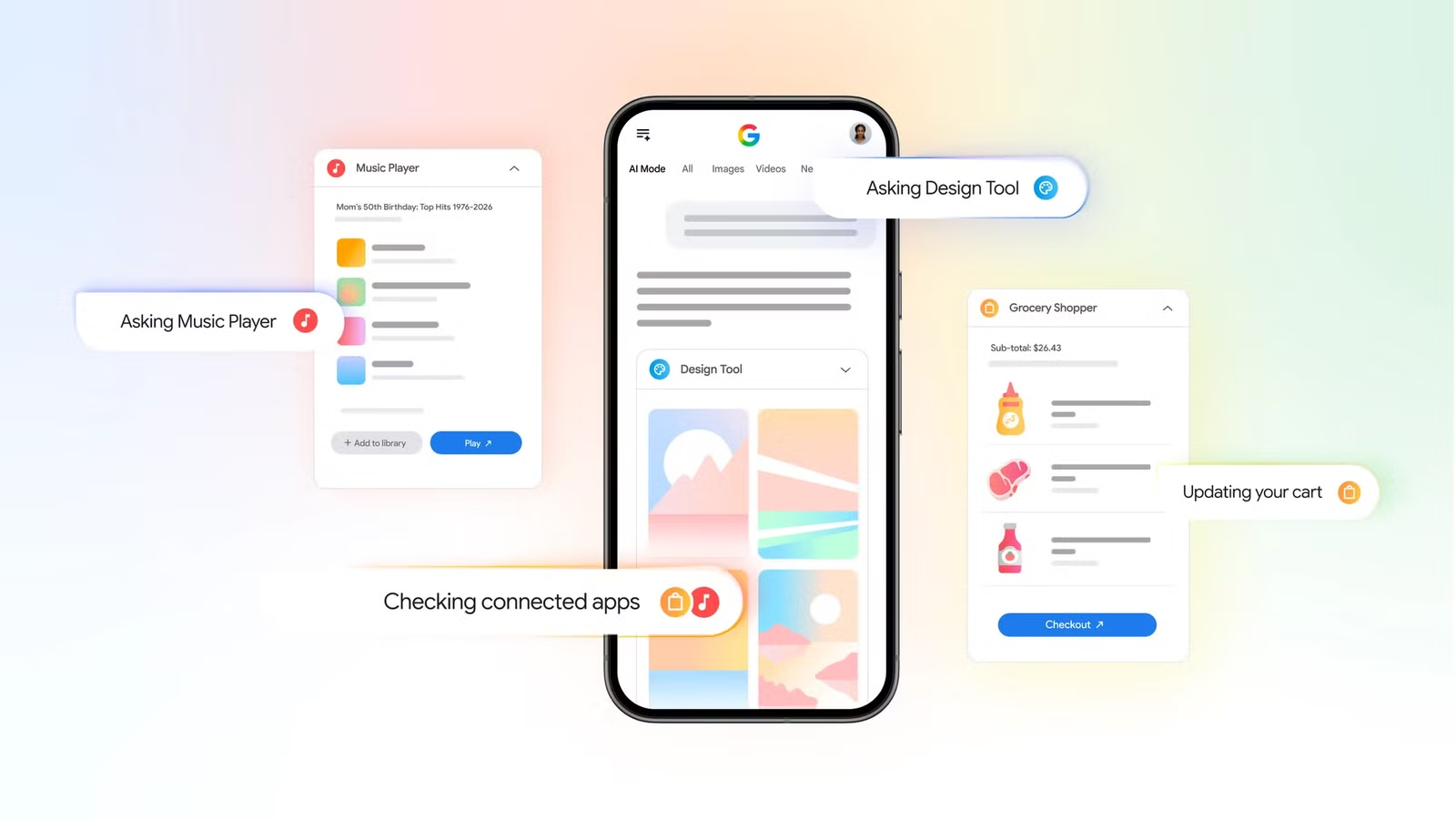
If you are still hopping between tabs to plan a party or launch, you are wasting effort that Google AI Mode can now remove. Once you connect your accounts, AI Mode in Search lets you handle creative and shopping tasks with Canva, Instacart, and YouTube Music from a single request. For example, you can ask for “a grocery cart of healthy snacks and drinks for 8 adults,” and, when linked, those items can move directly into your Instacart cart for checkout with a few taps. In the same session, you can have it draft a retro, grainy flyer in Canva and build a playlist of trending Bollywood songs from the past decade in YouTube Music. The trio of apps makes for an easy way to plan a party, from getting the groceries to making the playlist and writing up the invites.
- Go to google.com/ai and describe your event or project in the Ask Anything bar.
- Accept prompts to link Instacart, YouTube Music, or Canva when AI Mode offers them, tapping Link and following the steps.
- Refine outputs by adding constraints like guest count, aesthetic (“retro, grainy, neutral earth tones”), or music era until the results fit your needs.
Upgrade your drive with Gemini voice commands on Android Auto
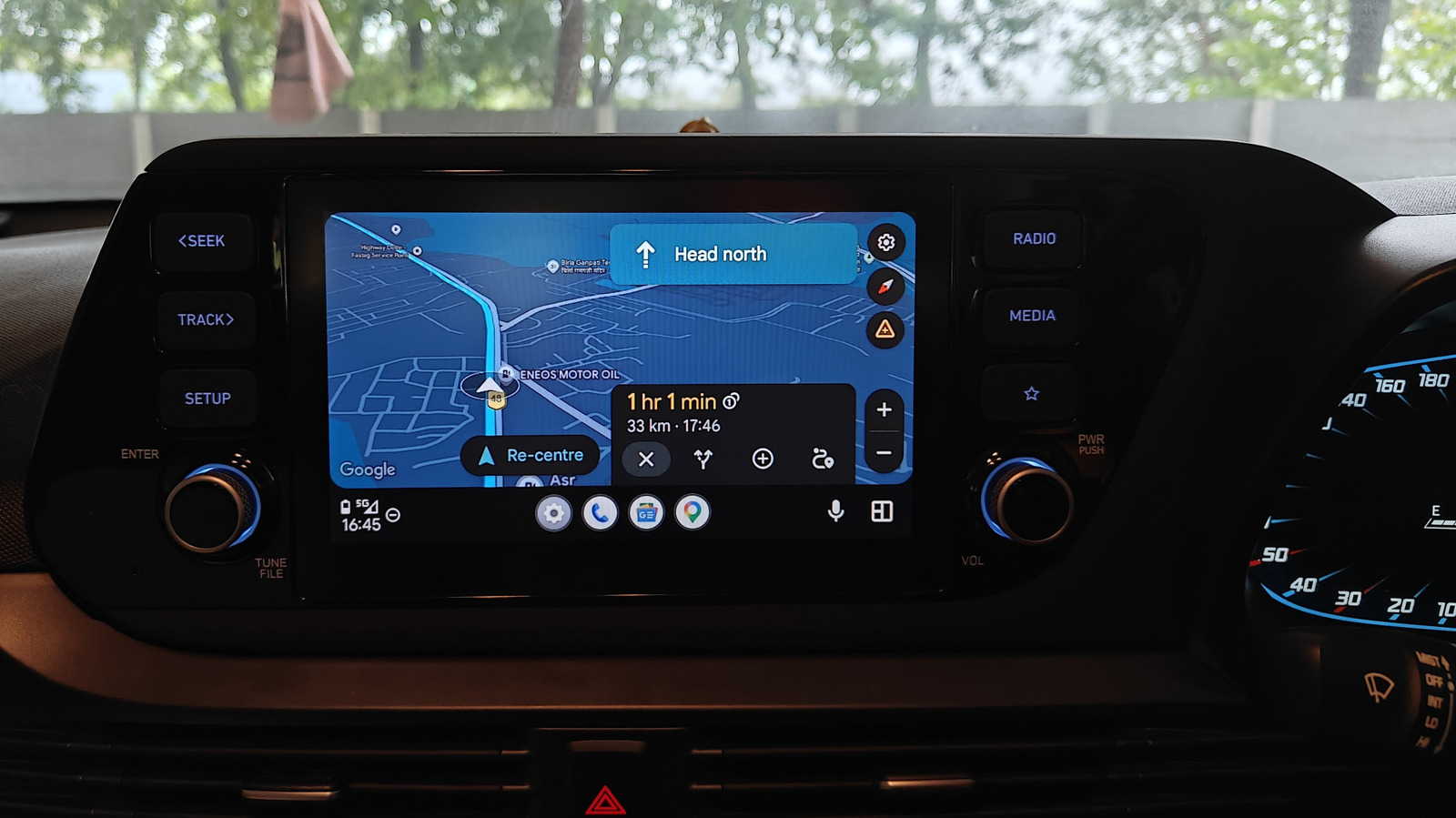
On the road, Gemini voice commands Android features turn your car display into a more flexible DJ and companion instead of a static dashboard. Traditional playlist management means building lists ahead of time inside your favorite Android Auto music app; Gemini removes that clerical work by creating playlists on the fly when you describe what you want. You can ask for ’80s Synthwave similar to Gunship, Perturbator, and The Midnight, limit it to instrumental tracks, or even aim for a specific mood like a rainy drive. Gemini can also find songs when you only remember context, such as “Play the song from State Farm's Super Bowl commercial featuring Danny McBride,” which triggers Bon Jovi’s “Livin’ on a Prayer.” The more you talk to it in full sentences, the more Android Auto becomes an audio assistant instead of a glorified remote.
- Connect your phone to Android Auto and ensure Gemini is available through your Google account.
- Use the steering wheel or on-screen microphone button, then state a detailed playlist request by genre, mood, vocals, or duration.
- Ask follow-up questions about the current song, artist, or album to exploit Android Auto’s context-aware AI.
Use Google Photos AI editing to fix dates, locations, and captions
If your photo library feels chaotic, Google Photos AI editing is being shaped to clean up the hidden data that makes your archive usable. Google is preparing a feature in its Ask Photos service that allows you to edit photo metadata using natural language instead of digging through menus. Until now, you had to open each photo, tap the three-dot icon in the upper right corner, then select the About menu to view its metadata. With the new AI option, you will be able to say or type commands such as “Change the date of this photo to July 10, 2026,” “Change the location of the photo to Bandung,” or “Make a caption for this photo,” and the system will process the request, asking clarifying questions when needed. By using only voice or text commands, users can later update metadata without having to open and edit each photo manually.
- Open Google Photos and select a picture whose information you want to correct.
- Tap the Ask button when available and describe the metadata change, including new date, time, location, or caption.
- Review any follow-up questions from the AI, confirm the change, and expect a notification or tooltip when this feature is rolled out broadly.

Why this kind of automation with Google apps matters
Taken together, these tools are not minor conveniences; they show a shift toward automation with Google apps as the default way to manage digital chores. Google’s AI Mode has taken over your internet searches and, if you’ve connected your Google apps to it, your personal searches as well. With third-party connections, that reach extends to shopping carts, playlists, and creative assets. In the car, Gemini eliminates the clerical drudgery of manually curating playlists, converting vague memories into concrete songs. In your gallery, Ask Photos trims the time cost of fixing dates and locations by letting you talk to your archive instead of editing every image. When these systems work together, manual input drops and multitasking flows more easily across apps. The practical move now is not to wait for some future AI—connect what exists and make it handle the boring parts of your day.





