

What Samsung gesture customization is and who it helps
Samsung gesture customization is the process of replacing the stock One UI gestures with tailored controls from Good Lock modules so that common actions sit under your thumb, reduce accidental swipes, and turn multi-step tasks like screenshots and split screen into quick, repeatable motions that suit your hand size and habits.
If your Galaxy phone feels awkward to use one-handed or you keep mis-triggering the back gesture, this is for you. Instead of accepting Samsung’s standard edge and bottom gestures, you use Good Lock to define your own. One Hand Operation+ puts invisible handles along both sides of the screen, each with multiple swipe directions and lengths you can assign to actions such as screenshots, Quick Settings, flashlight, or split screen shortcuts. NavStar adds finer One UI gesture controls so you can tune back gesture sensitivity separately for the left and right edges and cut down on accidental exits. The main prerequisite: your phone must run the full version of One UI, because Good Lock does not work on One UI Core models.
Prerequisites and the one big caveat
Before you start, check that your device supports Good Lock. Good Lock only runs on Galaxy phones with the full version of One UI; most budget A and M series phones use One UI Core, and those do not support it. If you are on full One UI, you will download Good Lock from the Galaxy Store, then add modules from inside it because it does not come preinstalled.
There are two Good Lock pieces we rely on here. One Hand Operation+ turns edge swipes into a grid of custom actions, while NavStar fine-tunes the behavior of One UI gestures themselves, including separate sliders for left and right back gesture sensitivity. That combination is what lets you push common tasks closer to your thumb and reduce accidental swipes at the same time. The main caveat: if your phone is stuck on One UI Core, you can still use the basic Samsung navigation settings, but you will not get the deeper Good Lock settings or the dozen custom edge gestures that make this setup shine.
Step-by-step: Build faster gestures with Good Lock
Here is a practical sequence that replaces clumsy defaults with a faster, thumb-friendly setup built on Good Lock. Follow the steps in order; each one builds on the last and avoids the usual gotchas with One UI gestures and accidental back swipes.
- Install Good Lock from the Galaxy Store (or Play Store where available), open it, and confirm your phone is supported by the full One UI version, not One UI Core.
- Inside Good Lock, download and install the One Hand Operation+ module, then open it from the Good Lock interface so it can add edge handles on your screen.
- In One Hand Operation+, enable both left and right handles and assign core navigation actions (Home, Back, Recents) to the most comfortable short swipes so you can disable Samsung’s default on-screen navigation later.
- Still in One Hand Operation+, turn on long swipes in the settings; by default they are off, which means you only get six gesture slots instead of twelve.
- Map long swipes on each handle to high‑value actions like screenshot, notification panel, Quick Settings, flashlight, and split screen so that a single diagonal or straight swipe replaces several taps.
- Enable the Quick action option in One Hand Operation+ Gesture settings so long-swipe actions fire as soon as your thumb crosses the distance threshold, instead of waiting for you to lift your finger.
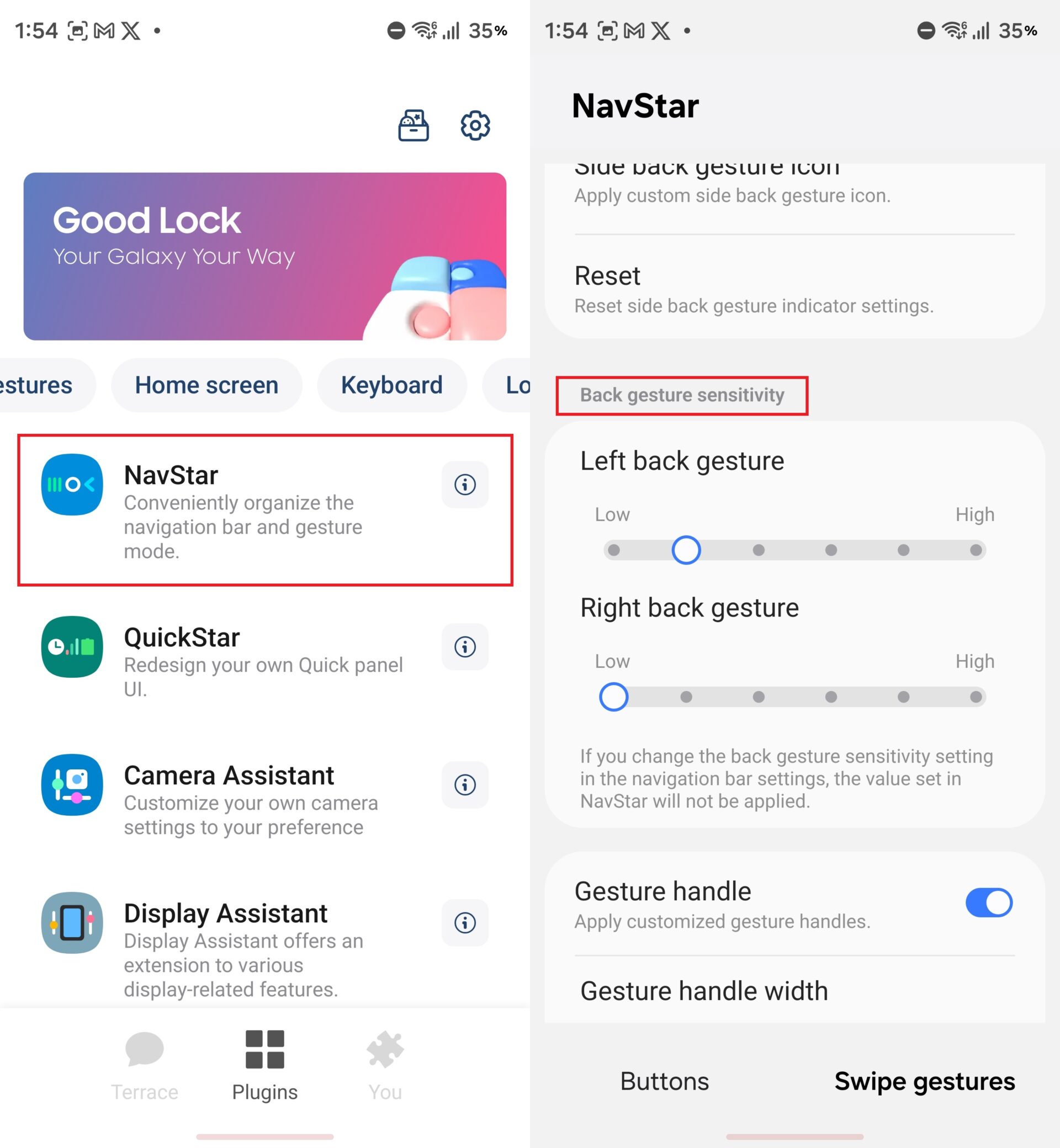
- Back in the main Good Lock app, install the NavStar plugin from the Plugins tab, open it, and switch it on with the toggle at the top.
- In NavStar, scroll to Back gesture sensitivity and lower the right-edge sensitivity much further than the default slider allows while leaving the left side closer to normal, so you stop triggering the back gesture by accident from the right.
- Once One Hand Operation+ and NavStar feel natural, go into your system Navigation settings and switch off Samsung’s default three-button bar or stock gestures so you rely on your new custom layout.
- Add a split-screen or app pair action to one of your more comfortable diagonal long swipes so that what used to take opening Recents and multiple taps now becomes a single thumb motion near where you naturally grip the phone.
Two pitfalls tend to trip people up. First, if you forget to enable long swipes, you will think One Hand Operation+ is limited and miss half of its twelve gesture slots. Second, if you change to gesture navigation without tuning back gesture sensitivity, you may find yourself going back by accident whenever you swipe near the edges; lowering sensitivity on the right side in NavStar fixes this problem for many people.
Why this feels faster in daily use
The speed gain here is not about processor benchmarks; it is about removing tiny bits of friction that add up all day. With One Hand Operation+, each side handle supports horizontal, diagonal up, and diagonal down swipes, in both short and long versions, for a total of twelve gesture slots on your edges with no extra on-screen buttons. That means you can keep your thumb in one area and still trigger navigation, tools, and multitasking shortcuts.
Users report that assigning actions like screenshots, notification panel, Quick Settings, and flashlight to those gestures turns multi-tap tasks into single thumb motions. For example, split screen used to require opening Recents, tapping the app icon, and picking split screen from a menu; with a custom diagonal gesture, it becomes one motion that starts where your thumb naturally rests. On the responsiveness side, enabling Quick action for long swipes makes those actions trigger as soon as the swipe distance is reached rather than waiting for your finger to lift, which reduces the delay you feel after each gesture.
Tuning One UI gestures so they stop fighting you
Stock One UI gestures are powerful, but the back gesture on both sides of the display can become a problem. It is easy to trigger when you swipe from the edge to scroll through photos or interact with list items, leading to surprise exits from apps. Even when you use Samsung’s built-in navigation settings, lowering overall back sensitivity may not be enough; some people still find it too easy to trigger, especially from the right edge.
NavStar’s extra Good Lock settings solve that by separating left and right back gesture sensitivity and letting you go lower than the standard system allows. According to one long-time user, setting the right-side back gesture to the lowest sensitivity made accidental triggers disappear while keeping intentional back swipes available. The practical effect is that you only need to be deliberate when you want to go back, not every time you scroll near the edge. Combined with your edge gestures from One Hand Operation+, One UI gestures start to feel predictable instead of fragile: you keep the fast app switching on the bottom gesture bar while your thumb-focused shortcuts live on the sides.
Takeaway: worth the effort, with two things to watch
Setting up custom gestures with Good Lock takes a little patience, but the payoff is a Galaxy phone that feels more responsive to your habits instead of forcing you to adapt to it. One Hand Operation+ turns the screen edges into a toolbox of twelve actions that keep navigation, tools, and split screen within easy thumb reach. NavStar cleans up the weak points of One UI gestures by letting you reduce accidental back swipes without giving up gesture navigation altogether.
The two things to watch: make sure your device runs the full One UI so Good Lock works at all, and remember to enable long swipes and Quick action so you see the full benefit of your gesture layout. Once those are in place, you can stop fighting edge gestures and start using them as the fastest way around your Galaxy phone.





