


Why Your Phone’s Native Tools Are Secret Travel Superpowers
Travel phone features that use satellite emergency messaging and built-in iPhone flight tracker tools can dramatically improve your safety and awareness on the road, giving you reliable communication in remote areas and live flight updates without relying on extra apps or complicated setups. Think of these as two quiet superpowers already in your pocket: one keeps you connected when there’s no cell signal, the other keeps you informed when airlines start playing schedule roulette. If you travel for work, hike off-grid, or juggle tight connections, these native tools are worth learning before your next trip, with the main caveat being that you need compatible hardware and a few settings enabled ahead of time.
On the safety side, T-Mobile’s T-Satellite service uses Starlink satellites and LTE Band 25 so supported phones can switch between regular cellular and satellite networks to keep you online in places where mobile coverage disappears. On the convenience side, your iPhone hides a flight tracker inside Messages and Spotlight that shows real-time status, delays, cancellations, gates, and even baggage claim with no third-party travel safety apps required. Both are built-in, require minimal setup, and are the kind of quiet insurance you appreciate when a hike goes sideways or a storm hits the airport.
Setting Up T-Satellite for Off-Grid Safety
If you’ve ever watched your signal drop to zero on a mountain road or in a rural area, satellite connectivity is the backup you wish you had. T-Satellite lets supported phones use Starlink satellites alongside T-Mobile’s regular network so you can call via WhatsApp, send MMS pictures, use apps like Google Maps and AllTrails, and even text 911 from anywhere you can see the sky. According to Android Central, T-Satellite can fill in coverage gaps across over 500,000 miles that lack any other cell service. The key requirement is a compatible phone and the right plan or add-on in place before you go off-grid.
- Confirm your phone is compatible: use T-Mobile’s official compatibility tool and enter your IMEI and EID, which you’ll find under Settings > About Phone.
- If you’re a T-Mobile customer, make sure you’re on an "Experience Beyond" plan, which includes T-Satellite at no extra fee.
- If you use another carrier, sign up for T-Satellite on a secondary SIM for USD 10 (approx. ₱560) per line per month through T-Mobile.
- On your phone, open the system settings from the app drawer and go to Network & Internet (or Connections on Samsung phones).
- Select SIMs & mobile network, tap your SIM (not the toggle), then choose Satellite connectivity; on Galaxy devices you can go directly to Satellite networks.
When satellite connectivity is enabled, your phone can automatically switch between terrestrial T-Mobile coverage and the Starlink-powered T-Satellite network so you stay connected about 99% of the time. You’ll see “T-Mobile SpaceX” or “T-Sat+Starlink” in the status bar when satellite is active, and some compatible apps will show a banner. The common gotcha: if your phone is too old or incompatible, the Satellite Connectivity option will not appear anywhere in the menu. Also remember performance is slower than standard 5G, so treat it as a safety net, not your main way to stream video. With everything set, you can travel knowing that as long as you can see the sky, you can send a message or reach emergency services.
Using the Hidden iPhone Flight Tracker Before and During Trips
Air travel chaos usually shows up as a flood of delay texts and frantic app refreshing. Your iPhone has a built-in flight tracker that skips all of that by turning flight numbers in Messages and Spotlight into tappable, live status dashboards. Most travelers never discover it because there’s no big icon labeled "iPhone flight tracker"—the feature stays buried until you type a flight in the right format. Done correctly, you get a real-time map with a tiny plane moving between cities plus clear labels for "delayed" or "canceled" and all the gate and baggage details in one place.
Before using it through Messages, you need iMessage turned on, and the flight number must appear in a text as "[Airline] [Flight number]", such as "American Airlines 9707". When you open that conversation in the native Messages app and see the flight text underlined, it’s actionable—tap it and you can choose Preview Flight to see the route map, departure and arrival times, duration, terminal and gate information, and baggage carousel number. If iMessage is disabled or the text arrived as standard SMS/MMS, the tracker won’t appear at all. Another gotcha is timing: if your trip is months away or already over, you may see "Flight information unavailable" or even the wrong flight because airlines recycle flight numbers.
You aren’t limited to Messages. From your iPhone’s home screen, swipe down to open Spotlight Search and type your flight number, and the phone will show the latest status right there. This Spotlight behavior also works on a Mac, which is handy if you’re planning from a laptop. Behind the scenes, this native flight tracker ties into the broader Apple ecosystem so you can check on a departure while you’re answering texts or searching for an email, without installing extra travel safety apps or flicking between airline websites.
Putting It All Together: Safer, Calmer Travel With Minimal Effort
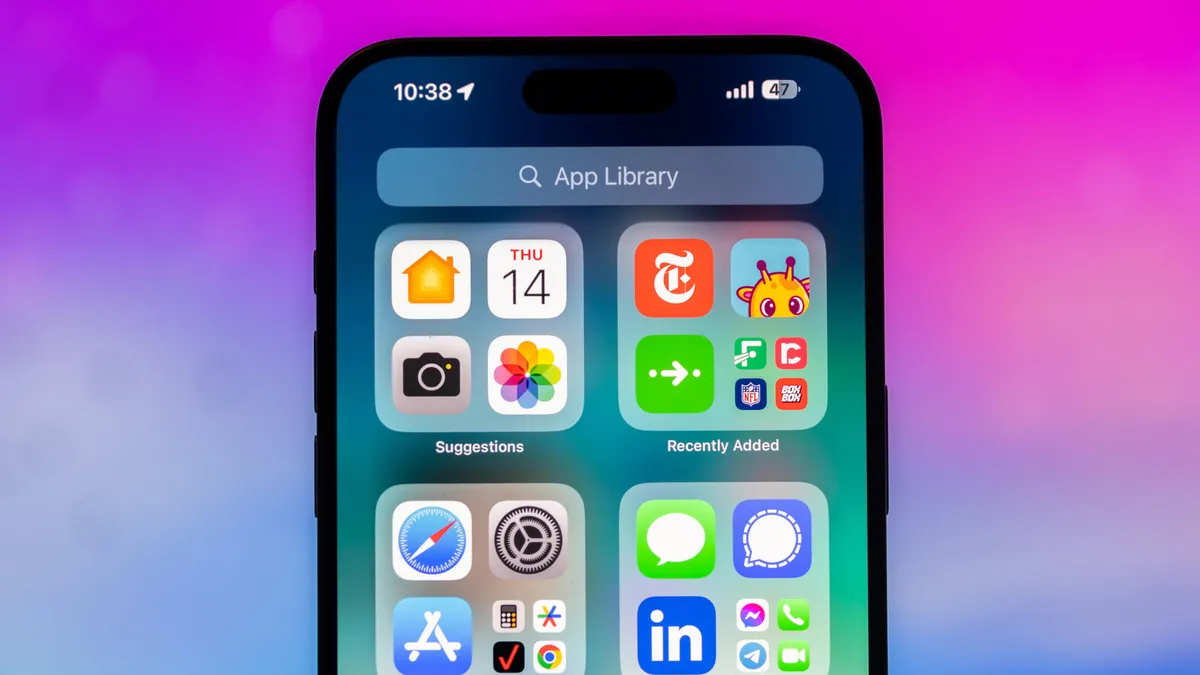
The real win here is how little you need to do once these features are set up. T-Satellite becomes a quiet safety net that keeps essential apps like maps and messaging working when you lose regular coverage, and can even carry emergency texts to 911 when you’re far from the nearest tower. The iPhone flight tracker becomes your go-to for knowing if you should linger over coffee or start sprinting to a different gate, showing delays, cancellations, and baggage claim details in one simple view without extra downloads.
The main things to watch for: confirm phone compatibility and T-Satellite plan status before you head somewhere remote, enable satellite connectivity in settings so it’s ready when you lose signal, and on iPhone, keep iMessage on and format flight numbers correctly so the hidden tracker appears. With those minor chores handled at home, your phone becomes far more than a camera and boarding pass holder. It turns into an off-grid lifeline and live flight dashboard—two built-in travel companions that pay off the moment something doesn’t go according to plan.





