
Before You Panic: What the iPadOS 27 Beta Is (and Isn’t)
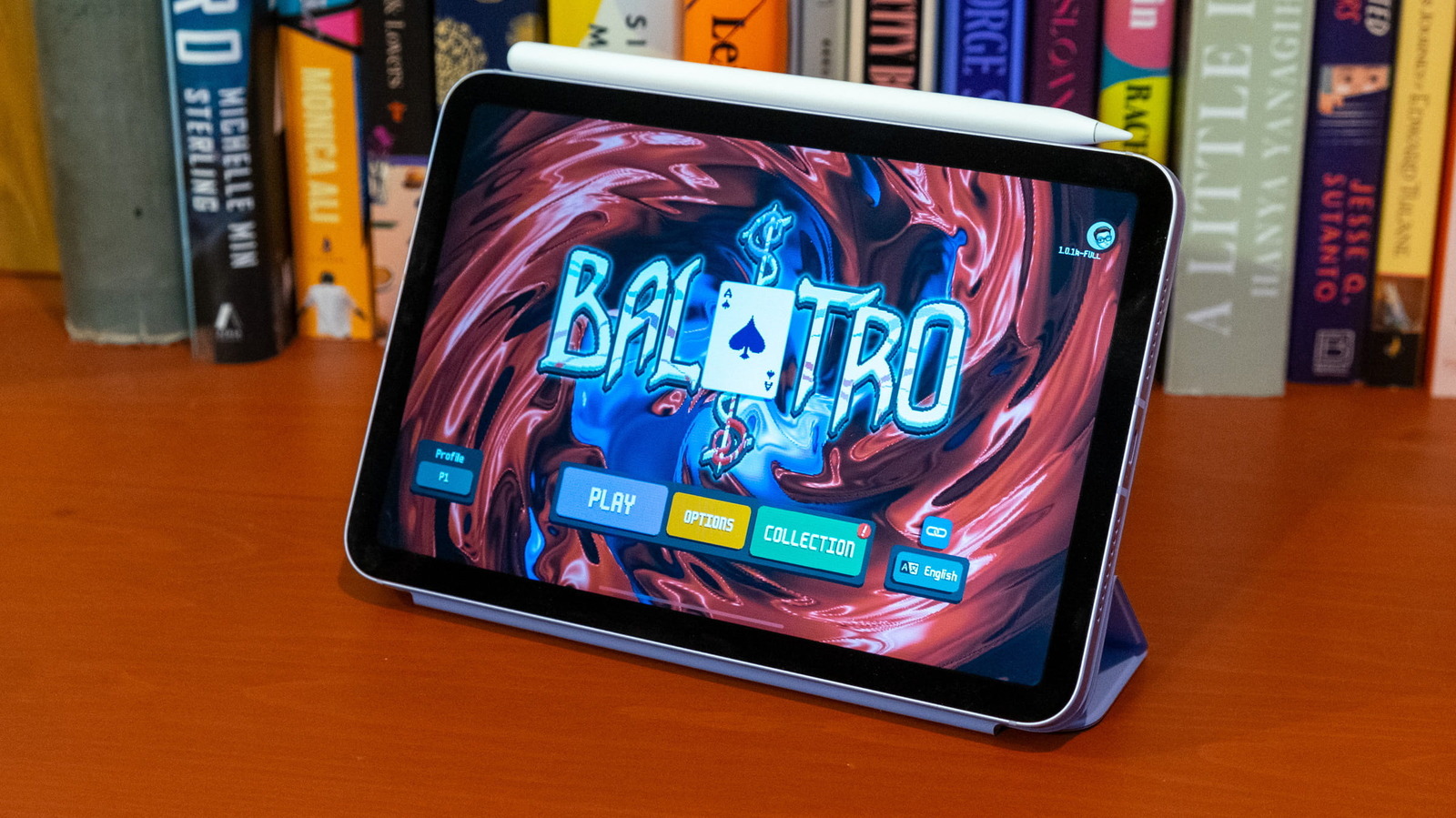
The iPadOS 27 public beta is pre-release software that offers a redesigned interface, enhanced multitasking, and Apple Intelligence improvements while still being unstable enough to cause bugs, battery drain, overheating, and app compatibility issues during everyday use. That tension is the heart of the problem: early adopters want productivity gains, but they’re testing an operating system that is openly unfinished. Apple’s own guidance makes it clear this beta is better suited to a secondary device you’re willing to experiment on rather than the iPad you depend on for work or school. Having lived with the developer beta on the latest 11‑inch iPad Air with an M4 chip for a month, one clear conclusion stands out: the promise of performance and smarter Siri is real, but so are the headaches. If you insist on running the beta, treat your iPad like a test bench—and know how to recover when it misbehaves.
Battery Drain and Overheating: Fix the Worst iPadOS 27 Beta Bugs First
If you only fix one category of iPadOS 27 beta bugs, make it battery drain. Increased battery usage and a warmer device are among the most common complaints after installing the beta. In many cases, this isn’t a disaster—it’s the OS working hard behind the scenes. After a major update, iPadOS re-indexes Spotlight, analyzes your Photos library, syncs iCloud content, and optimizes Apple Intelligence features, and those tasks can easily trash your battery for 24 to 48 hours. The mistake many testers make is assuming this early chaos is permanent and then suffering through it for weeks. Instead, treat battery drain as a problem you actively manage. The goal is not perfection, but keeping the tablet usable while the beta does its heavy lifting.
- Wait 24–48 hours after installing the beta to let indexing and background tasks finish; avoid judging battery life before that window.
- Open Settings > Battery and identify which apps are using the most power; update those apps from the App Store.
- Lower screen brightness or enable Auto‑Brightness, and turn on Low Power Mode when you need to stretch battery life.
- Avoid demanding tasks like gaming or video editing while the iPad is charging, and restart the device after updating apps.
- If a single app keeps draining an unusual amount of power, delete and reinstall it until the developer ships a proper iPadOS 27 update.
App Crashes and Stage Manager Chaos: Keeping Multitasking Under Control
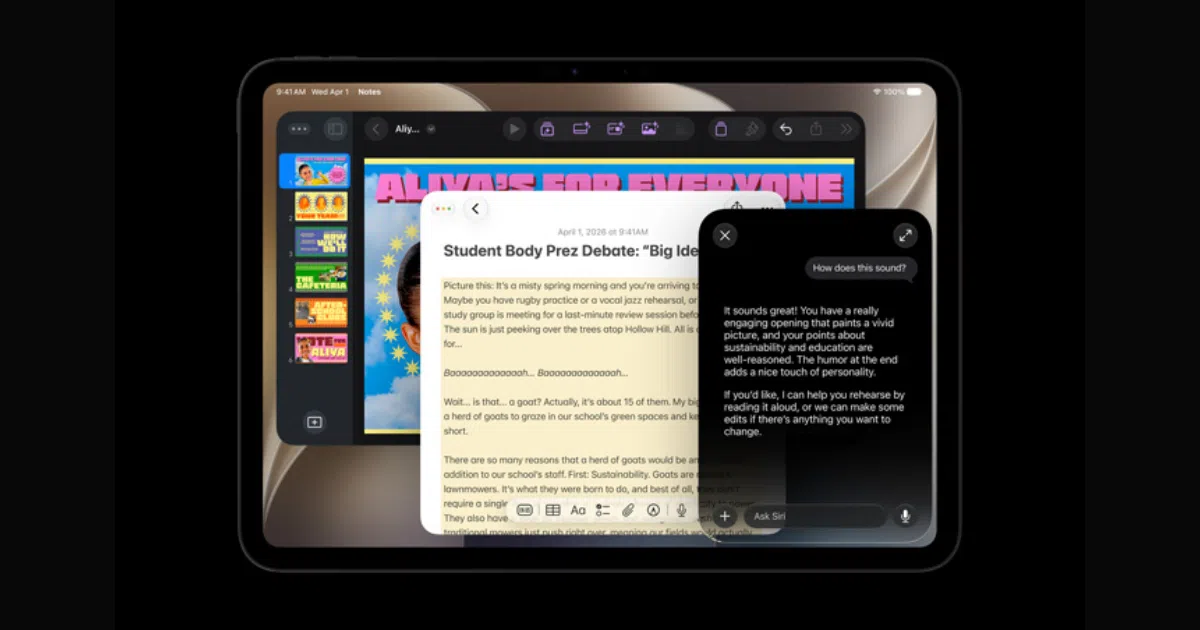
Beta software exposes whether you treat your iPad as a casual consumption device or a multitasking workstation. With iPadOS 27, that line shows up in app crashes and Stage Manager issues. Because the OS is still in testing, creative apps, productivity suites, games, and enterprise tools may not yet be fully optimized and can crash or refuse to open. On top of that, Stage Manager can misbehave with windows that don’t restore correctly, apps that resize unexpectedly, and external displays that aren’t detected immediately. The honest position is this: if your livelihood depends on stable multitasking and external monitors, this beta will frustrate you. But if you’re committed to staying on it, you should treat crashes as bugs to contain, not endure.
- When an app crashes, update it from the App Store, force close it, and then relaunch; restart your iPad if problems persist.
- If only one app is affected, assume the app, not iPadOS, is at fault and wait for the developer to add iPadOS 27 support.
- For Stage Manager issues, toggle Airplane Mode on for 30 seconds, then off, and restart your iPad and any connected accessories.
- Disconnect and reconnect Bluetooth devices; for external displays, unplug the cable or adapter and reconnect after the iPad fully restarts.
- If Stage Manager continues to misbehave, reset network settings (Settings > General > Transfer or Reset iPad > Reset > Reset Network Settings), then check for newer beta builds as Apple often improves multitasking stability over time.
Apple Pencil Problems and Siri Quirks: When Input and Intelligence Go Wrong
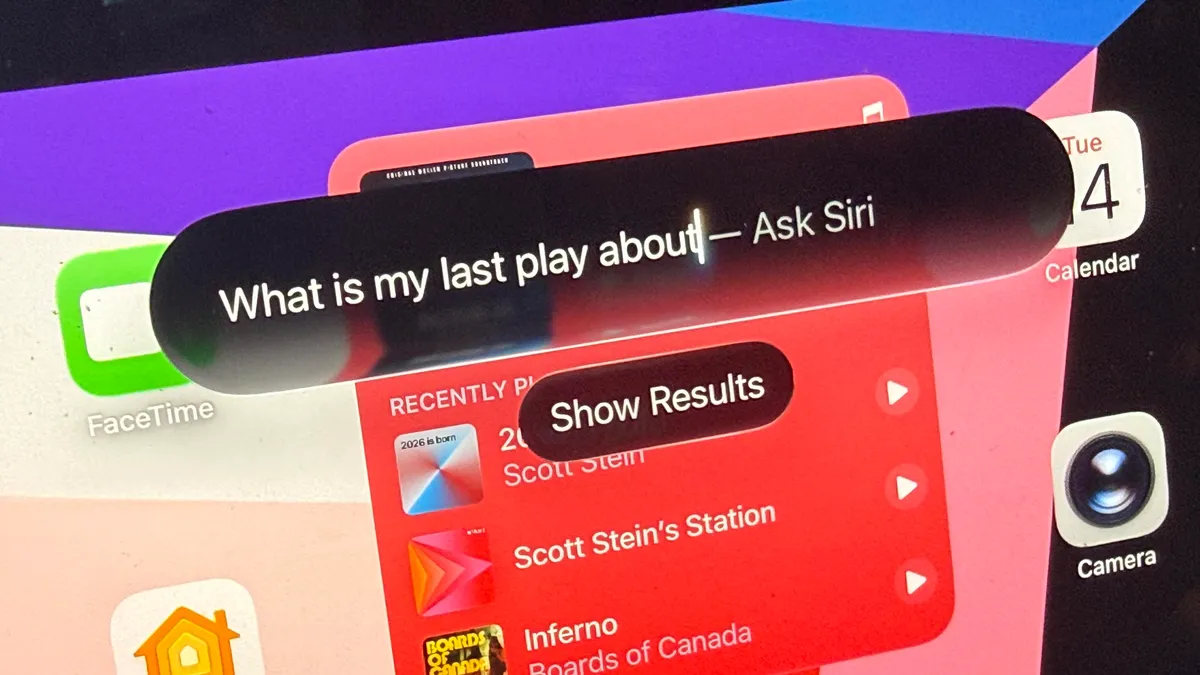
For many tablet users, an iPad without a reliable Apple Pencil or smart assistant becomes far less compelling. On the iPadOS 27 public beta, Apple Pencil can stop responding, fail to pair, or show lag after installation. That’s not surprising, but it is unacceptable if you sketch, annotate PDFs, or mark up documents for work. At the same time, the new Siri—now living in its own app and built on a deep indexing overhaul—brings more contextual awareness across Messages, Files, Photos, Mail, Calendar, and other core apps, but keeps its powers limited to Apple’s own services until third‑party hook‑ins arrive. When Siri bugs hit, the whole “Apple Intelligence” story feels fragile, especially because the assistant can become unresponsive or fail to process requests in this beta. Your job as a tester is to stabilize the tools you rely on and clearly report the ones you can’t fix.
- For Apple Pencil problems, unpair and re-pair the pencil from Bluetooth settings, restart your iPad, and check for newer beta updates that may improve accessory support.
- If lag persists, test the pencil in multiple apps; if only one app feels off, it likely needs its own update rather than an OS-level fix.
- When Siri is unresponsive, go to Settings > Apple Intelligence & Siri, turn Siri off, restart your iPad, then turn Siri back on.
- Ensure the iPad has a working internet connection, since many Siri requests depend on Wi‑Fi or cellular data even with new on‑device intelligence.
- Remember that Siri is currently limited to Apple’s apps and services, so expect gaps until third‑party developers build proper integrations.

When to Report Bugs, When to Use Workarounds, and When to Quit the Beta
Living on iPadOS 27 beta demands a decision: are you a tester, or are you trying to get work done? Most beta bugs are temporary and improve as newer builds arrive, but they can still derail a deadline or a class. You should use workarounds—like battery settings tweaks, app reinstalls, and accessory re-pairing—when the issue is minor and doesn’t block your core tasks. You should report issues when they affect Apple’s own apps, system features like Stage Manager, or new Siri behaviors, because those are exactly what Apple wants real-world feedback on. And you should be willing to walk away from the beta when the experiment stops being worth it. According to one troubleshooting guide, you ought to consider returning to the latest stable version of iPadOS if crashes are frequent, battery life stays poor for several days, essential apps break, Stage Manager makes the tablet difficult to use, or Apple Pencil and keyboard accessories stop working consistently.
- Use workarounds for manageable annoyances, like occasional app crashes or short-term battery drain during post-update indexing.
- Report bugs when system features, Apple apps, or new intelligence capabilities misbehave in reproducible ways.
- Downgrade if the beta prevents you from using your iPad reliably for work, school, or accessibility needs.
- Accept that iPadOS 27 is still no closer to being Mac‑like than iPadOS 26, and treat it as a hybrid tablet OS rather than a laptop replacement.
- If you only have one iPad and depend on it daily, the most productive move may be to avoid or leave the beta altogether.