

What Amazon Music Pre-Install Means for Your Galaxy
Amazon Music pre-installation on Galaxy phones and tablets refers to the practice of shipping select Samsung devices with the Amazon Music app already loaded into the system so it appears on first boot, consuming storage and attention before the owner has installed any of their own preferred apps.
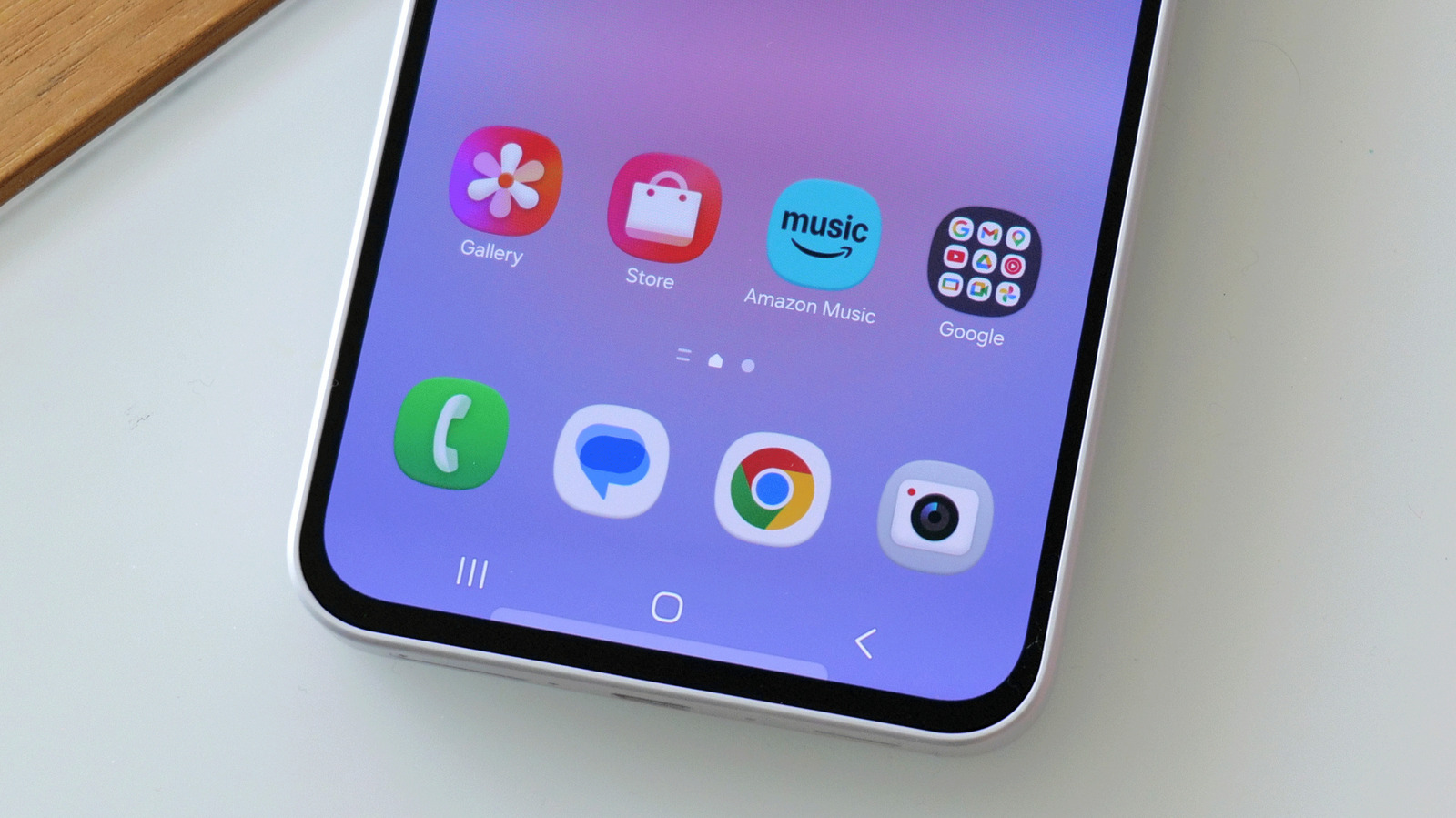
If you are unboxing a new Galaxy phone soon, expect Amazon Music to be sitting there alongside the usual Samsung and Google icons. Samsung has announced that Amazon Music will come preinstalled on millions of select Galaxy phones and tablets globally, expanding an already long list of third-party apps. Those preloads, from social networks to cloud storage and music services, can add up to more than 1GB of space that you did not choose to spend. On a 512GB flagship, a clean setup with system files and preinstalled apps already consumes more than 40GB before you install anything at all, and Amazon Music plus its data adds to that footprint.
This guide is for anyone who looks at those icons and thinks: “I didn’t ask for this, and I’d like my phone back.” You will learn how Samsung bloatware removal works in practice, what “disable pre-installed apps” really does, and how to keep storage under control without breaking anything important in the process.
Why Samsung Bundles Amazon Music (and Why It Feels Like Bloat)
To understand what is happening on your Galaxy phone, it helps to see the bigger strategy. Samsung is adding Amazon Music to the list of apps that come pre-installed on phones and tablets, alongside Facebook, Instagram, OneDrive, LinkedIn, Spotify and others. Critics of Android preloads say these deals are designed to catch you during setup, when you are tapping “Next” on everything, and then nudge you into a trial that quietly turns into a paid subscription unless you step in to stop it.
From the companies’ side, the deal is framed as a convenience and a “special benefit” for Galaxy users, offering immediate access to a large music catalog and a three‑month Amazon Music Unlimited trial when the app is preinstalled or downloaded from the Galaxy Store. But there is a commercial reality underneath. Preinstalled commercial apps are a standard feature of budget Android hardware, where placement fees help keep prices down, and that same playbook is now applied to premium Galaxy models.
For you, the user, that strategy has one practical effect: flagship Galaxy phones now arrive with a layer of commercial software that must be actively managed. That means removing apps you did not request, keeping an eye on storage you did not plan to use, and remembering to cancel any free trial you choose to activate before it renews.
The Real Trade-Off: Free Trial vs Storage and Subscriptions
Samsung and Amazon are trying to soften the annoyance with a carrot: new Amazon Music Unlimited subscribers get a three‑month free trial when they use the preinstalled app or download it from the Galaxy Store. During that trial, you can stream over 100 million songs on demand, including HD and Ultra HD audio, and even get one Audible audiobook per month where available. If you like testing services, it is a generous bundle.
Here is the catch. Once you activate the trial, it auto‑renews at USD 12.99 (approx. ₱750) a month, or USD 11.99 (approx. ₱690) for Prime members, unless you cancel before the renewal date. One source notes the risk as a simple gotcha: if you do not cancel your subscription in time, the plan will automatically renew and start billing you. This is one of the two most common mistakes people make: tapping into the free trial and then forgetting to set a reminder to cancel.
The second common mistake is assuming that leaving the app alone is harmless. Even if you never open Amazon Music, its preinstalled files live on your phone and take up space, along with data updates and cached files over time. On a high‑end Galaxy device, where more than 40GB is already spoken for by system software and preloads, every extra app tightens the squeeze on Galaxy storage management, especially if you like shooting 4K video or storing offline playlists from your preferred music service.
Step-by-Step: Regaining Control of Amazon Music on Your Galaxy
Think of this like cleaning out a drawer: you are not required to empty it, but if you do not, it will keep filling with things you do not use. While exact menus differ between models, the overall flow of Samsung bloatware removal is similar for most preinstalled apps: you head into settings, look at the app’s options, and see whether you can uninstall it outright or only disable it.
- Open your app list on the Galaxy phone and locate the Amazon Music icon that came preinstalled.
- Press and hold the icon until the context menu appears, then look for an option that mentions app info or settings.
- On the app’s detail screen, check which control you see next to the Amazon Music icon: “uninstall” or “disable.”
- If you see “uninstall,” use it to remove Amazon Music completely so it leaves your phone and frees the associated storage.
- If you see only “disable,” use that option so the app becomes inactive, with residual components remaining but no longer running.
- After removing or disabling Amazon Music, review your other preinstalled apps and repeat the same uninstall-or-disable decision to improve overall Galaxy storage management.
On many Galaxy devices, most preinstalled apps can be fully uninstalled after setup, but a few, such as Facebook, are restricted to disable‑only, which means the app is inactive but some parts remain on the phone. Until Samsung or Amazon clarify which category Amazon Music belongs to on your specific model, your job is to check what the button says. “Uninstall” means the app leaves; “disable” means it goes quiet but still occupies a slice of storage.
Is It Worth Keeping, And What Happens After You Clean House?
If you are a heavy Amazon user and do not mind the auto‑renewal terms, the free three‑month Amazon Music Unlimited trial can be a nice bonus on a new Galaxy phone. In that case, your priority is to set a calendar reminder a week before the renewal date shown in your account so the trial does not quietly convert into a monthly charge of USD 12.99 (approx. ₱750) or USD 11.99 (approx. ₱690) for Prime members. That single habit removes the biggest financial risk tied to this preload.
If you prefer other music services, removing or disabling Amazon Music is a quick win. You will reclaim storage that would otherwise sit under a rarely used icon, and you will reduce background clutter from another app capable of receiving updates and storing data over time. The expected result, once you have worked through Amazon Music and any similar preloads, is a Galaxy phone that feels more like yours: fewer distractions on the home screen, more free space for your photos and chosen apps, and one less subscription to worry about accidentally renewing.
The main thing to watch for going forward is that new commercial partnerships may add more apps to that preinstalled roster over time. Flagship Galaxy hardware now ships with a commercial software layer that requires active management, and that will not change soon. Periodically reviewing your app list and checking whether each preinstalled app can be uninstalled or only disabled is the simplest way to keep your phone lean without sacrificing performance.





