

What Samsung secret dial codes and hidden One UI settings can do for you
Samsung secret dial codes and hidden One UI settings are built‑in tools and toggles that unlock diagnostic menus, fine‑tune behavior, and quietly fix everyday performance, audio, and connectivity annoyances without needing a factory reset or third‑party apps.
If you have used a Galaxy phone for years, you have probably adapted to little glitches and quirks instead of fixing them. Many people work around problems like flaky touch response, random audio interruptions, or unreliable gestures and assume “that is how phones are.” In reality, your dialer and Settings menu hide tools that can pull up your IMEI, test hardware, clear old logs, and tweak how your phone responds to you. These Galaxy hidden features are meant for support staff, but they are safe when you know what you are touching and can save you a lot of troubleshooting frustration.
The one caveat: some of these options are powerful, and many are buried on purpose. You do not need to become a technician; you just need to know which codes and switches solve real, boring problems. Think of this as a guided tour a friend would give you, not a deep technical manual.
The one setting you must change before using Samsung secret dial codes
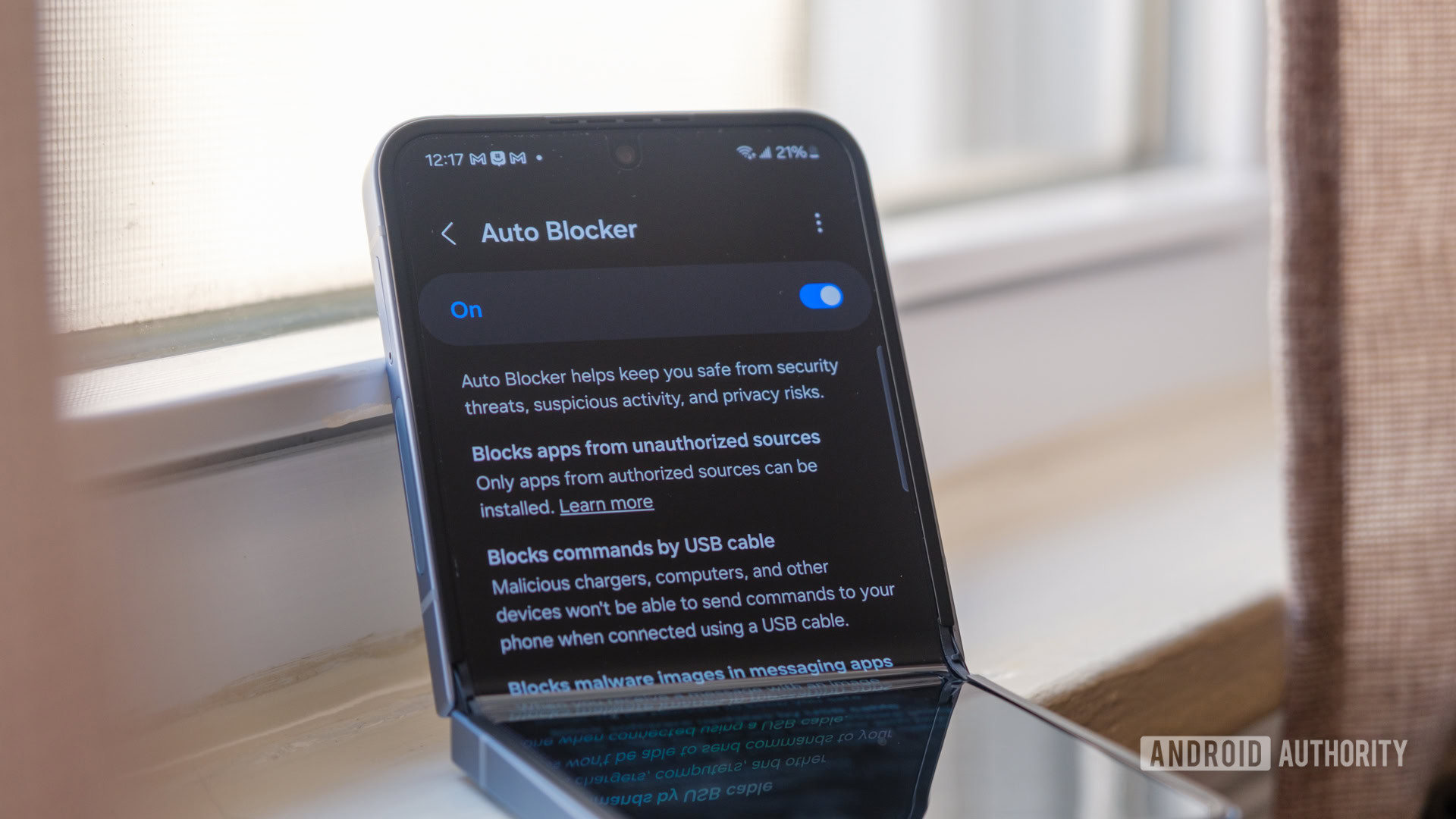
Before you start typing Samsung secret dial codes into the Phone app, you have to deal with the main gotcha: One UI’s Auto Blocker. This security feature blocks sideloading, USB commands, and other suspicious activity, and as a side effect it stops most MMI codes from working at all. If you skip this, you will think every code is “broken” when the phone is actually doing its job protecting you.
- Open Settings on your Galaxy phone, go to Security and privacy, and temporarily turn off Auto Blocker so that MMI dial codes can run.
- Open the Phone app and enter the code you need (for example *#06# or *#0*#) exactly as written, including asterisks and hash symbols, then wait for the hidden menu or screen to appear.
- Use the options you need in that hidden menu, then back out, and let Auto Blocker turn itself back on after 30 minutes if your phone runs One UI 8.5 or later.
You do not have to remember to re‑enable Auto Blocker on newer One UI versions, which makes experimenting far less risky. The second common mistake is blaming Samsung when a carrier‑locked phone shows a “connection problem” error even with Auto Blocker disabled; that is your carrier blocking access rather than the device, and there is not much you can change there. Once you are past those two hurdles, the dialer becomes a powerful Samsung phone troubleshooting tool instead of a simple call screen.
Essential secret dial codes for Samsung phone troubleshooting
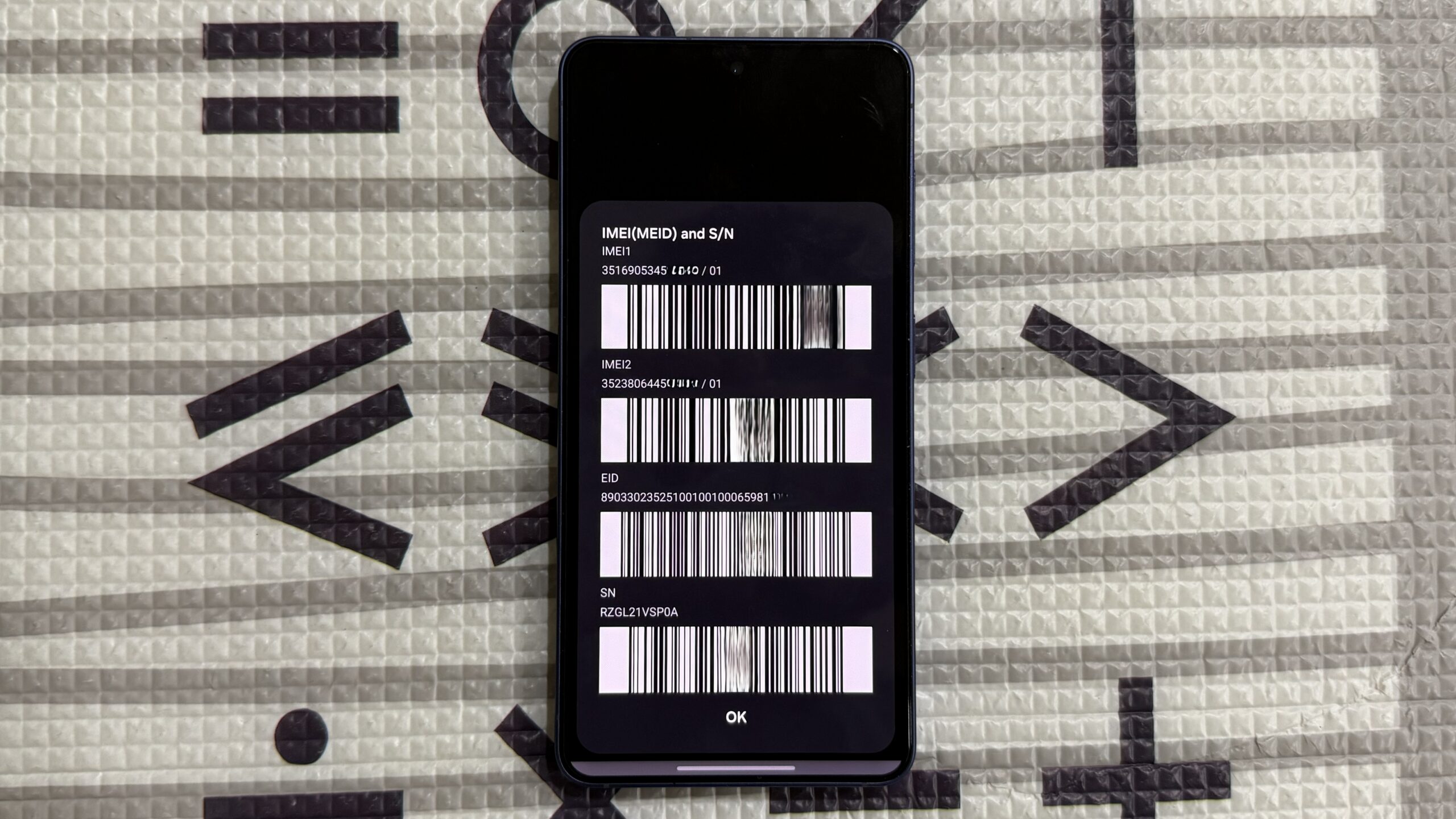
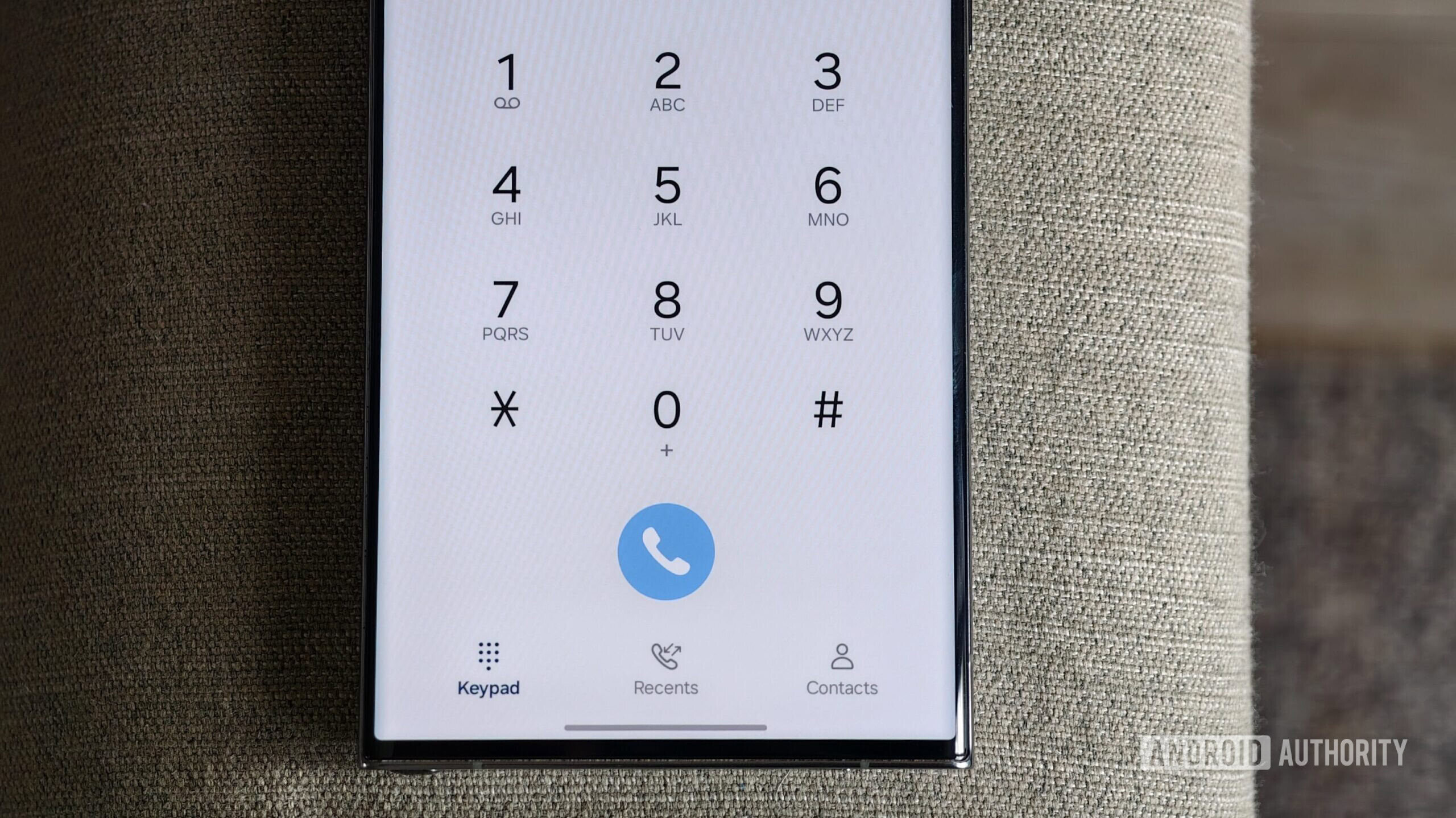
Once Auto Blocker is out of the way, the Galaxy dialpad reveals a set of practical diagnostic tools. These MMI codes can show identifiers, test hardware, and refresh parts of the system that often cause headaches. One of the most straightforward examples is *#06#, which instantly displays your phone’s 15‑digit IMEI number, and on dual‑SIM devices you will see two different IMEI numbers. That same family of codes also covers more advanced Samsung phone troubleshooting actions.
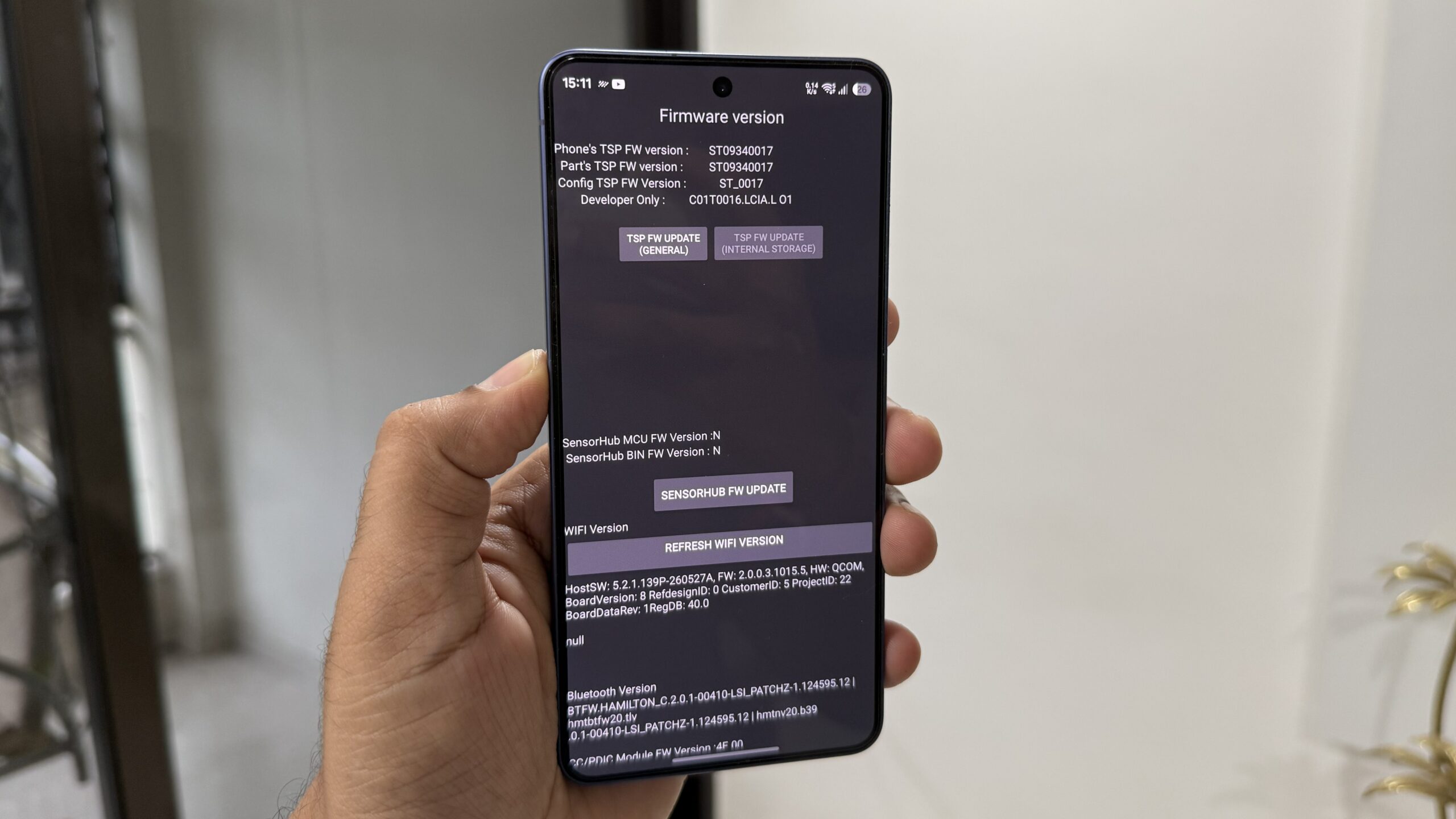
A standout is *#0*#, a hardware diagnostic menu that can test almost every piece of hardware on your phone, from screen and touch to sensors and speakers. You also have codes such as *#2663#, which lets you update touchscreen firmware and includes a Refresh Wi‑Fi Version button that can help if your Galaxy has Wi‑Fi connectivity issues. According to one detailed test, these codes also let you clear stored system logs that accumulate app crashes and system errors over time and start using up storage that is only useful for troubleshooting.
If your touchscreen feels slightly off, *#2663# is worth trying before going down the long troubleshooting rabbit hole. And when your device feels sluggish or weird around connectivity, those log‑clearing and Wi‑Fi refresh options often fix the root cause instead of masking the symptoms. This is where Samsung secret dial codes move from “fun trick” to legitimate daily maintenance.
Hidden One UI settings that quietly fix daily annoyances
Samsung’s One UI is full of features, to the point where the useful ones often disappear under the noise. Many long‑time users report carrying minor frustrations for years, like vanishing pop‑ups or hypersensitive gestures, and assuming nothing can be done. The reality is that several hidden One UI settings exist exactly to fix those problems if you know where to look.
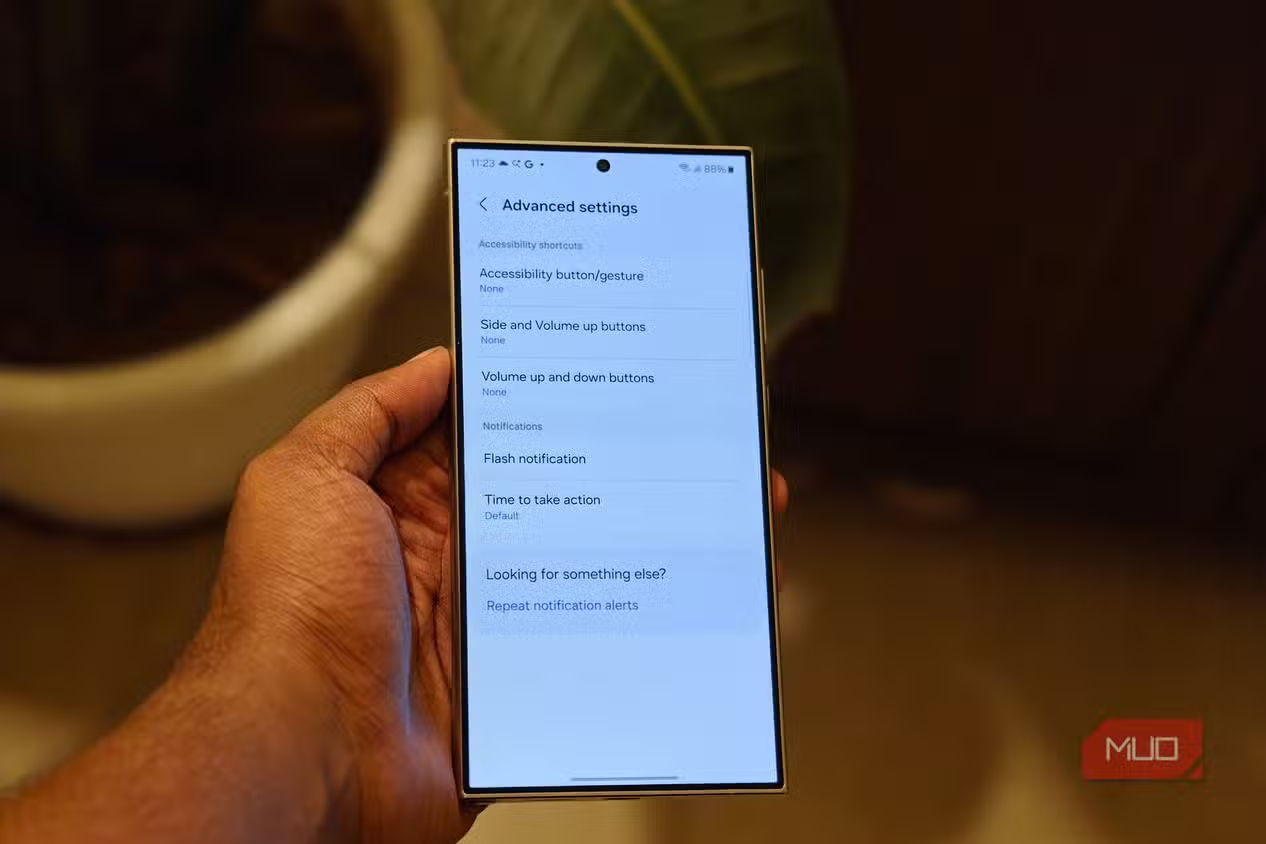
One example is Time to Take Action, which controls how long prompts and pop‑ups stay on screen before fading. On a recent Galaxy flagship, this lives under Settings → Accessibility → Advanced Settings, where you can pick between 10 seconds, 30 seconds, 1 minute, and 2 minutes for how long these prompts linger. Another example is Back Gesture Sensitivity under Settings → Display → Navigation bar, where a slider buried under More options can make your back swipe either less accidental or more responsive depending on how you move it.
Audio is another area where hidden One UI settings make a huge difference. There is a toggle under Settings → Sounds and Vibration that is off by default, which lets you choose the apps that tend to hijack your earbuds and route their audio back to the phone speaker instead. With that enabled, when a reel or short video autoplays while you are listening to a podcast, the new clip plays on the phone and the podcast keeps going on your earbuds. These are the kinds of fixes many users would never think to search for, yet they are already on the device.
Why learning Galaxy hidden features is worth the effort
The real win in learning about Samsung secret dial codes and hidden One UI settings is not the novelty; it is the time and frustration you save. The fixes for your most boring daily frustrations are probably already on your phone right now; you have simply never had a reason to go looking for them. Tools like *#0*#, *#06#, and *#2663# can solve hardware doubts and connectivity glitches without a factory reset, while obscure toggles such as Time to Take Action, Back Gesture Sensitivity, and selective audio routing can stop pop‑ups from vanishing, swipes from misfiring, and apps from hijacking your audio.
You do not need to memorize every Galaxy hidden feature. Instead, remember that when something about your phone irritates you every day, there is a good chance there is a setting or code designed to fix it. The only real things to watch for are turning Auto Blocker off before dial codes, respecting the limits on carrier‑locked phones, and staying within the diagnostic options you understand. With that small bit of care, you can treat your Samsung like the flexible tool it is, rather than a fixed gadget you have to work around.





