
What Samsung’s Hidden Features Actually Are (and Why You Care)
Samsung hidden features are the dial codes, buried One UI toggles, and Modes and Routines options that sit out of sight in menus but can quietly fix everyday annoyances, unlock diagnostic tools, and automate your Galaxy phone so it feels faster, calmer, and more personal to use. If you’ve had your phone for a while, you probably have little frustrations you’ve learned to live with—notifications that vanish too fast, back gestures that misfire, storage that keeps shrinking for no clear reason. These are exactly the kinds of problems these features were built to handle. The only real prerequisite is a bit of curiosity and a willingness to poke around beyond the obvious menus. You don’t need to be technical, but you do need to respect that some diagnostic tools can change low-level settings. We’ll stay on the safe side: useful codes, practical One UI secret settings, and everyday Galaxy phone tips you can use without fear.
Prepare Your Galaxy: The One Big Prerequisite Before Using Samsung Dial Codes
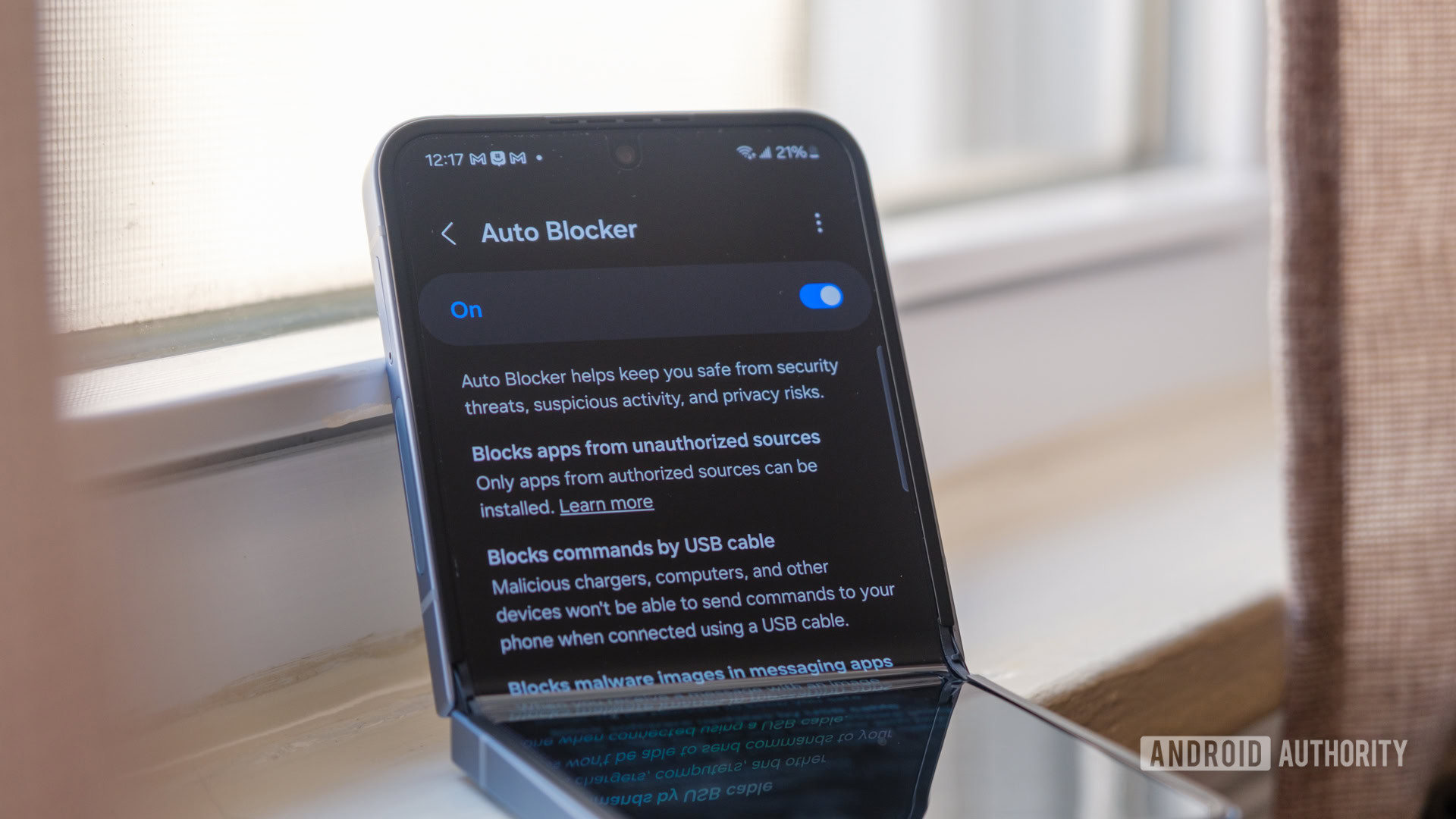
Before you start typing Samsung dial codes into the phone app, there’s one switch that can quietly stop everything from working: Auto Blocker. It’s a security feature in One UI that protects you from sideloading problems, USB commands, malicious activity, and non‑official software updates—but as a side effect, it also blocks most MMI codes. If you skip this part, you’ll think the codes are fake or broken when they are simply being filtered out.
- Open Settings on your Galaxy phone, then tap “Security and privacy”.
- Find “Auto Blocker” and turn it off so dial codes can run.
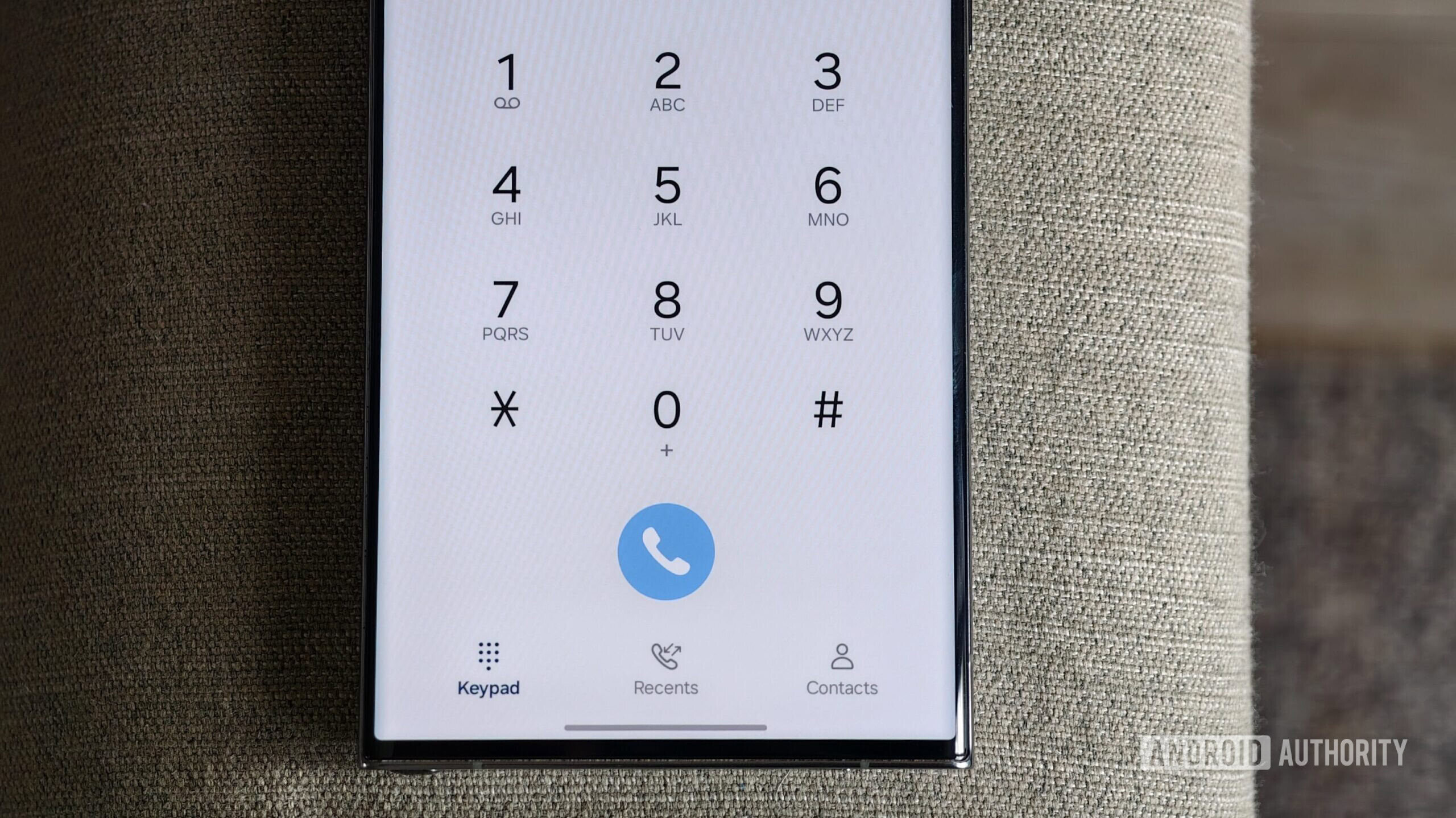
- Open the Phone app and use the dialpad to enter your chosen code, such as *#06# or *#9900#.
- Use the on‑screen menu that appears, then let Auto Blocker re‑enable itself after 30 minutes on One UI 8.5 or later.
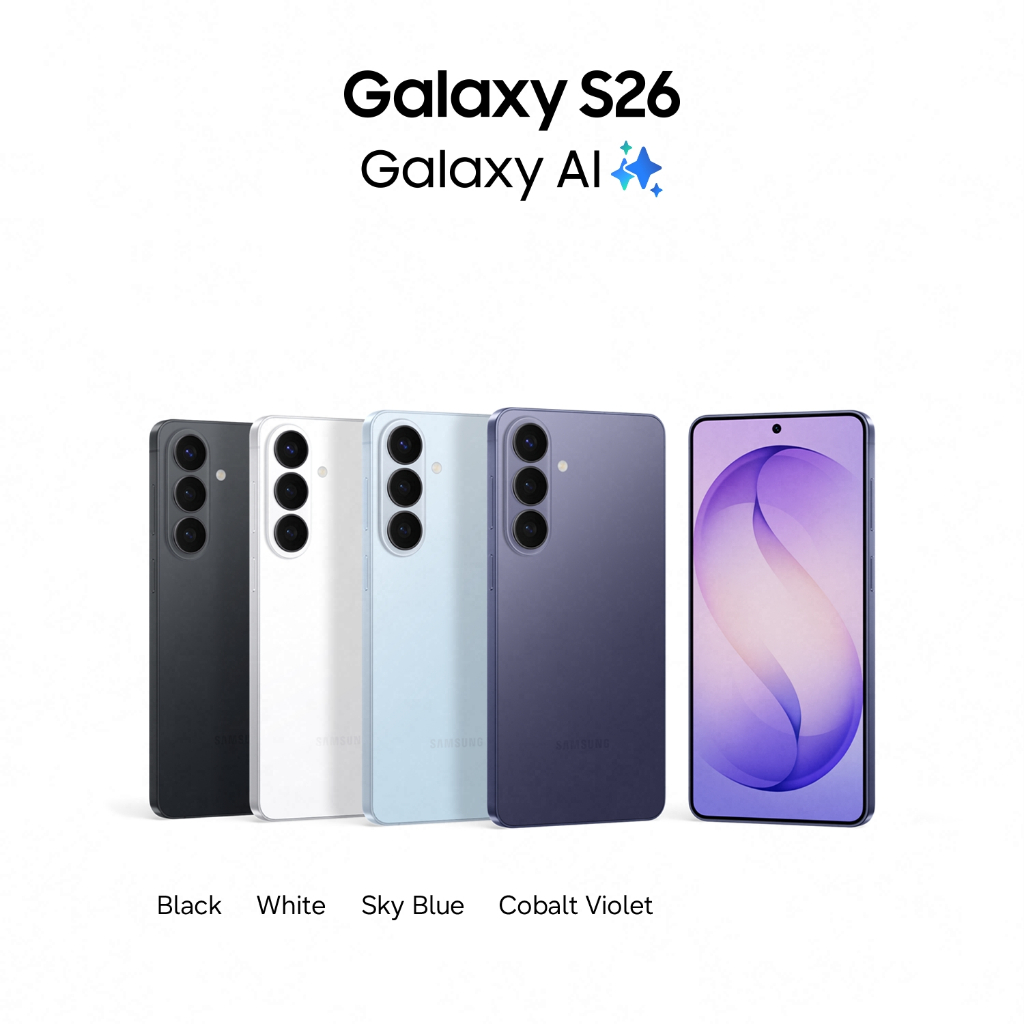
According to one test on an unlocked Galaxy S26, the main diagnostic codes worked without any issues once Auto Blocker was disabled. The main gotcha here is carrier restrictions: if your phone is carrier‑locked, some codes may throw a “connection problem” error even when Auto Blocker is off, and there’s not much you can do about that. Treat these tools like you would a hidden settings menu on a PC: helpful and safe when you know what you’re touching, frustrating when something upstream blocks access.
Core Samsung Dial Codes That Solve Real Problems
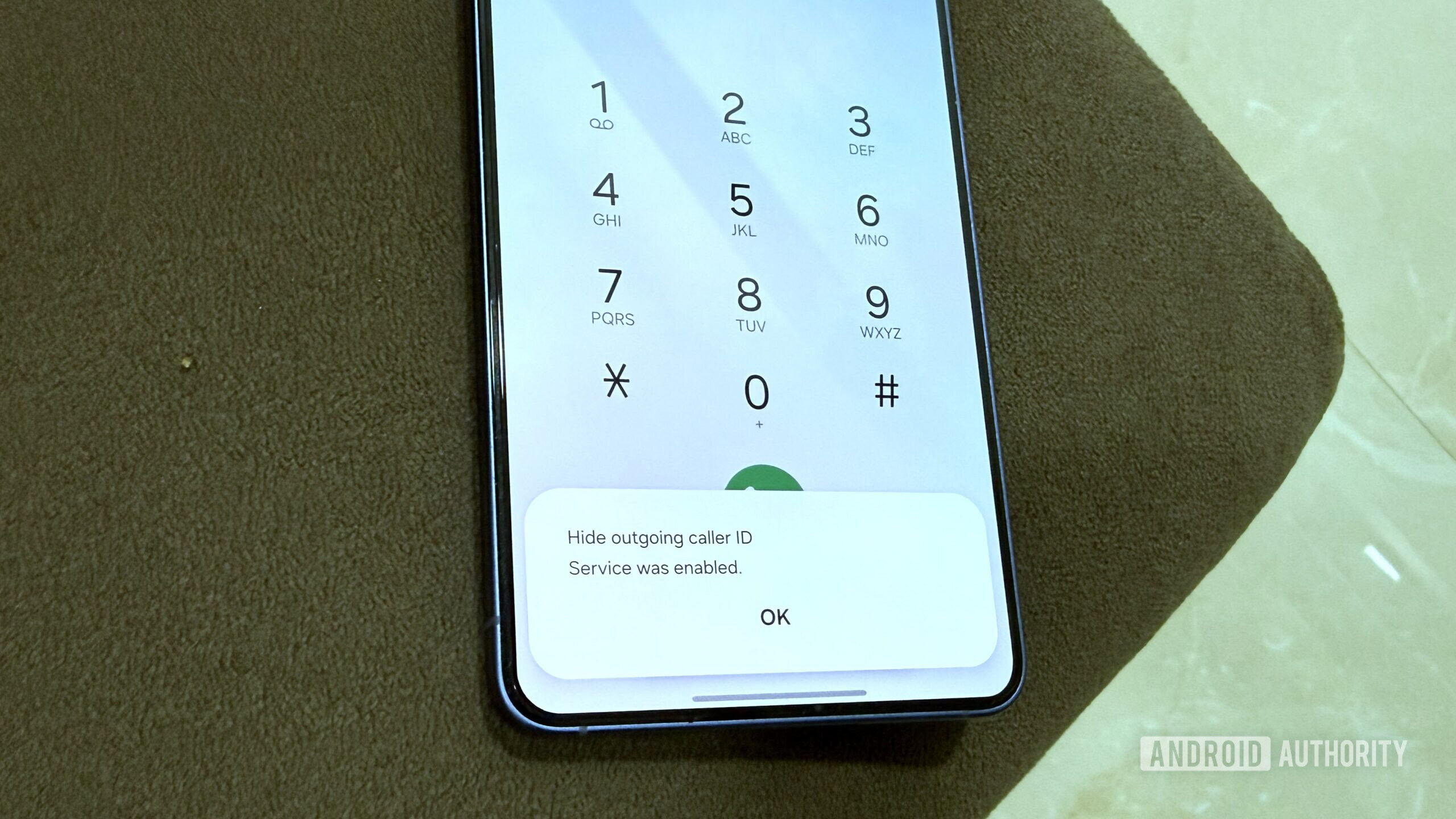
Once Auto Blocker is out of the way, Samsung dial codes turn that ordinary dialpad into a control panel for your Galaxy phone. These short combinations of numbers, asterisks, and symbols unlock menus you won’t find in regular settings: hardware tests, storage cleanup, identity details, and more. Used with a bit of care, they’re upgrades to your day‑to‑day workflow, not party tricks.
- Check your IMEI instantly with *#06#: this displays the unique 15‑digit identifier your carrier and police will ask for if the phone is lost or stolen, and shows two numbers on dual‑SIM phones.
- Run a complete hardware diagnostic with *#0*#: you can test almost every piece of hardware—screen, sensors, speakers—from a single hidden menu instead of guessing which part is failing.
- Clear old system logs with *#9900#: this opens the SysDump menu; tap “Delete dumpstat/logcat” to remove accumulated log files and reclaim storage. In one case, this freed up 1.2GB of space in the “Other files” category.
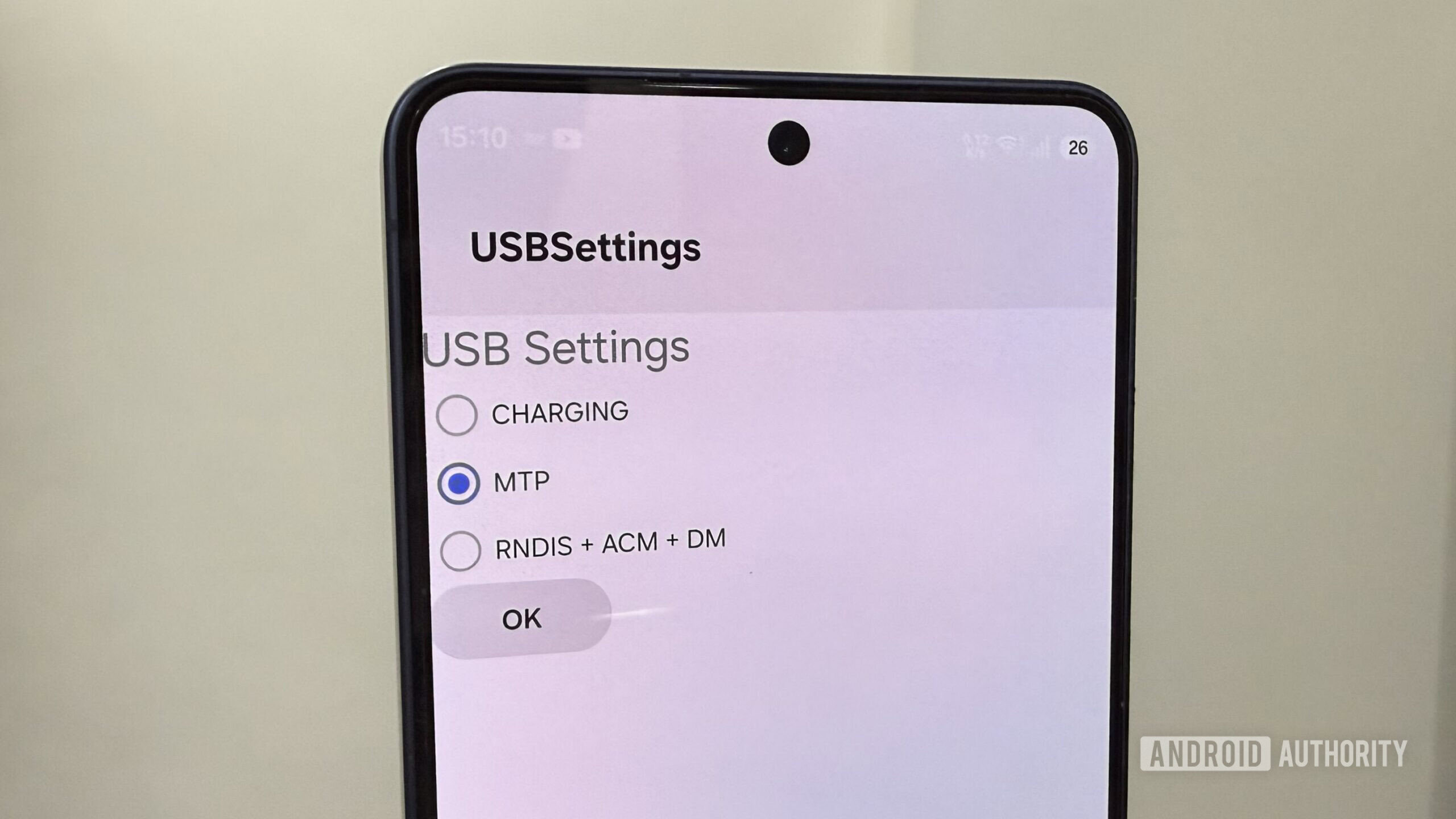
- Change USB connection modes with *#0808#: this USB Settings menu lets you switch from the default Charging mode to options like MTP (Media Transfer Protocol) without digging through Developer Options.
The main mistake people make is treating these codes like magic and hammering in lots of them without understanding what they do. Stick to the practical four above until you’re comfortable. If you see that “connection problem” error on a carrier‑locked phone, don’t keep retrying—your carrier is blocking that particular command. Used sparingly, these codes are some of the most powerful Galaxy phone tips you’ll ever learn, because they let you fix problems instead of shrugging and living with them.
One UI Secret Settings That Fix Everyday Annoyances
Dial codes handle the low‑level stuff; One UI secret settings fix the small irritations you’ve probably stopped noticing. The interface is packed with so many features that the helpful ones get buried under everything louder and more obvious, so you end up thinking glitches are normal behaviour.
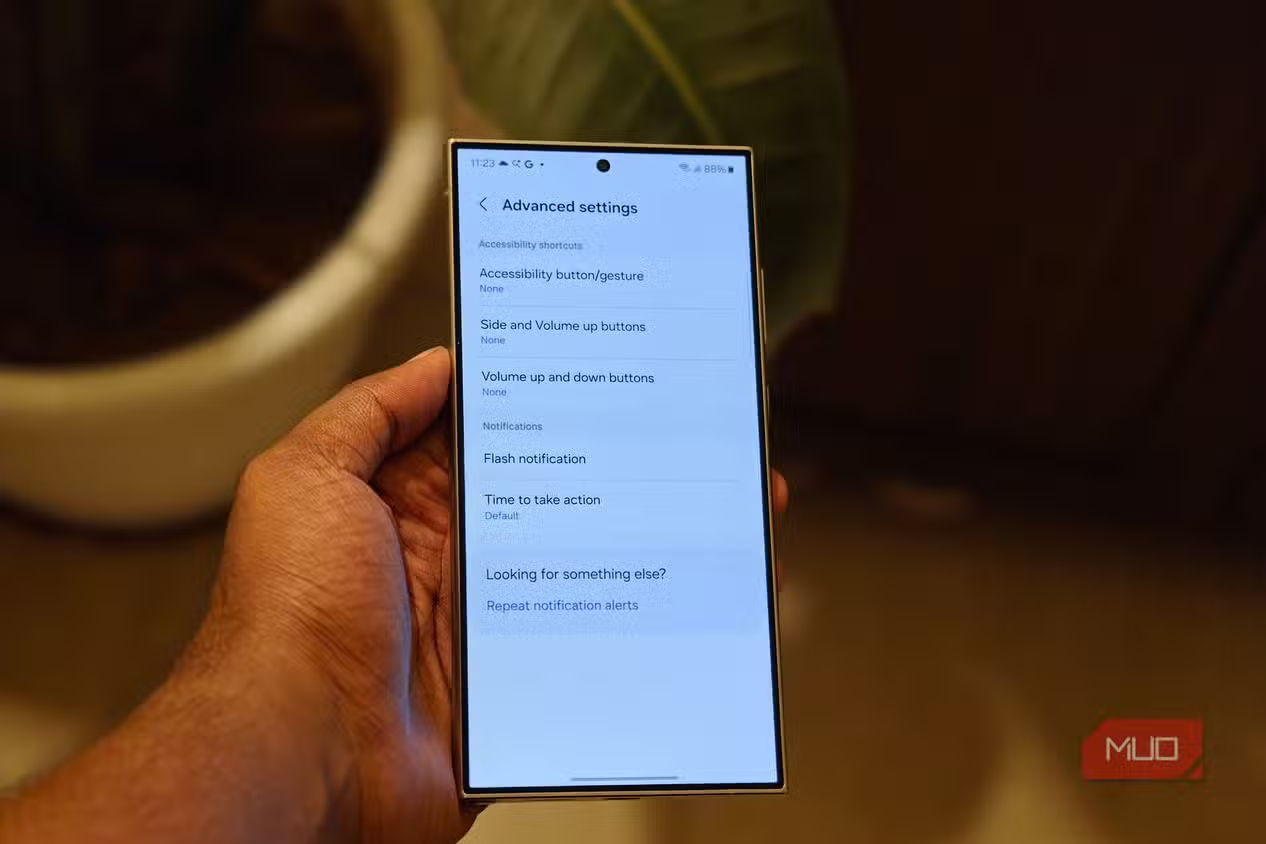
- Time to Take Action: if notification bubbles drop down, then disappear before you can read or tap them, increase how long prompts stay on screen. On a Galaxy S24 Ultra, you’ll find it in Settings → Accessibility → Advanced Settings; you can choose 10 seconds, 30 seconds, 1 minute, or 2 minutes. Setting it longer means you stop feeling rushed by your phone, and prompts don’t vanish mid‑read.
- Back Gesture Sensitivity: if you use gesture navigation and your back swipe either fires by accident or refuses to register, tweak this slider under Settings → Display → Navigation Bar → More options. Drag one way to avoid accidental triggers, or the other to make back swipes more reliable. Finding the right spot ends that cycle of swiping again and again when nothing happens.
- Audio hijacking fix with earbuds: you can keep a podcast going in your earbuds even when a reel autoplays on the phone, so the reel plays out of the phone while your audio continues uninterrupted. The key is hidden in settings rather than in any individual app, and once enabled, reels stop killing your show mid‑sentence.
These are the kinds of options you don’t notice until someone points at them, yet they change how relaxed the phone feels. According to one long‑time Galaxy user, “The fixes for your most boring daily frustrations are probably already on your phone right now. You’ve just never had a reason to go looking for them.” The only real mistake here is never giving yourself those ten minutes to explore.
Custom Modes: Automate Your Ideal Samsung Setup
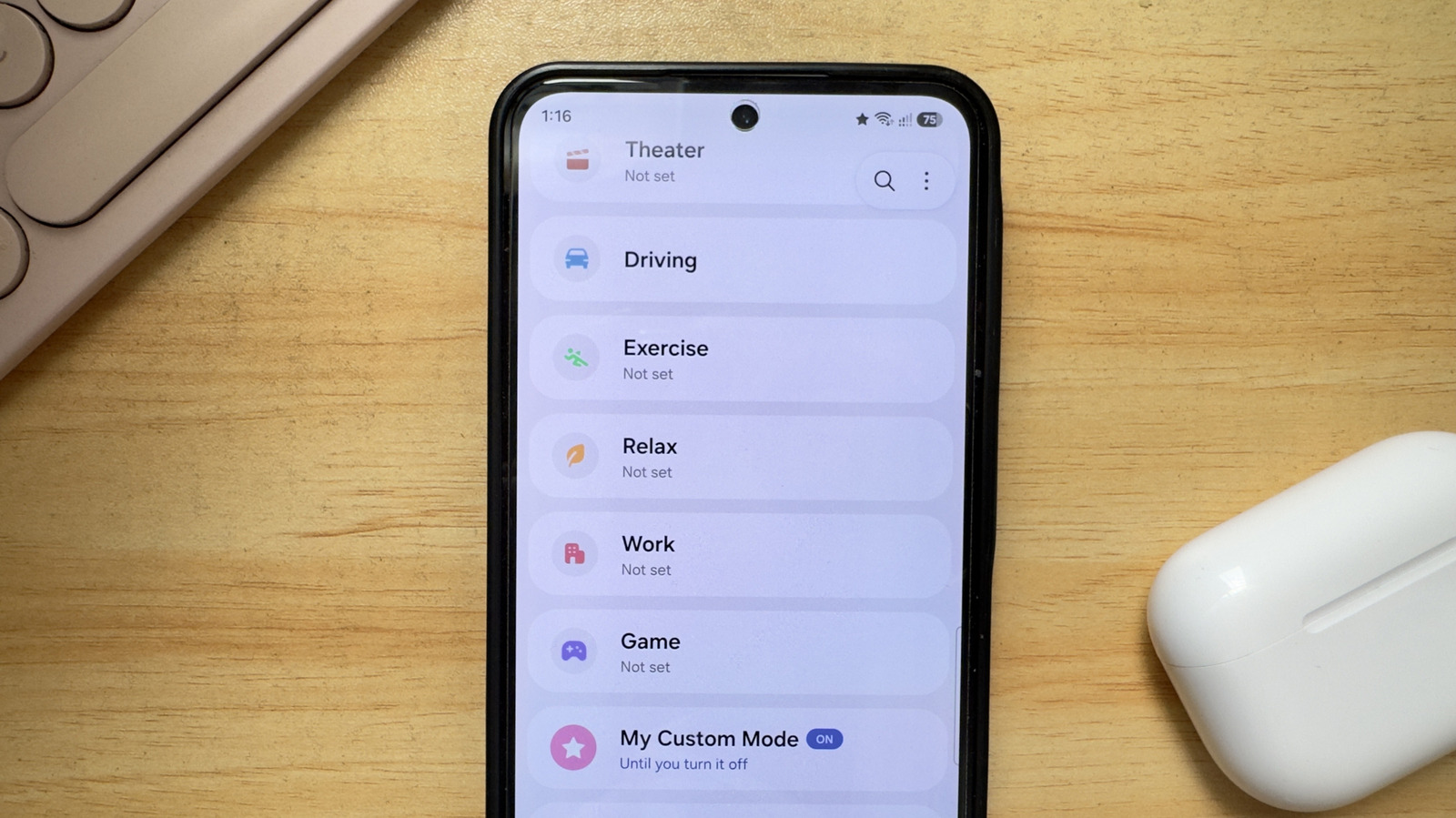
After you’ve tuned the hidden settings and dial codes, Modes and Routines are the piece that ties your Samsung hidden features into your everyday life. Modes are essentially preset device configurations for different scenarios—work, sleep, driving, gaming—so you don’t have to flip the same switches every time.
Out of the box, you get seven pre‑made Modes: Sleep, Theater, Driving, Exercise, Relax, Work, and Game. You can turn Work into “silent phone plus Maximum Power Saving”, or make a Relax mode that drops brightness, activates extra dim, and automatically declines calls while you unwind in bed. Instead of going through those settings yourself, you can have one of Galaxy’s Modes set them up with a single tap. If none of the defaults fit your routine, you can quickly build your own for any specific activity. This is where the quiet fixes from earlier shine: you can have different gesture sensitivity or notification behaviour depending on what you’re doing, so the phone adapts instead of staying stuck in one personality.
Is it worth the effort? If you find yourself repeating the same tweaks every day, yes. Set aside ten minutes and actually dig through your settings; there’s a good chance something in there is waiting to fix the thing that’s been annoying you for months. The main thing to watch for is overcomplicating it—start with one or two Modes that reflect how you really live, pair them with the safe dial codes and secret settings above, and let your Galaxy do the boring work for you.