


What Google Photos Storage Optimization Really Means
Google Photos storage optimization means changing backup and sync settings so the service saves only the photos and videos you care about, while cutting automatic uploads of screenshots, social images, and large clips that silently consume your limited cloud storage allowance.
If your 15GB of free storage vanished faster than you expected, you are not alone. By default, Google Photos treats almost every image on your phone as worth saving: screenshots, memes from chats, downloaded pictures, and every shaky video from your last trip. The good news is that a few targeted tweaks can free up cloud storage, make your library feel cleaner, and keep your favorite memories easy to find. The only real prerequisite is that you use Google Photos on Android and are comfortable poking around the app’s settings menu. We will also use one extra Google app to help manage phone storage and see where space is disappearing.
Step-by-Step: Turn Off 4 Google Photos Settings
Before we talk about why these changes matter, here is the full sequence so you can follow it in one go on your phone.
- Open Google Photos, tap your profile icon in the top-right, select "Photos settings", tap "Backup", then "Back up device folders", find the "Screenshots" folder and uncheck it to disable screenshot backup.
- In the same "Back up device folders" screen, scroll through folders like WhatsApp, Telegram, Signal, Messenger, and Downloads, and turn off backup for any folders filled with memes, GIFs, and other disposable images you do not want to save.
- Still under "Backup", tap "Mobile data usage" and set it to "No data" so Google Photos stops backing up over mobile data and waits for Wi‑Fi instead.
- Install the Files by Google app from the Play Store, open it, tap the menu (hamburger icon) in the upper-left corner, choose "Clean", and review categories such as duplicates, old screenshots, blurry photos, and large files to delete unneeded items and free up storage.
These four switches work together: screenshots and chat folders stop flooding your cloud, mobile-data backups no longer send every snap straight to the server, and the Files app shows you the clutter still sitting on your phone so you can manage phone storage more thoughtfully. Once you have completed the steps, give Google Photos a few minutes to sync the new rules.
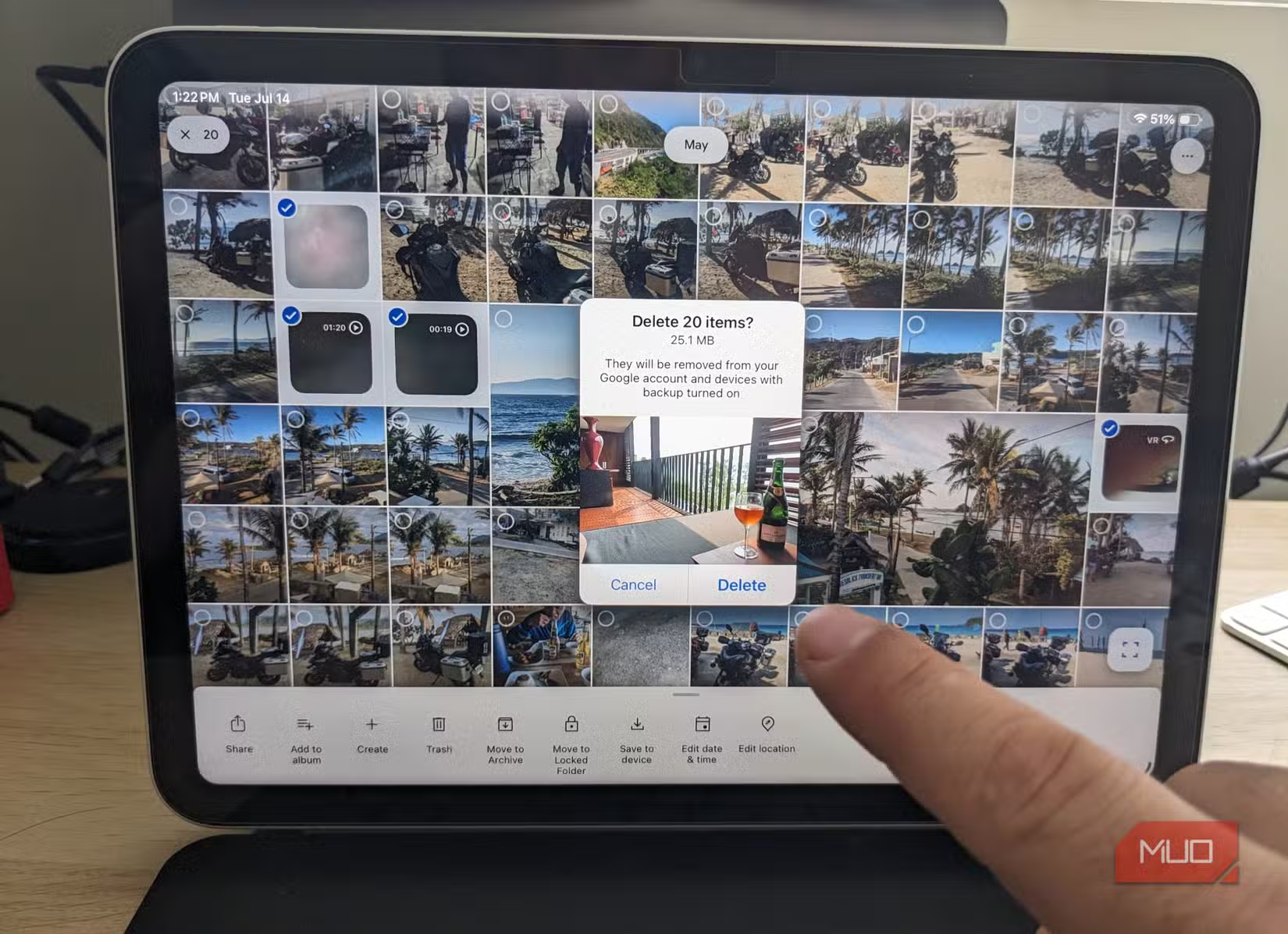
Stop Backing Up Screenshots and Disposable Folders
Turning off screenshot backups is often the single biggest quality-of-life improvement. Every quick capture of a receipt, login code, or map direction was being treated like a long-term memory. By unchecking the Screenshots folder in "Back up device folders", you stop those short-term images from flooding your timeline and search results. The expected result is immediate: your library feels cleaner and searches become more accurate because they focus on real photos instead of throwaway grabs.
While you are in the device folders list, it is worth being ruthless. Many people discover hundreds of photos in WhatsApp, Telegram, Signal, Messenger, and Downloads that they never meant to back up. These include memes, forwards, edited images, receipts, and random videos that happened to land on the phone. Turning off backup for folders you do not care about means Google Photos becomes a better reflection of your actual photography, and you stop wasting cloud storage on content you will not revisit. If a particular screenshot or chat image matters, you can always save or upload it manually when you need to.
Control Video Backups and Mobile Data Uploads
Video is where Google Photos storage optimization pays off the fastest. Short 4K clips from action cameras and phones can be huge, so automatically backing up every test shot and shaky recording is an easy way to burn through your storage. A more deliberate routine works better: review new clips locally first, then back up only the ones you want to watch again or edit later. One source notes that this quick review process takes less than a minute but prevents large video files from quietly eating through cloud storage.
Disabling backup over mobile data is the habit that makes this review step possible. When Google Photos uploads “everything over a mobile data connection,” every duplicate and poor-quality shot can hit the cloud before you have time to clean them up. Switching "Mobile data usage" to "No data" forces backups to wait for Wi‑Fi. That pause gives you a chance to delete obvious rejects, thin out bursts of nearly identical photos, and keep only the best versions. The result is less storage bloat, fewer duplicates, and a sense that you are back in control of what counts as a memory.
Use Google’s Files App to Manage Phone Storage Long-Term
Once your Google Photos settings are under control, the next step is to manage phone storage itself, because local clutter often drives what ends up in the cloud. The Files by Google app acts as a hub for your photos, videos, and downloads, and can free up storage quickly by pointing out what you no longer need. To access its smart tools, open the app, tap the hamburger menu in the upper-left corner, and select "Clean".
Files by Google categorizes potential deletions into groups such as duplicates, memes, old screenshots, blurry photos, unused apps, large files, and downloaded files. One user report described deleting over 2,000 old screenshots that were occupying almost 1.5GB of space, plus 500MB of duplicate photos, videos, and PDFs, and additional space from blurry photos and unused apps. That kind of cleanup highlights how much storage can be reclaimed with regular maintenance. Pairing Google Photos’ trimmed-down backups with Files’ visual storage analyzer extends the lifespan of both your phone and cloud storage, without sacrificing access to the images and clips that matter most.
In the end, these settings do not remove the safety net that Google Photos provides. They refine it, so the service spends its limited space on your real memories, not on clutter. If you keep an eye on backup folders, review videos before upload, and run an occasional Files cleanup, your photos stay accessible while your storage stops feeling like a black hole.




