
Why Small Google Maps Tweaks Make Drives Faster
Google Maps speed optimization means changing a few built‑in preferences so the app prioritizes faster navigation routes and a clearer, less distracting screen while you drive, which can lead to noticeable commute time reduction during everyday trips and help you focus on traffic instead of extra pop‑ups or autoplaying media.
If you often feel like Maps keeps you crawling along the slow lane while another route would move faster, you are not imagining it. By default, the app tries to save fuel when arrival times look similar, and it peppers search results with autoplay videos that steal attention and audio from the car stereo. This guide walks through three practical setting changes so your phone behaves more like a helpful co‑driver and less like a fussy backseat planner. You will need Google Maps installed on an Android phone or iPhone, and you should be able to open your profile and reach the Settings menu in the app.
Step‑by‑Step: Three Settings That Make Google Maps Feel Faster
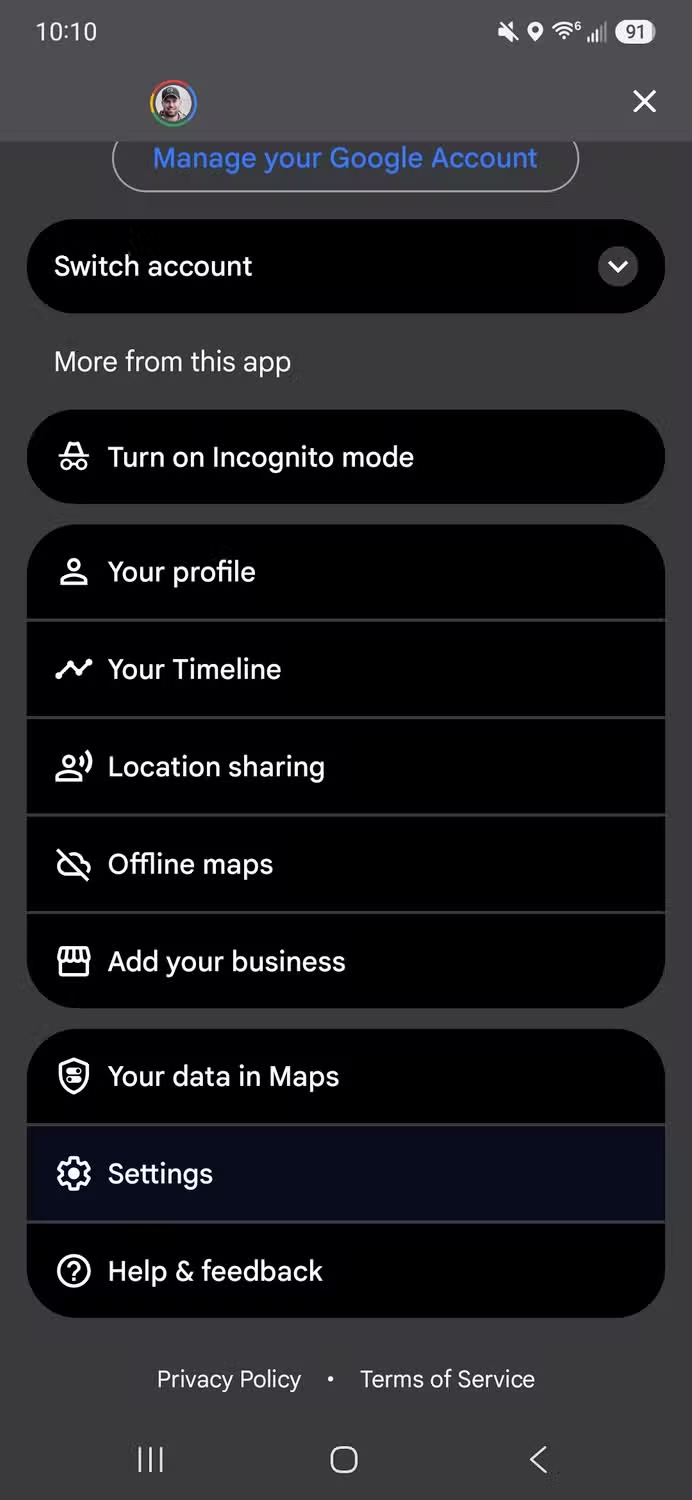
- Open Google Maps on your Android phone or iPhone, tap your profile icon in the top‑right corner, and select Settings.
- In Settings, open Navigation, scroll down to Prefer Fuel‑efficient Routes, and switch this setting Off to stop Maps favoring gas‑saving routes over faster ones.
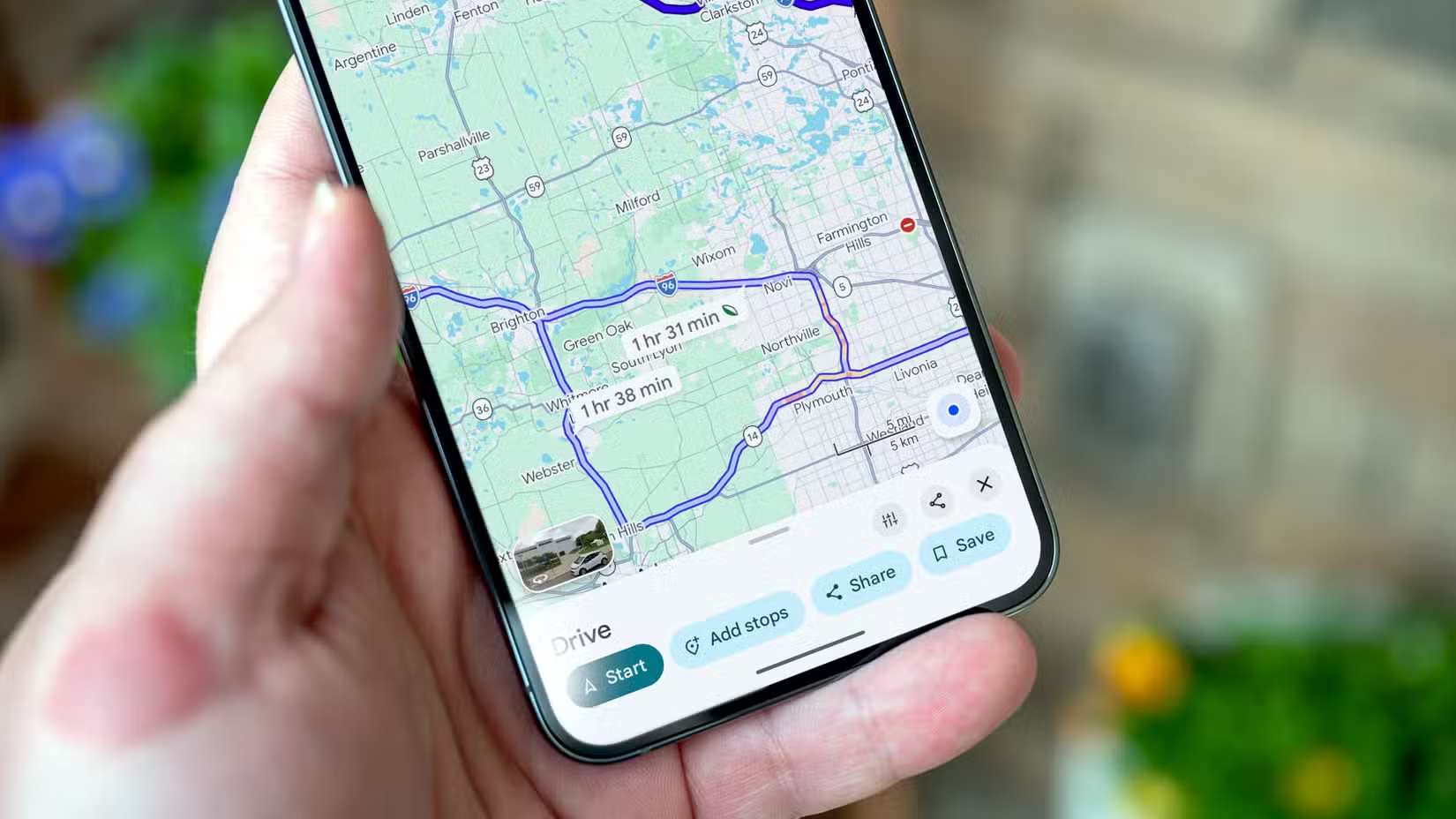
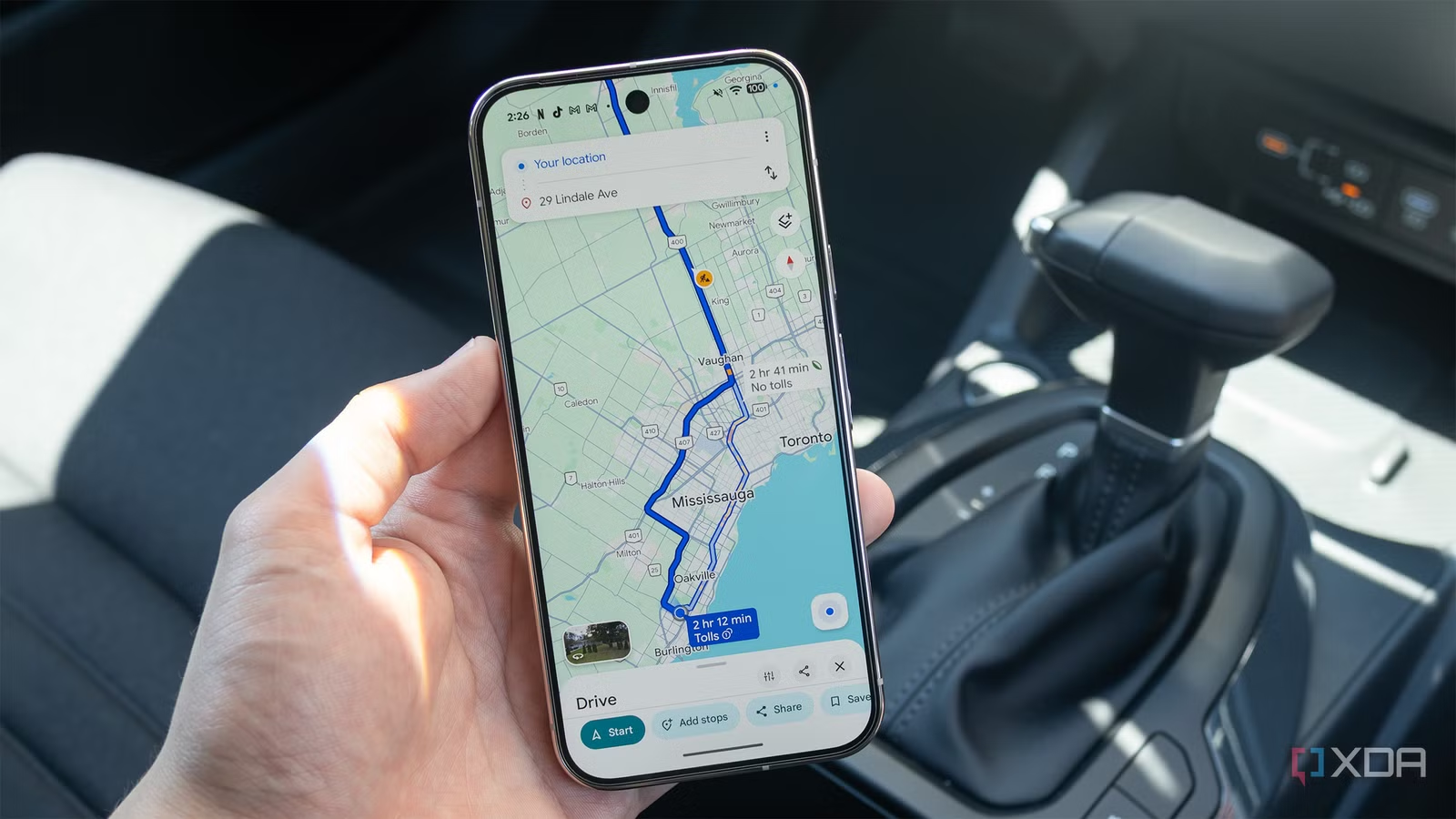
- When planning a drive, enter your destination, tap Directions, and before tapping Start, review the route options; fuel‑efficient routes show a leaf icon, so pick the option without the leaf if its travel time is shorter.
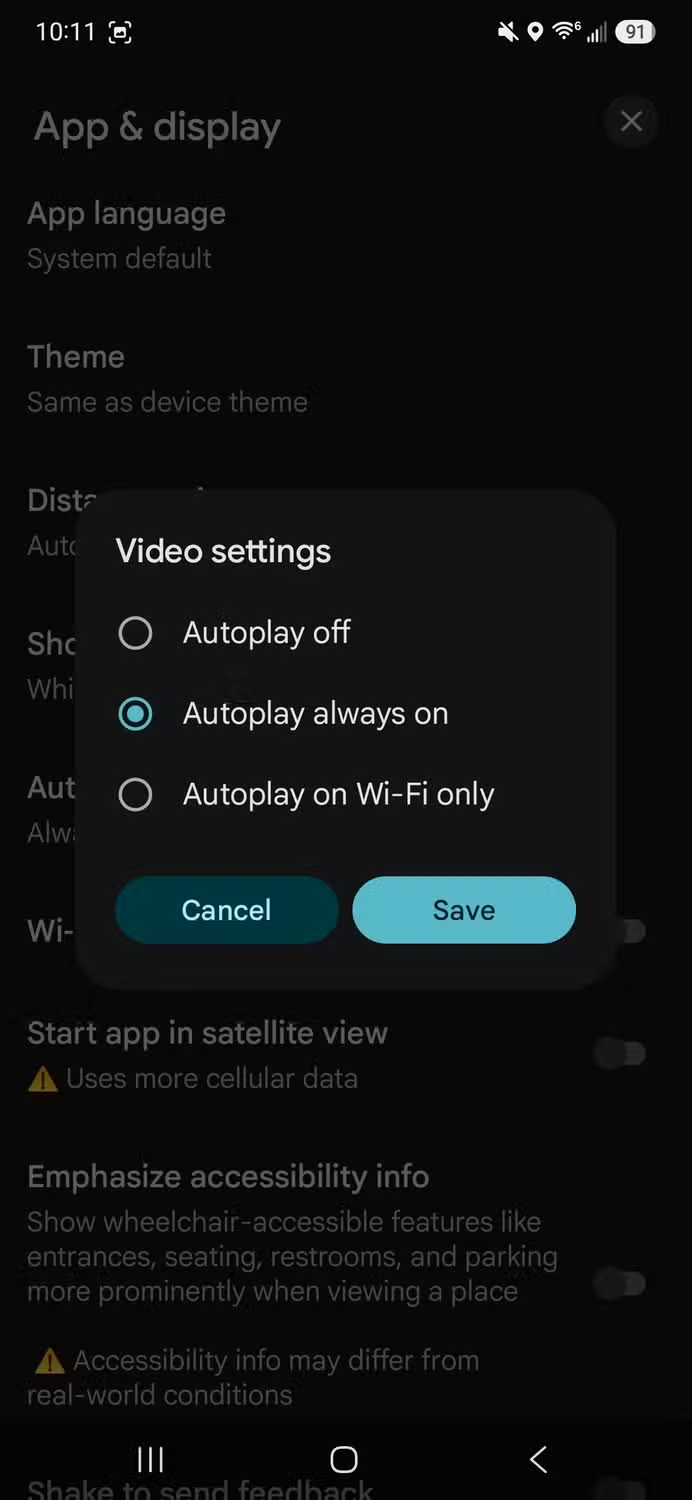
- Back in Settings, go to App and display, tap Autoplay video previews, and change it to Off so videos no longer start by themselves in search results.
- Optionally, set Autoplay video previews to Wi‑Fi only if you are fine with videos starting at home but do not want them grabbing your attention or interrupting audio while driving.
These are genuine sequential steps: you first unlock the relevant Google Maps settings, then change how routes are chosen, and finally reduce screen and audio clutter from autoplay media. The main gotcha is that fuel‑efficient routes are not always the fastest, even when their arrival times look close at a glance. After switching off the preference, get into the habit of checking each route’s ETA before starting navigation so you do not accidentally pick an option that is longer despite having no leaf icon. Another common mistake is leaving video previews on, which can distract your eyes and ears and shrink the map area on smaller screens while you are hunting for an address.
Tuning Fuel‑Efficient Routes for Speed (Without Forgetting About Fuel)
The fuel‑efficient routes feature was added to minimize gas use, and Google Maps will default to a route with a leaf icon when its arrival time looks similar to a more direct option. That can mean staying longer on a busy highway instead of taking a slightly longer but freer back‑road route that gets you there sooner in real life. According to one reporter who experimented with the setting, turning off Prefer Fuel‑efficient Routes instantly made Maps offer faster routes and stopped the app from trying to save gas first.
If you care about fuel on road trips but want speed on school runs or short commutes, the per‑drive trick is useful: for each drive, look at the route list on the Directions screen and pick the option without the leaf when time matters more. The hidden pitfall here is forgetting to compare the travel times; a route without a leaf is not guaranteed to be faster, so make ETA your deciding factor, not only the icon. This way you keep the feature available for occasional long‑distance drives while avoiding slow, congestion‑heavy "efficient" choices during everyday runs.
Stopping Autoplay Videos So Maps Stays Focused
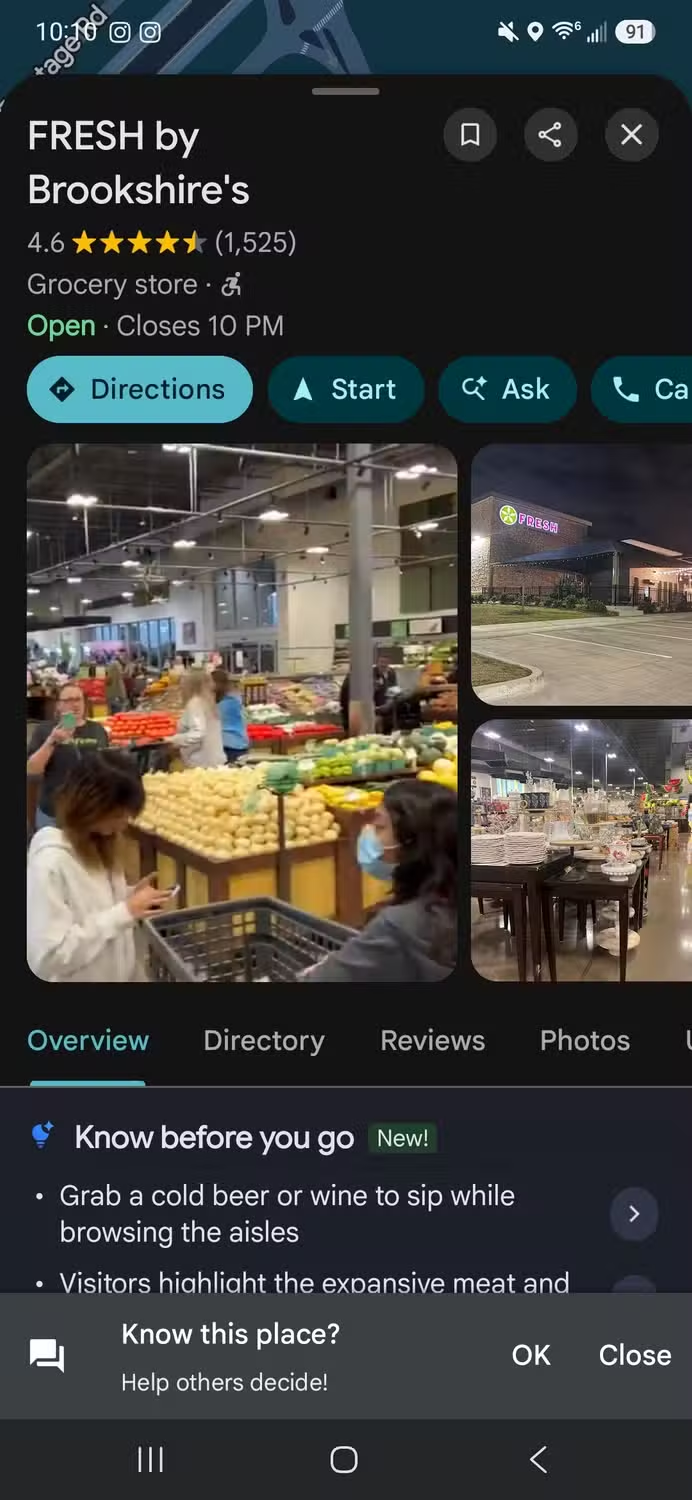
Autoplay video previews might look helpful when you are relaxing on the sofa browsing restaurants, but they work against you when you are behind the wheel. Whenever you tap into a place result, Maps shows reviews, hours, and other details, then starts playing any available videos in the gallery under that information. Those clips can interrupt the music or podcast you are listening to and demand attention at the worst time—while you are trying to follow directions or double‑check an address. On a small phone screen, video thumbnails also take up space that could be showing the map.
Turning off autoplay means those videos become optional; they appear with a play button and only start if you tap them, which makes for a better experience in a vehicle. If you still like previews when scrolling on Wi‑Fi at home, the Wi‑Fi‑only option keeps your data use and distraction lower on mobile connections while preserving the richer view on a larger screen. The mistake many people make is leaving autoplay enabled and enduring needless interruptions every time they check a restaurant or store while driving. Once you change this setting, route‑finding feels quicker because you are no longer wrestling with surprise media every time you look something up.
Is It Worth Tweaking These Google Maps Settings?
If you depend on Maps for daily driving, these tweaks are a low‑effort way to make the app line up with how you actually use it. Disabling fuel‑efficient routes when speed matters changes Maps from a gas‑saving tool to a quicker path finder, while turning off autoplay video previews keeps the display calmer and your audio uninterrupted. One writer noted that Google Maps often defaults to the slowest route unless you change a few settings, which underlines how important this kind of tune‑up can be for commute time reduction and overall comfort.
Think of this as setting expectations with your navigation app. You are telling it you care about clear, fast guidance more than extra media or marginal fuel savings during short drives. The main thing to watch for is balance: remember to review ETAs when picking routes and adjust the fuel‑efficient preference back on for longer journeys if that still matters to you. With that in mind, a few minutes in the settings menu can lead to faster navigation routes and a smoother, less distracting experience every time you tap Start.